


Presentation settings
Choose what your audience can do: comment, ask questions, react, submit more than one response, and how profanity is handled.
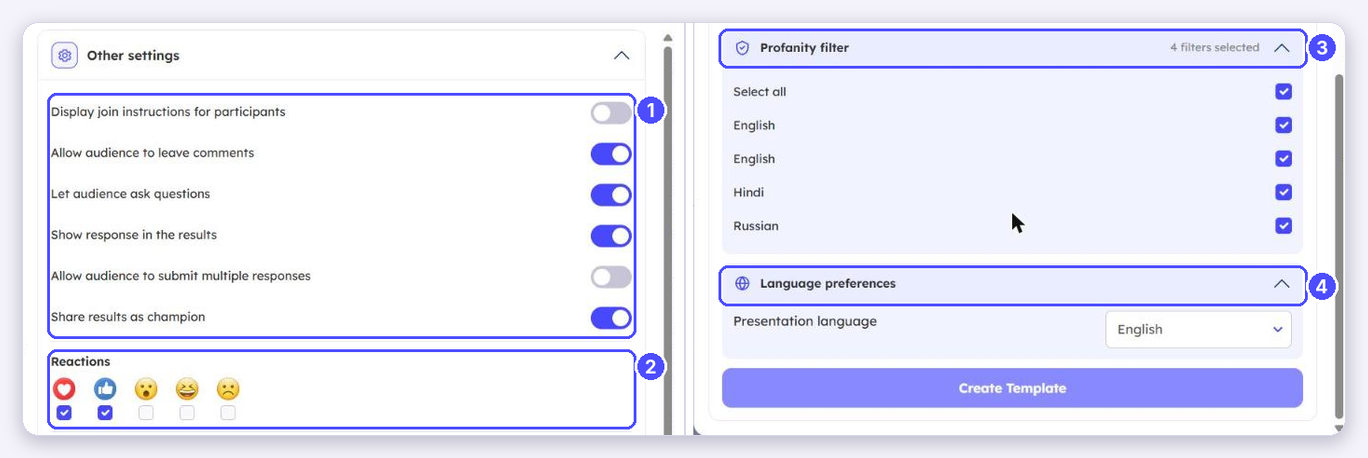
Settings: 1 Audience options, 2 Reactions, 3 Profanity filter, 4 Language preferences.
Steps
- Open the settingsIn the editor, select the gear icon in the top bar. The Other settings box opens.
- Turn audience options on or off (1)Switch the toggles in the table below.
- Choose reactions (2)Tick the reactions your audience can send: heart, thumbs up, surprised, laughing or sad. Heart and thumbs up are ticked in a new presentation.
- Set the profanity filter (3)Open Profanity filter and tick the languages to filter, or Select all.
- Set the language (4)Open Language preferences and choose the Presentation language. It starts as English.
Audience options
| Setting | Default |
|---|---|
| Display join instructions for participants | Off |
| Allow audience to leave comments | On |
| Let audience ask questions | On |
| Show response in the results | On |
| Allow audience to submit multiple responses | Off |
| Share results as champion | On |
Tip
You can also switch questions, comments and responses off during a live session from the presenter toolbar. See Using the presenter toolbar.
Frequently asked questions
Do these settings apply to every slide?
They are presentation settings, so they apply to the whole presentation.