


Controlling slides with Slidea Remote
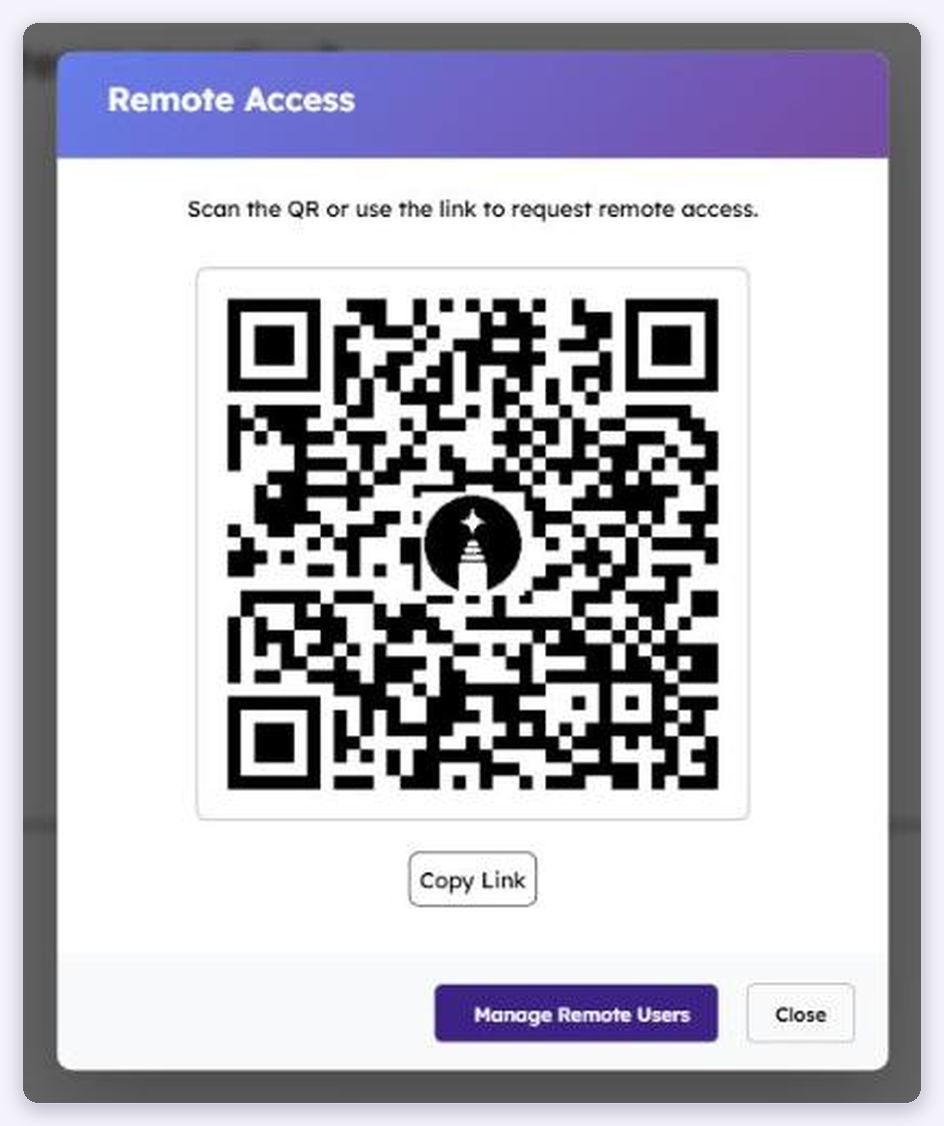
Slidea Remote gives you a QR code and link that another device can use to request remote access to your presentation.
Open Remote Access
- Start presentingOpen your presentation and select Present.
- Select RemoteSelect Remote in the toolbar. You can also open My Presentations, select the three dots on a presentation and choose Open Slidea Remote.
- Share the accessScan the QR code with the other device, or select Copy Link and open the link there to request remote access.
- Check who askedSelect Manage Remote Users to see who requested access. It shows No Remote Users until someone asks.
- Close the windowSelect Close.
Tip
Select Get URL in the Manage Remote Users window to go back to the QR code and link.
FAQ
Is the remote QR code the same as the join QR code?
No. The join QR code is for your audience to answer slides. The remote QR code is for requesting remote access to the presentation.
Plan
Slidea Remote is listed on the Pro plan. See Plans and limits.