


Presentation or Survey
Before you add a single slide, Slidea asks one question that shapes everything else: will you be there when people respond, or not?
That question is really about pacing, not features. Both formats use the exact same slide library, the same scoring, and the same results report at the end. The only real difference is who decides when the group moves from one slide to the next. Get this choice right early, and the rest of building your deck barely needs to change even if you switch later. Get it wrong, and you may end up rebuilding a live icebreaker as a take-home form the night before it's due. A good rule of thumb: if you can picture yourself standing in front of the room (or on a call) advancing slides while people react in real time, you want a Presentation. If you're picturing a link landing in someone's inbox that they'll get to whenever suits them, you want a Survey.| Presentation | Survey | |
|---|---|---|
| Who controls the pace | You. One slide advances for everyone at once. | Each person, on their own |
| Good fit for | Meetings, classes, talks, workshops | Feedback forms, take-home quizzes, async check-ins |
| How people get in | A join code or QR code, shown the moment you present | A link you send whenever you like |
| Live-only features | Remote, live Annotations, response locking | Not applicable. There's no live room to control. |
| Start it from | New Presentation | New Survey |
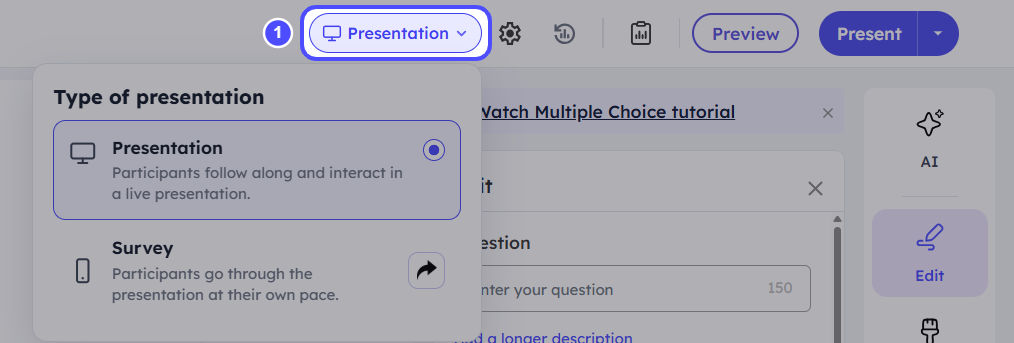
The format selector sits at the top of the editor. Use it to switch between Presentation and Survey any time before you run the session.
Switching formats after people have already respondedSwitch before you run the session whenever possible. If you switch a deck that already has collected responses, treat the results report for that deck as covering whichever format was active when each response came in.