


Open Ended
Ask a question and let your audience answer in their own words. Their responses appear on the slide as they send them.
- Add the slide
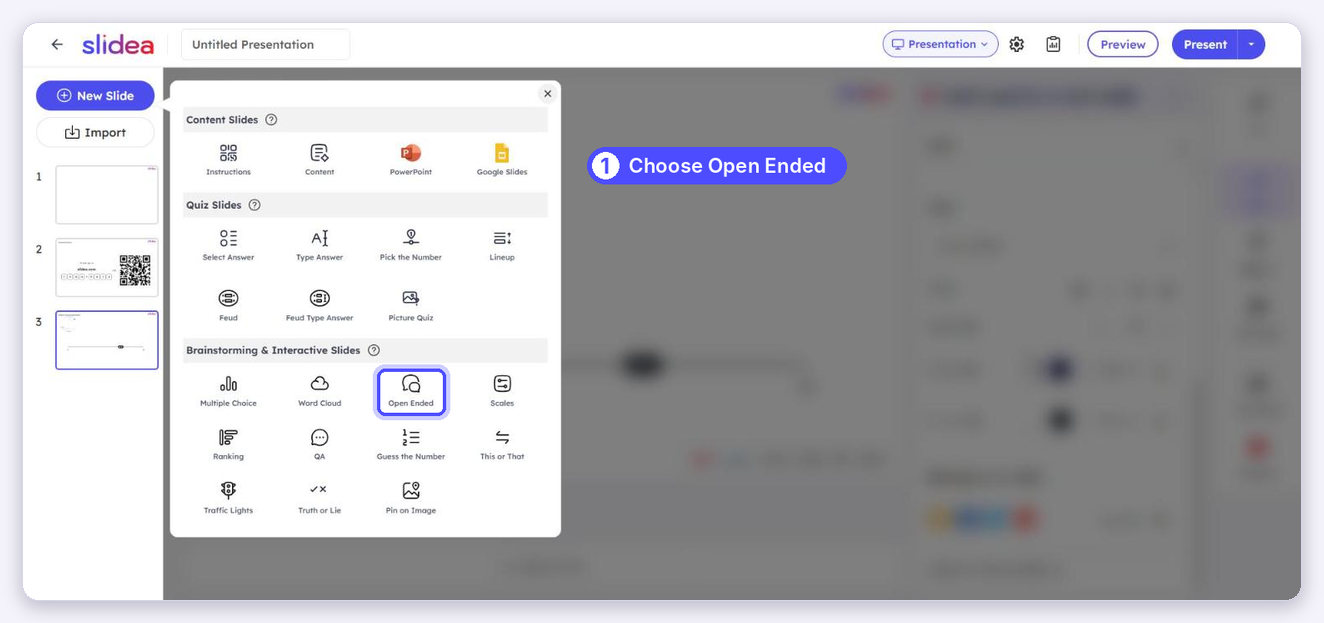
Click New Slide on the left. In the Brainstorming & Interactive Slides group, choose Open Ended.
- Write your question
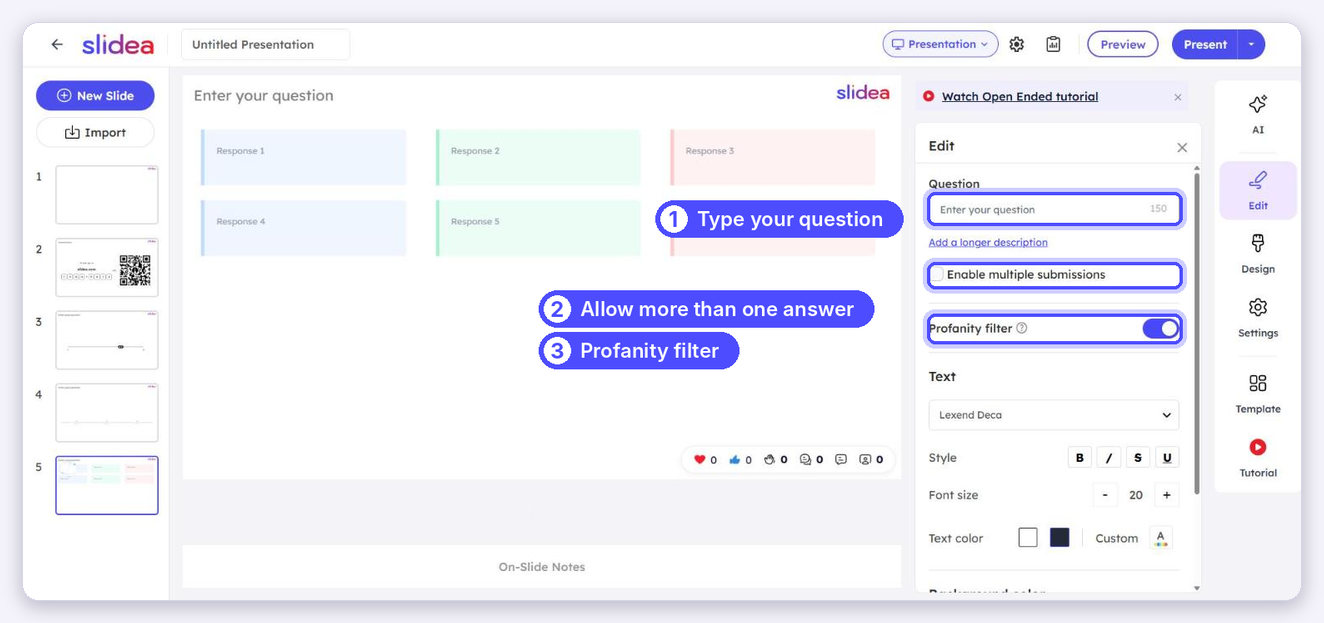
In the Edit tab, type your prompt in Question. Turn on Enable multiple submissions if people may send more than one answer, and use Profanity filter to screen what appears.
Tip
Ask something that needs a sentence, not a single word. For one-word answers, a Word Cloud works better.
Can people send more than one answer?
Yes. Turn on Enable multiple submissions in the Edit tab.
Can I filter inappropriate answers?
Yes. Use the Profanity filter option in the Edit tab.