


Ranking
Give your audience a list of items and let them put them in order. All the rankings are combined into one result.
- Add the slide
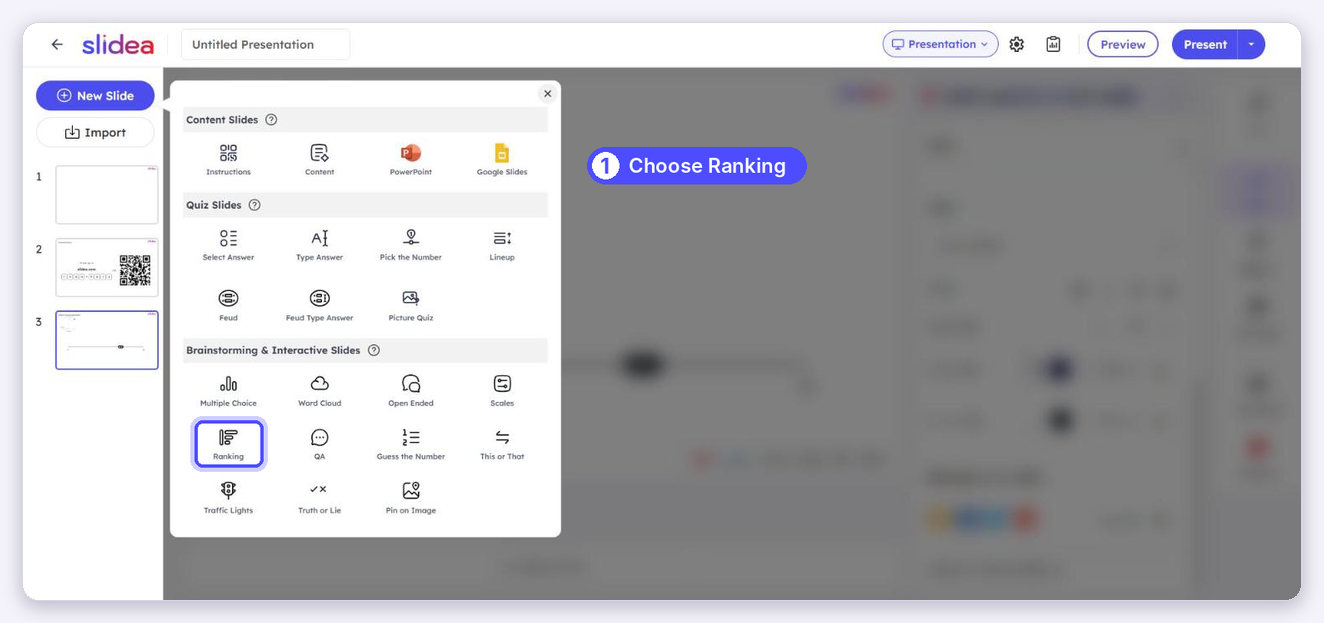
Click New Slide on the left. In the Brainstorming & Interactive Slides group, choose Ranking.
- Write your question and items
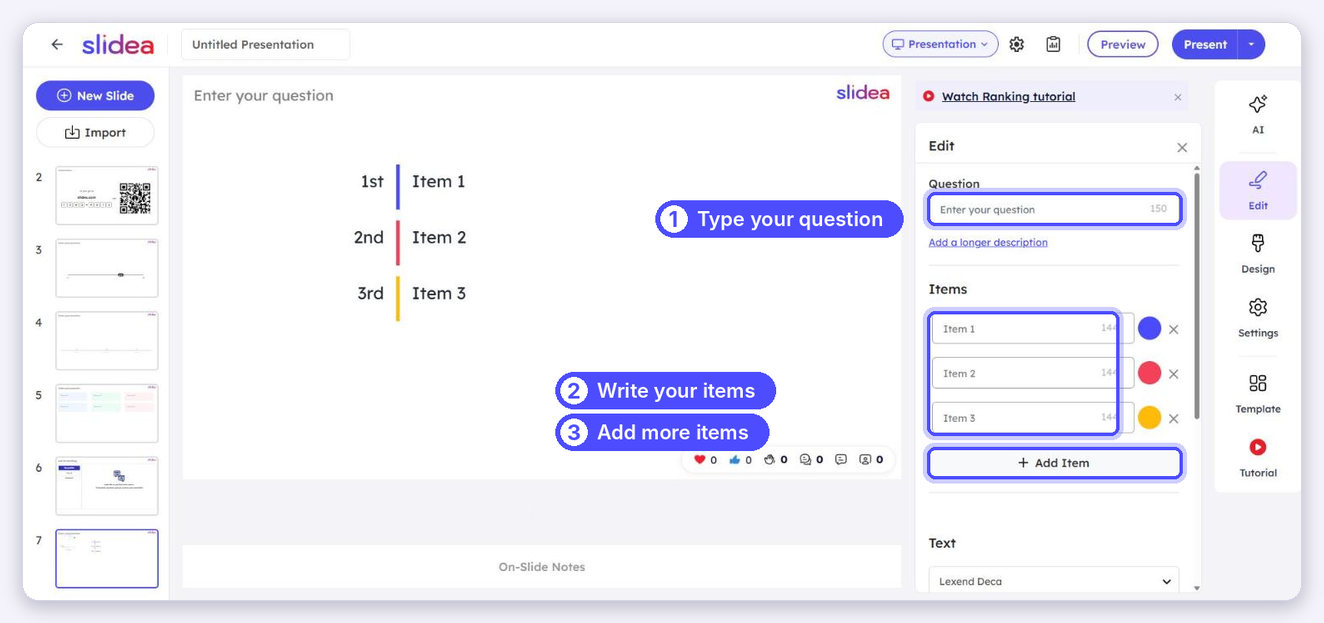
In the Edit tab, type your prompt in Question, then fill in the Items. Click Add Item to add more, or the remove button to delete one.
Tip
Keep item names short so they are easy to read on a phone screen.
How many items does a new slide start with?
A new Ranking slide starts with three items. Click Add Item to add more.
Where are the voting options?
In the Settings tab you will find Enable voting and Show in results.