


Themes and slide design
Change how your slides look: pick a theme, switch the chart style, choose a layout and add an image.
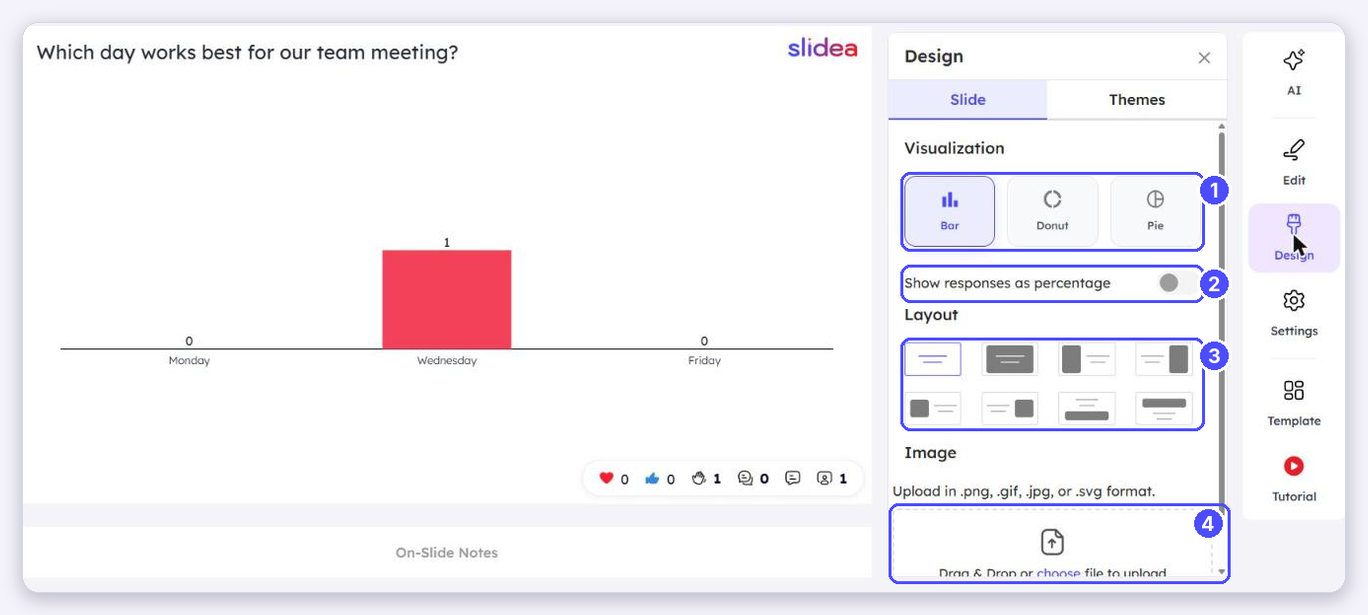
Design, Slide view: 1 Visualization, 2 Show responses as percentage, 3 Layout, 4 Image.
Design a single slide
- Open DesignSelect a slide, then choose Design in the right-hand tabs. Keep the Slide view selected.
- Pick a visualizationOn a results slide, choose Bar, Donut or Pie.
- Show percentagesTurn on Show responses as percentage to display shares instead of counts.
- Choose a layoutPick one of the eight layouts to place the text and image.
- Add an imageDrag and drop a file or choose one. Supported formats are .png, .gif, .jpg and .svg.
Change the theme
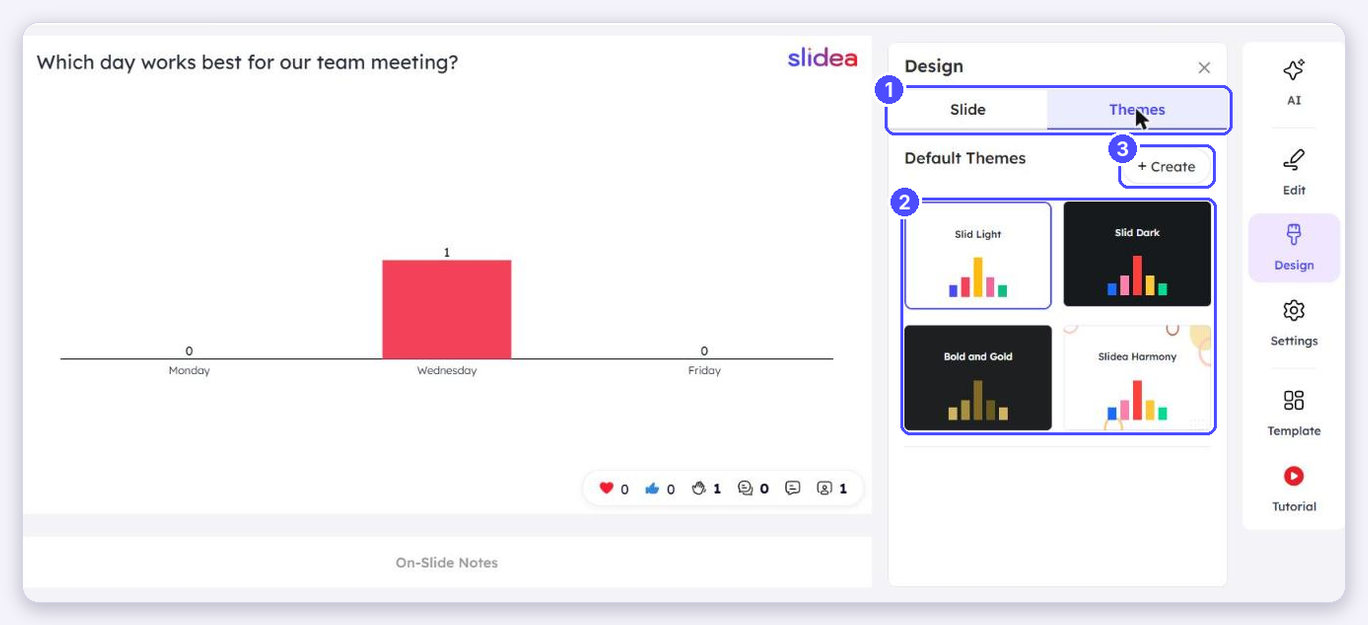
Themes: 1 Slide and Themes tabs, 2 Default themes, 3 Create.
- Open ThemesIn Design, select the Themes tab.
- Pick a default themeChoose Slid Light, Slid Dark, Bold and Gold or Slidea Harmony.
- Create your ownSelect Create to build a custom theme.
Plans
Custom themes are listed on the Basic plan and above, and Custom logo and branding on Pro. See Plans and limits.
Frequently asked questions
Which formats can I upload as an image?
.png, .gif, .jpg and .svg.