


Finding your way around the editor
Know where everything is in the Slidea editor: slides on the left, the canvas in the middle, tools on the right.
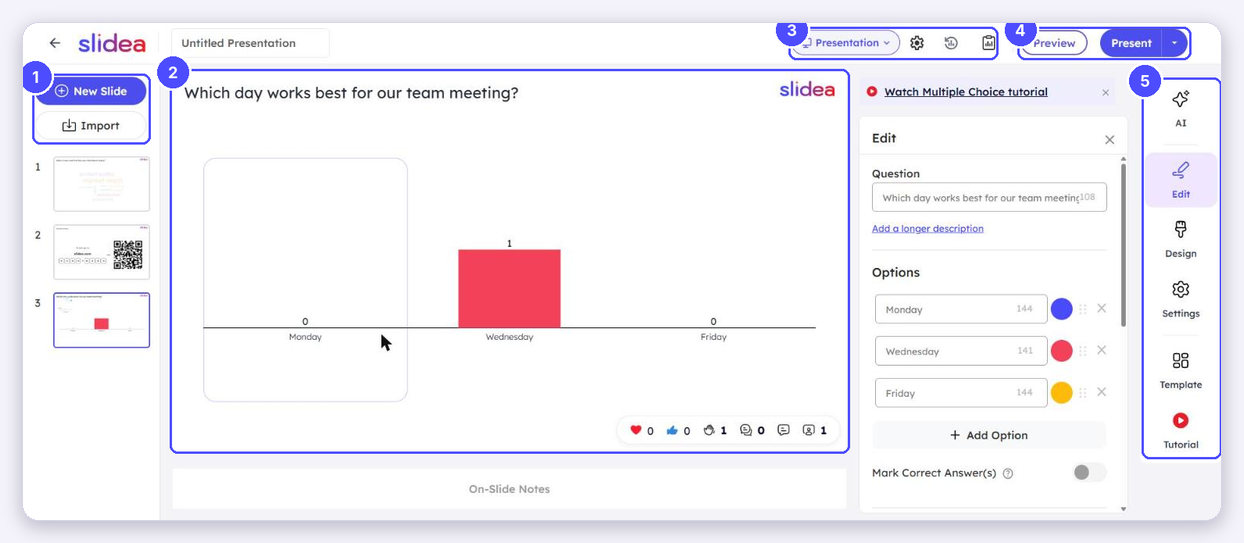
The editor: 1 New Slide and Import, 2 Slide canvas, 3 Settings, Reset results and Results, 4 Preview and Present, 5 Tabs.
Steps
- Slide list (1)On the left, New Slide adds a slide and Import brings in a file. Your slides are numbered below. Select one to edit it.
- Canvas (2)The middle shows the selected slide. Under it, On-Slide Notes is where you keep notes for that slide.
- Top bar (3)Rename the presentation in the name box. The gear opens presentation settings, the clock icon is Reset results and the clipboard icon is Results.
- Preview and Present (4)Preview sits next to Present. Open the arrow beside Present for Present from current, Present from beginning and Remote.
- Tabs on the right (5)Pick AI, Edit, Design, Settings, Template or Tutorial to open that panel.
The right-hand tabs
| Tab | What it is for |
|---|---|
| AI | Ask the AI Assistant to add, edit or delete slides. |
| Edit | Change the question, options and other content of the selected slide. |
| Design | Change the chart, layout, image and theme. |
| Settings | Options for the selected slide, such as Enable voting, and the Presentation Language. |
| Template | Search and browse ready-made slide templates. |
| Tutorial | Watch a short tutorial for the slide type you are editing. |
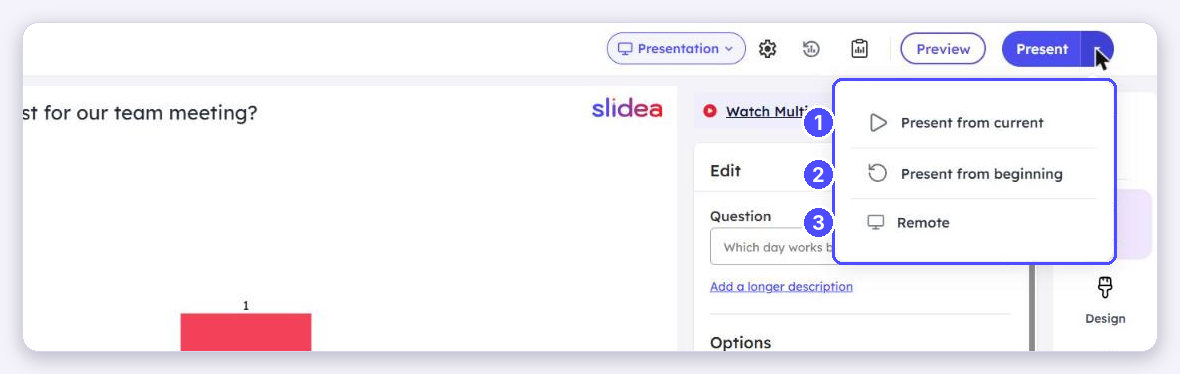
Present menu: 1 Present from current, 2 Present from beginning, 3 Remote.
Frequently asked questions
Where do I rename my presentation?
In the name box at the top left of the editor, next to the Slidea logo.
How do I leave the editor?
Use the back arrow at the top left.