


Manage your presentations
Rename, duplicate, organise into folders, move to your team or delete a presentation from My Presentations.
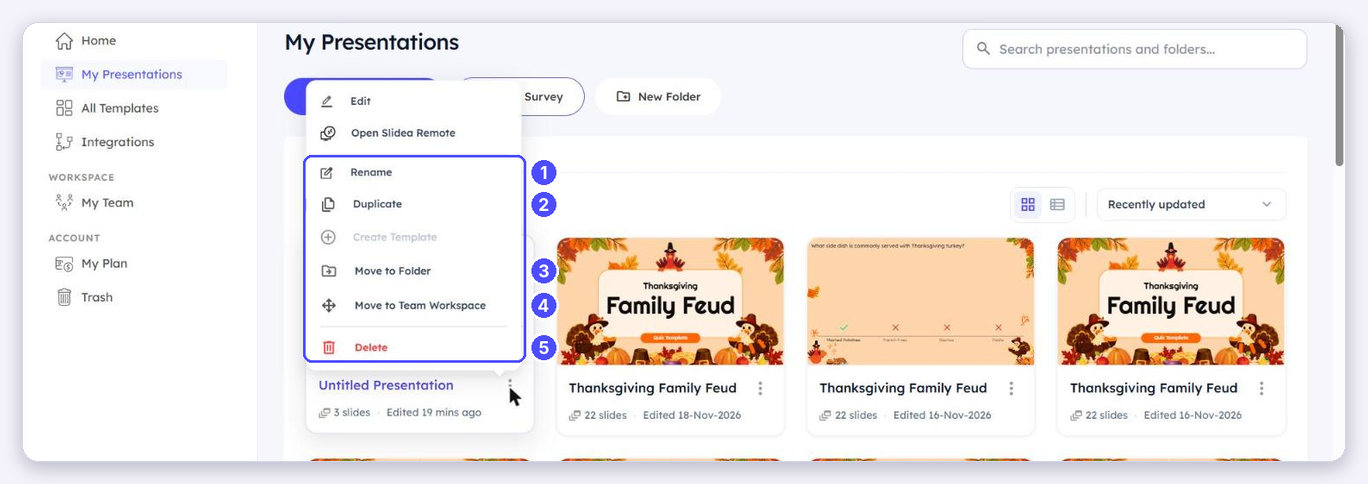
Card menu: 1 Rename, 2 Duplicate, 3 Move to Folder, 4 Move to Team Workspace, 5 Delete.
Steps
- Open My PresentationsChoose My Presentations in the left sidebar. At the top you will see New Presentation, New Survey and New Folder, and a search box that says "Search presentations and folders...".
- Open the card menuSelect the three dots on the presentation you want to change.
- Pick an actionChoose one of the actions in the table below.
- Organise with foldersSelect New Folder, type a name (up to 100 characters) in the Create Folder box and select Save. Use Move to Folder on a presentation to put it inside.
- Find things quicklyType in the search box, or use the sort menu: Alphabetical, Alphabetical (reversed), Recently updated or Recently created. The two icons next to it switch between grid and list view.
What each menu item does
| Menu item | Use it to |
|---|---|
| Edit | Open the presentation in the editor. |
| Open Slidea Remote | Open the Remote link for this presentation so a phone can control it. |
| Rename | Change the presentation name. |
| Duplicate | Make a copy to reuse or change. |
| Create Template | Can appear greyed out. |
| Move to Folder | Put the presentation in one of your folders. |
| Move to Team Workspace | Share it with your team, so all team members can reach it. |
| Delete | Send the presentation to Trash. |
Tip
Deleted something by mistake? It goes to Trash first, where you can restore it.
Frequently asked questions
Where do deleted presentations go?
To Trash. Open Trash in the sidebar to restore them.
Can I see my presentations as a list?
Yes. Use the grid and list icons next to the sort menu.