


Setting up a team
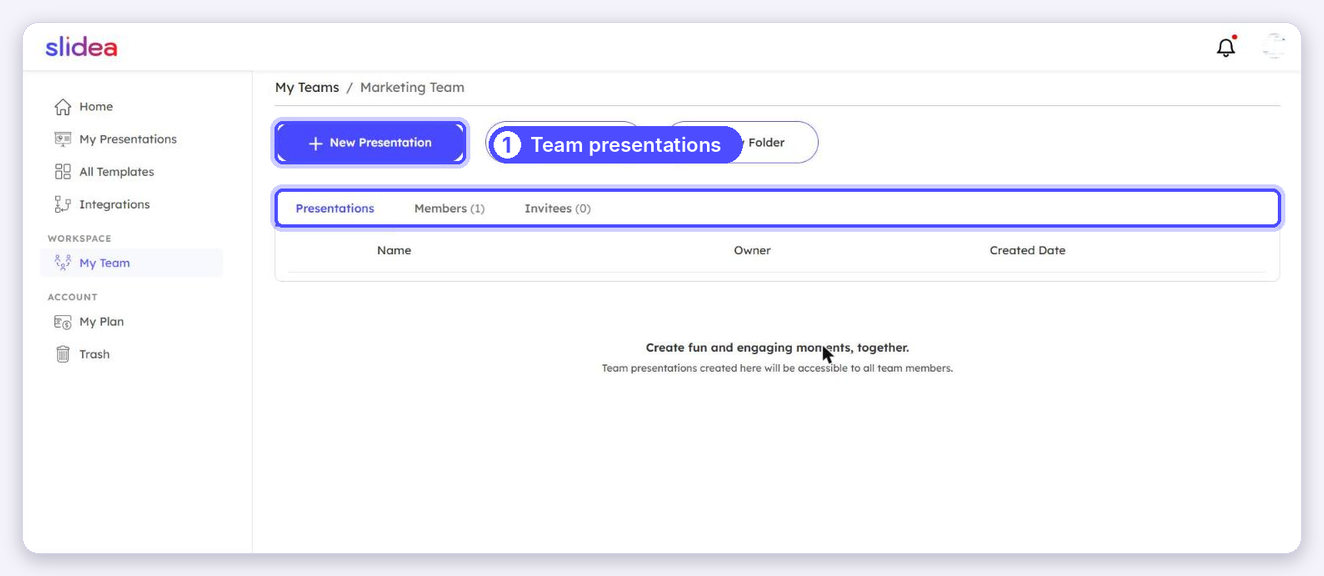
A team gives you a shared workspace where everyone can open the same presentations.
Create a team
- Open My TeamIn the left menu, under Workspace, select My Team.
- Select New TeamSelect New Team.
- Name your teamType a name, for example Creative Team. It can be up to 100 characters.
- SaveSelect Save. Your team page opens.
Invite members
- Open MembersOn the team page, select the Members tab.
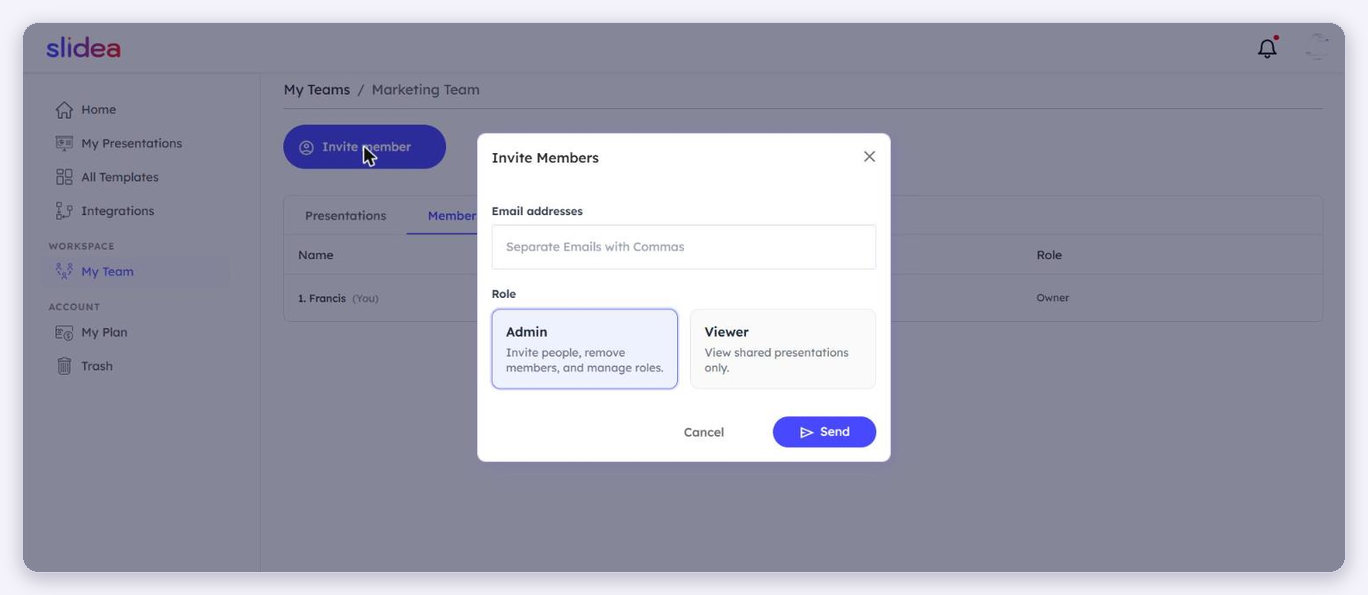
- Select Invite memberSelect Invite member.
- Add emailsType one or more email addresses, separated by commas.
- Choose a roleSelect Admin or Viewer.
- SendSelect Send. People who have not accepted yet appear under Invitees.
Roles
| Role | What it can do |
|---|---|
| Owner | The person who created the team. |
| Admin | Invite people, remove members and manage roles. |
| Viewer | View shared presentations only. |
Tip
Presentations created inside a team are accessible to all team members.
FAQ
Where do I see who is in my team?
Open the team and select the Members tab. It lists each member with their email, joined date and role.
Plan
Collaborative workspace and workspace roles are listed on the Pro plan. See Plans and limits.