


Annotating slides while presenting
Draw, highlight and add text on top of your slide while you present, so your audience can follow what you mean.
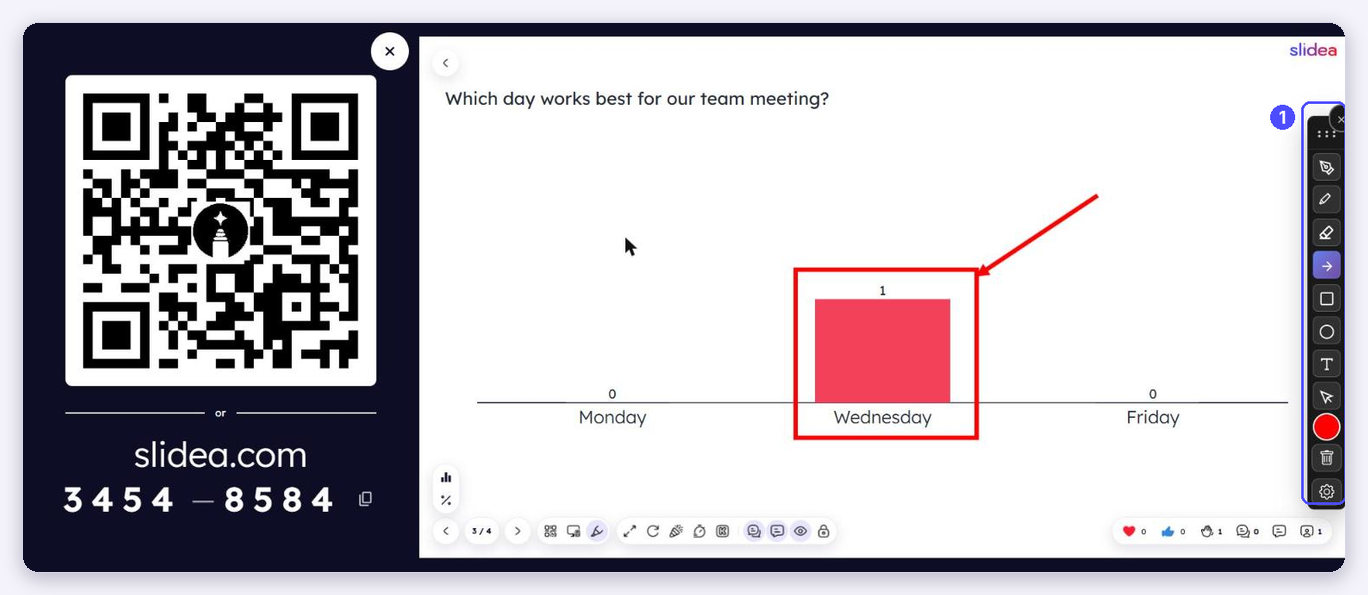
Annotate a slide
- Start presentingOpen your presentation and select Present.
- Turn on annotatingSelect Annotate in the toolbar, or press Ctrl+A. The annotation toolbar appears on the right.
- Pick a toolSelect Pen, Highlighter, Arrow, Rectangle, Circle or Text.
- Draw on the slideClick and drag on the slide. Use Select to pick something you drew, or Eraser to remove part of it.
- Clear itSelect Clear All to remove every annotation from the slide.
- Close the toolbarSelect the X above the toolbar.
Annotation tools
| Tool | Use it to |
|---|---|
| Pen | Draw freehand. |
| Highlighter | Highlight text or an area. |
| Eraser | Erase part of an annotation. |
| Arrow | Point at something. |
| Rectangle | Box something in. |
| Circle | Circle something. |
| Text | Type a note on the slide. |
| Select | Pick an annotation you already drew. |
| Clear All | Remove all annotations. |
Settings
| Setting | What it does |
|---|---|
| Keep annotations when changing slides | When on, your annotations stay as you move to another slide. Open it with the Settings button at the bottom of the annotation toolbar. |
Tip
Circle the winning answer on a results slide to draw attention to it.