


Using the presenter toolbar
The toolbar at the bottom of your presenting screen puts the main controls one click away.
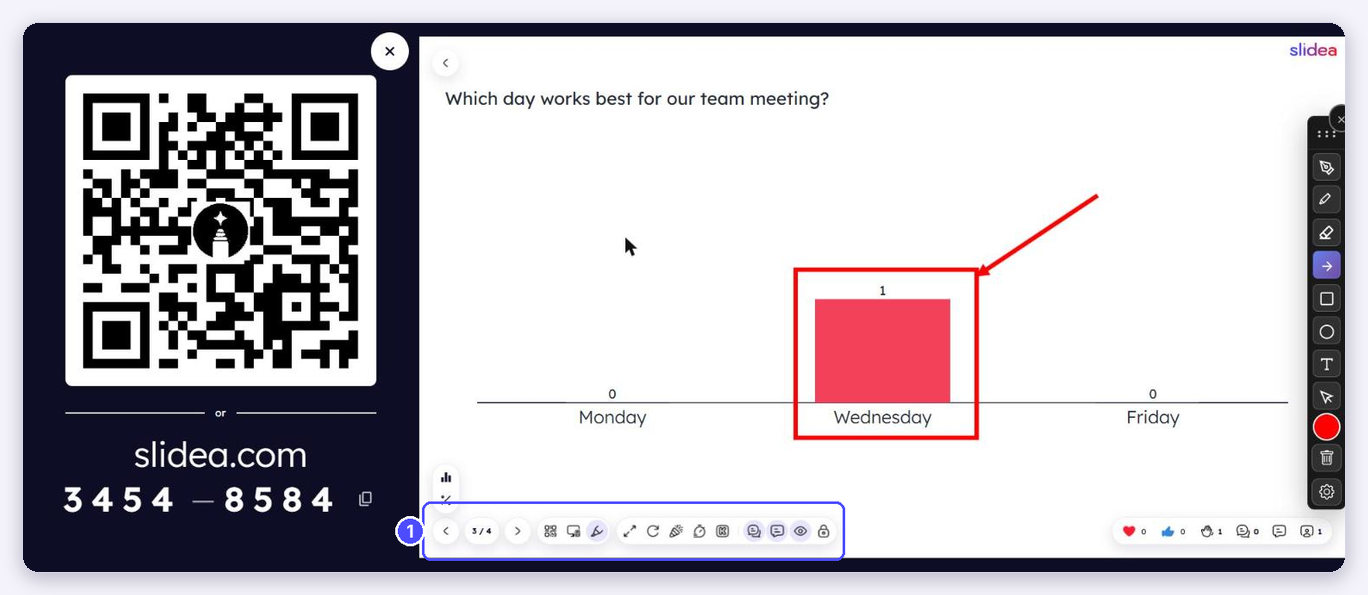
Open the toolbar
- Start presentingOpen your presentation and select Present.
- Find the toolbarIt sits at the bottom left of the slide. Hover over any button to see its name.
What each button does
| Button | What it does |
|---|---|
| QR Code | Shows the join code and QR code for your audience. |
| Remote | Opens the Remote Access window. See Controlling slides with Slidea Remote. |
| Annotate (Ctrl+A) | Lets you draw on the slide. See Annotating slides while presenting. |
| Full Screen (F) | Switches the presentation to full screen. |
| Reset results | Clears the responses collected on the current slide. |
| Celebration Animations | Plays a celebration animation on screen. |
| Start Timer | Starts a timer. |
| Open Hotkeys Overview | Lists the keyboard shortcuts. |
| Disable Question and Answer (Q) | Turns the audience Q&A off. Select it again to turn it back on. |
| Disable Comments (V) | Turns audience comments off. Select it again to turn them back on. |
| Hide Response (H) | Hides the responses on the slide. |
| Unlock Voting | Locks or unlocks voting for your audience. |
Tip
Select Open Hotkeys Overview to see every keyboard shortcut in one place.
FAQ
Where do the reaction counts at the bottom right come from?
They show how your audience is reacting while you present, such as hearts, likes and raised hands.