


Finding your way around Home
Home is where every session starts — the fastest way to build something new, plus one click back into whatever you were just working on.
You land here every time you sign in, and it's built to get you into a deck — new or existing — in one click.
Three ways to start
Three buttons at the top of Home cover every way to begin a new deck.
| Button | What it opens |
|---|---|
| New Presentation | A blank deck for a live, presenter-led session. |
| New Survey | The same kind of deck, for people to complete on their own time. |
| Create with AI | A slide outline generated from a pasted idea or document, instead of starting from nothing. |
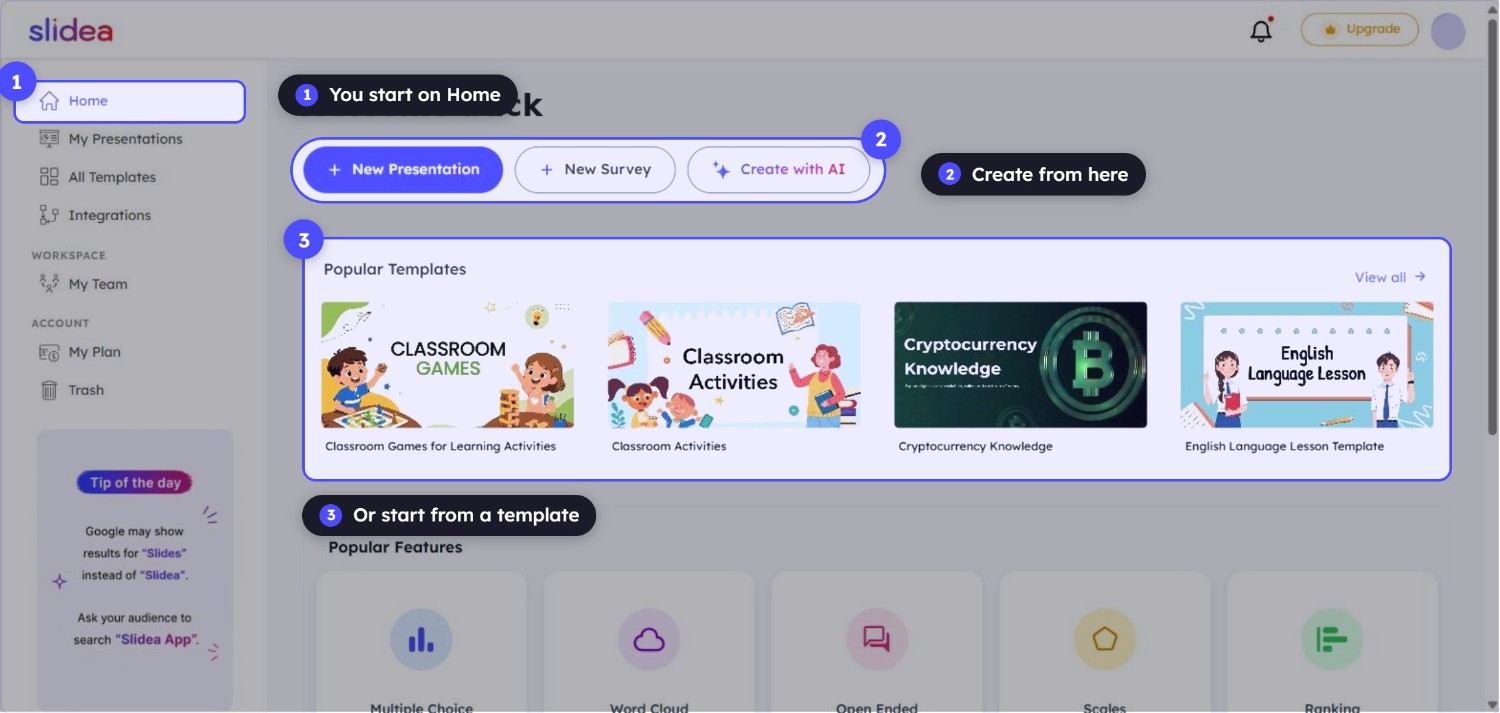
Home: three ways to start a deck, plus your recent work one click away.
Recent Presentations and Popular Templates
Just below the start buttons, Recent Presentations picks up right where you left off — it's simply whatever you opened last. Popular Templates sits beside it for whenever a ready-made deck sounds easier than a blank one. Neither list shows everything at once, but a View all link on each opens the rest.
Popular Features
Already know the one slide type you need? Popular Features skips the usual slide picker entirely — click Multiple Choice, Word Cloud, Open Ended, Scales, or Ranking, and you're straight into building that slide.
Step into Slidea
New to Slidea? Step into Slidea walks you through the basics: creating your first presentation, presenting live, joining someone else's session, and connecting other tools. Depending on the topic, it opens either a short video or a written guide.
Sidebar navigation
The same navigation sits on the left no matter which screen you're on, so you're never more than a click from getting back to it.
| Item | What it's for |
|---|---|
| My Presentations | Every deck you own. |
| All Templates | The full template library. |
| Integrations | PowerPoint and Zoom. |
| My Team | Your team's members. |
| Shared with me | Decks other people have shared with you. |
| My Plan | Your plan details. |
| Trash | Deleted presentations, until you restore or permanently delete them. |
Check Trash in the sidebar before assuming it's gone for good — see Recovering a deleted presentation.
Frequently asked questions
Can I customize what shows on Home?
Not currently — the layout is the same for every account. Recent Presentations and Popular Templates just reflect your own activity.
Is Popular Templates different from All Templates?
No — Popular Templates on Home is a short list of frequently used ones. All Templates in the sidebar opens the complete library.
Do I have to use a Popular Features shortcut, or can I add any slide type from there?
Popular Features only covers the five shortcuts shown. For every other slide type, start from New Presentation or New Survey and use the slide picker inside the editor.