


Creating your account
Create your account in under a minute, then land straight on Home.
-
Open the sign-up screen
Go to slidea.com and select Get Started.
-
Pick a sign-in method
Use Google, Microsoft, or a full name, email, and password.
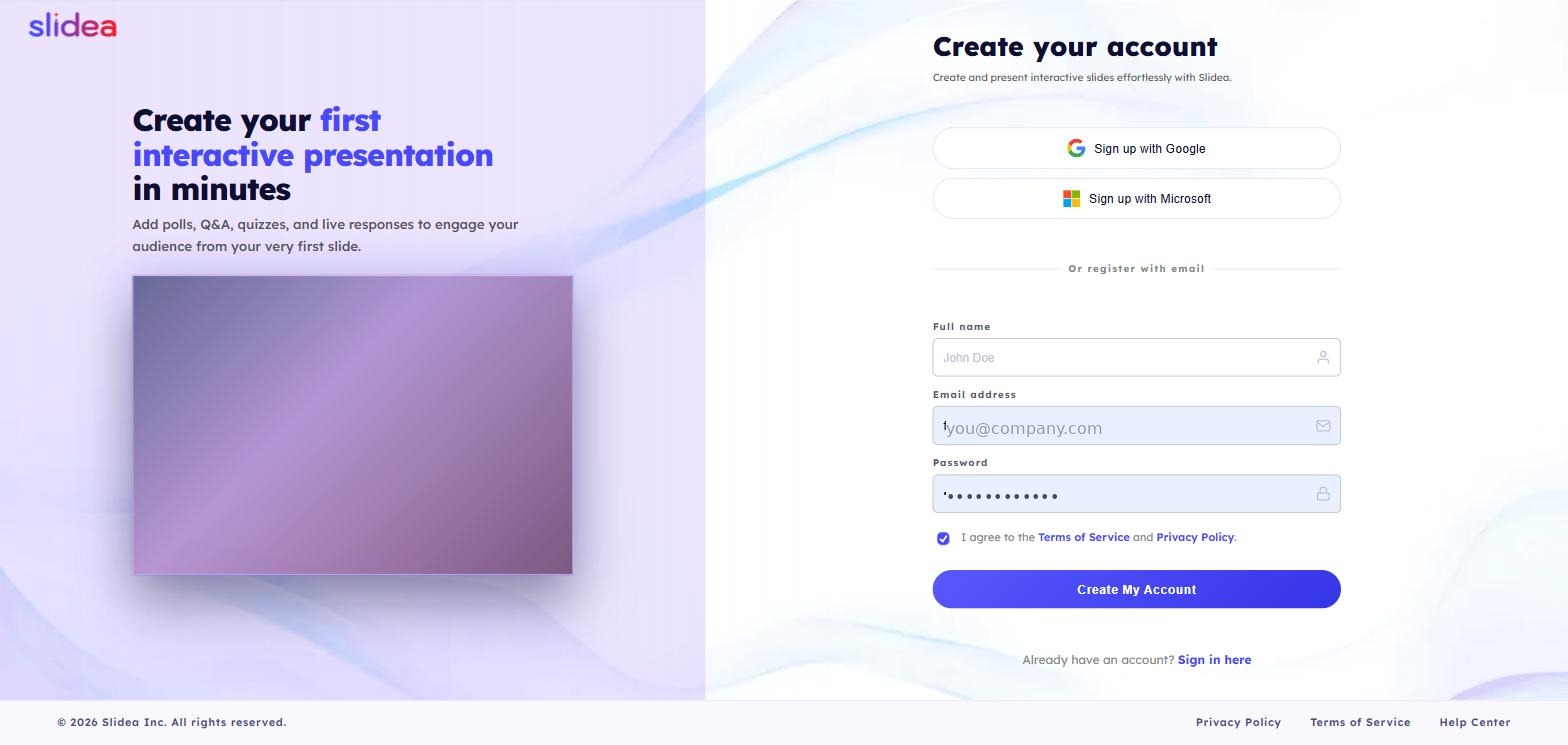
-
Verify your email
Only if you signed up with email and password — Google and Microsoft skip this step.
-
You're in
You land on Home, ready to build your first deck — start from scratch or pick a ready made template.
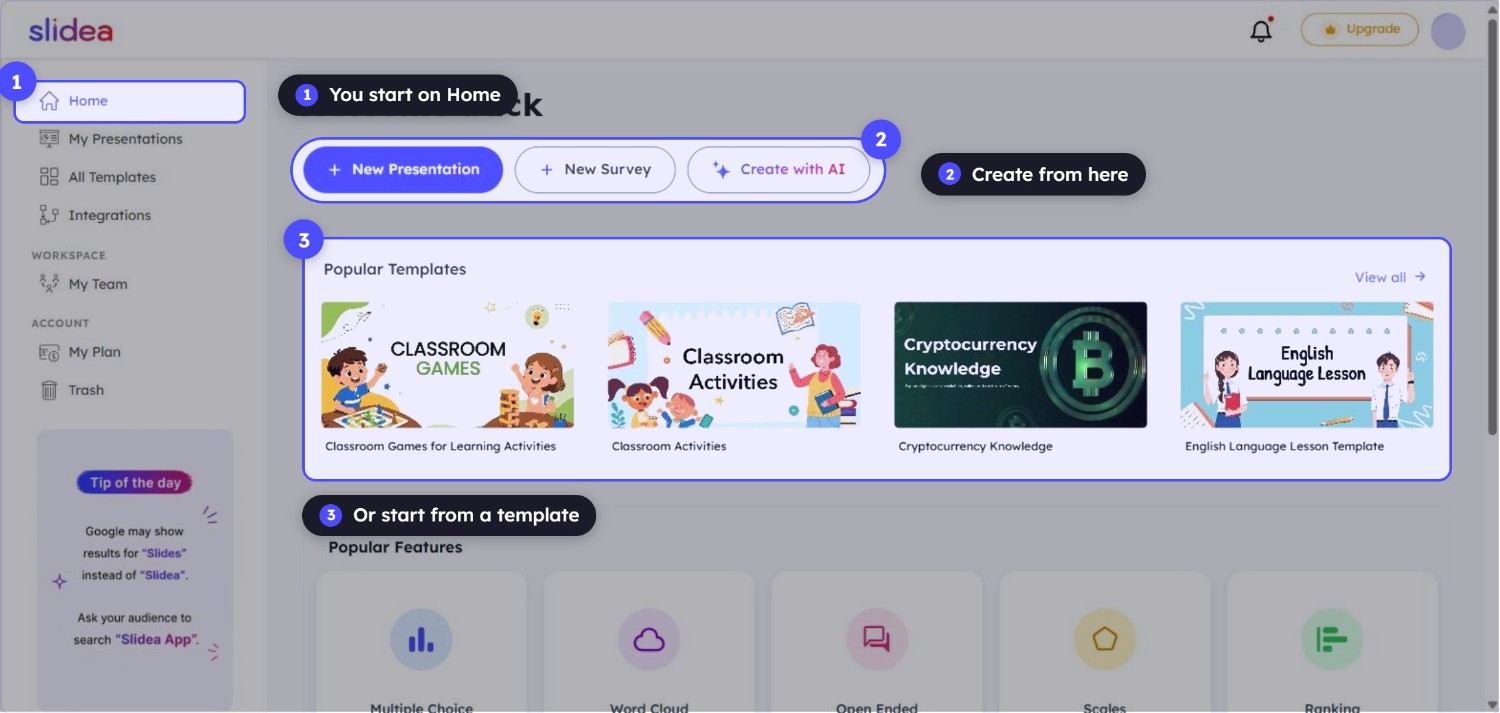
Your Slidea account is tied to that email automatically, and there's no separate Slidea password to manage — signing in anywhere just means choosing that provider again.
If you know you'll eventually be added to a colleague's workspace, signing up with your work email address makes it easier for an admin to find and invite you later.
Account Setup FAQs
Can I change my sign-in method after creating my account?
Switching between email/password and a Google or Microsoft sign-in isn't self-serve today — contact support if you need your account moved to a different method.
Do I need a credit card to create an account?
No. Free accounts don't require payment details at all — you're only asked for billing information if you choose to upgrade to a paid plan.
Can I use the same email for two Slidea accounts?
No, each email address can only be tied to one Slidea account. If you need a separate workspace for a different organization, use a different email or ask an admin to invite your existing account to their team instead.
What if I signed up with the wrong email?
Contact support before you've built anything important on the account — for existing accounts with content, changing the underlying sign-in email is a support-assisted process rather than a self-serve setting.