


Interactive presentation templates are ready-made session structures with live polls, quizzes, interactive word clouds, Q&A, and other audience participation features built in at the right moments. To use one: browse categories, choose a template, click Use Template, replace the questions in the editor, and click Present. Your audience joins by scanning the QR code on screen, no app download required. Slidea has 200+ free interactive presentation templates across 30+ categories covering meetings, education, training, events, icebreakers, and more.
Creating an interactive presentation sounds easy until you stare at a blank editor. Which slide should be a poll? Where should the quiz go? How many audience interactions are too many?
Interactive presentation templates solve that problem by giving you a proven session structure with engagement built in. The interaction types are already chosen, placed at the right moments, and paired with sample questions you can use immediately or replace with your own.
Research published in the Proceedings of the National Academy of Sciences found that students in traditional lecture formats were 1.5 times more likely to fail than those in active learning environments. The same principle applies to any presentation context: passive audiences retain less and participate less.
For a full guide on what makes a presentation genuinely interactive, read our complete guide to interactive presentations.
What Is an Interactive Presentation Template?
A standard presentation template gives you a slide design, colours, fonts, and layout. An interactive presentation template goes further. It includes the slide design plus pre-built interactive slides placed at the right moments in the session flow.
When you open an interactive presentation template in Slidea, you get a complete session structure with the right number of slides for the audience and context, interactive slide types already placed at the opening, mid-session, and closing moments, sample questions you can use as-is or customise in seconds, and a theme and visual design that works immediately without any formatting work.
The only thing you change is the content. The interactive architecture is already built.
How to Use an Interactive Presentation Template in 6 Steps
Every template in Slidea is fully customisable and ready to present in typically under five minutes. Here is the exact process from opening the library to going live with your audience.
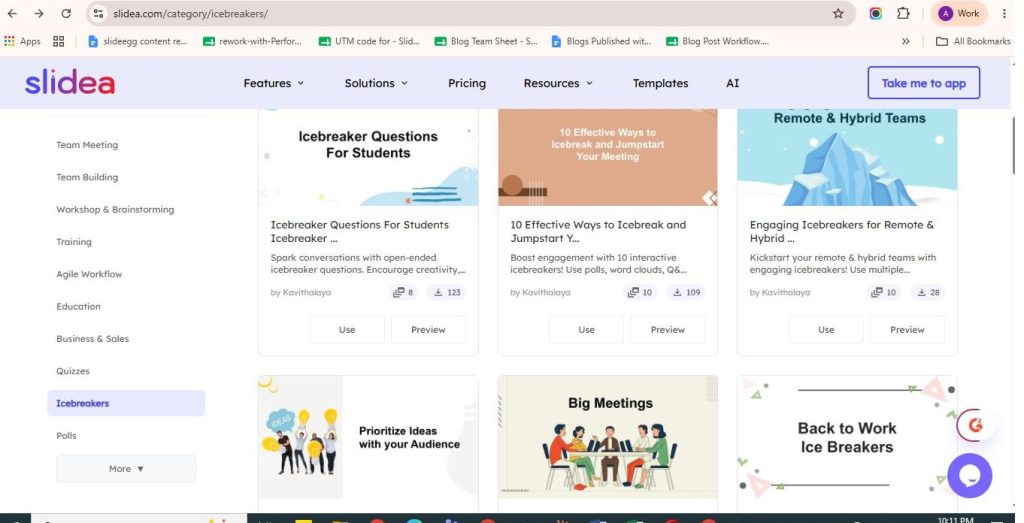
Step 1: Browse the template library and choose a category
Go to the Slidea templates page. The left sidebar shows all available categories, Team Meeting, Icebreakers, Training, Fun and Games, and more. Click a category to filter the templates. Browse the thumbnails and click on any template to preview the full slide list and see exactly which interaction types are included.
Step 2: Click Use Template
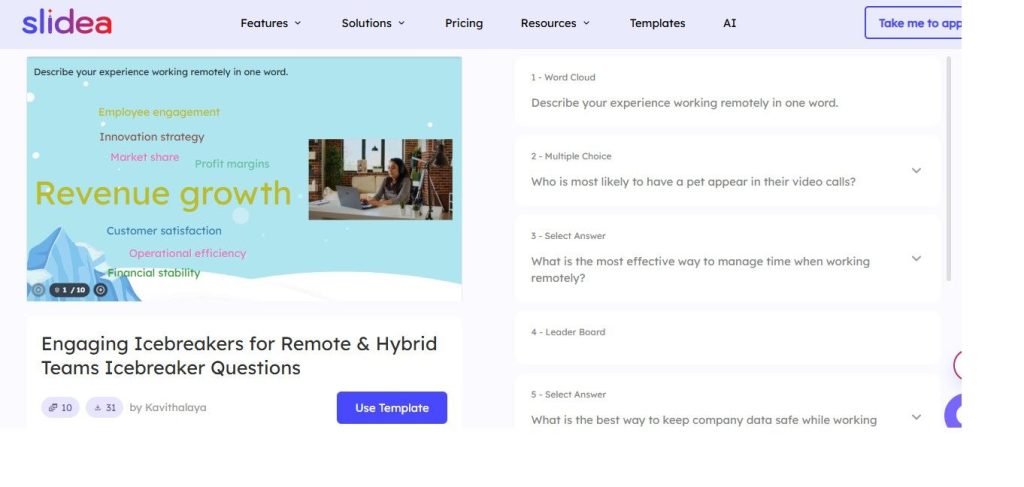
When you find a template you like, click the Use Template button on the preview page. You can see the full slide list on the right side of the preview, including each slide type and sample question, before committing. Once you click Use Template, the presentation opens immediately in the Slidea editor.
Step 3: Replace the questions in the editor
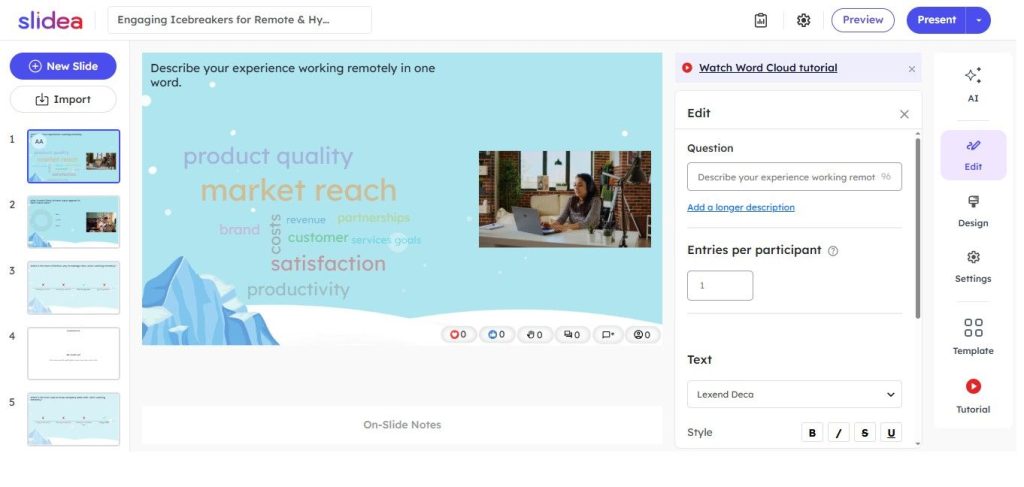
In the Slidea editor, click on any slide from the left panel. The Edit panel opens on the right side of the screen. You will see the current question in the question field, click on it and type your own. The interaction type, visual design, and slide placement stay exactly as they are. Only the question changes.
Repeat this for each slide in the template. Most templates have between four and eight slides. Replacing all questions takes two to three minutes for a standard session.
Step 4: Customise further if needed
From the same editor you can also:
- Add a new slide using the New Slide button at the top left
- Remove a slide by deleting it from the left panel
- Import your existing deck using the Import button to bring in PowerPoint or Google Slides content
- Adjust slide settings such as entries per participant, anonymous mode, and timer from the Settings panel
- Apply a theme from the Template panel on the right, one click applies it to every slide simultaneously
Step 5: Present and invite participants
When you are ready, click the Present button at the top right of the editor. The session goes live immediately. A QR code and session code appear automatically on screen. Participants scan the QR code with their phone or visit the session link in any browser, no app download required and no account creation needed.
Use the Preview button first if you want to check exactly what your audience will see before going live.
Step 6: Watch responses and leaderboard updates
On poll slides, responses appear live on screen as participants vote. On quiz slides, scoring and leaderboards update automatically after every question, no extra setup is required. The leaderboard displays on screen between questions so participants can see their position in real time.
After the session ends, all responses, quiz scores, and Q&A submissions are saved automatically in your Slidea account and can be exported to Excel from the analytics dashboard. Analytics help identify which questions generated the highest participation, which slides had lower response rates, and where audience attention dropped during the session.
Why Interactive Presentation Templates Outperform Traditional Slide Templates
Most presentation templates give you a design, a colour scheme, a font pairing, a layout for title slides and content slides. What they do not give you is any mechanism for your audience to respond.
A traditional PowerPoint template helps you present information beautifully. An interactive presentation template helps you turn that information into a two-way conversation.
A traditional template opens with a title slide. An interactive template opens with a word cloud asking your audience a question before you have said a single word. A traditional template ends with a thank you slide. An interactive template ends with a quiz, a commitment question, or a collective word cloud takeaway that the audience generates together.
Consider a manager running a weekly team meeting. Without a template, the meeting opens with agenda updates. Using an interactive meeting template, it begins with a word cloud asking 'How are you feeling about this week?', immediately surfacing team sentiment before any discussion starts. The manager learns in the first 60 seconds what the team actually needs to talk about, rather than finding out halfway through.
For the research behind these outcomes, see our interactive presentation statistics.
Build From Scratch vs Use a Template
| Approach | Time required | Engagement quality | Risk |
| Build from scratch | High, 30 to 60 minutes | Variable, depends on presenter skill | High |
| Copy a previous deck | Medium, 15 to 30 minutes | Inconsistent, carries over old structure | Medium |
| Use an interactive template | Low, typically under 5 minutes | Structured for consistent engagement | Low |
A template does not limit what you can create. It gives you a proven starting point and removes the decisions that slow most presenters down before they even open the editor.
Why Start With an Interactive Presentation Template?
- Speed. Templates remove most of the planning and setup work, so you can focus on your content rather than deciding where interactions belong.
- Structure. The best interactive presentations follow a specific rhythm, opening hook, regular mid-session resets, strong close. Templates encode that rhythm so you get it right the first time.
- Confidence. For first-time users of interactive presentation tools, a blank editor can be daunting. A template removes that barrier immediately.
- Consistency. For teams running recurring sessions, a template ensures every session follows the same engagement quality regardless of who is presenting.
How Many Interactive Slides Should a Template Have?
| Session length | Recommended interactions | Placement |
| 15 minutes | 1 to 2 | Opening hook, closing anchor |
| 30 minutes | 3 to 5 | Opening, one mid-session reset, closing |
| 60 minutes | 5 to 8 | Opening, reset every 10 to 15 minutes, closing |
Most Slidea templates are designed around these ranges based on common presentation and facilitation best practices. You can add or remove slides to match your exact session length.
Interactive Presentation Template Examples
Here are five of the most popular template types with specific sample questions you can use or adapt immediately.
Weekly Team Meeting Template
Opens with a virtual word cloud asking the room a low-stakes question before the agenda begins. Mid-meeting uses a ranking slide to prioritise items collectively. Closes with an open-ended commitment question so every participant leaves with a personal action.
Sample questions to try:
- Word Cloud: "In one word, how are you feeling about this week?"
- Ranking: "Rank these agenda items from most to least urgent"
- Open Ended: "What is one thing you will complete before we meet again?"
Interactive elements used: Word Cloud, Ranking, Scales, Open Ended, live Q&A throughout.
Best for: Team leads running weekly standups or recurring check-ins where every voice matters.
Classroom Quiz Template
Opens with a brainstorming word cloud to activate prior knowledge. Moves through Select Answer quiz questions with a live leaderboard updating after each one. Includes a Scales confidence check at the midpoint. Closes with an open-ended reflection question.
Sample questions to try:
- Word Cloud: "In one word, what do you already know about today's topic?"
- Quiz: "Which of the following best describes [key concept]? A, B, C, or D"
- Open Ended: "What is one thing from today's lesson you will apply this week?"
Interactive elements used: Word Cloud, Select Answer Quiz, Leaderboard, Scales, Open Ended.
Best for: Teachers and lecturers who want to assess comprehension and create competitive energy simultaneously.
Employee Onboarding Template
Opens with a word cloud asking new hires how they are feeling about joining, surfaces real sentiment that managers might not otherwise hear. Includes knowledge check questions about company values and team norms with correct answer reveals. Mid-session uses a This or That question on working style preferences. Closes with an open-ended question asking what the new hire most wants to learn in their first month.
Sample questions to try:
- Word Cloud: "In one word, how are you feeling about joining the team?"
- This or That: "Deep focus work or collaborative sessions, which suits you best?"
- Open Ended: "What do you most want to learn or achieve in your first month?"
Interactive elements used: Word Cloud, Select Answer Quiz, This or That, Open Ended.
Best for: HR teams and people managers running structured onboarding sessions for new employees.
Town Hall Template
Built for large-scale all-company or all-department sessions where leadership wants to hear from every employee. Opens with a live poll with QR code on company priorities. Includes a live Q&A feed running throughout so employees submit questions at the moment they occur. Closes with a ranking vote on initiatives employees want to prioritise next.
Sample questions to try:
- Multiple Choices: "What should be our biggest focus next quarter?"
- Word Cloud: "In one word, what are you most optimistic about right now?"
- Ranking: "Rank these initiatives from most to least important for the team"
See: Town Hall Meeting templates
Interactive elements used: Multiple Choices, live Q&A, Word Cloud, Ranking.
Best for: Senior leaders and communications teams running company-wide engagement sessions.
Workshop Brainstorming Template
Structured around collective idea generation rather than information delivery. Opens with a brainstorming word cloud to surface initial ideas on the workshop topic before any content is shown. Uses ranking slides to prioritise ideas as they emerge. Includes open-ended response slides for deeper input. Closes with a commitment question asking each participant what they will do next.
Sample questions to try:
- Word Cloud: "In one word, what is the biggest challenge we are trying to solve today?"
- Ranking: "Rank these ideas from most to least feasible for this quarter"
- Open Ended: "What is one concrete action you will take based on today's session?"
Interactive elements used: Word Cloud, Ranking, Open Ended, Scales, This or That.
Best for: Facilitators, product teams, and consultants running structured brainstorming or co-creation sessions.
What Interactive Slide Types Are Included in Templates?
Every Slidea template uses combinations of the platform's full interactive slide library. Here is what you will find across the template categories.
- Polls and opinions: Multiple Choices, Scales, Ranking, This or That, Traffic Lights, use these to create real time online polls that gather audience opinions instantly.
- Knowledge checks: Select Answer quiz with leaderboard, Type Answer, Pick the Number, Lineup, ideal for training assessments and classroom quizzes.
- Open input: Interactive word clouds and virtual word cloud activities, Open Ended, Guess the Number, Truth or Lie, use these for brainstorming and icebreaker activities.
- Live Q&A: A persistent live Q&A feed running across the entire session. Audience members submit questions at any point and the most upvoted questions surface automatically.
For a full breakdown of when to use each type, see our guide to interactive presentation ideas for meetings, classrooms, training and events.
Template Categories on Slidea
Whether you need presentation templates for meetings, classroom presentation templates, training presentation templates, or icebreaker activities, Slidea's library covers every context. Here is a quick overview of some of the most popular categories.
| Category | Best for |
| Meetings | Team check-ins, strategy sessions, retrospectives |
| Education | Classroom lessons, lectures, and quizzes |
| Training | Onboarding, compliance, and L&D sessions |
| Icebreakers | Session openers and warm-up activities |
| Fun and Games | Team events, trivia, and competitions |
| Agile and Workflow | Standups, retrospectives, and backlog reviews |
| Technology | Tech talks, demos, and developer sessions |
| Special Occasions | Celebrations, milestones, farewell sessions |
What a real template looks like: Engaging Icebreakers for Remote and Hybrid Teams
The Engaging Icebreakers for Remote and Hybrid Teams template is a good example of how a Slidea template works in practice. It includes five slides: a word cloud opener asking participants to describe their remote work experience in one word, a multiple choice question about team habits, two select answer questions covering remote working best practices, and a leaderboard showing results across all questions. Most users open the template, replace the sample questions with their own topic, and present immediately, no design work required.
Common Interactive Presentation Template Mistakes
Even with a template, a few common mistakes reduce engagement.
- Using too many interactions. Polling every three minutes fragments the content. Stick to the cadence guide above.
- Asking low-value questions. Did you enjoy today's session? tells you nothing useful. What is one thing you will do differently this week? generates real intelligence.
- Choosing the wrong template for the audience. A gamified quiz works brilliantly in a classroom and awkwardly in a senior leadership session. Match the template type to the audience context first.
- Skipping the opening interaction. The opening word cloud or poll is the most important slide in any template. Always run it.
- Not reviewing post-session analytics. Every interaction generates data. Questions with low response rates reveal where the audience disengaged. Review the analytics after every session.
Can I Use Templates With My Existing Slides?
Yes. If you already have slides in PowerPoint or Google Slides, you can combine them with Slidea templates in two ways.
Import your existing deck into Slidea and add interactive slides from the template library between your existing content at the right moments.
Or use the Slidea PowerPoint add-in to insert interactive slides directly into your existing PowerPoint deck without leaving PowerPoint. Your existing slides stay completely unchanged. For the full process, see our guide on how to make a presentation interactive.
Frequently Asked Questions
Which template should I choose?
Team meetings: use Team Meeting templates for standups, retrospectives, and strategy sessions. Training sessions: use Training Session templates for onboarding and L&D. Icebreakers: use Icebreaker templates for warm-up activities. Large company events: use Town Hall Meeting templates for all-hands and company-wide sessions.
Are Slidea's interactive presentation templates free?
Yes. All 200+ interactive presentation templates are free to access and use. No credit card is required to get started. Advanced features such as custom branding, unlimited participants, and analytics export are available on paid plans from $6 per month.
Can I create my own interactive presentation template?
Yes. Any presentation you build in Slidea can be saved and reused as a template. Teams running recurring sessions often build a master template once and duplicate it for every new session.
Do templates work for remote and hybrid sessions?
Yes. All Slidea templates work for in-person, remote, and hybrid sessions. Participants can join from any device using a browser, making it easy to run sessions across distributed teams and classrooms.
What interactive slide types are available in templates?
Slidea templates cover everything from opinion polls and knowledge checks to brainstorming activities and audience Q&A. Depending on the template, you may find word clouds, quizzes, rankings, scales, open-ended responses, and other interactive formats.
Can I use a template if I have never used Slidea before?
Yes. Templates provide a ready-made structure with interactive slides already arranged for you. They are designed specifically for first-time users who want to launch an engaging session without starting from a blank presentation.
Where can I find templates for specific audiences like students or teams?
Browse the full interactive presentation template library and use the category filters to find templates by audience type or session format. The library is updated regularly with new templates across all categories.
Transform Your Next Session
Traditional presentations are a monologue. Slidea turns them into a conversation.
You do not need to spend time designing engagement moments from scratch. Pick a template that fits your audience, replace the sample questions with your own, and let the built-in interactive architecture handle the rest.
Ready to create your own interactive presentation? Sign up for Slidea for free and start with a proven template designed for meetings, classrooms, training sessions, and events.



Leave a Comment
Your email address will not be published. Required fields are marked *