


Creating a presentation in Slidea is quick and simple. You can create in one of three ways:
- Create a new presentation (Start from scratch)
- Create with AI
- Use a template
Option 1: Creating a New Presentation
Step 1: Start a New Presentation
- Log in to your Slidea account.
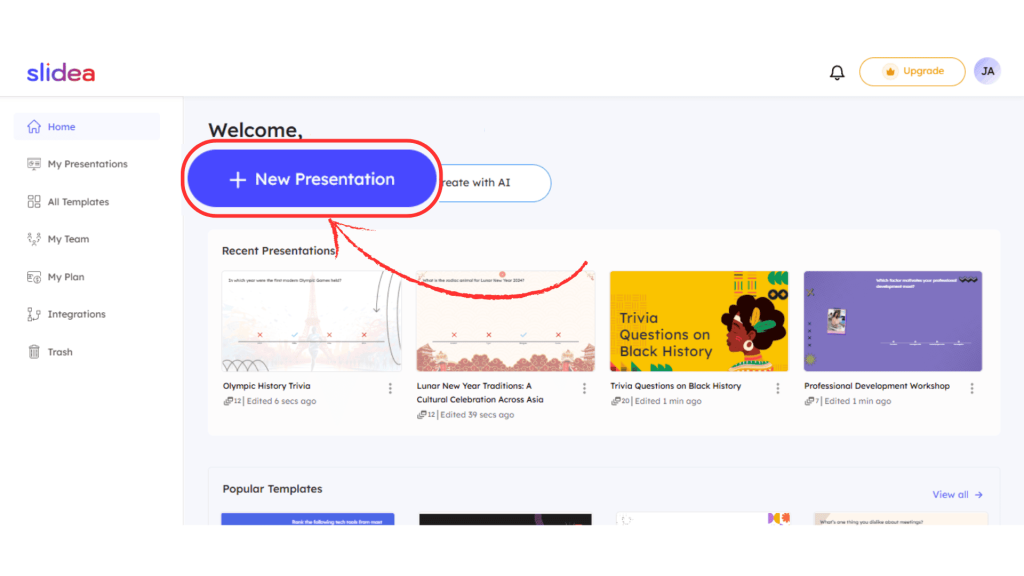
- On your Dashboard, click the “+ New Presentation” button.
- Enter a name for your presentation.
Your presentation will be added to the My Presentations menu, and you’ll be taken to the editor page.
Step 2: Choose How to Start
In the editor page, you can:
- Start from scratch
- Import slides from existing files.
Option A: Start from Scratch
Begin with a blank presentation and manually add slides based on your needs.
Option B: Import an Existing Presentation
If you already have an existing file:
- Click the ‘’Import’’ button on the left panel.
- Drag and drop your file or click Browse Files to upload.
- Upload a .pptx, .ppt, or .pdf file.
Imported files will be added to your current presentation.
Step 3: Add Slides to Your Presentation
In the editor page, you can add different types of slides depending on the experience you want to create.
Available Slide Types
Content Slides
- Instructions
- Content
- PowerPoint
- Google Slides
You can use it for title slides, agenda slides, thank you slides, section dividers between interactive slides, informational or non-interactive content, and even slides with tables, charts, shapes, symbols, videos, or audio.
It works exactly like PowerPoint and Google Slides. So if you’re familiar with those, you’ll feel right at home.
Quiz Slides
- Select Answer
- Type Answer
- Pick the Number
- Lineup
These slides are designed for competitive quizzes with scoring, timers, and leaderboards.
Interactive Slides
- Multiple Choice
- Word Cloud
- Open Ended
- Scales
- Ranking
- Q&A
- Guess the Number
- This or That
- Traffic Lights
- Truth or Lie
These slides help you gather audience responses, facilitate brainstorming, and encourage interaction without scoring.
Step 4: Add Content and Customize Your Slides
After selecting a slide type, use the right-side panel to add and edit content.
- Add your questions, answer options, or instructions.
- For quiz slides, set the correct answer.
- Update text, options, or settings anytime.
Apply Designs and Themes
- Choose from built-in designs
- Set a theme to keep your presentation consistent
- Customize colors and layout to match your style
All changes are updated instantly on the slide.
Step 5: Preview Your Presentation
Before presenting:
- Click the ‘’Preview’ button in the top-right corner.
- Review how your slides will appear to participants.
Step 6: Start Presenting
When you’re ready:
- Click the ”Present” button in the top-right corner.
- Your presentation will open in a full-screen Presentation view.
You can:
- Navigate using arrow keys
- Use keyboard shortcuts
- Use the remote control and annotation tools available at the bottom-left corner to navigate slides from another device and draw, highlight, or point out content during your presentation.
Option 2: Creating a Presentation with AI
1. Click on “Create with AI”
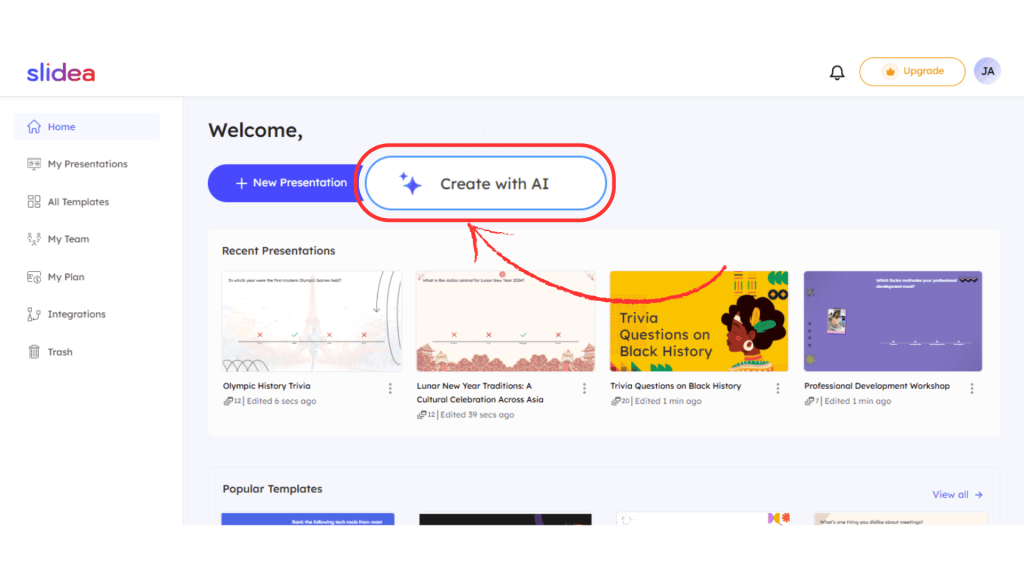
From your dashboard, select the “Create with AI” button to generate a new presentation.
2. Enter Your Prompt
In the text box, describe the topic or purpose of your presentation.
You can also customize:
- Content type
- Image style/type
- Theme selection
These options help tailor the presentation to your needs.
Tip: Use Suggested Prompts
Not sure what to write? Choose from pre-defined prompts available under different categories. These suggestions help you quickly generate relevant and structured presentations.
3. Click “Generate”
Click “Generate” to create an AI-powered presentation draft.
Slidea will produce a structured draft that you can review and modify. You can edit the content, adjust slides, and refine the structure with prompts before finalizing.
4. Click “Create Presentation”
Once you’re satisfied with the draft, click “Create Presentation.”
This will generate your presentation and take you to the editor page, where you can:
- Edit content
- Customize slides
- Add interactive elements
- Present to your audience
Option 3: Use a Template
If you need inspiration or a ready-made structure, you can start with a template.
How to Use a Template
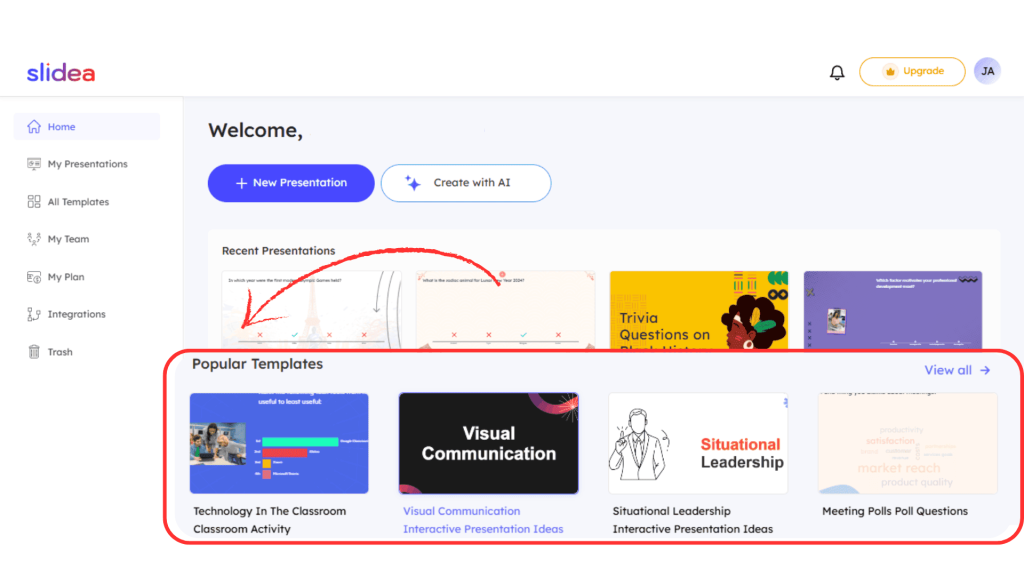
- Click Templates from the left-side menu on the Dashboard.
- Browse the available pre-designed templates.
- Select a template to begin.
You can:
- Use the template as it is, or
- Edit the slides to match your content and goals.
Creating a presentation in Slidea is simple and flexible. You can start a new presentation from scratch, generate slides with AI, or begin with a ready-made template, Slidea gives you the tools to quickly build engaging presentations.


Leave a Comment
Your email address will not be published. Required fields are marked *