


Slidea allows you to control when your audience sees the joining instructions, including the QR code and access code. This helps you manage screen visibility and avoid distractions during your presentation.
Hide or Show Joining Instructions While Presenting
You can quickly toggle the joining instructions directly from the presentation screen.
Method 1: Using Presenter Controls
- Click Present to start your presentation.
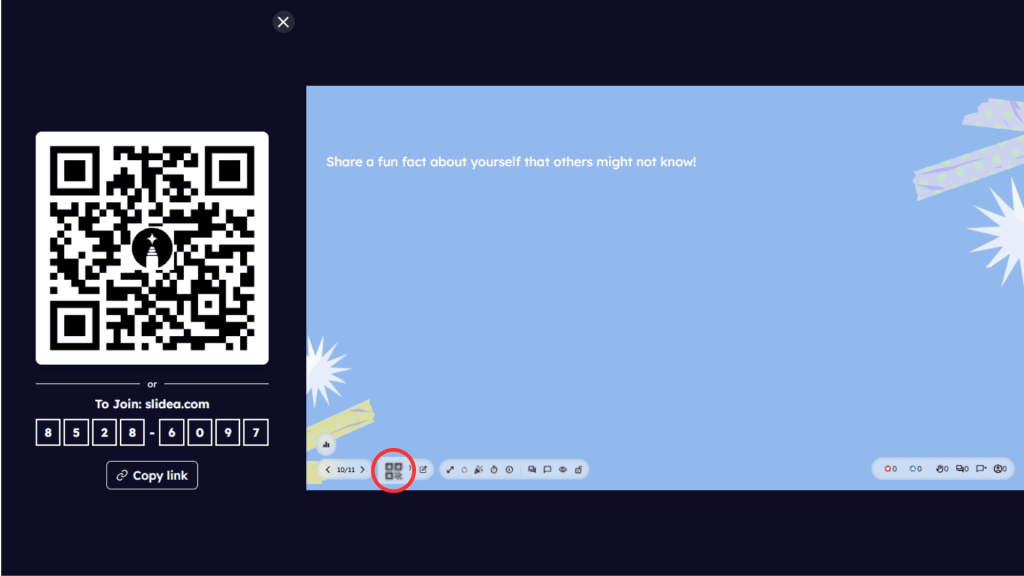
- In the presentation view, go to the bottom control bar.
- Click the QR code icon on the left side of the controls.
This will show or hide the joining instructions, including the QR code or access code and copy link.
Method 2: Using a Keyboard Shortcut
- Press ‘I’ on your keyboard while presenting.
This will instantly toggle the visibility of the joining instructions on screen.
Control Joining Instructions from Remote
If you are using the remote control feature:
- Open the remote interface.
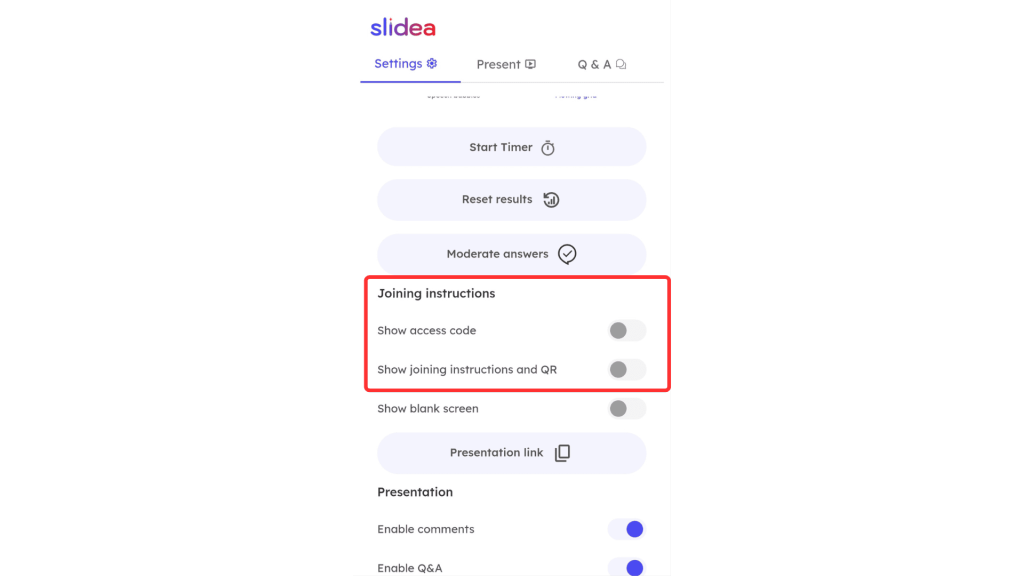
- Go to the Settings section.
- Under Joining instructions, toggle:
- Show access code
- Show joining instructions and QR
This allows you to control what your audience sees without interacting with the main screen.
When to Hide Joining Instructions
Hiding joining instructions can be useful when:
- Your audience has already joined the presentation
- You want a clean, distraction-free slide view
- You are focusing attention on specific content
Tip: Turn the instructions back on anytime if new participants need to join your presentation.


Leave a Comment
Your email address will not be published. Required fields are marked *