


Keyboard shortcuts in Slidea help you control your presentation quickly without relying on the on-screen menu. This is especially useful when presenting live, where speed and smooth transitions matter.
How to View Keyboard Shortcuts
You can access the full list of keyboard shortcuts directly from presentation mode.
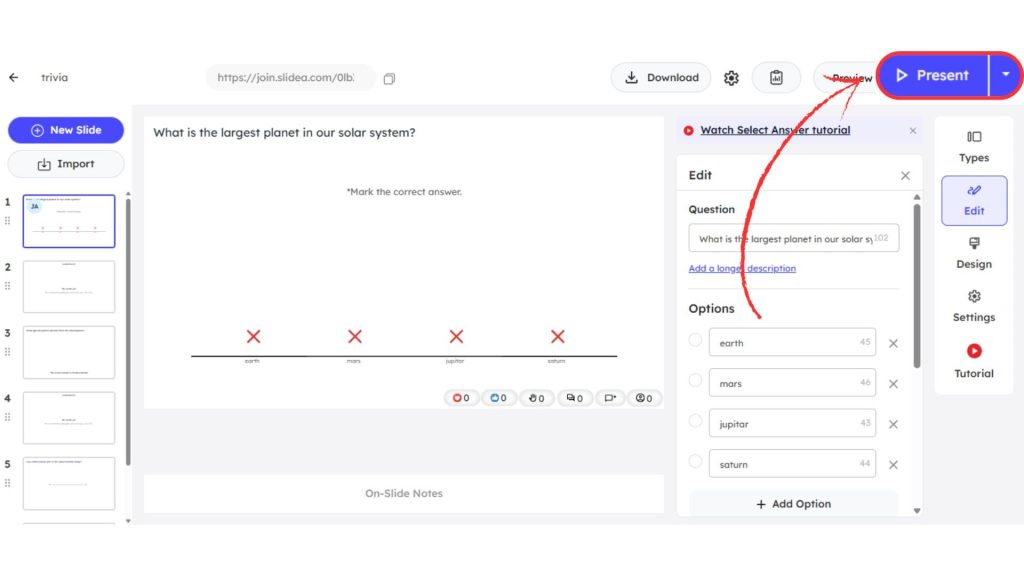
Method 1: From the Presentation Screen
- Open your presentation in Slidea.
- Click the Present button in the top-right corner.
- In the presentation view, go to the bottom control bar.
- Click Open Hotkeys Overview.
This will open a panel displaying all available keyboard shortcuts.
Method 2: Using a Keyboard Shortcut
While presenting in fullscreen mode:
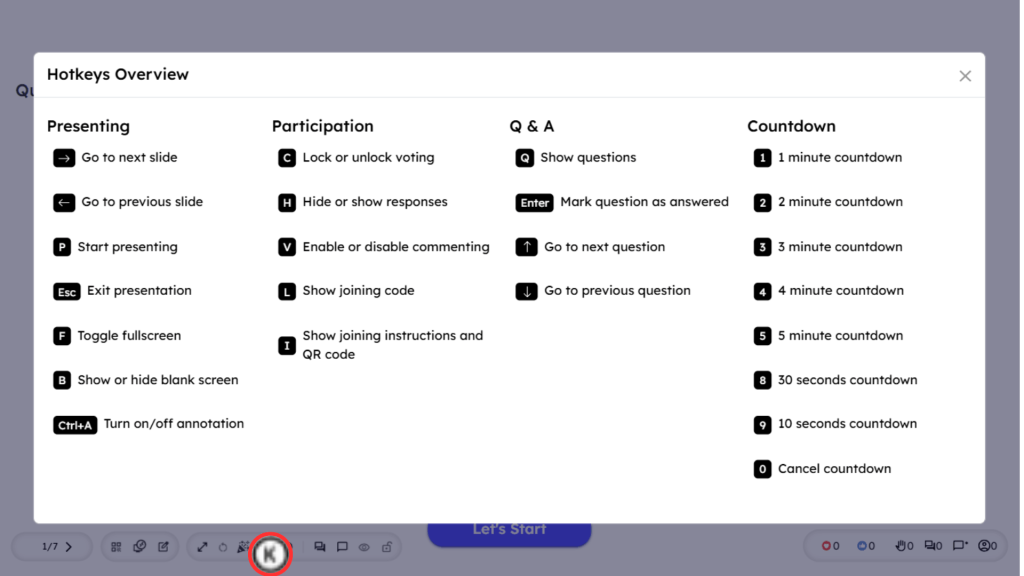
- Press K on your keyboard to open the Hotkeys Overview
- Press K again to close it
Common Keyboard Shortcuts in Slidea
Here are some of the most useful shortcuts available during presentation:
Presenting
- → / Arrow Right — Go to next slide
- ← / Arrow Left — Go to previous slide
- P — Start presenting
- Esc — Exit presentation
- F — Toggle fullscreen
- B — Show or hide blank screen
- Ctrl + A — Turn annotation on/off
Participation Controls
- C — Lock or unlock voting
- H — Show or hide responses
- V — Enable or disable commenting
- L — Show joining code
- I — Show joining instructions and QR code
Q&A Controls
- Q — Show questions
- Enter — Mark question as answered
- ↑ / ↓ — Navigate between questions
Countdown Timer
- 1 — Start 1-minute countdown
- 2 — Start 2-minute countdown
- 3 — Start 3-minute countdown
- 4 — Start 4-minute countdown
- 5 — Start 5-minute countdown
- 8 — Start 30-second countdown
- 9 — Start 10-second countdown
- 0 — Cancel countdown
Using keyboard shortcuts in Slidea allows you to navigate slides faster, control audience interaction, avoid interruptions during your presentation, and deliver a smoother, more professional experience.


Leave a Comment
Your email address will not be published. Required fields are marked *