


Controlling when responses are visible can help you run more effective and unbiased presentations. Slidea allows you to manage response visibility both before and during your presentation.
Hide or Show Responses from the Editor
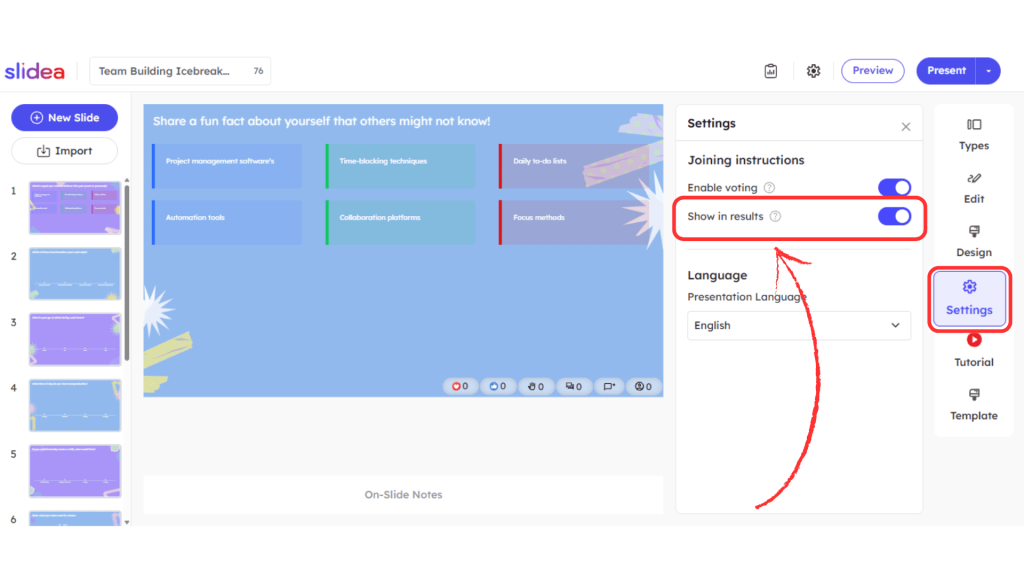
You can set how responses behave in advance while editing your slide:
- Select an interactive slide in your presentation
- Go to the Settings tab on the right panel
- Under Joining instructions, locate the Show in results toggle
- Enable “Show in results” → Responses will be visible to the audience
- Disable “Show in results” → Responses will be hidden from the audience
This setting helps you decide whether participants should see results immediately or not.
Hide or Show Responses During Presentation
You can also control responses in real time while presenting.
To hide responses:
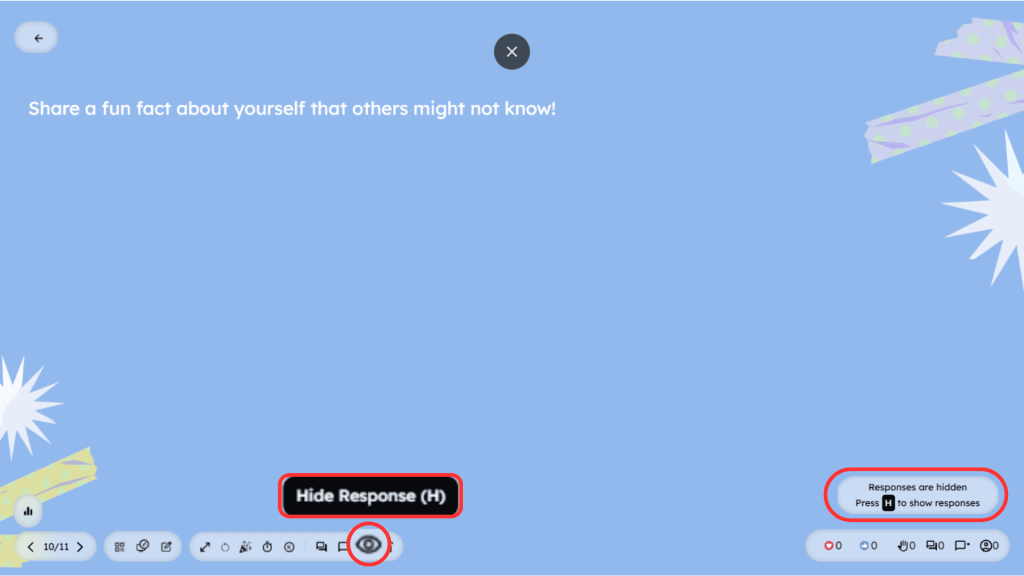
- Press the “H” key on your keyboard
- A message will appear indicating that responses are hidden
- You can also click the Hide Responses control available in the presenter toolbar at the bottom of the presentation screen
To show responses again:
- Press the “H” key again to reveal responses
- Or click the same Hide/Show Responses control in the presenter toolbar to make responses visible again
This gives you quick access to manage response visibility without interrupting your presentation flow.
What Happens When Responses Are Hidden
- Participants can still submit their answers
- The total number of responses will still be visible
- The actual results will remain hidden until you choose to show them
This is useful when you want to collect honest answers without influencing your audience.
Presenter Tip
If you want quick control during your session, use the keyboard shortcut (H) to instantly toggle response visibility without interrupting your flow.
By using response visibility controls effectively, you can create more engaging and unbiased presentations while keeping full control over when your audience sees the results.


Leave a Comment
Your email address will not be published. Required fields are marked *