


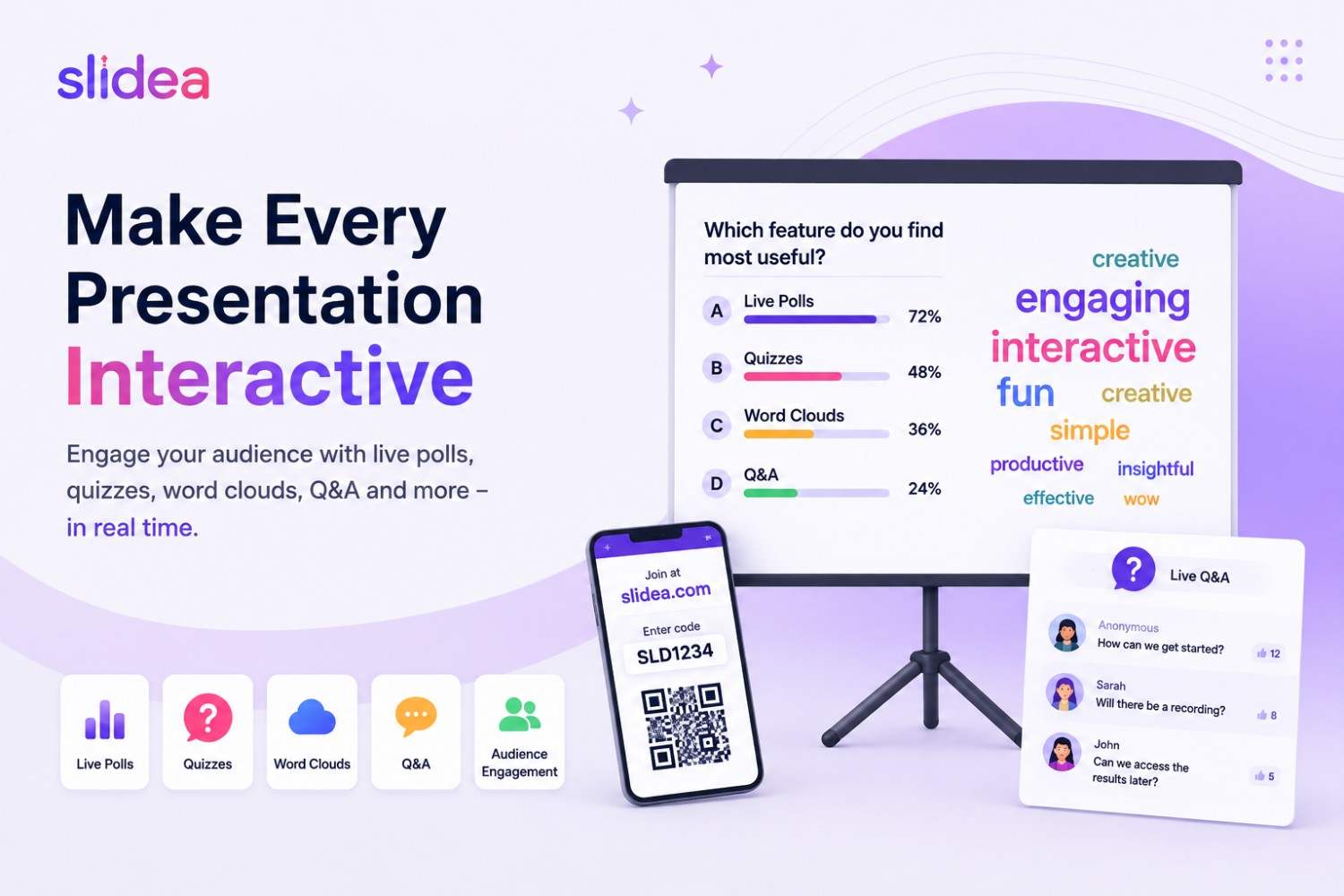
To make a presentation interactive with live polls and Q&A, add a Multiple Choice poll slide at the start of your deck, a knowledge-check poll mid-session, and enable the Q&A feed to run throughout the entire presentation. Audience members join by scanning a QR code or visiting slidea.com on their phone. No app download is needed and results appear on screen in real time as votes come in.
Most presentations are one-way. The presenter talks. The audience listens, or tries to. Live polls and Q&A change that dynamic in the most direct way possible. They give every person in the room a voice, in real time, without anyone having to raise a hand or unmute themselves.
This guide covers everything you need to use live polls and Q&A in your next presentation. It covers what they are, how to set them up in Slidea, when to use them, and what to do with the results when they appear on screen.
For a broader look at making presentations interactive, read our complete guide to interactive presentations first.
What Is a Live Poll and What Is a Live Q&A?
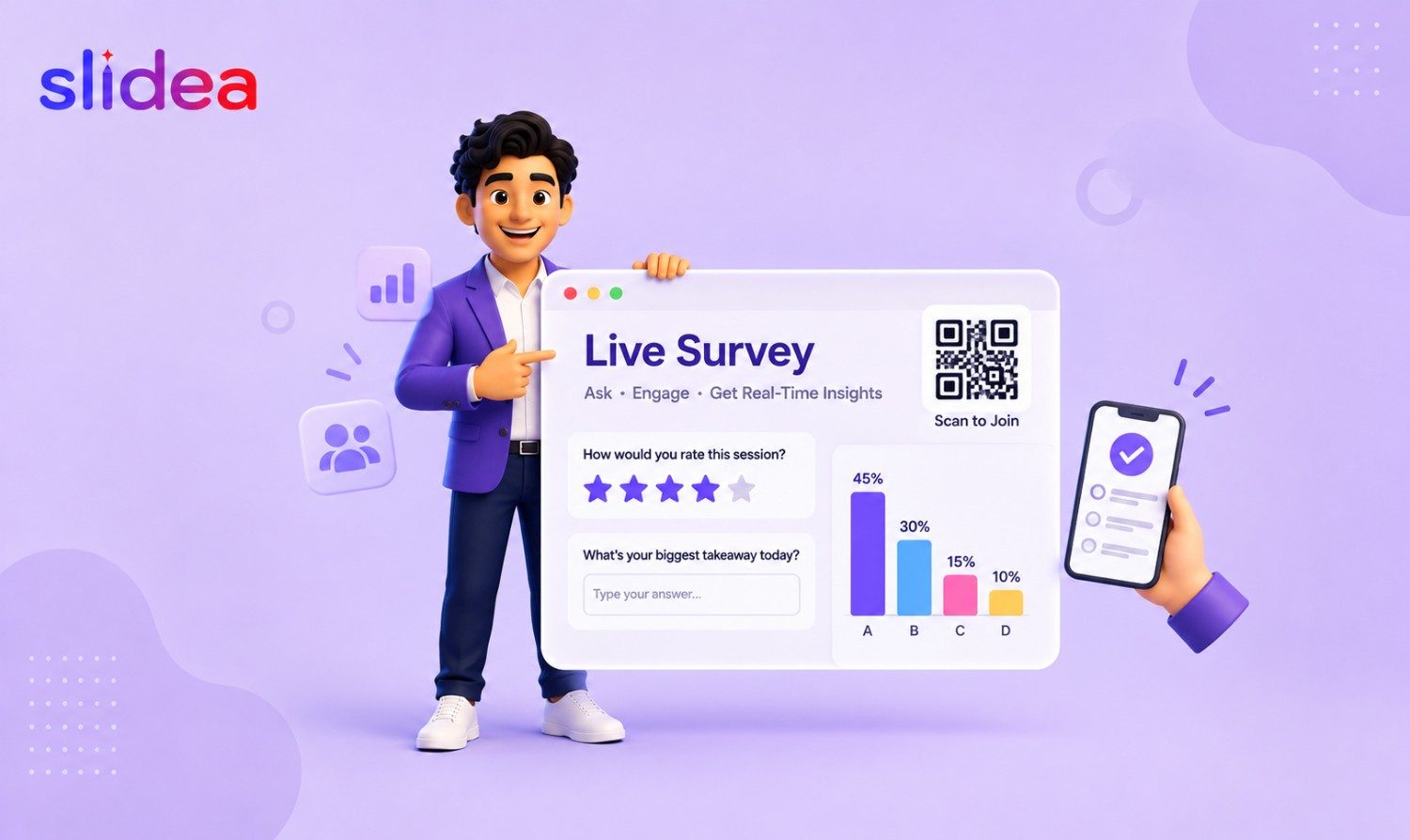
A live poll is a question your audience answers in real time from their phones, with results appearing on screen within seconds. Unlike a post-session survey, the poll happens inside the presentation itself. The audience votes, the chart fills up live, and the presenter and audience see the results together. The session then adapts based on what the data shows.
A live Q&A feed is a persistent channel where audience members submit questions at any point during a session. Rather than holding all questions until the end, when most people have forgotten what they wanted to ask, the Q&A runs continuously in the background. Participants submit questions on their phone. Others upvote the ones they share. The most important questions rise to the top automatically, and the presenter addresses them at natural pause points.
The key difference between the two is this. Polls give you structured data, a distribution across predefined options. Q&A gives you unstructured input, whatever the audience is actually thinking. Both are valuable and the best sessions use both.
Why They Work: Three Statistics Worth Knowing
The research on live polling in presentations is consistent.
Webinar benchmark data consistently shows that polls generate more audience interactions than any other common webinar engagement feature, including Q&A, surveys, and resource downloads.
Active learning approaches, including techniques such as live polling, have been shown to improve retention compared with passive learning methods. For trainers and educators, this matters in practice. A single well-placed poll question that asks the audience to recall what was just covered before moving on produces better retention than repeating the content verbally.
Immediate feedback encourages additional participation because people can see their contribution reflected in the results instantly. When an audience member votes and watches the chart update in real time, they are significantly more likely to engage again later in the same session.
Live Polls vs Traditional Hand-Raising
It helps to see exactly what changes when you replace a show of hands with a live poll.
| Traditional participation | Live polls with Slidea |
| Only confident voices respond | Everyone participates equally |
| Fully public, no anonymity | Anonymous responses available |
| Impractical with large groups | Works for 5 to 500+ people |
| No record of responses | Results saved and exportable |
| Hard to use in remote sessions | Works in person, online, and hybrid |
| Show of hands forgotten instantly | Results can be reviewed after the session |
The only genuine advantage of hand-raising is that it requires no technology. For everything else, a live poll produces better data, higher participation, and a more inclusive experience for the people in the room.
The Three Poll Types in Slidea
Not all polls serve the same purpose. Slidea's Multiple Choice slide handles three distinct scenarios depending on how you configure it.
- Standard poll for opinion gathering The Mark Correct Answers toggle is off by default. Audience members vote for whatever reflects their view. Results show as a live bar chart, donut, or pie chart. Nobody is right or wrong. Use this for warming up the room, making group decisions, or gauging where the audience stands before presenting new information.
- Poll with correct answer for knowledge checks Toggle Mark Correct Answers on. The audience votes, results appear, and then the presenter presses Show correct answer. The correct bar highlights and wrong answers are marked. The moment of suspense before the reveal is what makes this format memorable in training sessions, classroom lessons, and compliance checks.
- Multiple selection poll for richer data Toggle Select multiple options on. Participants can choose more than one answer. Use this when the question has more than one valid response, for example Which of these challenges apply to your team right now, where forcing a single choice would lose important nuance.
Visualization options
Results display as a Bar chart, which is clearest for comparisons, a Donut chart, which is better for showing proportions, or a Pie chart, which is clearest for percentages. The presenter can switch between all three from the settings panel mid-session without interrupting the poll or resetting any votes.
How to Set Up a Live Poll in Slidea
- Step 1. In the editor, click New Slide and select Multiple Choices from the Brainstorming and Interactive Slides panel.
- Step 2. Type your question into the Question field, up to 150 characters. Use Add a longer description if the question needs more context.
- Step 3. Add your answer options. Each allows up to 142 characters and is colour-coded automatically. Three to four options works best for most polls.
- Step 4. Open the Settings panel. Confirm Enable voting is on, choose whether to allow multiple selections, and confirm Show in results is on.
- Step 5. Open the Design panel. Choose your visualization type and select one of the eight available layout options for how the question and answers appear on screen.
- Step 6. Place the poll at the right moment. Polls work best at three points: the opening to warm up the room and gather baseline data, mid-session to check understanding or reset attention, and the close to consolidate learning or gather feedback. For a full framework on placement and timing, see our guide on how to make a presentation interactive in 5 steps.
How to Set Up Live Q&A in Slidea
- Step 1. Click New Slide and select QA from the Brainstorming and Interactive Slides panel. The default title is Ask me anything. Customise it to fit your session.
- Step 2. In the Edit panel, set the scope. On all slides means the Q&A feed is open from the moment you start presenting, which is the recommended setting for most sessions. Only on Q&A slide restricts the feed to when you navigate to that specific slide. Allow audience to see each other's questions enables upvoting.
- Step 3. Before going live, confirm Enable Q&A is toggled on in the presentation settings panel.
- Step 4. During the session, manage questions from the right-side Q&A panel. The Top Question tab shows questions sorted by upvotes, highest first. The Answered tab holds questions you have addressed. The Pin tab keeps questions you want to return to at the top so you do not lose them.
Anonymous submission is available and recommended for educational and corporate settings. It consistently produces higher participation and more honest questions from people who would not speak up publicly.
Presenter Controls During a Live Session
Slidea gives the presenter real-time control over both polls and Q&A from the settings panel while the session runs, without interrupting the audience experience.
For polls, the key controls are: Turn off responding, which locks the poll so no new votes can be submitted while results stay visible; Show correct answer, which reveals the correct option dramatically after votes are in; Show responses as percentage, which switches between raw vote counts and percentage of total; Start Timer, which launches a countdown to create urgency; and Reset results, which clears all votes to run the poll again.
For Q&A, the Open QA button activates the feed at any point mid-session. The Show Audience button reveals which participant submitted an anonymous question when the presenter wants to follow up directly.
Poll Ideas by Audience Type
The right poll question depends on who is in the room and what you are trying to achieve.
- For teachers and lecturers A good mid-lesson poll is Which of these statements about [concept] is true, with the correct answer marked. It reveals comprehension gaps immediately and the reveal creates a memorable moment. A closing poll like How confident do you feel about what we covered today, with options from very confident to still confused, gives the teacher data without embarrassing any student.
- For business meetings An opening poll like Which agenda item feels most urgent to you right now gives the presenter genuine intelligence before they say a word. A decision-point poll like Which of these three approaches should we prioritise replaces lengthy discussion with a clear data point.
- For webinars and virtual events A calibration poll at the start, How familiar are you with today's topic, with options from completely new to very familiar, helps the presenter adjust the depth of the session for this specific audience.
For a full set of audience-specific interaction ideas beyond polls, see our guide to interactive presentation ideas for meetings, classrooms, training and events.
What to Do With Poll Results in the Room
The most common mistake presenters make with live polls is showing the results and moving on without comment. This wastes the most valuable moment of the interaction.
When results appear on screen, one of four approaches works well.
- Reference them directly Something like 64% of you chose option B, which is higher than I expected and changes what I want to cover first signals to the audience that their input is shaping the session.
- Ask a follow-up question If the results are split, ask the room why before revealing the answer. The discussion that follows is often more valuable than the poll itself.
- Reveal dramatically When a poll has a correct answer marked, wait a few seconds after votes close before pressing Show correct answer. The pause creates anticipation and the reveal lands harder.
- Adapt the session If a comprehension check shows 60% of the room chose the wrong answer, revisit that section before moving forward. This is what separates a genuinely interactive presentation from one that simply uses interactive slides as visual decoration.
- Reading Your Analytics After the Session Slidea saves every poll result and Q&A submission automatically. The Slidea analytics dashboard shows three categories of data after every session.
Participation data shows how many people responded to each poll and when. Low participation on a specific slide usually means the question appeared before everyone had joined or was worded unclearly.
Poll response data shows the full distribution of answers for every poll. A knowledge check with 70% wrong answers is your weakest teaching moment. Revise that section before the next cohort sees it.
Q&A data shows every question submitted, whether answered or not. The unanswered questions that appear repeatedly across multiple sessions tell you exactly what to add to your deck next time. All data exports to Excel directly from the dashboard.
Frequently Asked Questions
How many polls should I include in a 30-minute presentation?
Three is the right number for most 30-minute sessions: one opening, one mid-session check-in, and one closing poll. More than five starts to interrupt the flow. Fewer than two and the presentation still feels passive for most of the session.
Can the audience participate without downloading an app?
Yes. Participants visit slidea.com on their phone browser and enter the session code, or scan the QR code displayed on screen. No download and no account creation is required.
What if nobody responds to the first poll?
The audience has most likely not finished joining. Always display joining instructions for 30 seconds before the first interactive slide. Keep opening questions simple and low-stakes. Say one sentence of instruction on the first poll: You should see this question on your phone, tap your answer.
Can I use polls in existing Google Slides or PowerPoint decks?
Yes. Import your existing deck into Slidea and add poll slides without rebuilding anything from scratch. See our step-by-step guide on how to make Google Slides interactive for the full walkthrough.
Can I switch the poll chart type mid-session?
Yes. Switch between Bar, Donut, and Pie from the presenter settings panel at any time without resetting votes or interrupting the session.
What is the difference between a live poll and a quiz in Slidea?
A live poll gathers opinions or preferences and there is no correct answer. A quiz tests knowledge and there is a correct answer that the presenter reveals after votes are in. In Slidea, the same Multiple Choice slide type handles both. Toggle Mark Correct Answers on for a quiz, leave it off for a poll. The audience experience looks similar but the purpose and outcome are completely different.
Start With One Poll
You do not need to redesign your entire presentation. Add one Multiple Choice poll as your opening slide. Give the audience 60 seconds to respond. See what it does to the energy in the room.
That single experience, watching your audience's opinions appear on screen in real time, is more persuasive than anything this guide can tell you. Everything else builds from there.




Your email address will not be published. Required fields are marked *