


Most lists of interactive presentation ideas give you the same generic advice: add a poll, try a quiz, use a word cloud.
That is not enough. The right presentation engagement idea depends on who you are presenting to, what you are trying to achieve, and exactly when in the session the interaction should happen.
This guide gives you 15 specific, ready-to-use audience participation ideas organised by audience type. For each one you will find the exact slide type to use, a sample question you can copy directly, and the moment in your session it works best. If you want to understand what interactive presentations are before diving in, start with our complete guide to interactive presentations.
Before You Pick an Idea: The 3-Moment Rule
The single biggest mistake presenters make with interactive presentation activities is placing them randomly, a poll here, a quiz there, with no logic behind the placement. The audience interaction examples that work best all share one thing: they are placed at the right moment. Every interactive element should serve one of three moments.
- Opening Hook (first 2 minutes) Create immediate investment. Signal to the audience that this session will be different and that their input matters.
- Mid-Session Reset (every 10 to 15 minutes) Reset focus as attention naturally dips. Gather real-time intelligence about whether the audience is following you.
- Closing Anchor (final 3 minutes) The last thing an audience experiences is what they remember most. End with energy, consolidation, or commitment, not a slow fade.
Keep these three moments in mind as you read through the ideas below. Each idea is labelled with the moment it serves best.
Ideas for Teachers and Educators
Idea 1: Surface What They Already Know Before You Say a Word
Best moment: Opening Hook
Slide type: Word Cloud
Sample question: In one word, what do you already know about today’s topic?
Start every lesson by letting the class’s existing knowledge appear on screen before you teach anything. As students respond from their phones, words grow larger based on how many people share the same answer. Common misconceptions become immediately visible.
This works equally well in a lecture hall of 200 students and a classroom of 25. Anonymous submission means even the quietest students contribute, and seeing their own word appear on the projector creates instant ownership of the session.
In Slidea: Add a Word Cloud slide as your very first interactive slide. Give students 60 seconds to respond from their phones via QR code. No app download required.
Idea 2: The Mid-Lesson Confidence Check
Best moment: Mid-session reset
Slide type: Scales
Sample question: How confident do you feel about what we have covered so far? 1 = completely lost, 5 = Very confident
A Scales slide gives you a real-time read on comprehension without anyone having to raise their hand or admit confusion publicly. If responses cluster around 1 or 2, you know to pause and revisit. If they cluster around 4 or 5, the room is ready to move forward.
Research shows interactive elements produce a 31% increase in retention and a 23% boost in motivation when included in lessons.
In Slidea: Add a Scales slide after each major concept. Find it under Brainstorming and Interactive Slides in the Slidea editor. Set the scale range from 1 to 5 and label the endpoints clearly. Results display as a live distribution chart so you see the full picture at a glance.
Idea 3: The Closing Knowledge Quiz
Best moment: Closing anchor
Slide type: Quiz, Select Answer
Sample question: Write 3 to 5 questions directly from the lesson’s key learning objectives
End every lesson with a short quiz instead of a verbal summary. A four-question quiz with a leaderboard takes less than three minutes and forces active retrieval. Students do not just hear the answer again, they have to produce it from memory.
The leaderboard creates energy at the end of a session when attention is typically at its lowest. Students who have been half-checked-out for the last ten minutes suddenly engage because there are points at stake.
In Slidea: Add a Quiz slide set in Slidea’s quiz maker and enable the leaderboard. Post-session analytics shows which questions the class struggled with most.
Idea 4: Truth or Lie for Lesson Hooks
Best moment: Opening Hook
Slide type: Truth or Lie
Sample question: True or False: [surprising or counterintuitive fact related to today’s topic]
Instead of opening with a learning objective slide that nobody reads, open with a Truth or Lie statement that challenges what students think they know. Students vote, the result appears on screen, and the lesson has already started.
The question of why it is true or false creates the curiosity that pulls students through the content. Works for any subject, history, science, maths, business studies, and literature.
In Slidea: Add a Truth or Lie slide, write your statement, set the correct answer, and Slidea handles the reveal and scoring automatically. No setup required beyond typing your question.
Idea 5: The Traffic Light Exit Check
Best moment: Closing anchor
Slide type: Traffic Lights
Sample question: Before you leave, how well do you understand today’s key concept? Green = got it, Amber = mostly, Red = still confused
A Traffic Lights slide at the end of a lesson gives you actionable data in 30 seconds. Unlike a quiz that tests specific facts, Traffic Lights measures overall confidence and flags students who need follow-up before they disappear for the day.
Over multiple sessions, the analytics build a picture of which concepts consistently produce red responses. If you want to follow up with a quick knowledge check, try these fun multiple choice questions with answers for classroom quizzes and review activities.
In Slidea: Add a Traffic Lights slide as your final slide. Results appear as a colour distribution. Export to Excel to track trends across multiple sessions.
Ideas for Business Meetings and Team Presentations
Idea 6: Replace Your Opening Slide With a Live Poll
Best moment: Opening Hook
Slide type: Multiple Choices
Sample question: Which of these topics feels most relevant to where you are right now? [list your agenda items]
Almost half of participants agree that a meeting is likely to fail if people are not engaged from the very start. The traditional opening, a title slide and a verbal agenda, does nothing to create that engagement. A live poll does.
It creates immediate participation and gives you genuine intelligence about where to focus. If 70% of the room votes for agenda item 3, you know to spend more time there.
In Slidea: Add a Multiple Choices slide as your first slide. List 3 to 4 agenda items as options. Display results live and reference them explicitly before moving on. That one sentence transforms the meeting from a broadcast into a conversation.
Idea 7: The Ranking Vote for Decision Meetings
Best moment: Mid-session reset
Slide type: Ranking
Sample question: Rank these four initiatives from most to least important for next quarter
When a team needs to prioritise, whether initiatives, features, budget items, or hiring decisions, a Ranking slide replaces lengthy verbal discussion with a structured, data-driven vote. Everyone ranks their preferences simultaneously.
This is particularly powerful in meetings where a few loud voices tend to dominate. The Ranking slide gives every person an equal vote. For all-hands and large team meetings, see Slidea for All-Hands Meetings.
In Slidea: Add a Ranking slide and list your options. 3 to 5 works best. Results display as a ranked list with the aggregate score for each item. Screenshot the result as the meeting’s official record.
Idea 8: The Anonymous Pulse Check
Best moment: Opening Hook for recurring meetings
Slide type: Scales
Sample question: On a scale of 1 to 5, how are you feeling about your workload this week? 1 = Completely overwhelmed, 5 = Workload feels very manageable
For weekly team meetings, a 45-second anonymous pulse check at the start tells you things a verbal check-in never will. People will not say they are overwhelmed out loud in front of their manager. They will submit it anonymously on their phone.
A team lead who knows that four of twelve team members are at a 1 or 2 can adjust the meeting accordingly, cutting lower-priority agenda items or checking in directly with those individuals afterwards.
In Slidea: Save the Scales slide as a reusable template in Slidea so you can drop it into every weekly meeting with one click. Use the same question every week without changing it. Consistency is what makes the trend meaningful.
Idea 9: Word Cloud for Brainstorming Sessions
Best moment: Opening Hook or Mid-session reset
Slide type: Word Cloud
Sample question: In one word, what do our customers actually need right now?
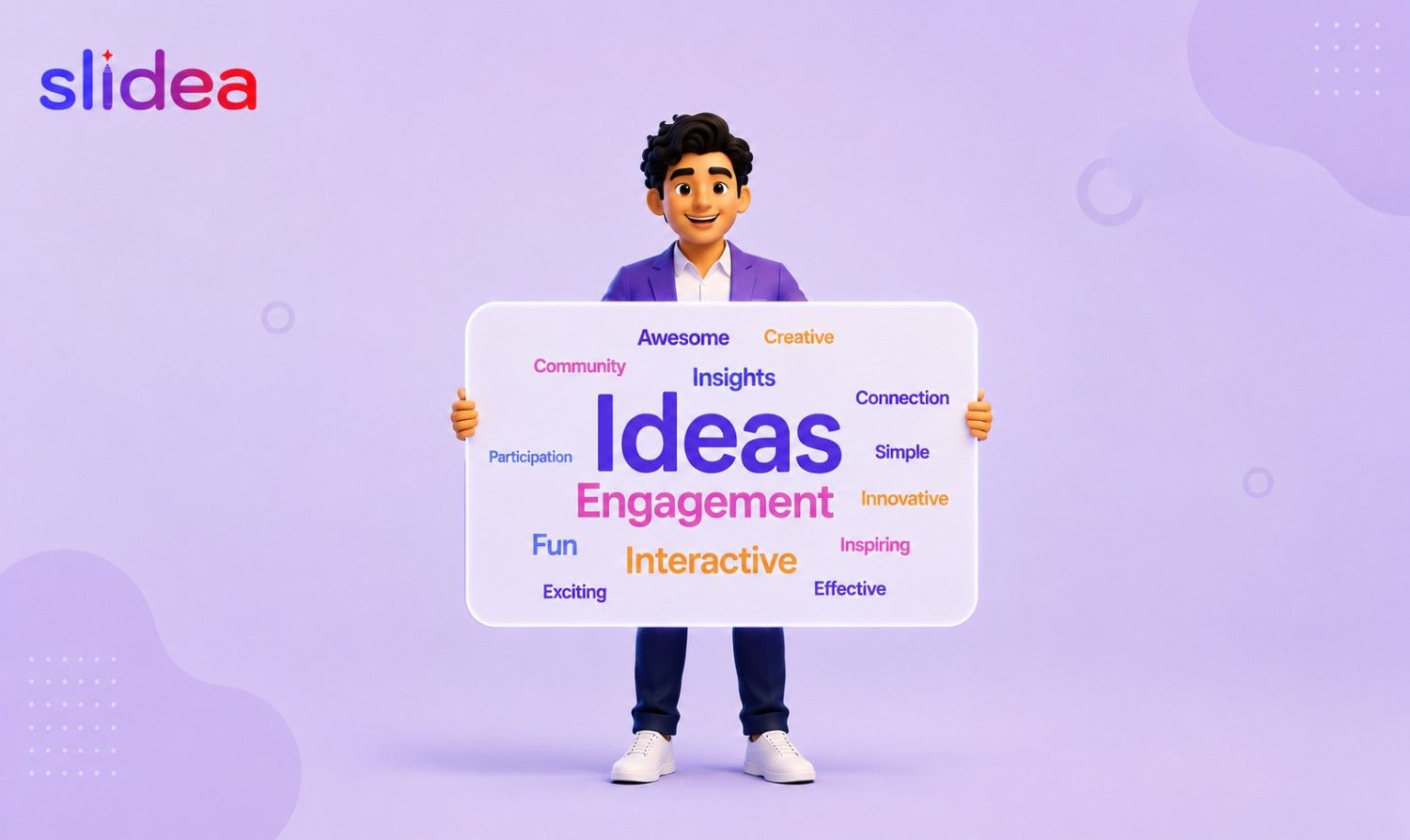
Word clouds turn individual opinions into collective intelligence in real time. In a brainstorming session, the word cloud replaces the awkward silence of ‘does anyone have any ideas?’ with a visual representation of what the whole room is thinking simultaneously.
The words that appear largest are the ones most people share, which often reveals surprising alignment or surprising disagreement that drives the most productive discussion.
In Slidea: Add a Word Cloud slide, pose your question, and give participants 90 seconds to respond. The most common responses grow largest on screen. Screenshot the result at the peak moment and paste it into your meeting notes.
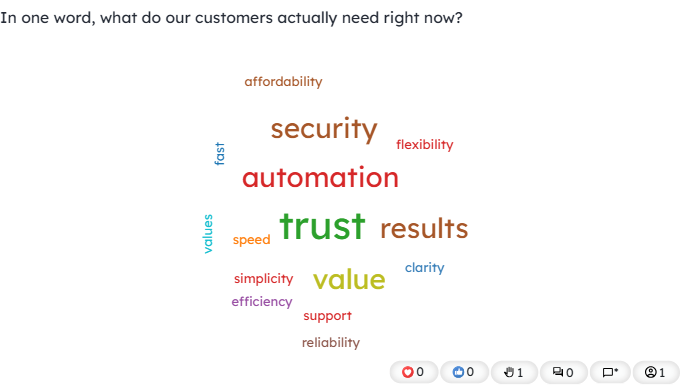
Live Word Cloud showing customer needs submitted by participants in real time. Frequently mentioned responses appear larger on screen.
Want to try these audience engagement ideas in your next presentation? Start with a free Slidea account and add polls, quizzes, rankings, word clouds, and Q&A directly to your slides. All the interactive presentation activities in this guide are built into Slidea as native slide types. Pick one idea from the list above, open Slidea, and you can have it running in your next session in under five minutes.
Ideas for Trainers and L&D Professionals
Idea 10: The Baseline Knowledge Assessment
Best moment: Opening Hook
Slide type: Guess the Number
Sample question: Before we start, what percentage of employees say they feel their training is relevant to their actual job?
Starting a training session by assessing what participants already know serves two purposes. It tells you where to focus, and it activates the retrieval process in learners’ brains before you introduce new information.
A Guess the Number slide works particularly well for statistical topics. Participants submit their estimate, the correct number is revealed, and the gap between what they guessed and what is true creates the curiosity that motivates learning.
In Slidea: Use a Guess the Number slide for any training topic involving statistics, quantities, or measurable outcomes. Watch the how-to video guides to see how to set the correct answer and display the distribution of guesses.
Idea 11: The 10-Minute Knowledge Check
Best moment: Mid-session reset
Slide type: Quiz, Select Answer
Sample question: Write one question per key concept covered in the preceding 10 minutes
Place a single quiz question every 10 to 12 minutes throughout any training session. Frame it as: ‘Let’s make sure we explained that clearly enough.’ This framing removes the anxiety of being tested and replaces it with collaborative checking.
If more than 30% of participants answer incorrectly, revisit the concept before moving on. This prevents the most common failure mode in training: assuming comprehension and moving forward when half the room is still unclear.
In Slidea: Add Select Answer quiz slides at regular intervals throughout the deck. In the Slidea editor, select Quiz from the slide panel and choose Select Answer, then type your question and mark the correct option. Post-session analytics shows the answer distribution for every question.
Idea 12: The Open-Ended Commitment
Best moment: Closing anchor
Slide type: Open Ended
Sample question: What is one thing from today’s session you will apply in your work this week?
Closing a training session with an open-ended commitment question bridges the gap between the training room and the real world. When a participant types a specific action they will take, they have made a micro-commitment that makes follow-through significantly more likely.
The responses are saved in your analytics and can be shared with managers or used as accountability check-ins in follow-up sessions.
In Slidea: Add an Open Ended slide as your final slide. Responses appear live on screen as participants type. Download the full analytics report from the Slidea help center and share it with relevant stakeholders after the session.
Ideas for Events, Webinars and Conference Speakers
Idea 13: Open With a Poll, Not a Thank You
Best moment: Opening Hook
Slide type: Multiple Choices
Sample question: How many of you have tried [topic of your talk] in the last six months?
The standard conference opening, ‘Thank you for having me, I am delighted to be here’, wastes the highest-attention moment of any presentation. Replace it with a live poll and you immediately have a real data point about this specific audience.
Research shows 50 to 55% of webinar attendees respond to live polls on average. Use the result explicitly in your opening remarks. See how Slidea works for webinars and conferences for event-specific setup tips.
In Slidea: Add a Multiple Choices slide as slide 1. Keep it to 3 to 4 options. Display results live and reference the result explicitly in your opening remarks.
Idea 14: The Persistent Q&A Feed
Best moment: Throughout the entire session
Slide type: Q&A
Sample question: Open the Q&A panel at the start and leave it running for the entire presentation
The traditional end-of-session Q&A has three problems: people forget their questions, one person dominates the floor, and there is never enough time. A persistent Q&A feed running throughout the session solves all three.
Audience members submit questions at the moment of maximum curiosity. Others upvote the questions they share. The most important questions rise to the top automatically.
In Slidea: Enable Q&A from the presentation settings panel before going live. The Q&A panel in presenter view shows Top Questions, Answered, and Pinned tabs throughout your session. Address the top-voted questions whenever the flow naturally allows.
Idea 15: The Closing Word Cloud
Best moment: Closing anchor
Slide type: Word Cloud
Sample question: In one word, what will you take away from today?
End any session with a word cloud asking for a one-word takeaway. It takes 60 seconds. For the audience, it is a consolidation exercise. Choosing one word forces a synthesis of everything they heard.
For the presenter, it is the most honest feedback they will ever receive, not a post-session survey filled out three days later, but an immediate response while the room is still present. See the Slidea platform overview for tips on exporting your session results.
In Slidea: Add a Word Cloud slide as your absolute final slide and give it a full 60 seconds. Screenshot the result before closing the presentation.
Putting It All Together: A Sample 45-Minute Session
Here is how these engaging presentation ideas combine into a complete interactive session structure, regardless of audience type. Whether you are using live polling ideas at the start, a brainstorming activity in the middle, or a quiz to close, the structure below gives every moment a purpose:
| Time | Moment | Idea | Slide type |
| 0:00 to 0:02 | Opening Hook | Poll, Word Cloud, or Truth or Lie | Multiple Choices, Word Cloud, or Truth or Lie |
| 0:00 to end | Throughout | Persistent Q&A feed running in background | Q&A (always open) |
| 0:12 to 0:14 | Mid-session reset | Confidence check or knowledge quiz | Scales or Select Answer |
| 0:25 to 0:27 | Mid-session reset | Ranking or opinion poll | Ranking or Multiple Choices |
| 0:43 to 0:45 | Closing anchor | Quiz, open-ended commitment, or word cloud | Select Answer, Open Ended, or Word Cloud |
5 interactive moments in a 45-minute session. Each interaction takes 60 to 90 seconds. Total interaction time: under 8 minutes. Remaining 37 minutes: more focused, better retained, delivered to an audience that stayed present throughout.
The One Rule Behind Every Idea on This List
Every idea here follows the same underlying rule: the interaction must serve the audience, not the presenter.
A poll that the presenter ignores after results appear is not an interactive presentation. It is a gimmick. A quiz that makes people feel stupid rather than curious is not effective engagement. It is a deterrent.
Used well, every idea on this list creates a moment where the audience feels heard, their thinking is validated or challenged, and the session becomes something they participated in rather than something that happened to them. That is the difference between a presentation people sit through and one they remember.
Frequently Asked Questions
What makes a presentation interactive?
An interactive presentation requires audience participation through polls, quizzes, Q&A, brainstorming activities, ranking exercises, or other engagement formats that allow attendees to contribute rather than passively watch. The key difference from a traditional presentation is that the audience responds in real time, and what they submit visibly influences what happens next.
What are the best interactive presentation ideas for students?
Word clouds, knowledge quizzes, confidence checks using Scales slides, Truth or Lie questions, and Traffic Light exit tickets are among the most effective interactive presentation ideas for students. They encourage active participation rather than passive listening, and they provide immediate feedback to both the student and the teacher. See Ideas 1 to 5 above for step-by-step guidance on each, or browse Slidea for Education for classroom-ready templates.
What are the best interactive presentation ideas for work meetings?
Live polls to open the agenda, Ranking slides to prioritise decisions, brainstorming Word Clouds, anonymous Scales pulse checks, and persistent Q&A sessions help increase participation and improve meeting outcomes. They work equally well in in-person, remote, and hybrid settings. Ideas 6 to 9 in this guide cover each one in detail.
How many interactive activities should a presentation include?
A good rule is one interaction every 10 to 15 minutes. In a 45-minute presentation, four to five interactive moments are usually enough to maintain engagement without disrupting the flow. Fewer than three and the presentation still feels passive. More than six and the constant interruptions become the problem rather than the solution.
Which interactive presentation tools work with Google Slides?
Several tools allow you to add interactive elements to Google Slides. Slidea lets presenters add polls, quizzes, Q&A sessions, rankings, word clouds, and brainstorming activities directly alongside their slides, with audiences joining via QR code from their phones, no app download required. For a step-by-step walkthrough, see our guide on how to make Google Slides interactive.
What is the difference between audience participation ideas and audience engagement ideas?
Audience participation requires the audience to actively do something, submit a poll response, answer a quiz question, type a word cloud entry. Audience engagement is broader and includes things like storytelling, visual design, and delivery style that hold attention without necessarily requiring a response. The ideas in this guide focus on participation because it produces measurable, visible interaction, but the best presentations combine both.
Ready to Build Your Next Interactive Presentation?
All the slide types in this guide are available in Slidea, free to get started. Create polls, quizzes, word clouds, rankings, Q&A sessions, and more without switching between tools.
Browse the template library to find a ready-made structure for your next lesson, meeting, workshop, webinar, or event, then customize it in minutes.

Leave a Comment
Your email address will not be published. Required fields are marked *