



A live word cloud is a visual that builds in real time as your audience submits words from their phones. To make one, add a word cloud slide in an interactive presentation tool, write a short prompt, then share a join link or QR code. Words appear instantly, and the most common ones show larger.
Most word cloud makers only turn text you paste into a picture. A live word cloud is different. It collects answers from a real audience during your session, so the result reflects what the room actually thinks. That makes it useful for warm-ups, quick checks, and group brainstorms.
This guide walks through what a live word cloud is, how to build one step by step, how the QR join works, and the prompts and mistakes that decide whether it lands.
What Is a Live Word Cloud?
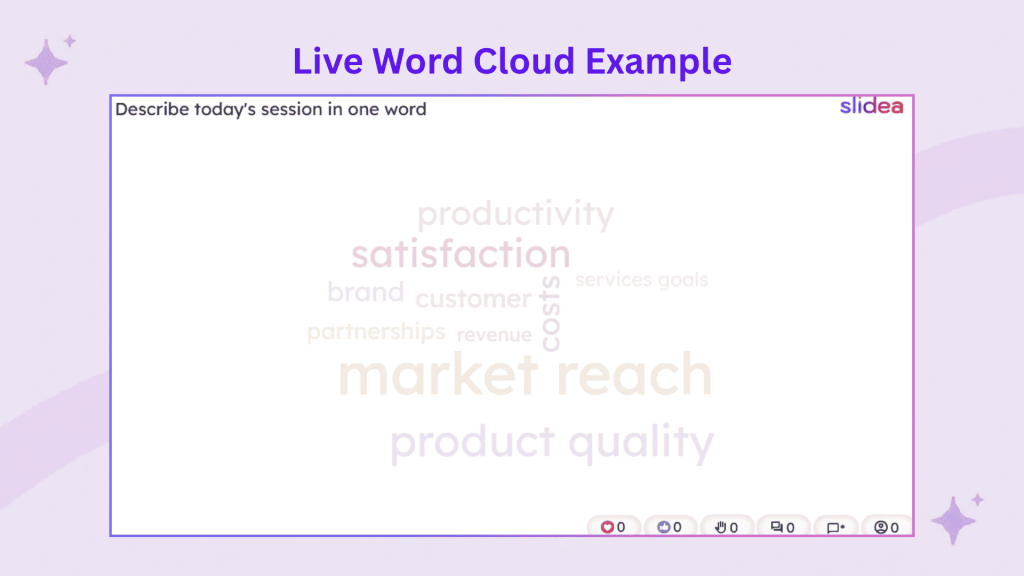
A live word cloud is a group visual made from words your audience types in during a presentation. Each submission appears on screen, and words repeated by more people grow larger. Size shows frequency, so the picture gives you an instant read of the most common answers.
It works well because everyone answers at once, not just the confident few. A quiet student or a remote teammate can add a word from their phone without speaking up. For a wider look at formats, see this comparison of word clouds versus mind maps.
How Does a Live Word Cloud Work in a Presentation?
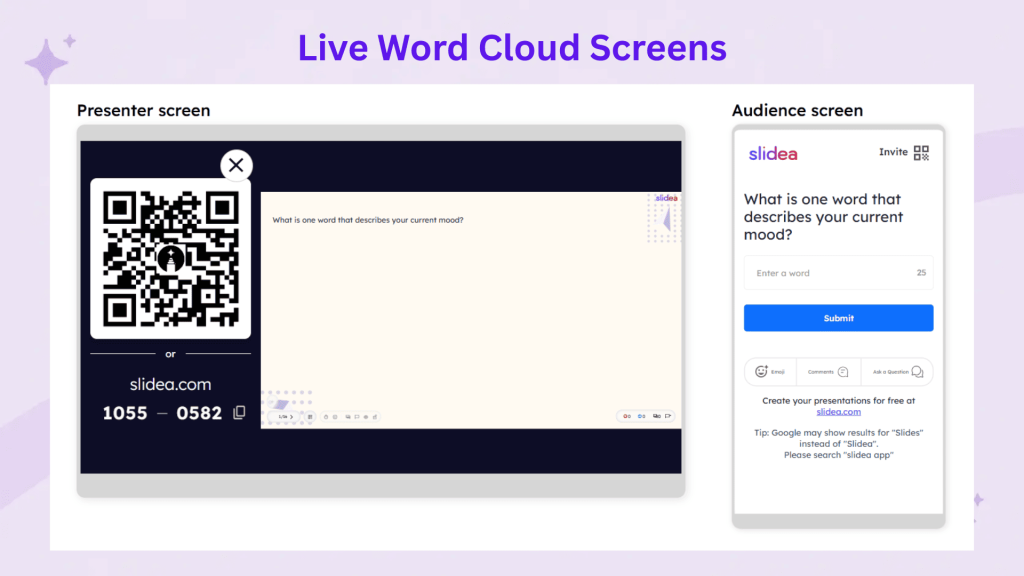
The flow is simple. You show a slide with a question and a join code. Your audience opens a link or scans a QR code, types a word or two, and hits submit. The cloud updates on the main screen within seconds.
Because the results are live, you can react to them on the spot. If one word dominates, you can ask why. If answers split, you have a talking point. That real-time loop is the reason a live word cloud beats a static one for engagement.
Static Word Cloud vs Live Word Cloud
| Feature | Static generator | Live word cloud |
| Where words come from | Text you paste in | Your audience, in real time |
| Updates | One time | Instant, as people submit |
| Participation | None | Everyone can join |
| How people join | Not needed | Link or QR code, any phone |
| Best for | A report or graphic | Engagement during a session |
How to Create a Live Word Cloud in 6 Steps
You can set one up in a few minutes. Here is the process from start to present.
Step 1: Choose a Tool That Supports Live Responses
You need one that collects audience input, not just a text-to-image maker.
Step 2: Add a Word Cloud Slide
Give it a clear place in your deck, usually near the start for a warm-up or after a key point for a check.
Step 3: Write One Short Prompt
Ask for a single word or a short phrase. One focused question works far better than a broad one.
Step 4: Set How Many Words Each Person Can Add
One or two entries per person keeps results honest and stops one voice flooding the screen.
Step 5: Share the Join Code or QR
Put it on screen so people can join from any phone browser, with no app to install.
Step 6: Present and Read the Results
Watch the cloud form, then read a few words aloud and tie them back to your point.
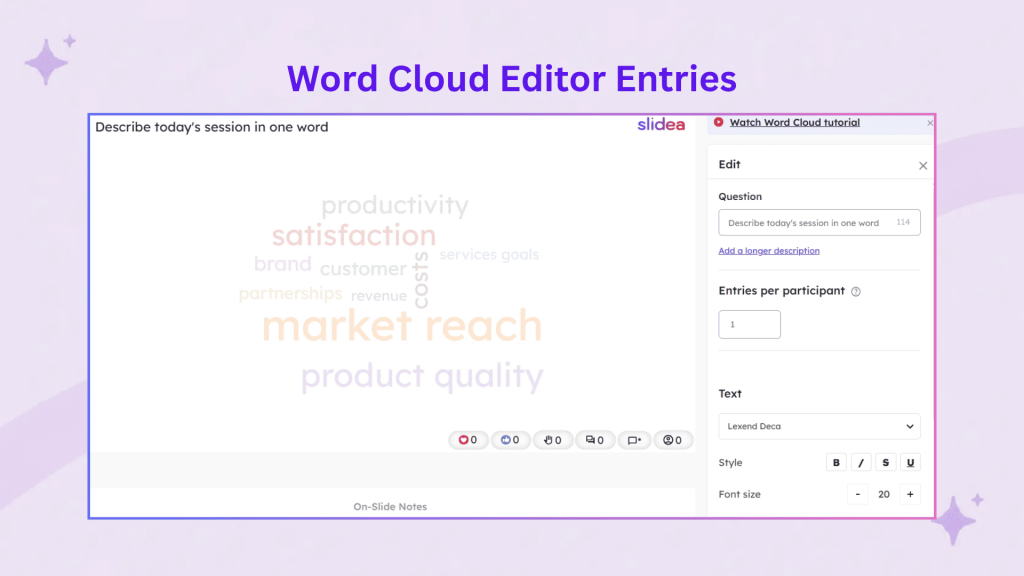
If you want a ready layout so you can focus on the question instead of the setup, you can explore Slidea's word cloud slide and share a join code in a couple of minutes. For a manual approach in other tools, this step-by-step on how to make a word cloud is a useful companion.
How to Let Your Audience Join With a QR Code
The QR code is what makes joining quick. Instead of typing a web address, people point their phone camera at the code and tap the link that appears. It takes a few seconds and works on any modern phone.
Most live tools show a join screen with three things: a short web address, a numeric code, and the QR code. Give people both options. Some will scan, others prefer to type the code at the join page.
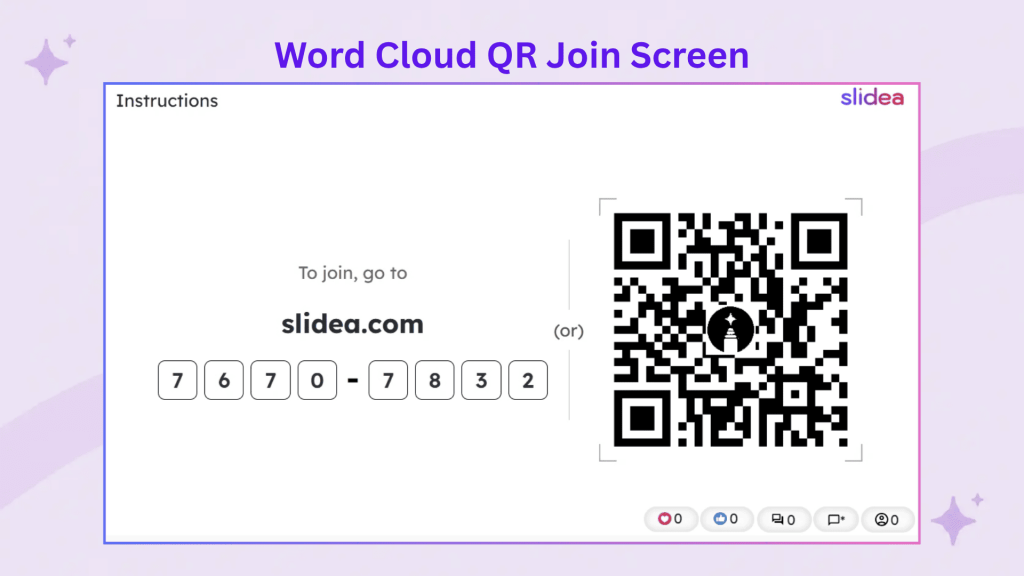
Quick tip: test the scan yourself before the session starts. A ten-second check on your own phone saves you from a stalled start in front of a room.
Real Examples of Live Word Cloud Questions
The prompt decides how good your cloud looks. Here are examples that work across common settings.
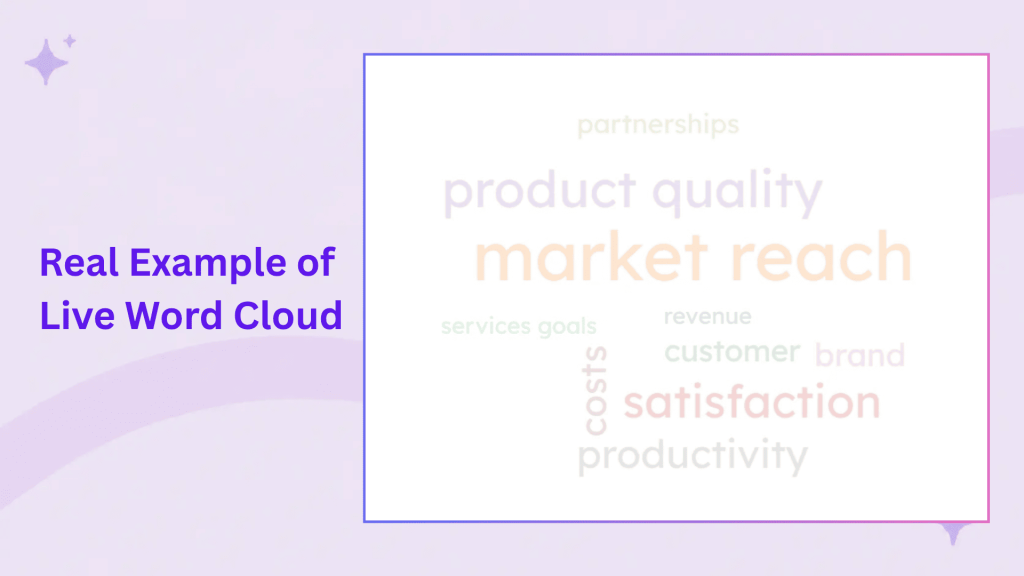
| Setting | Prompt example | What it gives you |
| Classroom | "Describe today's topic in one word." | A read on prior knowledge |
| Team meeting | "One word for how this sprint went." | A fast pulse check |
| Webinar | "What brought you here today?" | A warm-up that surfaces intent |
| Training | "Name one risk in this process." | Ideas to discuss as a group |
| Live event | "Which city are you joining from?" | A simple icebreaker |
Want more angles for lessons and meetings? These word cloud ideas give you ready prompts to adapt.
What Makes a Good Word Cloud Prompt?
A strong prompt invites variety and keeps answers short. A weak one produces either one repeated word or a mess of long phrases.
- Ask for one word or a short phrase. Short answers stack up into a clear picture.
- Keep it open, not yes or no. "How do you feel about the plan?" beats "Do you like the plan?"
- Make it specific. "One word for this workshop" gives a sharper result than "Any thoughts?"
- Limit entries per person. One or two keeps the frequency sizing meaningful.
Common Mistakes to Avoid With Live Word Clouds
Most live word clouds fail for small, fixable reasons. Here is what goes wrong and how to correct it.
| Mistake | Fix |
| Prompts are too broad, like "Thoughts?" | Ask for one specific word |
| Asking a yes or no question | Use an open prompt that invites many answers |
| Too many entries per person | Limit to one or two so results stay honest |
| Not testing the join flow | Scan the QR yourself before the session |
| Leaving the slide up too long | Give a short countdown, then discuss |
| Ignoring the results | Read a few words aloud and link them to your message |
Free Word Cloud Tools vs Live Word Cloud Tools
Both are useful, but they solve different jobs. A free text-based generator is fine for a graphic in a report. A live tool is what you want when you need people to take part.
Many live tools include a free plan. As one example, Slidea's free plan supports live word clouds with audience join by link or QR and no download for participants, which is enough for most classroom and team sessions. If your interaction is more of a vote than an open answer, a live poll may fit better.
Where to Use a Live Word Cloud
A live word cloud is flexible. Use it to open a session, to break up a long stretch of talking, or to gather quick input before a decision.
- Icebreakers: get a quick, low-pressure answer from everyone.
- Knowledge checks: see what a class or team already knows.
- Brainstorms: collect ideas fast, then group them.
- Feedback: capture a one-word reaction after a talk or training.
For lesson-specific setups, these word cloud templates give you a starting structure you can edit.
Frequently Asked Questions
Are live word clouds free?
Yes. Several tools offer a free plan. Slidea's free plan, for example, supports live word clouds with audience join by link or QR code and no app download, with a monthly participant limit that suits most classrooms and team meetings. Paid plans add higher limits and extra styling.
How do people join a live word cloud?
They join from any phone. You show a QR code and a short join code on screen. People scan the code or type it at the join page, then submit their words in a phone browser. No account or download is needed to take part.
How many words can each person add?
You decide. Most tools let you set entries per participant. One or two words per person is a good default. It keeps the sizing meaningful, because frequency still reflects how many people chose a word rather than how often one person submitted.
What is a good live word cloud question?
A good question asks for one word or a short phrase and has many possible answers. Prompts like "one word for today's session" work well. Avoid yes or no questions, since they collapse the cloud into two words and remove the variety that makes it useful.
Can I use a live word cloud in PowerPoint?
Yes. Tools such as "Slidea integrate with PowerPoint", so you can run the word cloud inside your existing deck. Your audience still joins the same way, by scanning a QR code or entering a join code from their phones.
How is a live word cloud different from a normal one?
A normal word cloud is generated from text you paste in, and it does not change. A live word cloud builds from audience answers during your session and updates in real time. The live version is built for participation, while the static one is better for a fixed graphic.
Start With One Clear Question
A live word cloud is one of the easiest ways to get a whole room involved. Pick one focused question, limit entries to a word or two, share a QR code, and read the results aloud. That small routine turns a quiet audience into an active one.
When you are ready to build one, the Slidea’s word cloud feature gives you a prompt, a live view, and a ready join code so you can spend your time on the question, not the setup.




Your email address will not be published. Required fields are marked *