


You know the moment. You are twelve minutes into a Zoom call, every camera is off, and you ask "any questions?" into a wall of silence. Nobody is being rude. They are answering email, because nothing on the screen asked anything of them.
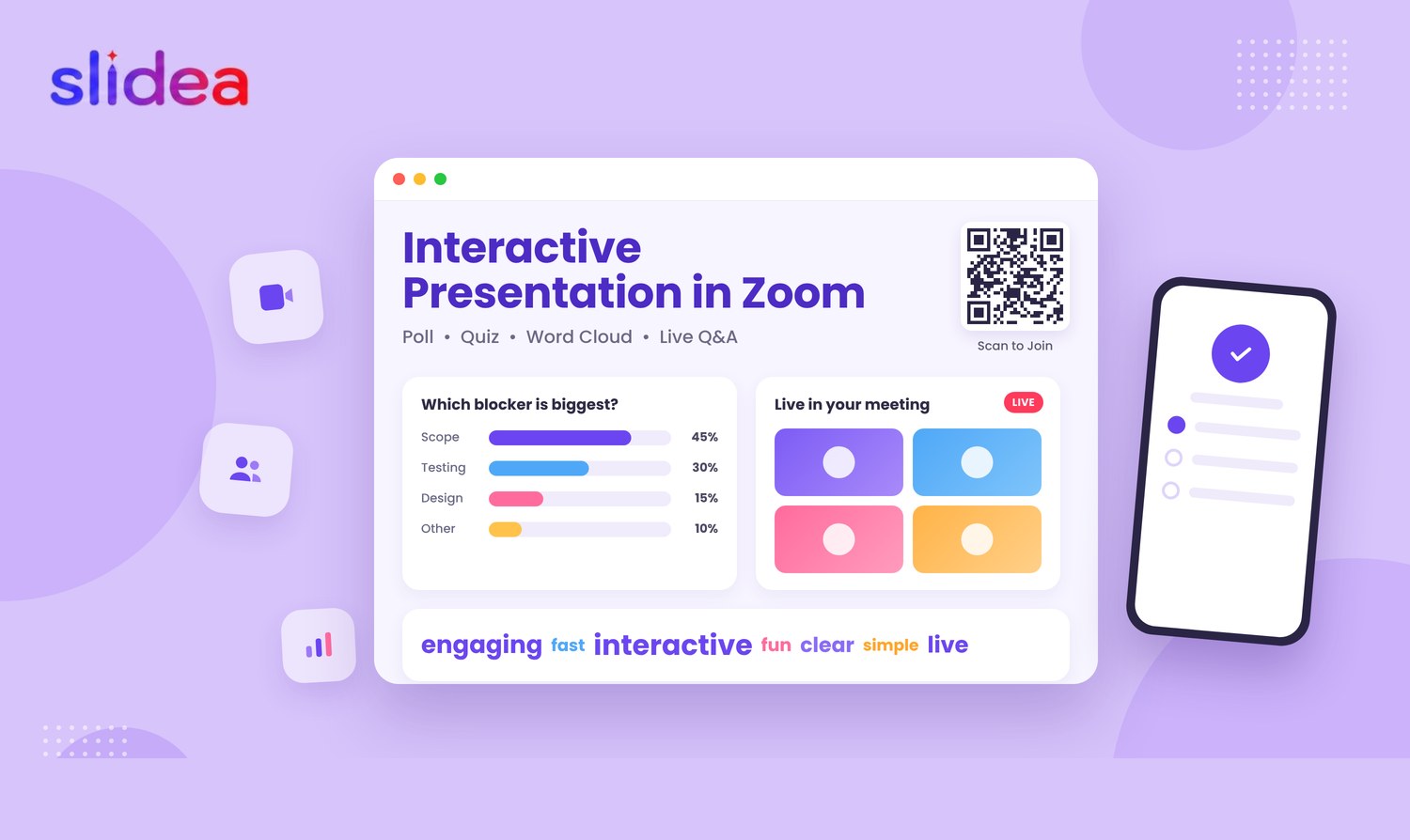
An interactive presentation fixes that by giving people something to do every few minutes. They answer a poll on their phone, their word lands in a cloud on the shared screen, a quiz leaderboard flips, and suddenly the call has two directions instead of one.
Zoom has built-in polls, but they are limited to multiple choice, only the original host can launch them, and attendees need the Zoom app to answer. This guide shows how to run a fully interactive presentation inside Zoom using Slidea — the setup steps, which slide types work best on a call, a 30-minute run plan you can copy, and the host tips that keep it smooth.
What Slidea adds to a Zoom call
Slidea is an interactive presentation tool that runs as a Zoom app, so your slides and your audience's answers live in the same meeting window. Your deck stops being a document you read out and becomes a session people take part in.
- Live polls and multiple choice — the bar chart fills in front of everyone as votes come in.
- Word clouds — ask one open word, and the room's answer appears as a shape, with the common words largest.
- Quizzes with a leaderboard — timed questions, instant scoring, names moving up the board after each round.
- Live Q&A — people type questions, others upvote them, and you answer the ones that actually matter. Anonymous mode is available, which is where the honest questions come from.
- Open-ended, scales and rankings — for feedback, confidence checks and "where do we stand" moments.
- Friendly Feud and game slides — for training sessions and team calls that need energy, not information.
- Analytics and export — every answer is saved, so the call ends with data instead of a vague feeling that it went well.
Participants join from any device with a code, link or QR — no download, no account. That matters on a Zoom call where half the room dialled in from a phone or a browser tab.
How to set it up in Zoom (two ways)
Option 1: the Slidea Zoom app (recommended)
Everything stays inside the meeting window, so you never alt-tab in front of an audience.
- Install Slidea from the Zoom App Marketplace, from the "Get Slidea for Zoom" link on the Zoom integration page. Do this before the meeting, not during it.
- Build your presentation at slidea.com and drop in the interactive slides you want. Start from a template if you are short on time.
- Start your Zoom meeting and click the Apps icon in the bottom toolbar.
- Open Slidea from My apps.
- Pick the presentation you want to run.
- Click Present. Participants see the join details and answer from their own device while you move through the slides.
Option 2: share your screen
Works on any Zoom plan, any device, and takes about ten seconds.
- Open your Slidea presentation in a browser and click Present.
- In Zoom, click Share Screen and share that browser window — the window, not the whole desktop.
- Read out the join code, or paste the join link into the Zoom chat. The QR code on screen covers anyone watching on a second device.
- Present as normal. Answers appear live on the slide everyone is already looking at.
If you present from a single monitor, option 1 is easier. If you have two screens, option 2 gives you a presenter view on one and the shared slide on the other.
Which slide types work best on a Zoom call
Not every interaction suits a video call. These six carry most sessions.
Word cloud. Use it to open the call — one word on how people feel or what they expect. Everyone answers in five seconds and the screen fills instantly, which is the fastest proof that the room is awake.
Multiple choice poll. Use it to check where people stand before you present your own view. They commit to an answer, so they listen to the next slide differently.
Scale or rating. Use it for questions like "how confident are you about this deadline, 1 to 5". You get honest signal from the quiet people who would never unmute.
Open-ended. Use it to collect problems, ideas or blockers. It replaces the round-robin that eats fifteen minutes on a call.
Quiz with leaderboard. Use it for training, onboarding and product knowledge. Competition is the one thing that reliably beats a second browser tab.
Live Q&A. Use it for the last ten minutes, or run it in the background all call. Upvotes surface the real question instead of the loudest one.
A good rule for Zoom: one interaction every five to seven minutes. Less than that and attention drifts back to email. More than that and the session feels like a form.
A 30-minute Zoom run plan you can copy
This is a team update or training session with 20 to 50 people. Adjust the content, keep the rhythm.
- 0–2 min — Title slide with the join code and QR. People join on their phone while you do the hellos.
- 2–4 min — Word cloud: "One word for this quarter so far". Everyone types one word and sees the room's mood appear.
- 4–10 min — Your first content slides. They listen, because they have just invested something.
- 10–12 min — Poll: "Which of these is the biggest blocker?" They vote, and you use the result as your transition.
- 12–18 min — Content shaped by what the poll said. They stay with you, because you are answering their vote.
- 18–22 min — Quiz: three quick questions on what you covered. The leaderboard decides the winner.
- 22–28 min — Live Q&A, open since minute 0. They ask and upvote; you answer the top-voted questions first.
- 28–30 min — Scale: "How useful was this, 1 to 5", then your closing slide. Five seconds, and you have the feedback before anyone logs off.
Two details do most of the work here. Open the Q&A at the start so questions collect while you talk, and put the feedback scale before the goodbye — once people leave the call, they never come back to fill a survey.
Slidea vs Zoom's built-in polls
Zoom's polling is fine for a quick show of hands. It was never meant to carry a session.
Question formats. Zoom gives you single and multiple choice, up to 10 questions per poll and 50 polls per meeting. Slidea gives you polls, word clouds, open-ended, scales, rankings, quizzes, Q&A and game slides.
Who can launch. In Zoom, only the original host — transfer host control and polling stops working. In Slidea, whoever is presenting.
How people answer. Zoom polls need the Zoom desktop or mobile app. Slidea works in any browser on any device, through a code, link or QR.
Results on screen. Zoom shows a separate results pop-up that you share and stop sharing. In Slidea the results fill the slide everyone is already looking at.
Quiz scoring. Zoom marks correct answers and gives you a report after the meeting. Slidea scores instantly with a live leaderboard during the round.
Q&A. Zoom's Q&A is for webinars only, not regular meetings. Slidea's works in every session, with upvotes and an anonymous mode.
Where the slides live. Zoom polls sit apart from your deck. In Slidea the interaction is the slide, and the whole presentation travels with it — reusable across meetings, templates and imports, instead of belonging to one meeting.
Sources: Slidea for Zoom.
Host tips that keep it smooth
- Do a dry run with a second device. Join your own session from your phone once before the call. Two minutes now saves a live "can anyone see the code?" later.
- Share the window, not the whole screen. Zoom's optimised window share keeps text sharp, and your notifications stay private.
- Leave the join code on every slide. People arrive late on Zoom calls. If the code is only on slide one, latecomers never take part.
- Paste the join link into Zoom chat too. Phone cameras cannot scan a QR code that is on the same phone.
- Use anonymous mode for anything honest. Feedback, risks, confidence checks. Attach names and you get the safe answer, not the true one.
- Say the number out loud. "Thirty seconds, 18 of 24 in so far" pulls the stragglers in better than silence.
- Don't hide behind the activity. An interaction with no comment from you is a form. Read the result, say what it tells you, then move.
- Export the results after the call. Analytics turn a one-off session into something you can show next quarter.
- Check your plan before a big call. The free plan covers 100 participants per presentation and 250 a month; larger town halls and webinars need a paid plan. See pricing.
FAQ
Can I run an interactive presentation in Zoom without an app? Yes. Open your Slidea presentation in a browser, share that window in Zoom, and share the join code in chat. The Zoom app just keeps everything in one window.
Do participants need to install anything? No. They open a link or scan a QR code and answer in their browser, on a phone, tablet or laptop. No account needed.
Does it work in Zoom webinars as well as meetings? Yes. Attendees join your Slidea session with the link or code, which also gets around the fact that Zoom's own Q&A is webinar-only.
Can answers be anonymous? Yes. Turn on anonymous mode for Q&A and feedback slides when you want honest answers rather than polite ones.
How many people can join? The free plan allows 100 participants per presentation and 250 per month. Paid plans go to 500 or unlimited — see pricing.
Can I reuse my existing PowerPoint deck? Yes. Import your PPT or PDF into Slidea and add interactive slides between the ones you already have, instead of rebuilding the deck.
Do I get the results after the call? Yes. Every response is stored in analytics and can be exported, so you leave the call with data rather than impressions.





Your email address will not be published. Required fields are marked *