


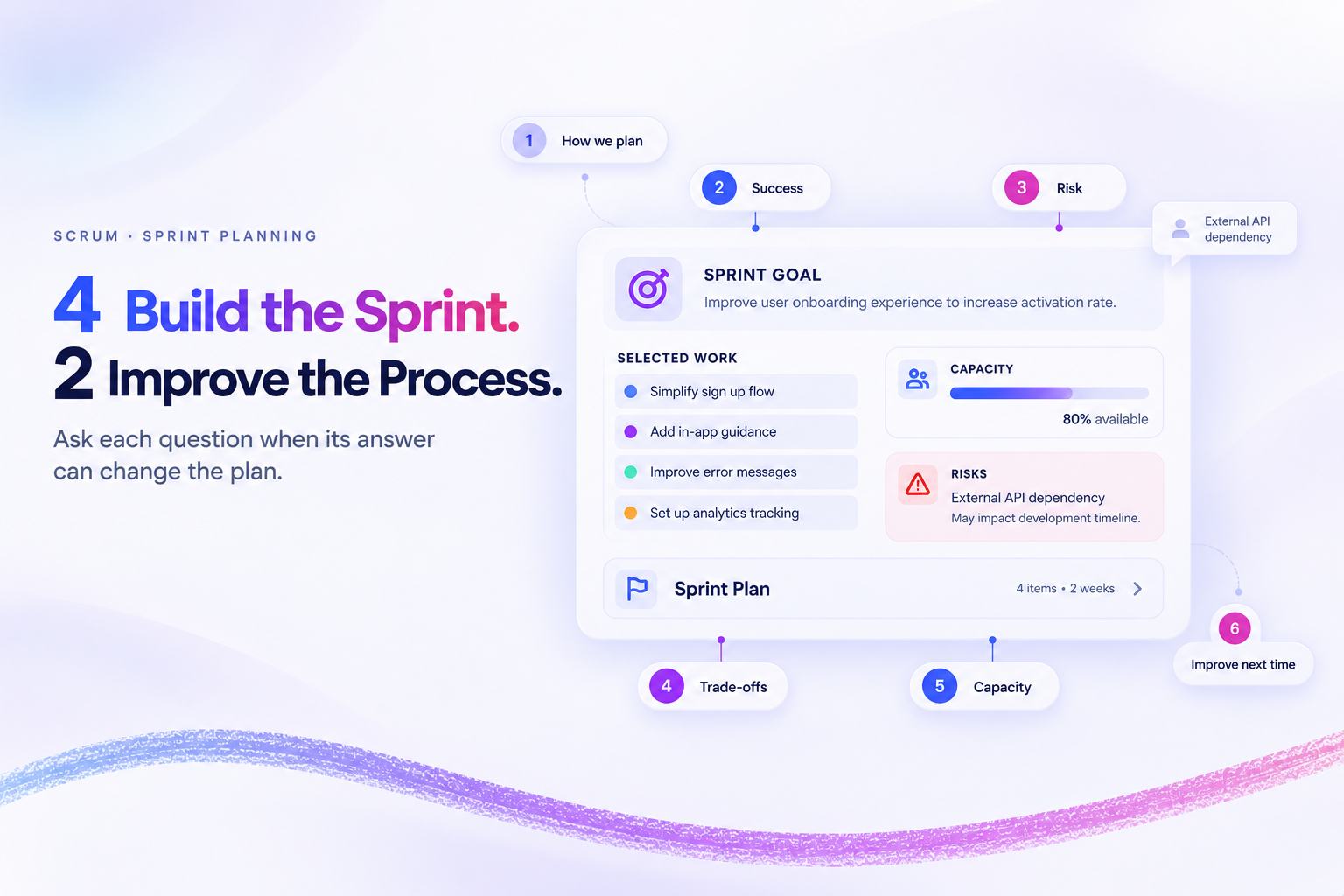
Your team knows the risks. The question is whether the meeting gives them a moment to say so.
Slidea's Sprint Planning template contains six interactive slides: a multiple-choice poll, a word cloud, an open-ended question, a ranking activity, a guess-the-number question and a Q&A. You do not need to build those interactions. You need to rewrite the prompts for the sprint in front of you, place each one at the right moment, and know what to do with the answers.
Four of the six support the sprint you are planning. Two reviews how your team plans in general — worth running, but a different conversation. This guide walks all six, explains which is which, and ends with a run order you can follow as it stands.
The timing is facilitation guidance, not a sequence Scrum requires. Adjust it where your team's process differs.
How this guide was checked
On 8 September 2026, we opened the public template in Slidea's Demo Mode, worked through the editor, and used Preview to submit a response to every built-in interaction from the Audience view and confirm it in the Presenter view. We exercised the response-visibility and Q&A moderation controls, and added a temporary content slide.
What we did not do: we did not run a full live presented session with multiple participants. Everything below describing the editor and preview is tested. Anything that depends on a live session — including how responses are attributed — is marked as something for you to check before you rely on it.
Product behaviour changes. Check what your own editor shows rather than assuming this still holds.
What is in the Sprint Planning template

| Slide | Interaction | Question as it ships | Serves |
| 1 | Multiple Choice | What is the most common challenge in sprint planning? | Your planning process |
| 2 | Word Cloud | What is the most important factor for a successful sprint? | This Sprint |
| 3 | Open Ended | What potential risk do you foresee in this sprint? | This Sprint |
| 4 | Ranking | Rank the following factors by importance in sprint planning | This Sprint |
| 5 | Guess the Number | What is the recommended duration for a standard Scrum sprint? | This Sprint — once rewritten |
| 6 | Q&A | What's one thing we can improve in sprint planning? | Your planning process |
Which four support the sprint, and which two review the process
The Scrum Guide says Sprint Planning addresses three topics:
- Topic One: Why is this sprint valuable?
- Topic Two: What can be done this sprint?
- Topic Three: How will the chosen work get done?
Map the slides onto those topics, and the template sorts itself:
| Sprint Planning topic | Slide |
| Why is this sprint valuable? | 2 — feeds the Sprint Goal |
| What can be done this sprint? | 4, then 3 before selection is fixed |
| How will the chosen work get done? | 5, rewritten as a capacity check; 3's mitigations |
| Outside the three topics | 1 and 6 — about how the team plans, not about this sprint |
Slides 1 and 6 are worth running. They simply answer a different question. You have two clean options:
- Keep them in and say out loud that the first and last questions are about how the team plans, not about this sprint.
- Split them out into a short session on the planning process itself, and run only slides 2, 3, 4 and 5 inside Sprint Planning.
Either works. Running all six without naming the difference is what can make the session feel like a quiz.
Two things to settle before you run it
1. Find out how responses are displayed, and tell the room
Slide 3 asks people to name a risk. How much people are willing to write depends partly on whether they know their name is attached.
We did not test a live presented session, so we cannot tell you how Slidea displays responses in one. In the editor, slide settings expose Enable voting, Select multiple options, Show in results and Presentation Language — we found no participant-identity control there, but that is not the same as confirming how a live session behaves.
Run one short test with a colleague first. Submit an open-ended answer from a second device and look at the presenter view. Then tell your team the rule before the first question — whichever way it turns out. People answer more usefully when they know how their answer will appear than when they are guessing.
Slide 3's main mechanism does not depend on the answer. Asking everyone to write before anyone speaks means the first speaker does not set the frame for the room. That works whether or not names are shown.
2. Two settings ship in a state you probably do not want.
- Slide 1 ships with Mark Correct Answer(s) switched on and "All of the above" marked correct. That suits a knowledge quiz, not a question about your team's experience. Turn it off.
- Slide 5 ships with a 0–20 slider and 14 configured as the correct answer to "the recommended duration for a standard Scrum sprint". The Scrum Guide defines no standard sprint length — it states sprints have a fixed length of one month or less. Rewrite the question; do not teach 14 days as a Scrum rule.
Step 1: Open the template
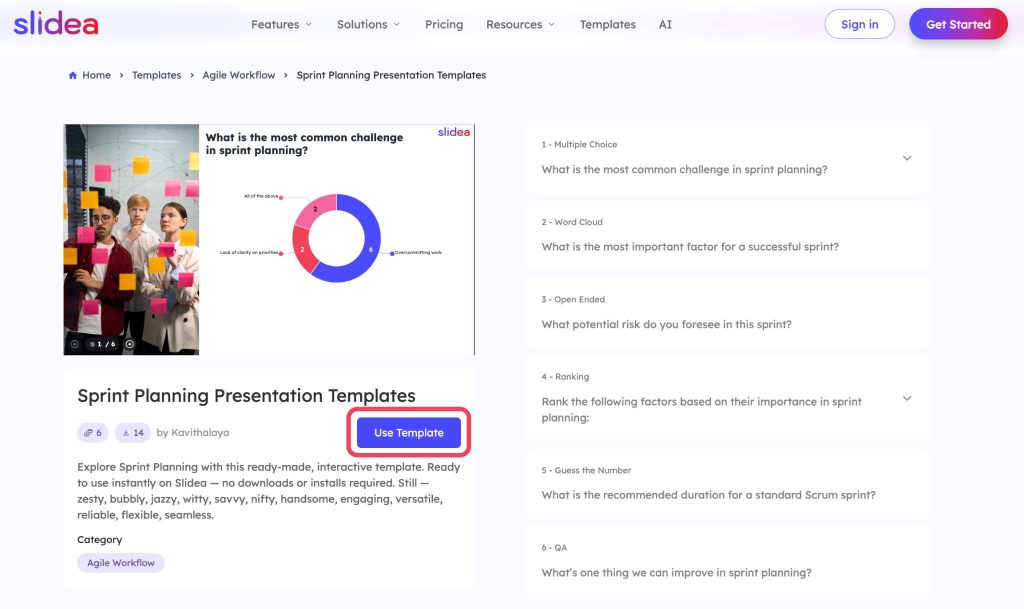
Open the Sprint Planning template page and select Use Template. In our test this opened the six-slide presentation in the editor in Demo Mode, with a banner explaining that the editor can be tried without saving and that signing up is required to keep the work.
Before touching the questions, decide what the session must produce. The Scrum Guide describes the Sprint Backlog as the Sprint Goal, the Product Backlog items selected for the Sprint, and the plan for delivering them. Slidea helps the team reach those decisions; your backlog tool stays the permanent record.
Step 2: Add one context slide
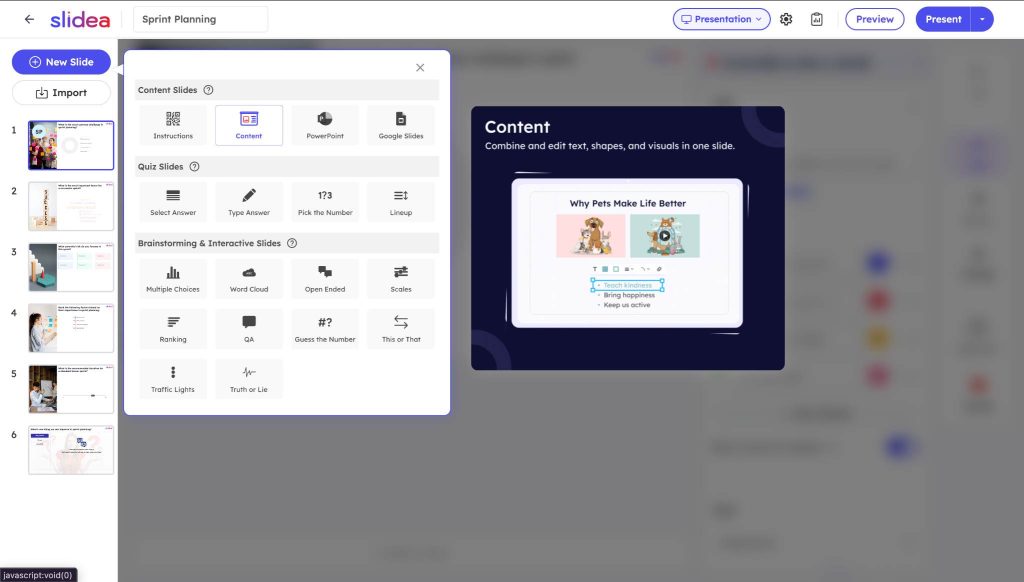
The template opens on a poll. Before it, add a Content slide so everyone starts from the same information: the proposed Sprint Goal, the strongest candidate items, available capacity, planned leave and support duties, known deadlines and dependencies, and the Definition of Done.
Keep it short — enough context to answer the questions, not a walkthrough of the backlog.
Select Create new slide, choose Content under Content Slides, then drag the new thumbnail ahead of slide 1. The same menu offers an 'Instructions' slide for joining directions.
On the slide counter: the unedited template previews as 7/7 — six question slides plus an end screen Slidea appends automatically. Add the context slide and it becomes 8/8. Neither final number is an extra question.
Step 3: Rewrite the six questions
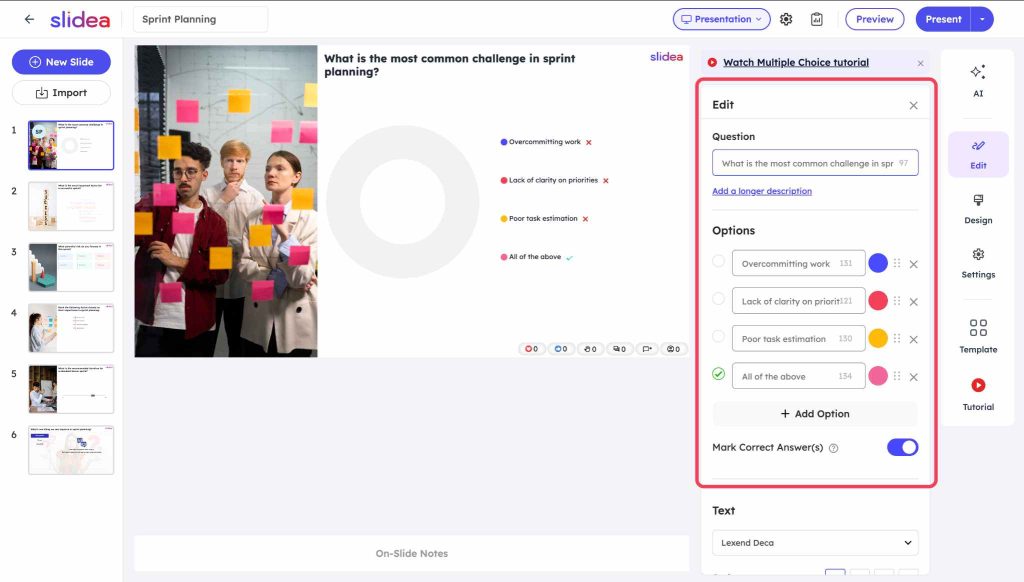
Select a slide and open Edit slide. The fields change with the interaction type. The shipped questions are starting points; small edits make them specific to the Sprint you are about to plan.
Slide 1 — Multiple Choice
Turn off correct-answer marking first. Then consider removing "All of the above" — it is the convenient answer, and it can let people avoid naming the one problem that most deserves attention today. Keep the shipped options while a team is still learning where its planning breaks down; for an established team, replace them with current problems: unclear acceptance criteria, unplanned support work, unresolved dependencies, late changes in priority, and unrealistic capacity assumptions.
Slide 2 — Word Cloud
Add an instruction: Respond in three words or fewer. Short entries are easier to read at a glance than sentences. Make it specific to the sprint: what must be true for this sprint to succeed? See providing textual inputs on Word Cloud and open-ended slides.
Slide 3 — Open Ended
Replace "this sprint" with the actual outcome: What could stop us hitting the checkout-reliability goal this sprint? Specific wording tends to produce answers you can act on. See how to create an open-ended question.
Slide 4 — Ranking
Keep business value, capacity, complexity and dependencies for a general trade-off conversation. If this sprint has a specific constraint, swap one in — a customer deadline or the name of the external approval you are waiting on. Do not present the ranking as a formula that decides anything. See how to create a ranking question and ranking items or allocate points.
Slide 5 — Guess the Number
Rewrite it. For a real planning session, a capacity check is more useful: How many team-days of capacity remain after planned leave and support duties? For a training session, make the convention explicit: How many days long is our team's usual sprint? Adjust the configured answer and the numeric range to match. If you want to teach the one-month maximum, use a slide type that can express "one month or less" rather than forcing it into a 0–20 scale.
Slide 6 — Q&A
Add: Suggest one change we can test before or during the next sprint planning session. That wording tends to produce specific suggestions rather than general complaints.
Step 4: Preview before you go live
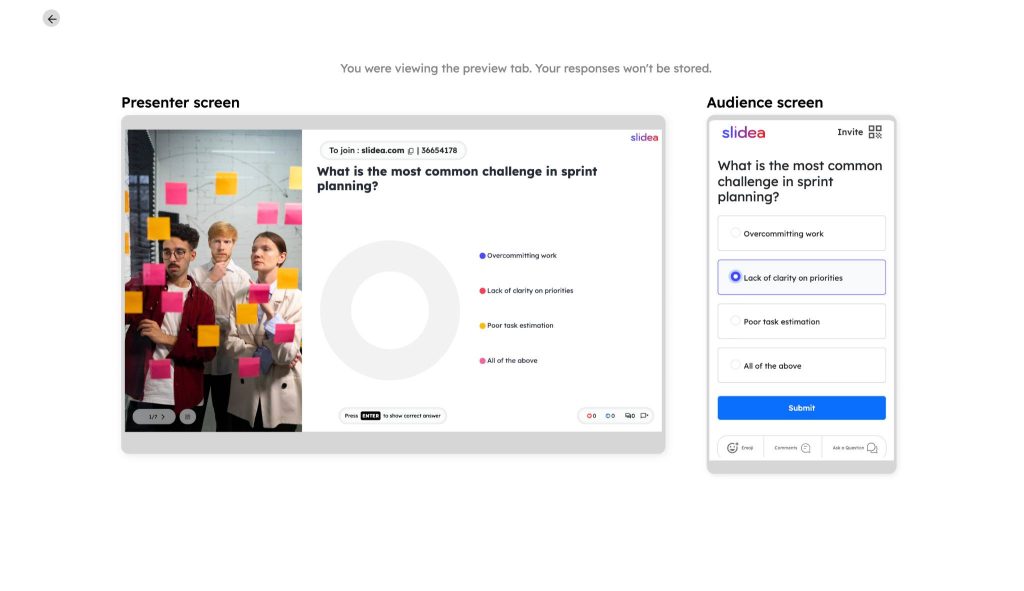
Open Preview. It provides presenter and audience views — together, or behind a switch, depending on screen width. A banner confirms preview responses are not stored.
Submit one test response to every interaction, and confirm each appears in the presenter view. While you are there, check the things that break in a real room: whether the questions are readable on a phone, whether the multiple-choice options are genuinely distinct, and whether every ranking item is unambiguous.
Rehearse the controls. Our Preview Presenter view included the previous and next slide, a QR-code control, a hotkeys overview, Show Response and Hide Response, and the H shortcut. Some controls were marked as subscription features in Demo Mode. On the Q&A slide, if a submission does not appear, select Show Response; Pin and Mark as answered both changed state correctly in our test.
The run order
This is the whole session in one table — the revised question, when to show it, a starting time, the decision it supports, and what to write down afterwards.
| Order | Slide | Revised question | Moment | Start with | Decision it supports | Record |
| 1 | 1 (process) | What is the most common challenge in our planning? | Opening, after the context slide | 3–4 min | How to run today's session | One adjustment to today's agenda |
| 2 | 2 | What must be true for this Sprint to succeed? | After the proposed value, before the Goal is fixed | 3–5 min | Wording of the Sprint Goal | The conditions the Goal has to protect |
| 3 | 4 | Rank: business value, capacity, complexity, dependencies | When items compete for space | 4–5 min | Which items to select | Where people disagreed, and why |
| 4 | 5 | How many team-days of capacity remain after leave and support? | After availability is reviewed | 3–4 min | How much work to forecast | The agreed number and its inputs |
| 5 | 3 | What could stop us hitting [the goal] this Sprint? | After the review, before the forecast | 5–8 min | Whether to commit as planned | Each risk, its response, its owner |
| 6 | 6 (process) | Suggest one change to test next planning session | Closing, after the plan is summarised | 4–5 min | The next planning improvement | The change, its owner, its date |
Three facilitation notes the table cannot carry:
- Keep results hidden until most people have answered. Early submissions can influence later ones when you want independent judgement.
- On the ranking, look at the disagreement, not the average. Ask two people with different orders to explain their reasoning. The Product Owner remains accountable for ordering the Product Backlog and the Developers select what they forecast they can finish — the ranking supports that conversation, it does not replace those accountabilities.
- On every risk, ask one question: what changes because we know this? A risk with no consequent action was a conversation, not a decision. Record the response and its owner outside the presentation.
What this costs in time
Sprint Planning already has a budget. The Scrum Guide timeboxes it to a maximum of eight hours for a one-month Sprint and notes that shorter Sprints usually mean a shorter event. Atlassian's guidance is more specific: no more than two hours for each week of the Sprint — four hours for a two-week Sprint.
On the starting times above, all six slides come to roughly 22–31 minutes; the four Sprint questions alone come to roughly 15–22.
Those figures are starting points, not measurements. Nobody timed them in a live session — they are our estimate of how long each interaction plus its discussion takes. Time your own first session and replace them. If the interactions push you past the timebox, cut slides rather than run over.
Running it with a remote or hybrid team
- Share the join link or QR code in the meeting chat before you start.
- Ask people to answer from a phone or a separate browser window, so the main screen stays on the board. If someone only has one device, a split window works; nobody should be excluded for lacking a second screen.
- One person presents. Nobody else needs the deck open.
- Keep results hidden while answers arrive, then reveal. Watching results build can draw in people who would not have spoken first.
- Typed input means cameras-off participation still works.
- In a hybrid room, ask everyone to submit from a device, including people physically present — otherwise the room can dominate and remote participants may stop contributing.
See using Slidea in a remote session and the remote control feature.
When it does not work
- Nobody answers. The question may be too abstract, or people may not know how their answer will appear. State the rule, then rewrite the question to name something concrete.
- One person floods the word cloud. Ask for one submission each before you open it, and treat repeat entries as noise when reading the themes.
- Joke answers. Reading them out flatly and moving on tends to defuse them. If they keep coming, that is usually a signal about the question or the room rather than about the tool.
- People cannot join. Put the join code on the context slide and wait. Two minutes at the start is cheaper than losing two people for the session.
- The result contradicts the Product Owner. That is information. The ranking does not overrule backlog ordering, but a team ranking dependencies first while the Product Owner is pushing value first is worth ten minutes.
Accessibility
A tool meant to widen participation should not narrow it. Before you run a session:
- Keyboard-only participants. Check every control you will ask people to use — submitting, and reordering the Ranking items — can be reached and operated by keyboard alone.
- Screen readers. Check the question and the answer options are announced, and that submitting produces a confirmation a screen reader can report.
- Contrast and size. Check the question text is legible at the back of the room and on a phone, and that poll option colours meet contrast requirements.
- Never rely on colour alone. If options are distinguished by colour in the results, name them aloud as well.
- Read everything aloud. Read each question and, when revealing, read the results rather than assuming everyone can see the screen.
- Offer a non-device route. Let anyone who cannot or does not want to use a device give their answer to the facilitator to enter, or say it to the room.
When not to use this template
Skip it when a conversation would be faster. A small co-located team may get to the same place by talking, and adding devices can slow them down. Skip it for a Sprint where the goal and the work are already settled. And skip individual slides freely — keep the interactions that change a decision, remove the ones that cannot.
Record the results where the team will use them
Before closing, move the decisions out of the presentation and into the team's working system: the finalised Sprint Goal, the selected Product Backlog items, the delivery plan, capacity assumptions, risks with their responses and owners, and the improvement chosen on slide 6.
If you plan to reuse the presentation, preserve anything you need from the completed session first, then duplicate or reset it and update every Sprint-specific prompt.
Common questions
Can I use the template without editing it?
Review every slide first. At minimum, add the current Sprint context, turn off correct-answer marking on slide 1, and rewrite slide 5 — as shipped it treats 14 days as the correct answer to a question Scrum does not define a standard answer for.
Can I try it without creating an account?
In our test, selecting Use Template opened the editor in Demo Mode without requiring an account. Preview responses were not stored, and the banner said sign-up was required to save. Product access changes — check the message in your own editor.
Do I need to use all six slides?
No. Keep the interactions that support a real planning decision. Slides 1 and 6 review the planning process rather than this Sprint, so they are the first candidates to move to a separate session.
How do participants join?
The presenter screen shows joining information. In our Preview test that was slidea.com with an eight-digit code, plus a separate QR-code control.
Should I show responses as soon as they arrive?
Not when you want independent judgement. Keep results hidden until most people have answered, then reveal for the discussion.
Does this replace the Sprint Backlog?
No. The Sprint Goal, the selected Product Backlog items and the delivery plan belong in the system the team uses to manage its work.
Give every slide a job
Four of these questions help you build this Sprint's plan. Two help you plan better next time. Both are worth asking — they just are not the same conversation, and the session works better when the room knows which one it is in.
Open the template, rewrite the questions for the Sprint you are about to plan, test the participant experience, and decide what action follows each answer. For the Retrospective, see how to run an interactive retrospective meeting.





Your email address will not be published. Required fields are marked *