


Adding a profile picture helps personalize your Slidea account and makes it easier for teammates to recognize you when collaborating. Once uploaded, your photo will appear instead of your initials in your account menu and across the workspace.
Follow the steps below to add your profile image.
Step 1: Open Your Profile Settings
- Log in to your Slidea account.
- Click on your profile initials in the top-right corner of the dashboard.
- From the dropdown menu, click My Profile.
This will open your My Profile page where you can manage your account information.

Step 2: Go to Profile Details
- In the left sidebar, select Profile Details.
- You will see your profile section with your name and a profile image placeholder.
- Click the Upload button below the profile image.
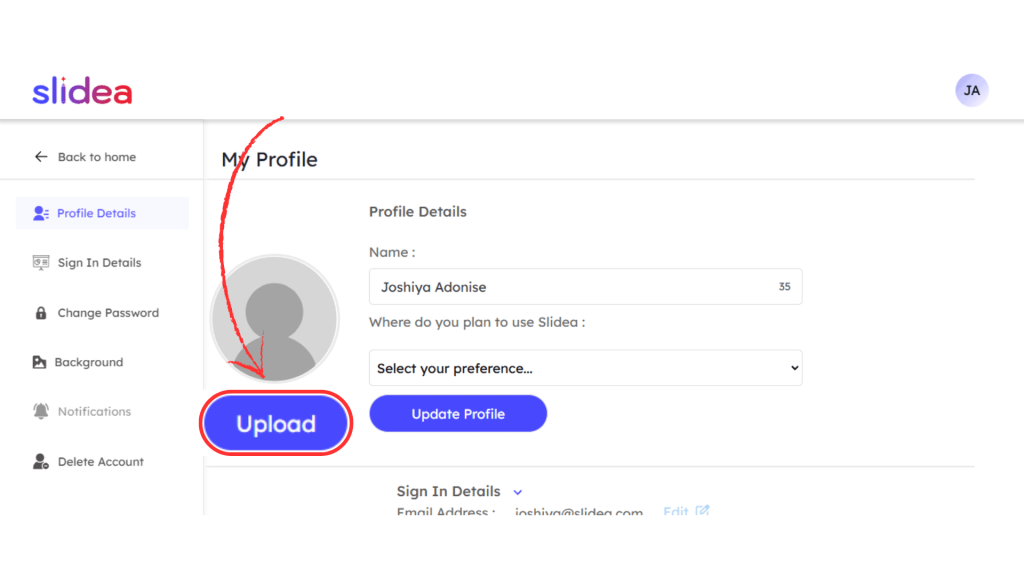
This opens the image upload window.
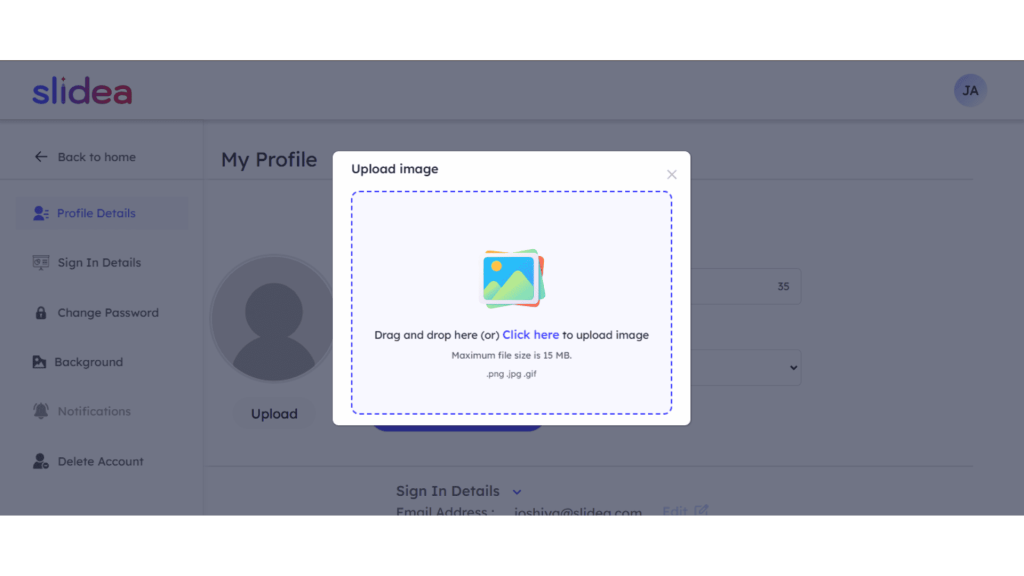
Step 3: Upload Your Profile Picture
In the Upload image popup, you can add your picture in two ways:
- Drag and drop your image directly into the upload area
- Click the upload area to browse and select an image from your device
Supported formats: .png, .jpg, .gif
Maximum file size: 15 MB
Step 4: Save Your Changes
After uploading your image:
- Your photo will appear in the profile image section.
- Click Update Profile to save the changes.
Where Your Profile Picture Appears
Once added, your profile picture will replace your initials in:
- The top-right corner of the dashboard
- Workspace member lists
- Collaborative presentations
- Other collaboration areas inside Slidea
Tip: Use a clear square image for the best display across the platform.


Leave a Comment
Your email address will not be published. Required fields are marked *