


Adding images and GIFs helps you make your slides more visually engaging and easier to understand. In Slidea, you can upload images, use the built-in image library, or add GIFs directly to your slides.
How to Add Images to Your Slides
To add an image:
- Select the slide where you want to add an image
- Go to the Design tab
- Scroll to the Image section and click the upload icon
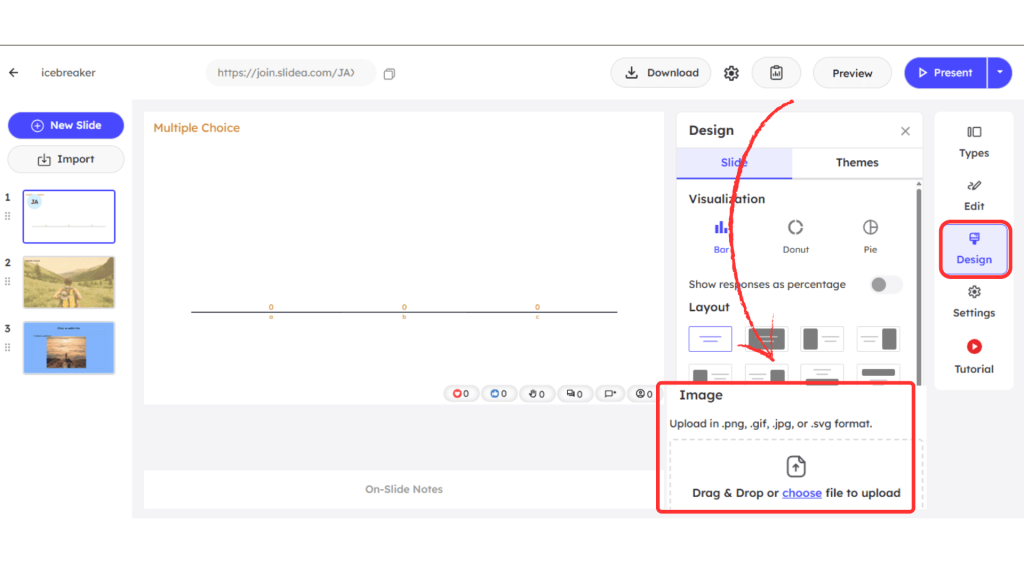
After clicking the upload icon, an Upload Image dialog box will open with three sections:
- Upload – Upload images from your device
- Image Library – Choose images from the built-in library
- GIFs – Search and add GIFs
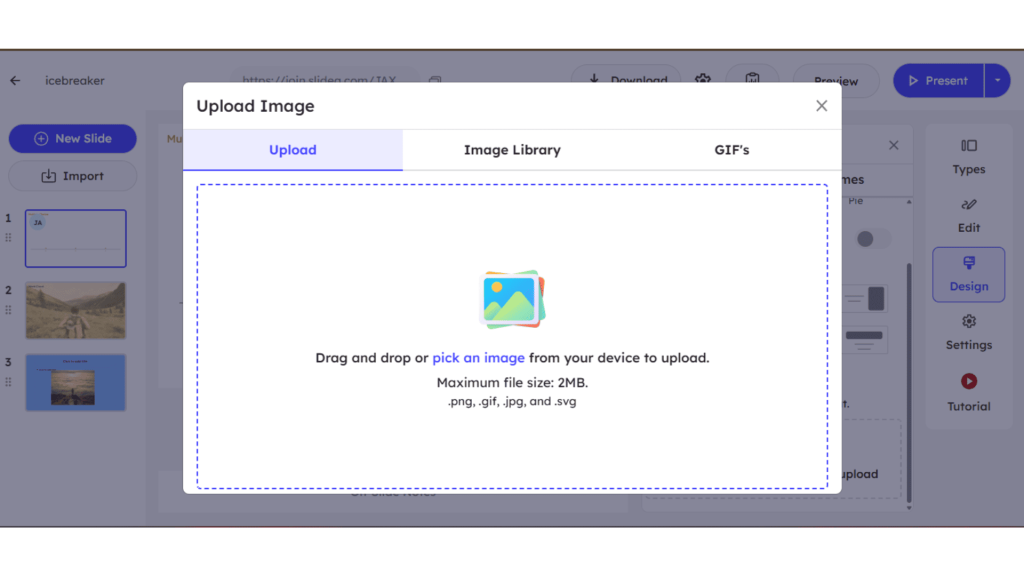
Upload Images from Device
To upload an image from your device:
- Go to the Upload tab in the dialog box
- Drag and drop an image into the upload area, or
- Click pick an image link to upload from your device
Supported formats: PNG, JPG, GIF, SVG
Maximum file size: 2MB
Use the Built-in Image Library
Instead of uploading, you can select images from the built-in library:
- Open the image upload section
- Switch to the Image Library tab
- Use the search bar to find images
The image library allows you to search and insert photos powered by Unsplash, helping you quickly find relevant visuals.
Add GIFs to Your Slides
To add a GIF:
- Open the image upload section
- Go to the GIFs tab
- Use the search bar to find a GIF
- Select a GIF to add it to your slide
GIFs are useful for adding motion and making slides more dynamic.
Crop and Adjust Your Image
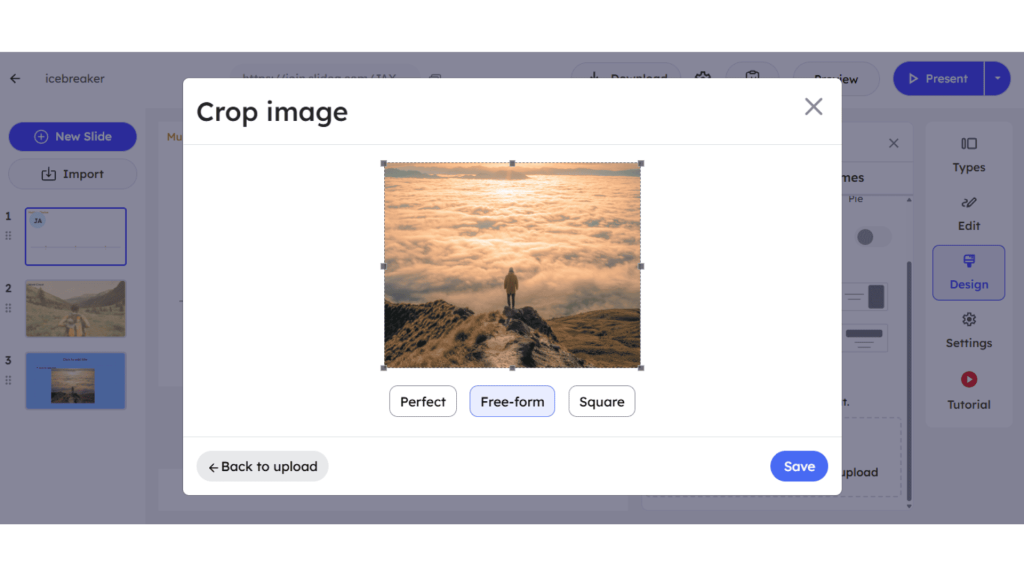
After uploading or selecting an image, you will be directed to the crop screen.
You can choose from three crop modes:
- Perfect – Automatically fits the image to the layout
- Free-form – Manually adjust the crop area
- Square – Crop the image into a square format
Apply the crop to insert the image into your slide. After selecting the desired crop mode, click the Save button in the bottom-right corner to apply the changes to your image.
Note: GIF images cannot be cropped. The entire GIF will be used as it is.
Use Images as Background
You can also apply images as slide backgrounds:
- Upload or select an image
- Apply a layout that supports background images
For background images, you can adjust transparency to control how prominently the image appears behind your content.
If you want to make changes to the selected image, click the Update Image link. You will be redirected to the crop screen, where you can adjust and update the image.
To remove the image, click the Delete icon.
Images and GIFs make your presentations more visually engaging and easier to understand. By using uploads, built-in libraries, and background customization options, you can enhance the overall look of your slides and present your content more effectively.


Leave a Comment
Your email address will not be published. Required fields are marked *