


Once you’ve created your presentation in Slidea, you’re ready to present it to your audience. This guide walks you through how to present, understand the presentation view, navigate slides, and use presentation tools effectively.
How To Present Your Slides
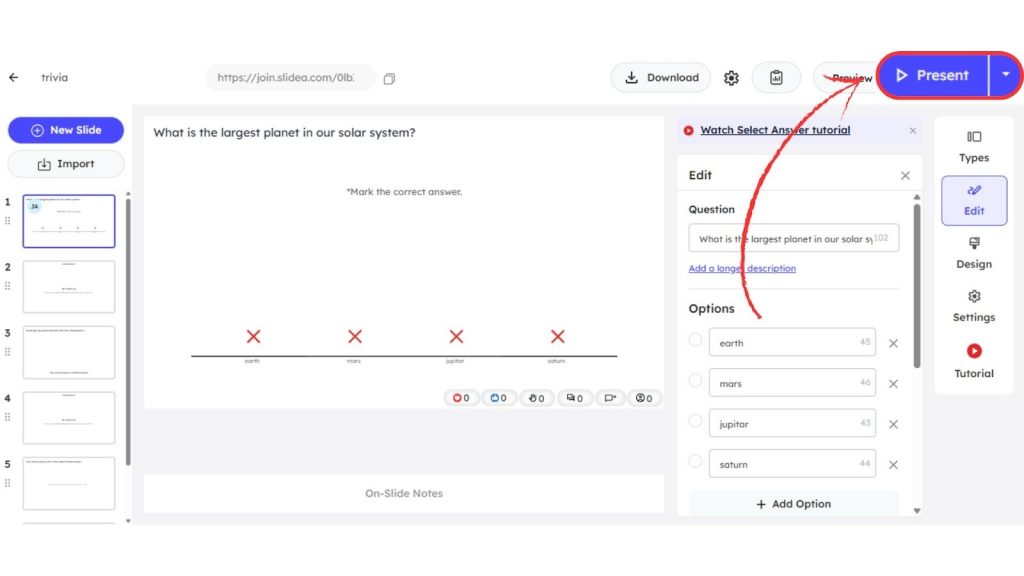
Follow these steps to start presenting:
- Open your presentation in the editor page
- Click the “Present” button in the top-right corner
Your presentation will open in a full-screen presentation view.
What You See in the Presentation View
When your presentation starts, different controls and indicators appear on the screen.
Center of the Screen
Displays the current slide or question that your audience sees.
Top-Left Corner
- Back arrow – Exit presentation view
- Music button – Turn background music on or off
- Slide number – Shows the current slide position
Bottom-Left Corner (Presenter Controls)
Here you’ll find key tools to control your presentation:
- Navigation Arrow – Move between slides and see total slide count
- QR Code – Allows participants to join instantly by scanning
- Remote Control – Lets you control slides from another device
- Annotation Tools – Draw or highlight content during the presentation
- Fullscreen – Switch between fullscreen and window mode
- Reset Results – Clear responses for the current slide
- Celebration Animations – Trigger visual effects to engage the audience
- Start Timer – Begin a countdown for activities or responses
- Hotkeys Overview – View keyboard shortcuts for quick control
- Q&A Toggle – Enable or disable audience questions
- Comments Toggle – Turn participant comments on or off
- Show/Hide Responses – Control whether responses are visible
- Lock/Unlock Voting – Start or stop audience participation
Bottom-Right Corner (Audience Activity)
This area shows real-time audience interaction:
- Reactions – Displays emojis like heart, like, wow, laugh, and sad
- Voters Count – Number of participants who responded
- Q&A – Shows submitted questions from participants
- Comments – Displays audience comments
- Participants Count – Total number of people who joined
At first, no results will be visible. As soon as participants start responding, results will automatically appear on the slide.
Waiting for Participants
When you start presenting your presentation, the screen will display the number of participants who have joined.
As participants join the session, the count updates automatically in real time.
Once all participants have joined, click the “Let’s Start” button at the bottom of the screen to begin the quiz or presentation.
How to Move Between Slides
You can navigate slides in two ways:
- Use the left and right arrow keys on your keyboard
- Use the navigation arrows in the bottom-left corner
When you move to the next slide, it will also appear instantly on the participants’ devices.
Viewing Results After Responses
Once your audience responds:
- Results appear directly on the slide
- Display varies based on slide type
- You can show/hide results or lock voting anytime
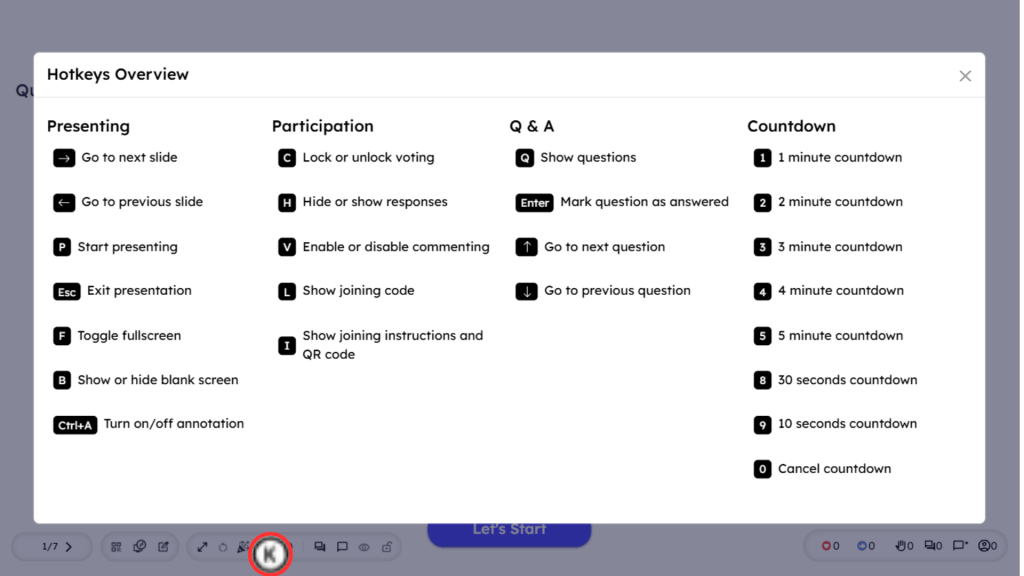
Keyboard Shortcuts (Hotkeys)
Slidea provides keyboard shortcuts to control your presentation quickly.
You can:
- Click the Hotkeys icon to view all shortcuts
- Use shortcuts to navigate slides, manage responses, and control features quickly
Exit the Presentation
To stop presenting:
- Click the back arrow in the top-left corner, or
- Press Esc key on your keyboard
You’ll return to the editor view.
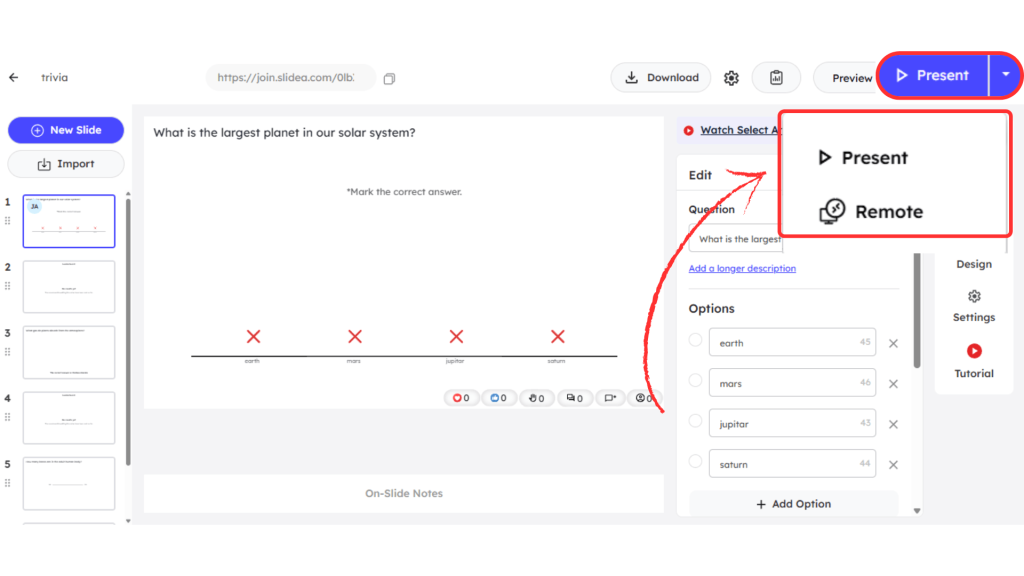
Start Presentation Options
Next to the Present button in the editor, click the dropdown arrow to access additional options like Remote control, allowing you to manage slides from another device.


Leave a Comment
Your email address will not be published. Required fields are marked *