


The Import feature lets presenters upload PDF, PPT, or PPTX files directly. Imported slides are added one after another at the end and can be edited like regular slides.
What is the Import into Slidea feature, and why is it used
The Import feature lets presenters reuse existing presentation files instead of recreating slides from scratch. It supports importing multiple files and combining different presentations into a single Slidea presentation for easy management and editing.
How to Access the Import Option
You can import it using the following steps.
Step 1:
Log in to Slidea.
Step 2:
Open an existing presentation or create a new presentation.
Step 3:
In the left-side panel, click Import.
Step 4:
The Import presentation pop-up window appears.
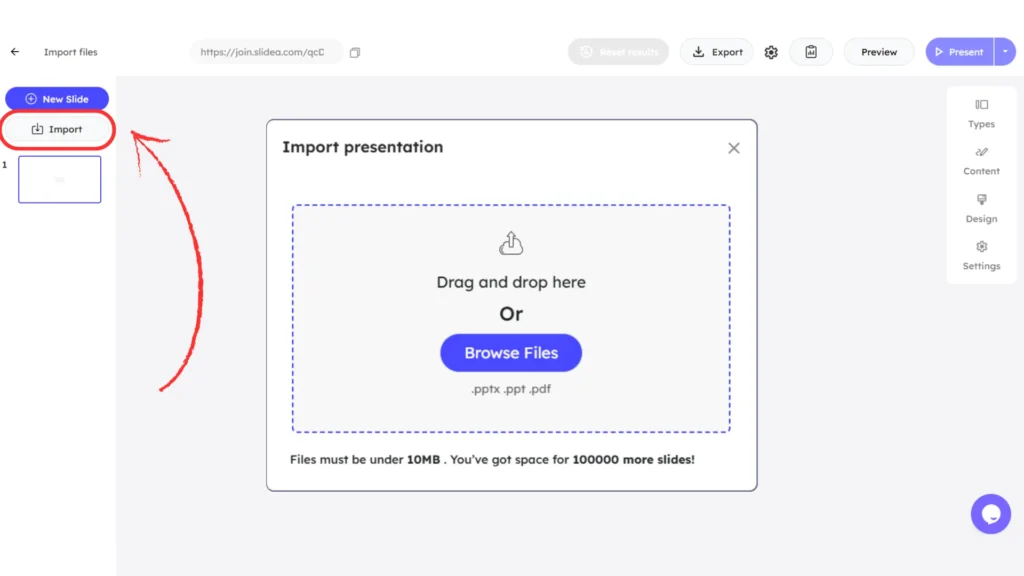
You can upload files in two ways:
- Click Browse Files to select a file from your device
- Drag and drop your file into the upload area
Supported file formats:
- .pptx
- .ppt
File requirements:
- Files must be under 10 MB
- Slide availability is shown before upload: The import window displays how many slides can still be added (for example, “You’ve got space for 10 more slides”).
Step 5:
Once the file upload starts, it processes the import.
- Imported slides are added to the end of the presentation
- The import continues in the background even if the window is closed
Step 6:
After the import is complete, a confirmation message appears indicating the slides are ready to use, and the file is successfully imported into the presentation.
Editing Imported Slides
After importing, slides function the same as regular slides. You can update text, adjust layouts, and modify content, as well as add or edit elements like images, video, audio, tables, and shapes. For step-by-step instructions on working with media elements, refer to How to use multimedia slides in Slidea.
Importing Multiple Presentations
- You can import multiple PDF, PPT, or PPTX files into a single presentation
- Each imported file is added sequentially at the end
- Different presentations can be combined into one presentation
Use Cases Of This Feature
This feature is useful when:
- You want to add existing PDF, PPT, or PPTX files to a presentation you’ve already created
- Multiple files need to be combined into a single interactive session
- Imported slides need to be enhanced with interactive and multimedia elements
- You want to save time by bringing in ready-made content instead of rebuilding slides from scratch


Leave a Comment
Your email address will not be published. Required fields are marked *