


The Remote feature in Slidea allows hosts to control their presentation from another device while presenting. This feature is useful when a presenter wants flexibility to change slides remotely or provide presentation control access to a co-host during a live session.
How to use the Remote Option in Slidea
The Remote option becomes active only when the presentation goes live. Once the presenter starts presenting, the Remote feature can be used to connect to another device and control the presentation.
How to Access the Remote Option
You can access the Remote option in the following ways:
Option 1:
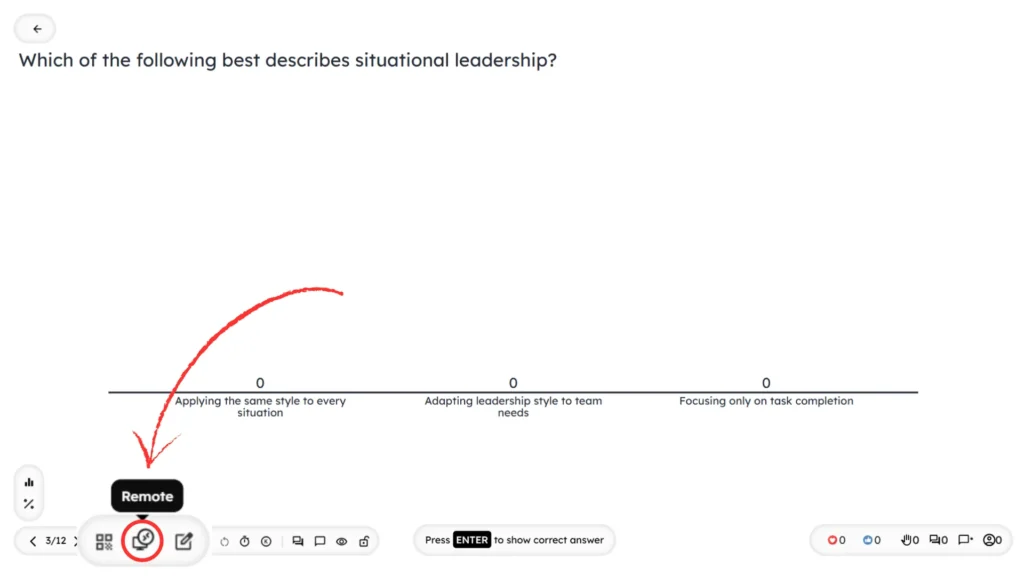
On the presenter screen, click the Remote option at the bottom-left corner and then activate it.
Option 2:
Click the drop-down arrow next to the Present button, choose Remote, and access the feature.

How to Connect the Remote Feature on Other Devices
Slidea allows you to connect the Remote feature to another device in two ways.
Method 1: Connect using QR code
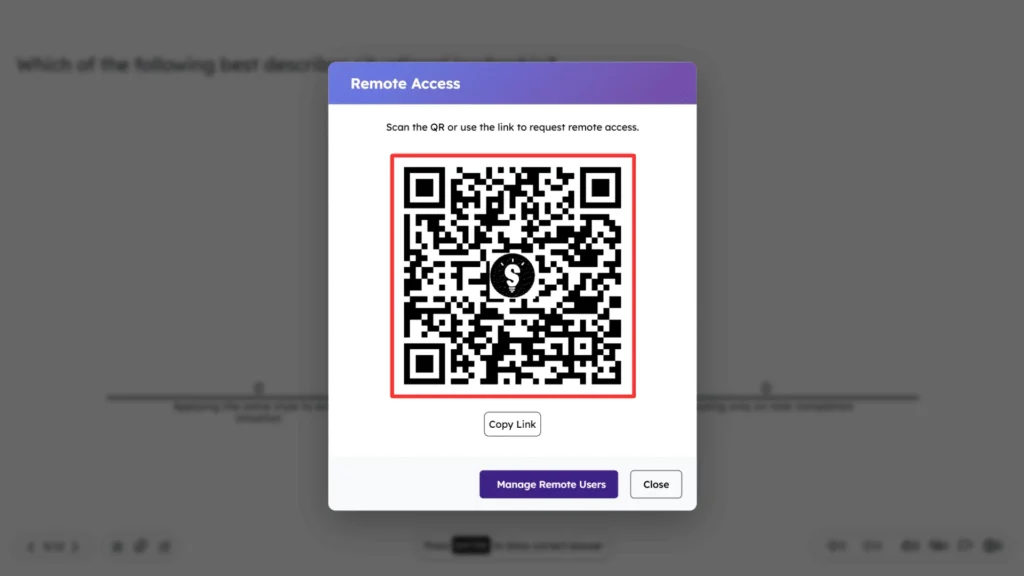
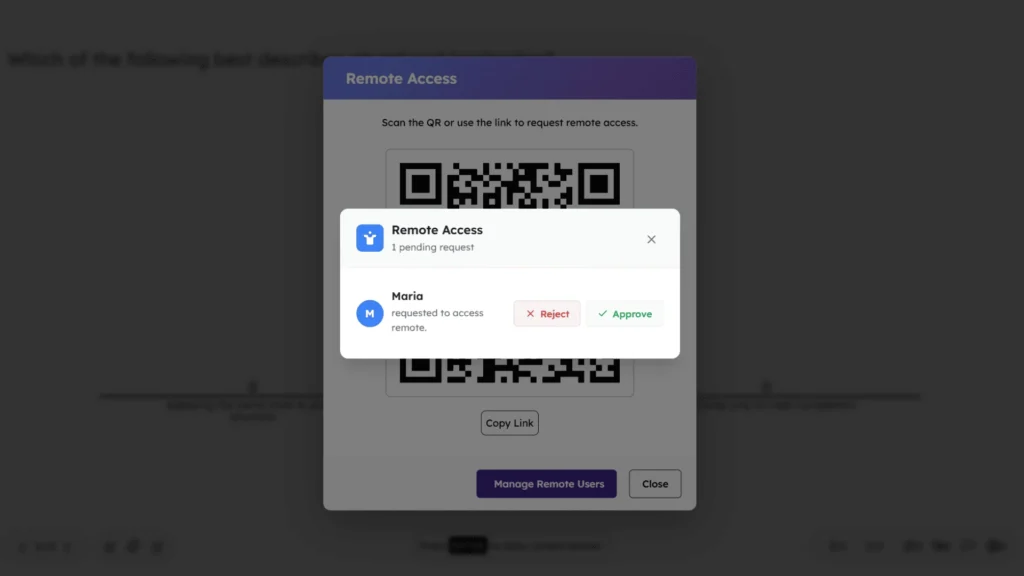
- When you click on the Remote option, a pop-up window will appear, displaying a QR code.
Method 2: Connect using the link
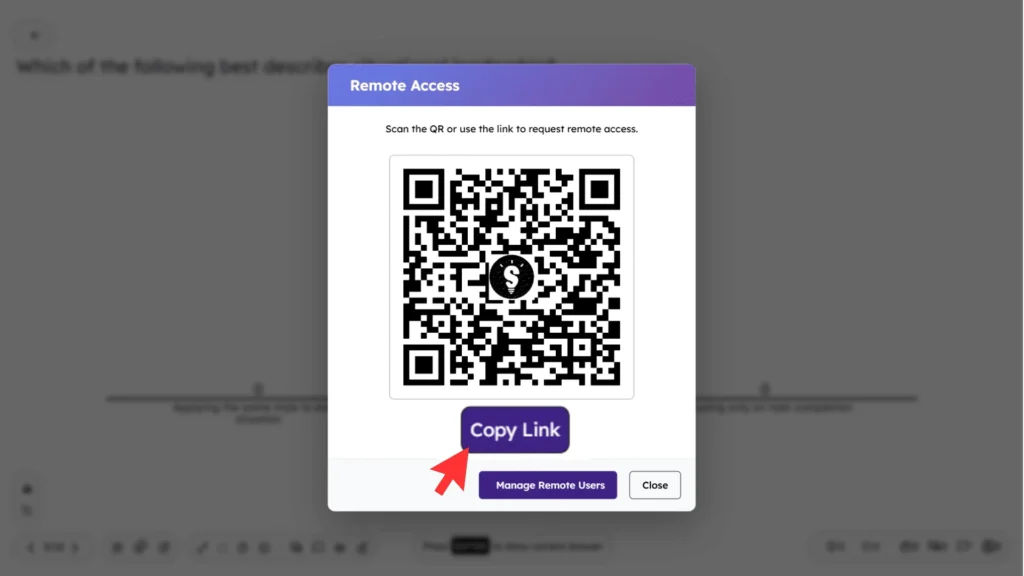
Click the Copy Link button and share the copied link with the co-host through chat, email, or any messaging platform.
How to Manage Remote Users’ Access
The presenter can decide how many co-hosts are allowed to connect using the Remote feature.
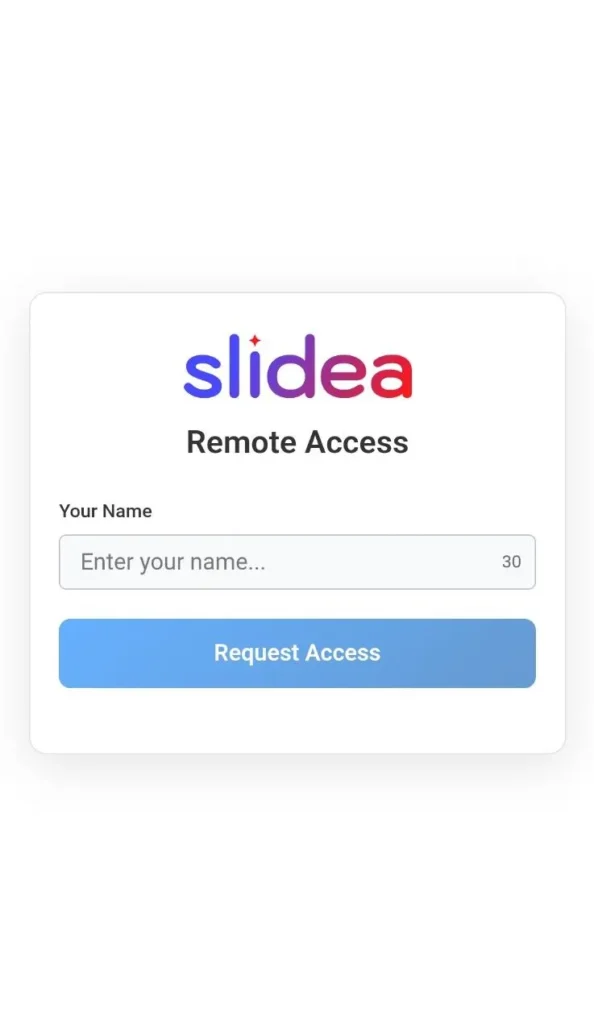
When a co-host scans the QR code or opens the shared link on another device, a Remote Access pop-up will appear. In this pop-up, the co-host can enter their name and click Request Access.
The presenter can approve or reject each request. Only co-hosts whose requests are approved will be able to control the presentation.
If a co-host’s request is rejected, they will not get access to the Remote control.
Use cases of the Remote feature
The Remote feature is useful when:
- The presenter wants to control slides from a mobile device
- A co-host needs temporary control during the session
- Presentations are managed from multiple devices smoothly


Leave a Comment
Your email address will not be published. Required fields are marked *