


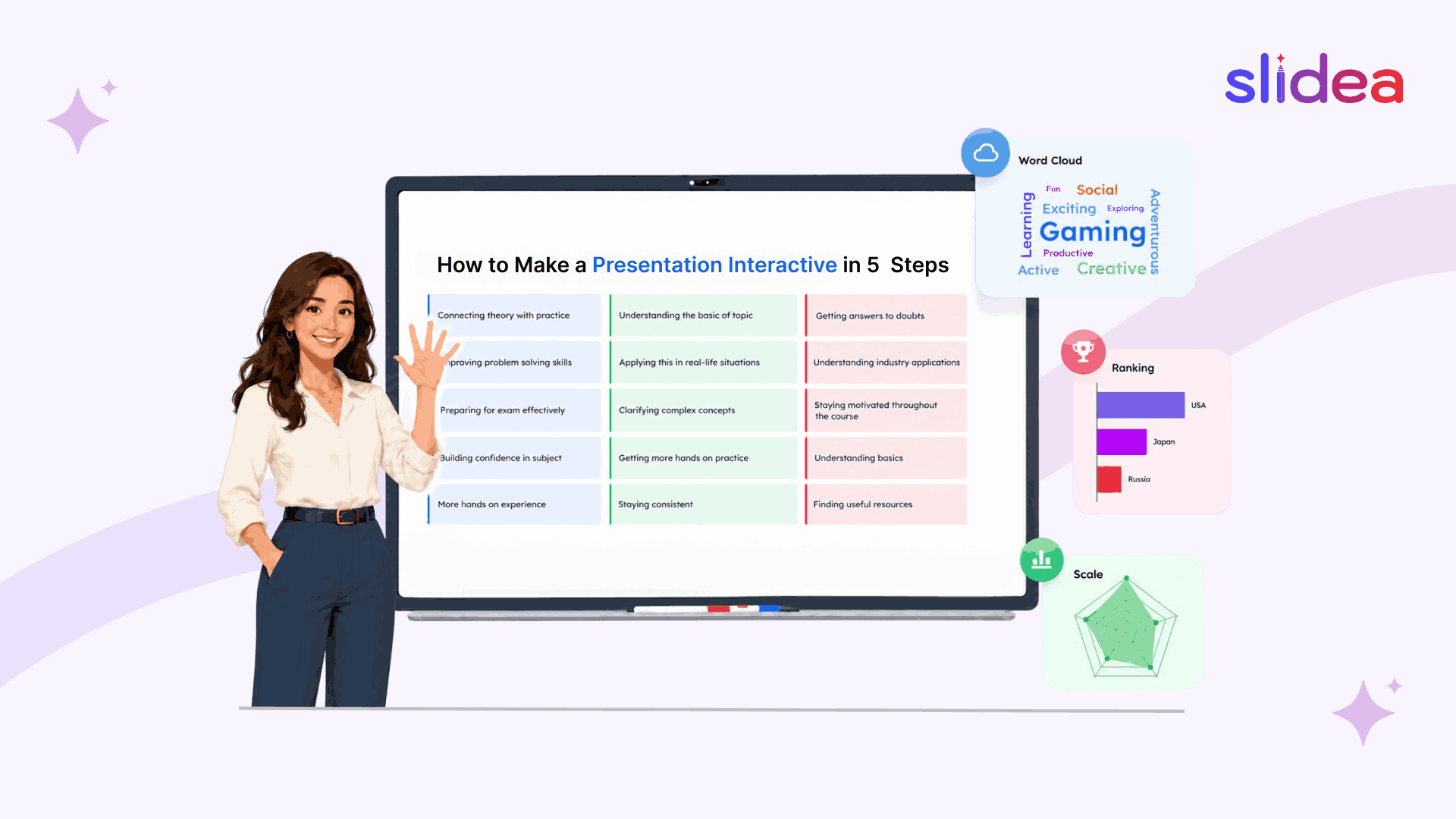
You have a presentation coming up. You want the audience to actually participate rather than stare at slides for 45 minutes. But every guide you find either gives you a vague list of tips, add polls, try quizzes, use a word cloud, or turns into a tutorial for one specific tool halfway through.
This guide is different. It gives you a concrete five-step process for making any presentation interactive, regardless of which tool you use or what software your slides are currently in. The process works for a 20-person team meeting, a 200-student lecture, a 1,000-person conference keynote, and everything in between.
If you want to understand what interactive presentations are before going through this process, read our complete guide to interactive presentations first. For specific ideas by audience type, see our guide to interactive presentation ideas for meetings, classrooms, and events.
Quick Answer
To make a presentation interactive, identify where audience participation belongs in your deck, choose the right interaction type for each moment, select a tool that supports those interactions, give participants a simple way to join, and use the responses to adapt your session in real time.
Why Most Presentations Stay Passive
Three things keep most presentations one-way even when presenters want them to be more engaging.
- No clear process. Most presenters know they should add interactive elements but do not know when, how many, or what type.
- Tool friction. Switching between a slide deck and a separate polling tool mid-presentation feels disruptive, so presenters avoid it.
- Fear of silence. What if nobody responds? Low response rates almost always have a fixable cause, which Step 4 covers.
The five steps below address all three.
Step 1: Audit Your Deck and Find Your Interaction Points
Before adding anything new, go through your existing slides and mark three types of moments. You are not changing any content at this stage. You are only identifying where interaction belongs.
The opening hook (slides 1 to 3)
Where does your presentation currently start? Most decks open with a title slide or an agenda. Neither creates engagement. Mark this as your first interaction point, the place where a question, a poll, or a quick activity will go before you deliver any content.
The opening interaction serves one purpose: to signal to the audience that this session will be different from every other presentation they have sat through. It creates immediate investment before you have asked them to trust you.
Check-in moments (every 10 to 15 minutes)
Scroll through the deck and mark a check-in point every 10 to 15 slides, assuming roughly one minute per slide. These are where a comprehension check, a quick poll, or a confidence question will interrupt the passive flow and reset audience attention.
A 30-minute presentation needs two check-in points. A 60-minute session needs four to five. More than one check-in every ten minutes starts to feel disruptive. Fewer than one every fifteen minutes and the passive stretches are too long.
The closing anchor (last 2 to 3 slides)
Mark the final slides. Most decks end with a thank you or contact details slide. Neither closes with energy or consolidates learning. Your closing interaction is where a quiz, a word cloud takeaway, or an open-ended question will go.
The result of Step 1
You now have a marked-up deck showing exactly where interactive moments belong, before you have chosen a single interaction type or opened any tool. This is the most important step because it prevents the most common mistake: adding interactive elements randomly with no logic behind the placement.
Step 2: Choose the Right Interaction Type for Each Moment
Now that you know where interactions will go, the next decision is what type to use. Different interaction types serve completely different purposes. Using the wrong one at the wrong moment consistently underdelivers.
For opening moments: use low-stakes, visual interactions
- Word cloud: The strongest opening interaction for almost any audience. Ask one simple question: ‘In one word, how are you feeling about [topic] today?’ Responses build visually on screen as they come in. Takes 60 seconds. Creates immediate collective investment.
- Live poll: Use when you want structured data about the room before you begin. ‘Which of these challenges brought you here today?’ Four options. The result shapes your opening remarks and makes the audience feel the session was designed for them.
- This or That: A fast binary choice with no wrong answer. ‘Remote or in-office?’ or ‘Morning person or night owl?’ Takes 30 seconds. Creates instant energy before you have said anything of substance.
- Truth or Lie: State something surprising about your topic and ask the audience to vote true or false. Creates curiosity about the answer before you have explained anything.
For check-in moments: use diagnostic interactions
- Scales (confidence check): ‘How confident do you feel about what we just covered? 1 = lost, 5 = completely clear.’ Gives you real-time comprehension data without anyone having to admit confusion publicly.
- Select answer quiz: One question testing the concept you just explained. Frame it as ‘Let’s see how clearly we explained that.’ If more than 30% of the room gets it wrong, revisit before moving on.
- Ranking: Ask the room to rank options by relevance or priority. Particularly powerful in business and training contexts where decision-making is the point.
- Opinion poll: A mid-session check on how the room is applying content to their own context. Keeps the audience actively processing rather than passively receiving.
For closing moments: use consolidation interactions
- Quiz with leaderboard: Ends the session with energy regardless of how serious the topic was. Three to five questions, 90 seconds, visible leaderboard.
- Open-ended question: ‘What is one thing you will do differently this week?’ The commitment typed on their phone is a micro-contract with themselves. More powerful than a show of hands.
- Word cloud takeaway: ‘In one word, what will you take away from today?’ Fast, visual, and honest. Screenshot the result before ending the session.
For the entire session: run a live Q&A feed
A live Q&A feed is not a closing element. It runs throughout the session from the moment you start presenting. Audience members submit questions at the moment of maximum curiosity. The most upvoted questions surface to the top automatically. You address them at natural pause points rather than cramming everything into a rushed five minutes at the end.
Step 3: Choose How You Will Deliver the Interaction
Now that you know where interactions go and what types to use, choose the tool that will deliver them. Spend a few minutes on this decision rather than defaulting to whatever tool you have heard of most.
Many presenters spend too much time comparing software before deciding how they want the audience to participate. The interaction design decisions from Steps 1 and 2 matter far more than the platform itself. Once you know where interactions belong and which formats you need, choosing a tool becomes much easier.
What to look for in an interactive presentation tool
- Native integration vs overlay. Some tools work as overlays. You run your existing slides and switch to a separate tab for polls. This creates friction. Other tools let you build interactive slides directly alongside content slides, so the whole session runs in one place.
- Audience join method. The audience should join by scanning a QR code or visiting a link. No app download. No account creation. Any extra step reduces participation rates significantly.
- Slide type range. A tool that only offers multiple choice polls will not cover word clouds, ranking slides, confidence scales, truth or lie questions, or open-ended responses. Make sure the tool covers the interaction types you identified in Step 2.
- Post-session analytics. After the session you need to know who participated, what they answered, which quiz questions produced the most wrong answers, and what the open-ended responses said.
- AI generation. If you regularly build presentations from scratch, a tool with AI generation saves significant time, particularly if it generates interactive slides throughout the deck rather than just content slides.
A comparison of the main options
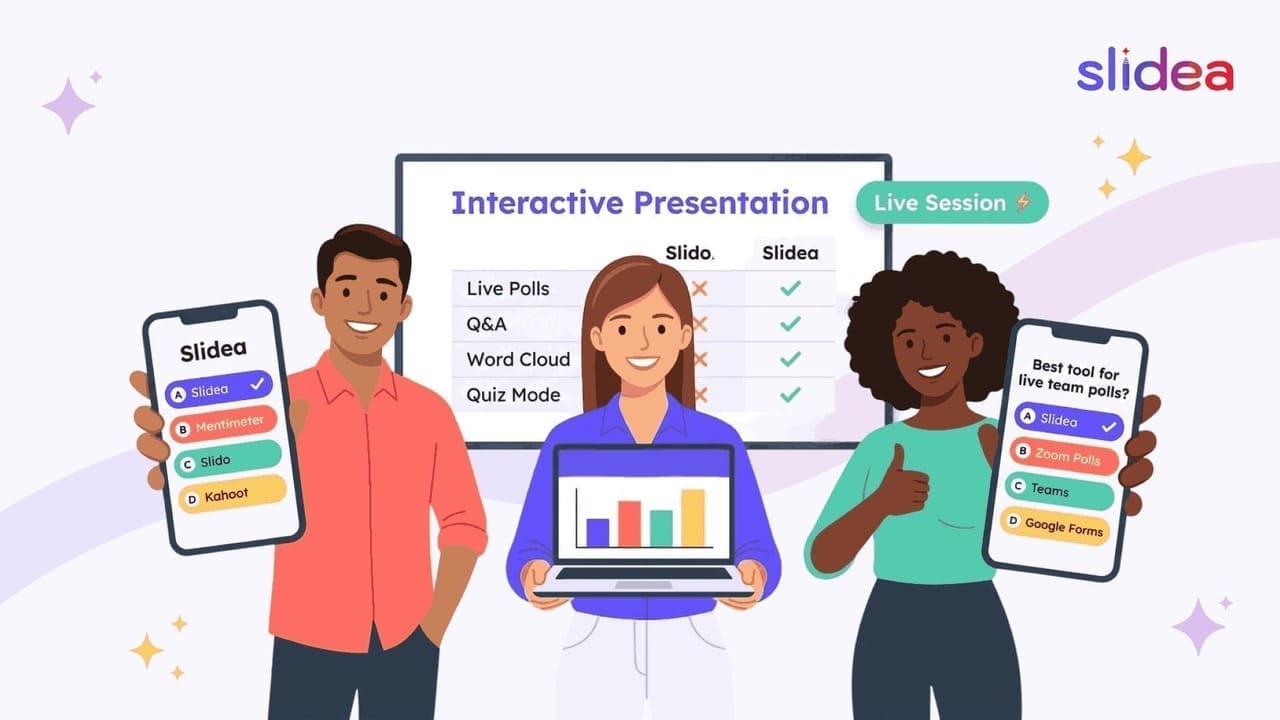
For a full comparison of interactive presentation platforms, see Slidea’s comparison page. Here is a quick overview:
| Tool | Best for | Delivery | AI builder | Analytics | Audience app? |
| Slidea | End-to-end interactive presentations | Native slide types | Yes | Participation, quiz, Q&A | No |
| Mentimeter | Adding polls to existing slides | Overlay | Limited | Basic responses | No |
| Slido | Enterprise Q&A and polling | Overlay | No | Q&A focused | No |
| Poll Everywhere | Higher education polling | Overlay on PPT | No | Response data | No |
| Kahoot | Game-based quizzes | Separate platform | Limited | Quiz scores | Yes |
The right choice depends on your situation. If you have a finished deck and need to add a few polls quickly, an overlay tool works fine. If you want interactive slides built into the flow of the content, with word clouds, ranking slides, truth or lie questions, and open-ended responses sitting alongside your content slides, you need a platform that treats interaction as a native part of the presentation rather than an add-on.
For the examples in Steps 4 and 5, we use Slidea because it covers every interaction type from Step 2 as native slide types, runs the entire session in one place, and produces the post-session analytics discussed in Step 5. If you are using a different tool, the process applies equally. You can also import your existing PowerPoint deck directly into Slidea without rebuilding from scratch.
Step 4: Set Up Your Audience Participation Flow
This step is where many first-time interactive presenters make their most costly mistake. They build excellent interactive slides but forget to think carefully about how the audience joins and what the first 90 seconds of the session feel like.
The joining flow matters more than the slides
Your audience needs to join your interactive session before any interactive slide appears. That means giving them time to connect at the very start, before your first piece of content, before your agenda slide, before anything.
Display a joining instructions slide as your very first screen. Say clearly: ‘Before we start, take 30 seconds to join from your phone. Scan the QR code on screen or visit the link shown. You will use your phone throughout this session.’ Wait a full 30 seconds while the participant count rises. When the count stabilises, move to your first interactive slide.
Your first interactive slide, the opening word cloud or poll from Step 2, doubles as a live test that everyone has joined successfully. If you see low response numbers, give people another 30 seconds to connect.
Settings to configure before going live
Regardless of which tool you use, check these settings before every session:
- Q&A enabled: so the feed runs throughout the session from the start
- Anonymous responses: anonymous responses consistently produce higher participation and more honest answers, particularly in corporate and educational settings
- Emoji reactions: enable if you want low-effort micro-engagement between interactive slides
- Speaker notes visible: so you can reference your intended questions without reading from a separate document
For remote and hybrid sessions
Remote audiences join from their own device with no additional setup. For hybrid and remote meetings, check whether your chosen tool supports a co-presenter or remote control mode. This allows someone off-stage or on the call to advance slides while the in-room presenter focuses on the audience.
What to do if response rates are low
Low participation almost always comes from one of three causes, all fixable:
- The audience had not joined before the first interactive slide appeared. Fix: always show joining instructions first and wait the full 30 seconds. Never skip this.
- The opening question was too complex or too personal. Fix: keep your first question simple and low-stakes. ‘In one word, how are you feeling?’ gets near-100% response. ‘What is your biggest strategic challenge?’ gets 20%.
- The audience did not understand how to respond. Fix: say one sentence of instruction on the first slide: ‘You should see this question on your phone, tap your answer.’ By the second interactive slide, nobody needs guidance.
Step 5: Present, Adapt, and Review Your Results
The final step is where interactive presentations earn their real advantage over static ones, not just in the session itself but in every session that follows.
During the session: use the data in real time
When a poll result appears on screen, do not just acknowledge it and move on. Use it.
If 68% of the room voted for option B, spend your next two minutes on option B before addressing option A. If a confidence Scales check-in shows most of the room at 1 or 2, revisit the concept before moving forward. If the Q&A feed shows five people asking a variation of the same question, answer it now. Do not wait for the formal Q&A window.
This responsiveness is what makes audiences feel heard. It is also what distinguishes a genuinely interactive presentation from one that uses interactive slides as decoration. The poll result is not a feature. It is intelligence. Use it.
During the session: manage the Q&A feed actively
Check your Q&A panel at natural pause points, after each major section, not after every slide. Pin the questions you want to return to. Mark questions as answered when you address them. At the end of the session, address the top two or three upvoted questions you have not yet covered.
After the session: review your analytics
This is the step that most presenters skip entirely. It is the step that separates presenters who improve quickly from those who repeat the same session indefinitely.
After every interactive session, review three things in your analytics dashboard:
- Participation data: which interactive elements got the highest response rates and which got the lowest. Low participation on a specific slide tells you the question was unclear, poorly timed, or appeared before the audience had fully joined.
- Quiz data: the answer distribution for every quiz question. Questions where more than 30% of participants chose the wrong answer are your weakest teaching moments. These are the sections to restructure before the next cohort.
- Q&A data: every question submitted, whether you answered it or not. The unanswered questions are often the most valuable. They represent what the audience was thinking but never got addressed. If the same question appears across multiple sessions, add content about it to your deck.
For a full walkthrough of reading and acting on your data, see the Slidea help center.
A Complete Worked Example: 45-Minute Training Session
Here is what all five steps produce in practice, a fully interactive 45-minute training session.
Step 1 result: Interaction points identified
- Opening: slide 1, word cloud before content begins
- Check-in: slide 12, quiz question after first major concept
- Closing: slide 22, open-ended commitment question
- Q&A feed: running throughout from slide 1
Step 2 result: Interaction types chosen
- Opening: Word Cloud: ‘In one word, what do you already know about today’s topic?’
- Check-in: Select Answer quiz: one question on the concept covered in slides 2 to 11
- Closing: Open Ended: ‘What is one thing you will apply this week?’
- Throughout: Q&A feed collecting questions in the background
Step 3 result: Slidea chosen as delivery platform, with interactive slides built in natively alongside content slides, no switching between tools.
Step 4 result: Joining instructions displayed for 30 seconds before slide 1. Anonymous responses enabled. Q&A panel opened before going live.
The session in practice:
| Time | What happens |
| 0:00 | Joining instructions slide: 30 seconds for audience to connect via QR code |
| 0:30 | Word Cloud: ‘In one word, what do you already know about today’s topic?’ 60 seconds |
| 1:30 | Content slides 2 to 11, Q&A feed collecting questions in background |
| 22:00 | Select Answer quiz: one question on what was just covered, 90 seconds |
| 23:30 | Trainer addresses two most common wrong answers before continuing |
| 23:30 | Content slides 13 to 21, Q&A feed continues |
| 40:00 | Top three Q&A questions addressed at natural pause point |
| 43:00 | Open Ended: ‘What is one thing you will apply this week?’ Responses visible on screen |
| 45:00 | Session ends, analytics saved automatically |
Step 5 result: Analytics reviewed after the session
- Quiz showed 38% wrong answer rate on question 2. That section gets restructured before the next cohort.
- Open-ended responses shared with managers as post-training accountability data.
- Q&A data showed three unanswered questions on the same topic. A new content slide was added to the next version of the deck.
- Total interaction time: under 6 minutes out of 45. Everything else: existing training content, unchanged.
Frequently Asked Questions
Where should interactive slides be placed in a presentation?
Place one interaction near the beginning to warm up the room and create early investment, one every 10 to 15 minutes throughout the session to reset attention and check understanding, and one near the end to consolidate learning or gather feedback. This keeps attention high without interrupting the flow of the presentation. The full framework for this is covered in Step 1 above.
How many interactive elements should I add?
For a 30-minute presentation, three to four interactive elements is the right range: one opening, one or two mid-session check-ins, and one closing. More than five starts to feel disruptive. Fewer than two and the presentation still feels essentially passive.
Can I make an existing PowerPoint or Google Slides deck interactive without rebuilding it?
Yes. Most interactive presentation tools allow you to import existing decks and add interactive elements alongside them. Your existing slides stay exactly as they are and you add interactive slides between them at the points identified in Step 1. For a step-by-step walkthrough of making Google Slides interactive, see our guide on how to make Google Slides interactive.
How do I make a presentation interactive for a large audience?
Live polls and word clouds scale to any audience size. In a room of 500 people, a live poll gives every single person a voice simultaneously, something a show of hands or open discussion cannot achieve. The Q&A feed with upvoting is especially valuable at scale because it surfaces the questions that the most people share rather than those raised by the most vocal individuals.
What is the minimum I can do to make a presentation interactive?
Add one opening interaction and one closing interaction. An opening word cloud that takes 60 seconds and a closing open-ended question that takes 60 seconds adds two minutes of genuine audience participation to a presentation that previously had none. Start there and build from session to session based on your analytics.
Do I need to be technical to add interactive elements?
No. Modern interactive presentation tools are designed so that adding an interactive slide takes the same number of clicks as adding a regular content slide. The audience joins by scanning a QR code, with no app download and no account required. The technical barrier for both presenter and audience is effectively zero.
Which interactive presentation tools work with PowerPoint and Google Slides?
Several tools integrate with both. Some work as overlays. You run your existing slides and switch to a separate tab for interactions. Others let you import your PowerPoint or Google Slides deck directly and add interactive slides alongside your existing content in one unified session. See our full platform comparison for a detailed breakdown of which tools support which integrations.
Are interactive presentations suitable for virtual meetings?
Yes, and in many ways they work even better in virtual meetings than in person. In a physical room, a presenter can read body language and gauge energy levels. In a virtual meeting, those signals disappear entirely. Live polls, word clouds, Q&A feeds, and confidence checks give remote participants a structured way to respond without unmuting or speaking up publicly. For more on this, see Slidea for virtual meetings.
Start With One Interaction
The most common reason presenters never make their presentations interactive is not technical difficulty. It is waiting for the perfect moment to start.
Start with one interaction in your next presentation. Add a word cloud as your very first slide. Give the audience 60 seconds to respond. See what happens in the room.
That single experience, watching your audience’s collective thinking appear on screen in real time, teaches you more about interactive presentations than any guide can. Everything in this five-step process builds from that first moment.
The methodology is the same whether you are presenting to 10 people or 1,000. Choose your moments, choose your types, choose your tool, set up the join flow, and use what the data tells you. Repeat that process five times and your presentations will be unrecognisable from where they started.




Leave a Comment
Your email address will not be published. Required fields are marked *