


The Questions from Audience feature allows participants to ask questions during your presentation, helping you create a more interactive and engaging session. In Slidea, you can control how and when your audience can submit questions.
Enable Questions from Audience
To allow participants to ask questions:
- Add a Q&A slide to your presentation
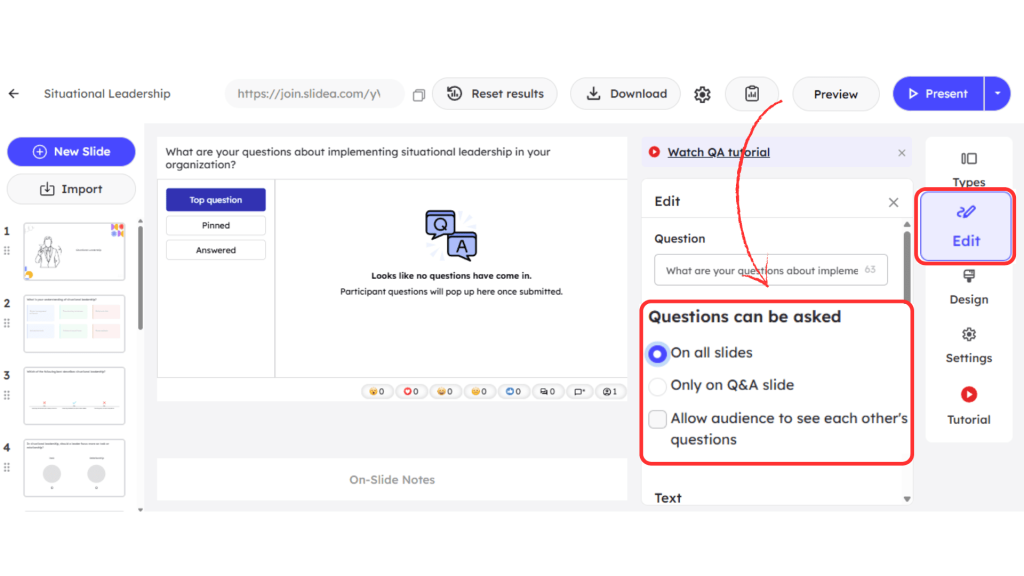
- Go to the Edit tab on the right panel
- Enter your prompt in the Question text box
Below this, you will find the Questions can be asked section. Here, choose how participants can submit questions:
- On all slides – Allows questions throughout the presentation
- Only on Q&A slide – Restricts questions to the Q&A slide
You can also enable the option Allow audience to see each other’s questions by clicking the box. This lets participants view questions submitted by others during the session.
Option 1: Questions on All Slides
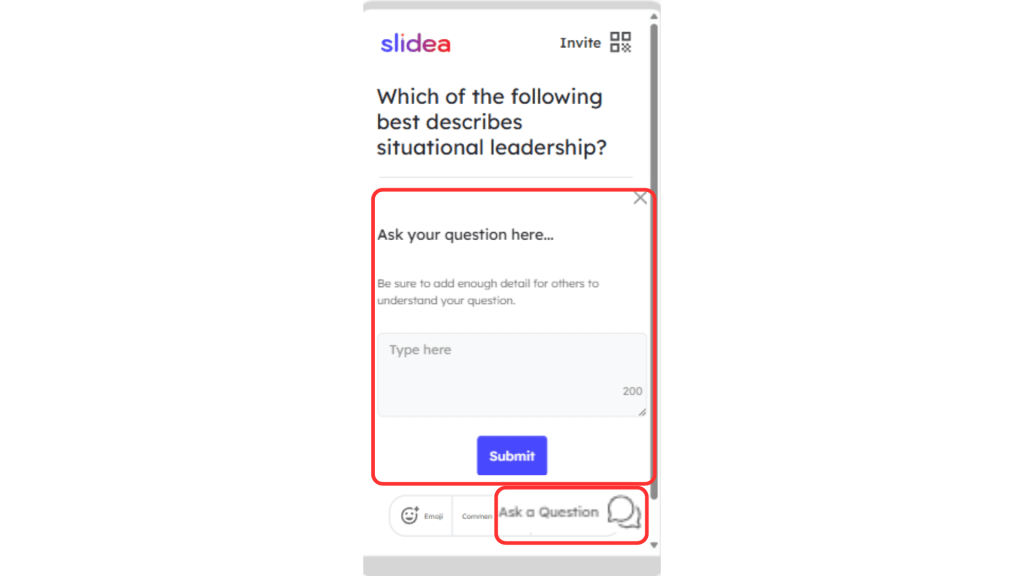
When you select On all slides, participants can ask questions at any time during the presentation.
How it works (Audience view):
- Participants will see an Ask a Question icon below the question on their screen
- When they tap the icon, a text input box opens
- They can type their question (up to 200 characters)
- Click Submit to send the question
This allows continuous interaction without interrupting the flow of your presentation.
Option 2: Questions Only on Q&A Slide
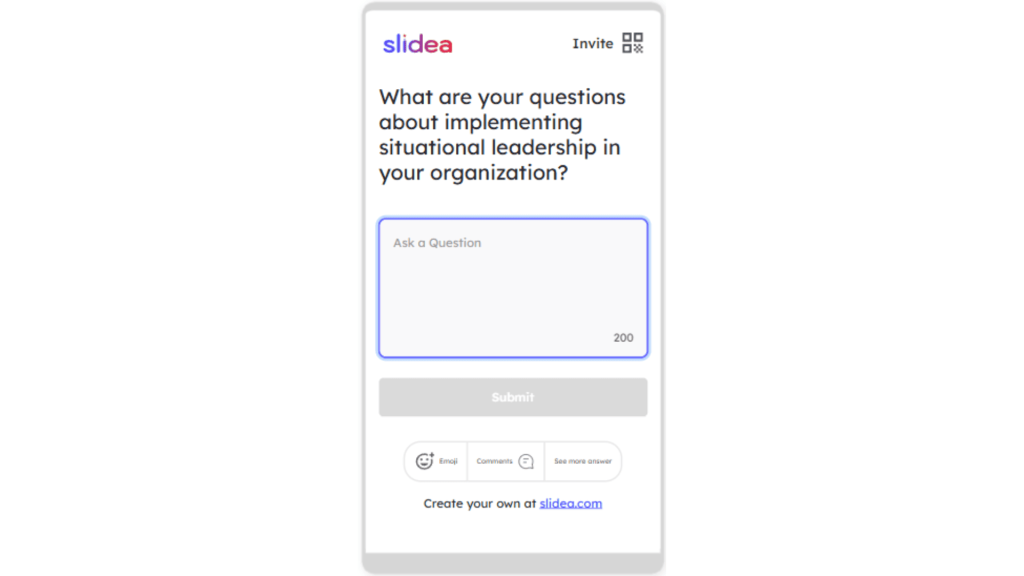
When you select Only on Q&A slide, participants can submit questions only when you navigate to a dedicated Q&A slide.
How it works (Audience view):
- On the Q&A slide, participants will directly see the Ask a Question text box
- They can type their question (up to 200 characters)
- Click Submit to send it
This option is ideal for structured sessions where you want to handle all questions at a specific time.
Use on all slides for ongoing engagement and quick feedback, or choose only on the Q&A slide for a more controlled and focused discussion.


Leave a Comment
Your email address will not be published. Required fields are marked *