


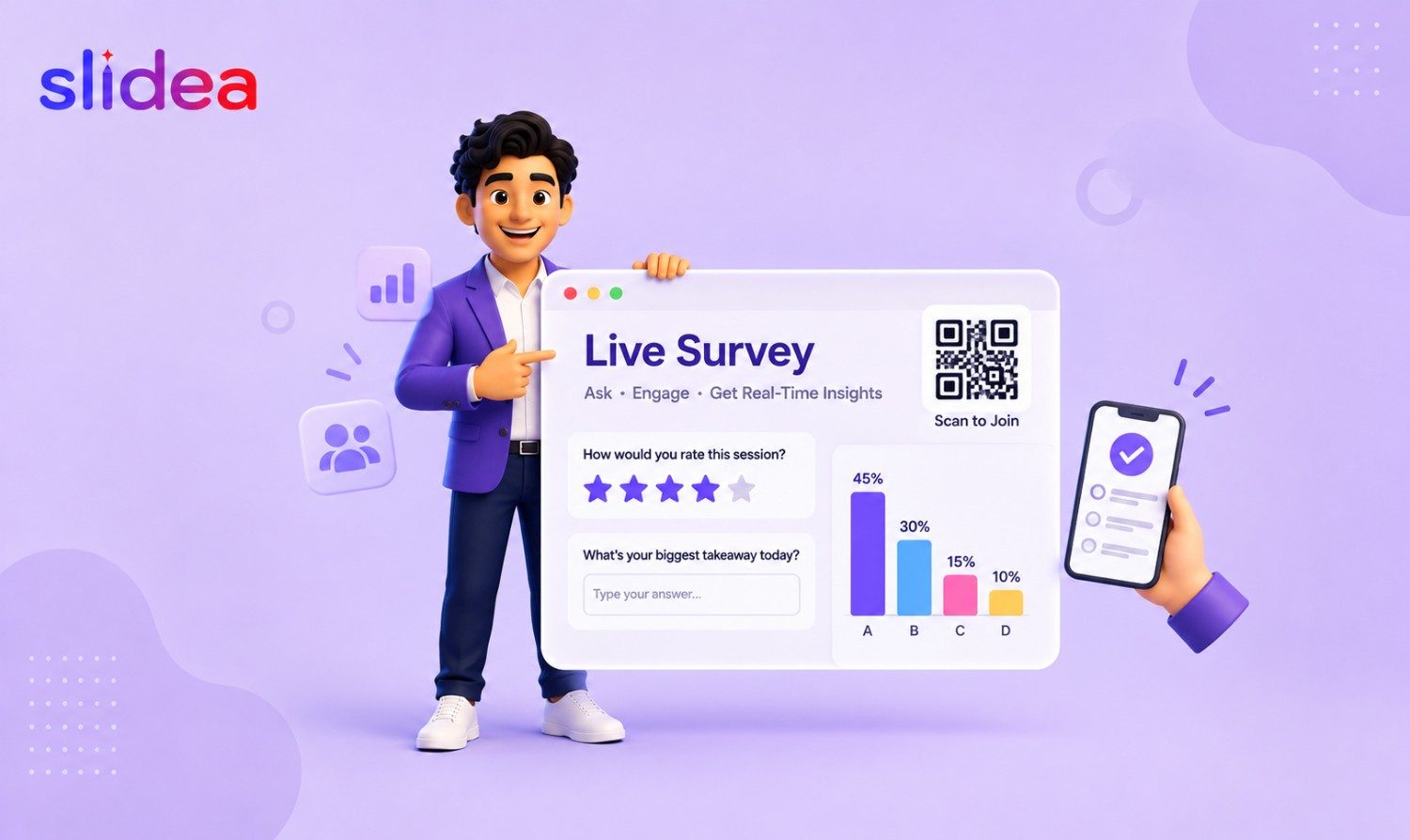
You've booked the room, built the slides, and rehearsed the talk. But the moment attendees stop reacting and start scrolling their phones, all of that prep stops paying off. A live survey fixes this in under a minute of setup — it turns a one-way presentation into a two-way conversation, and you get to see what your audience actually thinks while you still have the floor.
This guide covers what a live survey is, when to use one instead of a regular form, the question types that work best in the room, 15 ready-to-use questions, and a step-by-step walkthrough for building your first one.
What Is a Live Survey?
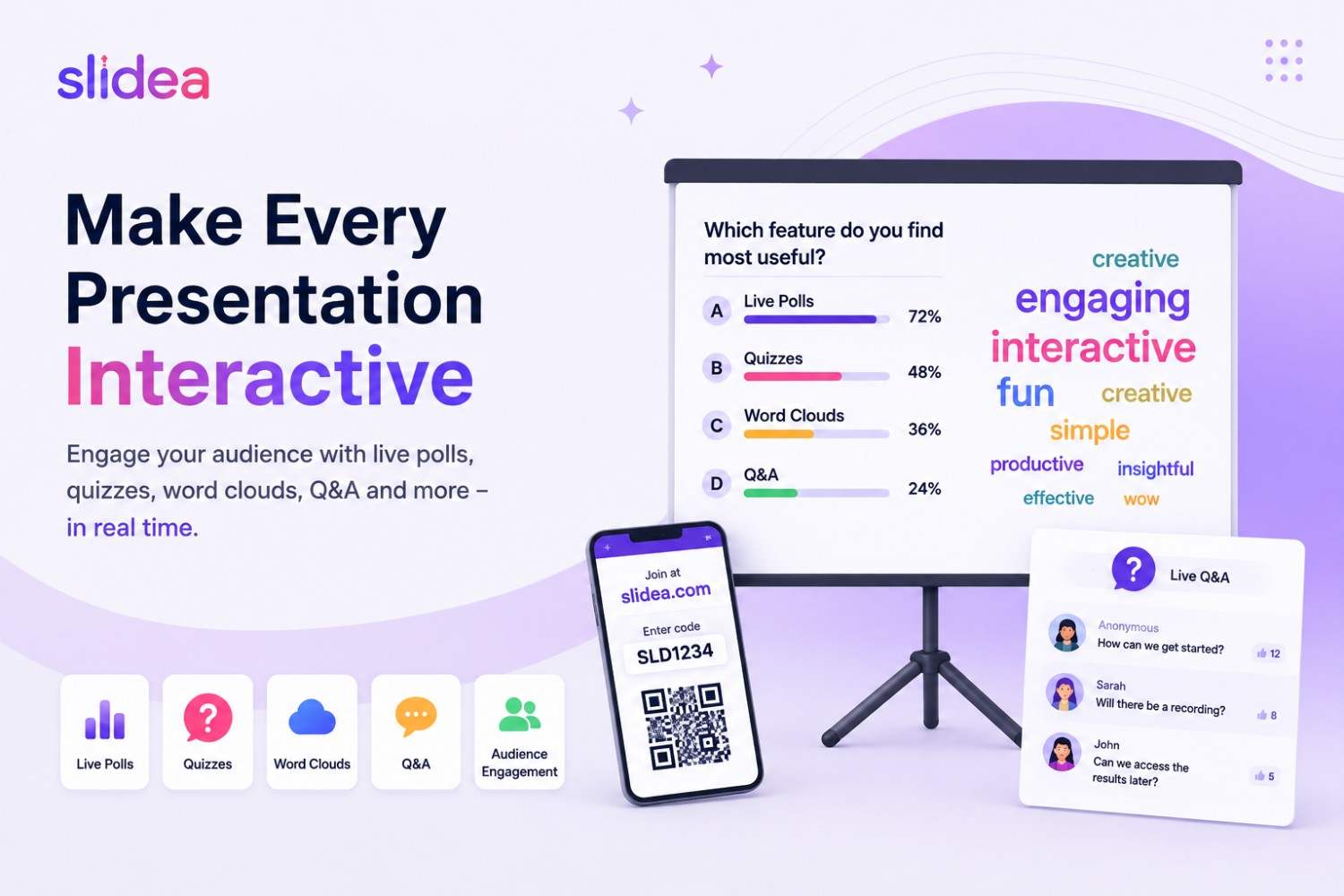
A live survey is a set of questions your audience answers in real time — usually by scanning a QR code or opening a short link on their phone — while results appear on the presentation screen as votes come in. Unlike a traditional survey link you email out and wait days for, a live survey is built for the room: it's fast to join, requires no sign-up, and the payoff (seeing the results update live) happens while everyone is still watching.
It's a close cousin of a live poll, but with more depth. A poll is usually a single question. A live survey is a short sequence — three to ten questions — that can mix formats: ratings, rankings, word clouds, and open text, not just multiple choice.
Live Survey vs. Traditional Survey: Which Should You Use?
| Criteria | Live Survey | Traditional Survey (email/link) |
|---|---|---|
| Best for | Meetings, classes, events, training sessions | Post-event feedback, customer research, long forms |
| Response window | Minutes, while you present | Hours to days |
| Engagement | High — results shown on screen instantly | Lower — respondent has no immediate feedback loop |
| Sign-up required | Usually none | Sometimes (email capture) |
| Ideal length | 3–10 questions | Can run much longer |
If you need deep, considered answers from a large sample over time, a traditional survey wins. If you need a quick, honest read on a room full of people right now, a live survey is the better tool — and you can always follow up with a link version afterward for anyone who didn't get to answer live.
When to Use a Live Survey
- Team meetings — check morale, prioritize agenda items, or get quick input before a decision
- Classrooms and lectures — check understanding mid-lesson instead of waiting for a quiz
- Training sessions — measure comprehension after each module
- Conferences and webinars — capture session ratings or audience sentiment while attention is highest
- HR and all-hands meetings — collect honest feedback without the delay of a formal survey cycle
- Sales or product demos — gauge interest and objections in real time
Question Types That Work Best Live
Not every question format belongs in a live setting — long grids and matrix questions stall a room. These formats keep momentum:
- Multiple choice — fastest to answer, good for quick decisions or check-ins
- Scales / ratings — great for satisfaction, confidence, or agreement questions
- Ranking — useful when you need to prioritize a list of options as a group
- Word cloud — one-word or short-phrase answers that build a visual on screen as people respond
- Open ended — for feedback or ideas you can't anticipate with fixed options
- This or That — a fast forced-choice format that's great for icebreakers or quick pulse checks
- Traffic lights — a red/yellow/green style check-in for gauging comfort or confidence at a glance
A good live survey usually mixes two or three of these rather than sticking to one format for every question — it keeps the audience engaged instead of clicking through the same layout repeatedly.
15 Live Survey Questions for Presentations and Meetings
Not sure what to actually ask? These work across most meetings, classes, and events — mix a few from different categories rather than using all 15 in one sitting.
Icebreaker & warm-up
- How confident are you about today's topic?
- Which option would you choose: [A] or [B]?
- What word best describes today's session?
Understanding & comprehension
- How prepared do you feel for this topic?
- What is one thing you learned today?
- Which topic needs more explanation?
- What's your biggest takeaway so far?
Feedback & satisfaction
- How would you rate this session?
- How satisfied are you with the current process?
- What should we improve?
- What would make this meeting more useful?
Direction & decisions
- What is your biggest challenge right now?
- Which topic should we discuss next?
- Which feature do you use most?
- What should we change for the next session?
A few of these work well as a matching pair — open with #1 or #3 to warm the room up, then close with #8 or #15 to capture feedback while the session is still fresh. Swap the bracketed placeholders and specifics for your own topic, team, or product.
Survey Slides vs. Quiz Slides: Feedback vs. Competition
Surveys and quizzes solve different problems, and it's worth knowing when to reach for each. A survey slide gathers opinions and feedback — there's no right or wrong answer, just honest input. A quiz slide tests knowledge — you set a correct answer, and points, timers, and a leaderboard turn it into a competition.
Use survey slides when you want to know what your audience thinks. Use quiz slides when you want to test what they know, or simply re-energize a room with a bit of friendly competition. Many presenters mix both in one session: a survey slide as an icebreaker, a scored quiz mid-way to break up the content, and a closing survey slide to collect feedback.
Both live in the same editor, so switching between them takes seconds. See the full breakdown of quiz vs. question slides, or explore quiz slides if you want to add a scored round alongside your survey.
How to Create a Live Survey in Minutes
Here's a simple workflow that works for meetings, classrooms, or events:
- Pick your format. Decide whether you're presenting live on a shared screen (best for meetings and classes) or sending a link people answer at their own pace (best when your audience isn't all in one room at the same time).
- Write 3–10 questions. Mix formats — open with something easy like multiple choice or "this or that," and save open-ended questions for later in the sequence.
- Choose or generate your questions. Start from a blank editor, pick a ready-made template, or let AI draft the questions for you based on your topic and goal.
- Share it. Display a QR code and link on screen, or send the link directly through chat, email, or social media. Respondents don't need an account.
- Watch results live. Charts and word clouds update as answers come in — you can choose when to reveal results to the room.
- Export and follow up. Download the responses as a spreadsheet or a summary report so you can act on the feedback after the session ends.
Slidea's survey tool is built around exactly this workflow — you can present live on screen with instant QR-code join, or share a link people answer whenever they have time, then export everything with one click. It supports all the question types above, including AI-generated questions and 1,000+ templates, so you're not starting from a blank page.
[Suggested image: Close-up of a phone scanning the on-screen QR code, next to the presenter view showing responses ticking up live — placed right at step 4 to visually reinforce "no sign-up needed."]
Try it yourself: Build Your First Live Survey Free → No downloads, no sign-up for your audience — just questions and instant answers.
Tips for Getting Honest, Useful Responses
- Keep it short. Three to seven questions is the sweet spot for a live setting — attention drops fast after that.
- Lead with an easy question. A quick multiple-choice or this-or-that question warms people up before you ask for open-ended feedback.
- Make it anonymous where it matters. For sensitive topics — morale, manager feedback, sensitive classroom questions — anonymous responses get you more honest answers.
- Show results, but time it. Revealing live results after a question can bias later answers (people vote with the crowd). Hide results until everyone has responded if you want unbiased data.
- Test the join flow beforehand. Make sure the QR code and link work on a phone in the actual room you'll be presenting in — Wi-Fi and screen visibility vary more than you'd expect.
FAQ
Do respondents need to create an account to answer a live survey? No — with tools like Slidea, people join by scanning a QR code or opening a link, and can respond immediately from any phone or computer.
Can I use the same survey both live and as a shareable link? Yes. Most modern survey tools support both modes from the same survey — present it live on screen during your session, and share the link afterward for anyone who missed it.
How many questions should a live survey have? Generally 3–10. Long surveys work fine as a link people answer on their own time, but live in a meeting or classroom, shorter is better to keep engagement high.
Is it free to run a live survey? Yes — Slidea offers a free plan for creating surveys and collecting responses, with templates and AI-generated questions included.
What's the difference between a survey slide and a quiz slide? A survey slide collects opinions or feedback with no right answer — ratings, rankings, word clouds, and open text. A quiz slide tests knowledge with a correct answer, automatic scoring, and a leaderboard. Use survey slides to hear from your audience, and quiz slides to test or gamify what they've learned.
Can I add both survey and quiz slides to the same session? Yes. Since both slide types live in the same editor, you can mix feedback questions and scored quiz questions within a single deck — for example, an icebreaker survey slide, a scored quiz mid-session, and a feedback survey slide at the end.


Your email address will not be published. Required fields are marked *