


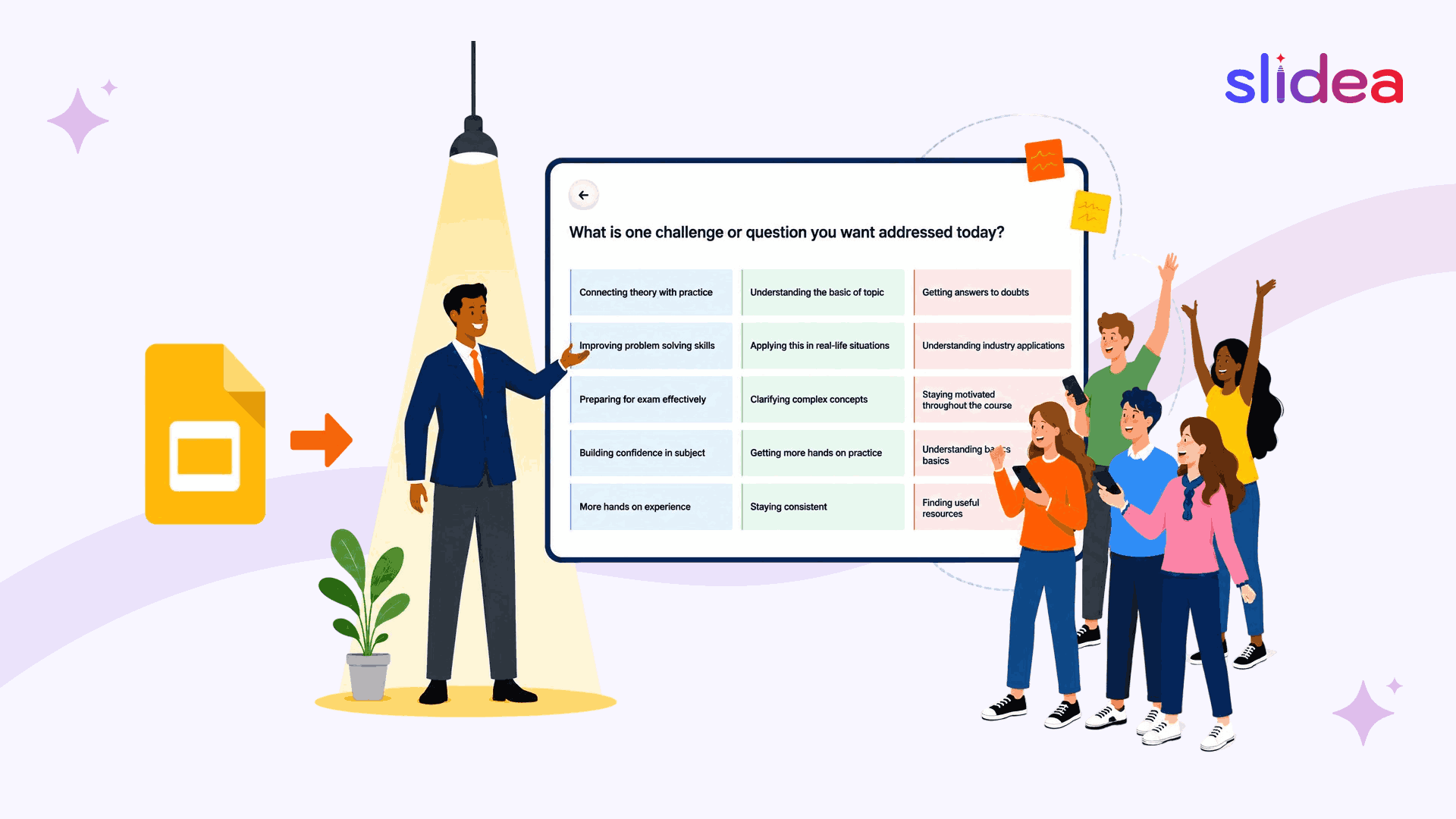
Google Slides is where most presentations start. It is free, familiar, and works well for building and sharing decks with a team. But if you have ever pressed Present and watched your audience slowly lose interest, you already know the problem.
Static slides are a one-way experience. You talk. They watch. Nobody responds, nobody participates, and by the end you have no idea whether the message actually landed.
The good news is you do not have to rebuild your presentation from scratch or switch to a different tool entirely. You can make your existing Google Slides deck interactive — and this guide shows you exactly how.
What does “interactive” actually mean?
Before diving in, it is worth being clear about what interactive actually means — because animations and slide transitions do not count.
A truly interactive presentation requires your audience to do something. They respond to a question. They vote in a poll. They submit a question. They see their answers appear on screen in real time.
The features that make this possible are:
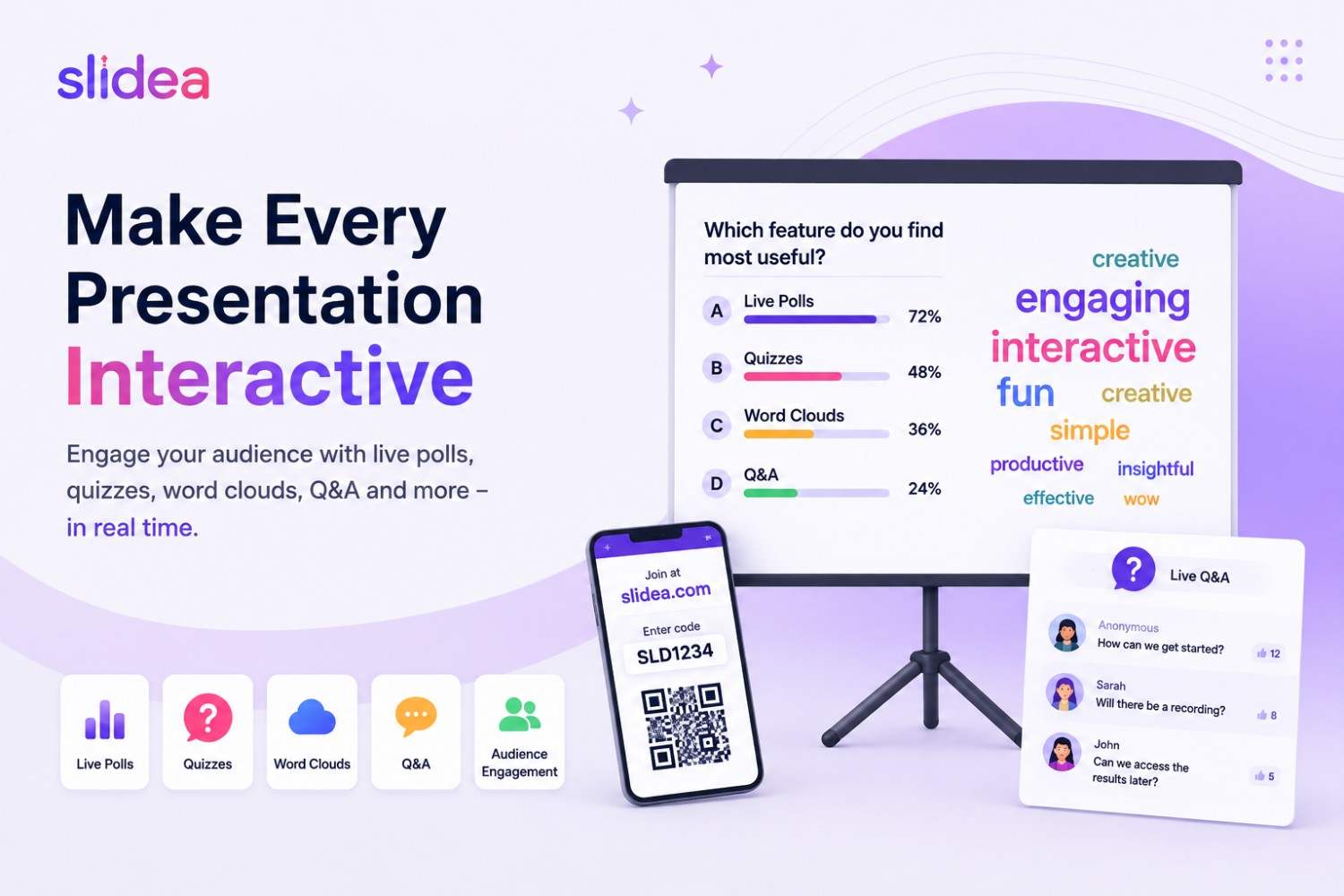
• Live polls — audience votes on a question, results appear instantly
• Quizzes — scored knowledge checks with real-time answers
• Word clouds — open-ended responses visualised as participants type
• Live Q&A — audience submits questions during the session
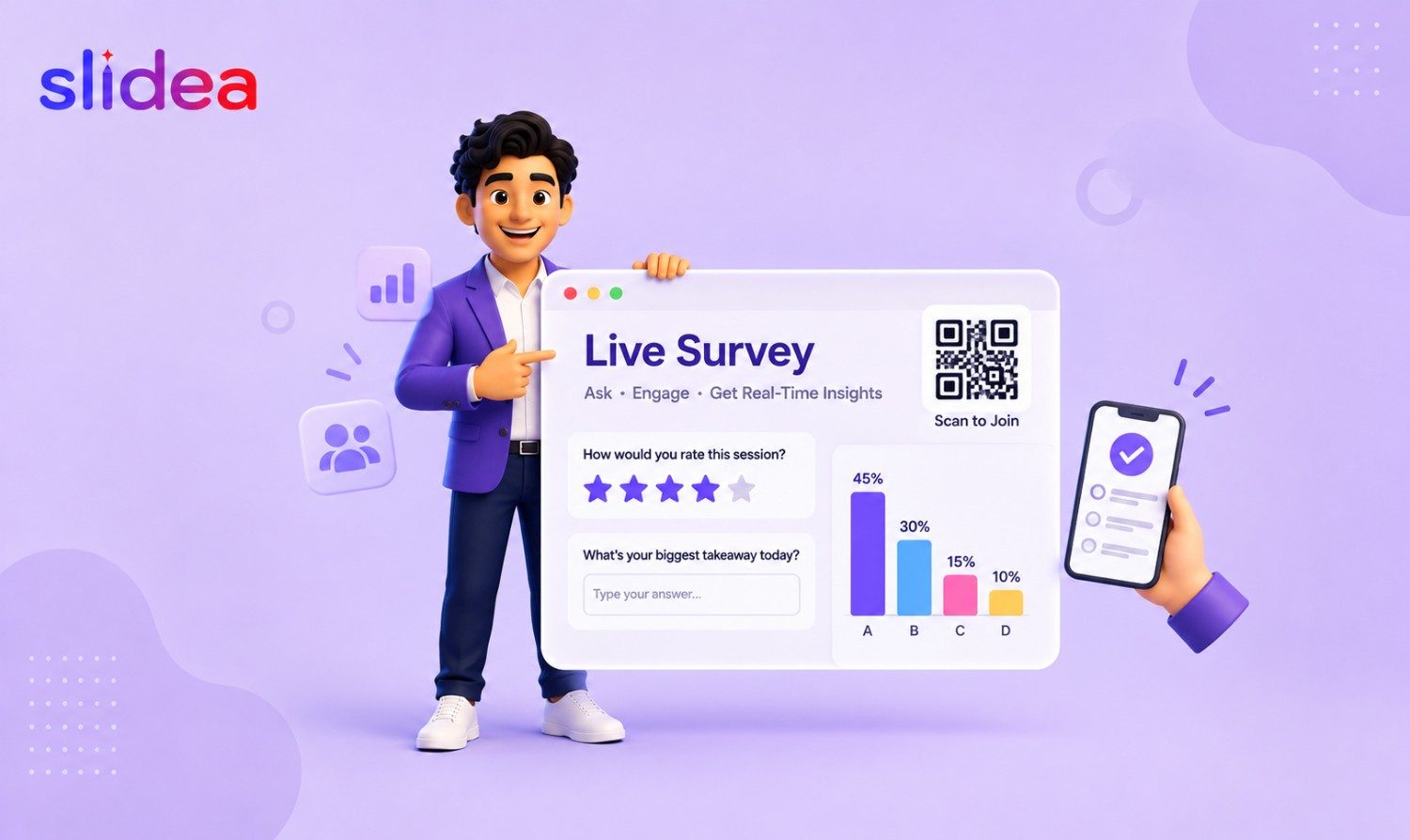
• Surveys — structured feedback mid-session or at the end
None of these exist natively inside Google Slides. To get them, you need to connect your deck with an audience engagement tool.
Interactive features Google Slides already supports
Google Slides does include some basic interactive capabilities that are worth knowing about before adding a third-party tool:
• Hyperlinked navigation — you can add clickable links on any text or shape that jump to another slide, making self-paced or choose-your-own-path presentations possible.
• Clickable buttons — shapes styled as buttons can link to external URLs or other slides, useful for simple branching decks.
• Embedded videos — YouTube videos can be embedded directly into slides and played during a presentation without leaving the deck.
• Linked Google Forms — you can include a link to a Google Form for collecting responses, though participants leave the presentation to complete it and results do not appear on screen in real time.
• Presenter Q&A — Google Slides has a built-in audience Q&A feature in present mode, though it is limited and does not support polls, quizzes, or word clouds.
These features are useful for basic self-paced presentations or simple navigation. But they do not enable real-time audience participation — the kind where your whole room responds at once and results appear on screen live. For that, you need an audience engagement platform.
Can Google Slides be made interactive?
Yes — with the right tool added to it.
Ways to make Google Slides interactive
There are several ways to make a Google Slides presentation more interactive, depending on the experience you want to create.
• Add clickable navigation links between slides for self-paced presentations.
• Link to Google Forms to collect responses from participants.
• Embed videos, GIFs, and multimedia content to increase engagement.
• Use audience engagement tools such as Slidea to add live polls, quizzes, word clouds, surveys, and Q&A.
The first three options improve the presentation itself. The fourth option allows your audience to actively participate during the presentation, making it ideal for classrooms, workshops, meetings, and events.
How Slidea makes your Google Slides interactive
Slidea is an audience engagement platform built specifically for live sessions. It integrates directly with Google Slides, allowing you to import your existing deck and add interactive slides without starting from scratch.
Here is how it works:
1. Import your deck — Upload your Google Slides presentation directly into Slidea. Your slides import cleanly, keeping your existing layout, fonts, and content intact. For a full walkthrough, see the How to Import Google Slides in Slidea guide.
2. Add interactive slides — Once your deck is in Slidea, insert interactive slides anywhere in the flow. Add a live poll after a key point. Drop a word cloud where you want audience input. Insert a quiz at the halfway mark to keep energy high.
3. Share the session link — When you are ready to present, Slidea generates a simple join link. Your audience opens it on their phone or laptop — no app download, no account needed.
4. Present and engage — Run your session as normal. When you reach an interactive slide, your audience responds in real time and results appear on screen instantly.
5. Review your analytics — After the session, Slidea gives you a full analytics report — how participants responded, which slides generated the most engagement, and where attention dropped.
What you can add to your Google Slides deck
Once your deck is in Slidea, here are the interactive elements you can add:
Live polls
Ask a question and watch answers appear on screen as your audience responds. Useful for checking understanding, gathering opinions, or opening a discussion. Learn more about live polls.
Quizzes
Run scored quizzes to check knowledge and keep energy high. Slidea supports multiple choice, type answer, pick the number, and line-up formats.
Word clouds
Ask an open-ended question and watch responses build visually on screen. Great for getting input from the whole room at once, including quieter participants who would not normally speak up.
Live Q&A
Let your audience submit questions at any point during the session. Questions appear in a moderated feed so you can address the most relevant ones without losing the flow of your presentation.
Surveys
Collect structured feedback mid-session or at the end. Useful for training sign-off, event feedback, or gauging how well key messages landed.
Real-world example
A HR manager runs a monthly company update for 80 employees on Zoom. She has been using the same Google Slides deck for months. The slides are clear, the content is good — but engagement is low and she has no idea what people are actually taking away.
She imports her deck into Slidea and adds three interactive slides:
• A poll at the start to gauge how the team is feeling
• A word cloud halfway through asking what their biggest current challenge is
• A short quiz at the end to check understanding of a new policy
Same deck. Same Zoom call. But now 80 people are responding, their answers appear on screen in real time, and she walks away with a full report she can refer back to next month.
The content did not change. The experience did.
Interactive Google Slides: before and after adding Slidea
| Feature | Google Slides alone | Google Slides + Slidea |
| Build presentations | ✓ | ✓ |
| Team collaboration | ✓ | ✓ |
| Live polls | ✗ | ✓ |
| Quizzes with scoring | ✗ | ✓ |
| Word clouds | ✗ | ✓ |
| Live Q&A | ✗ | ✓ |
| Post-session analytics | ✗ | ✓ |
| AI-assisted creation | ✗ | ✓ |
| Audience joins without download | ✗ | ✓ |
| Best for | Building presentations | Building and delivering interactive presentations |
Best use cases for interactive Google Slides
Making your Google Slides deck interactive with Slidea works across a wide range of settings. Here are the most common use cases:
Classroom lessons
Teachers can open with a quick poll to gauge prior knowledge, run mid-lesson quizzes to check comprehension in real time, and use word clouds to collect responses from the entire class at once — including quieter students who would not normally speak up.
Training workshops
Corporate trainers can add structured interaction points throughout a session — a poll at the start, a quiz halfway through, and a survey at the end — to keep participants engaged and measure what the group actually took away.
Company town halls
Managers and executives running all-hands meetings can use live polls and word clouds to turn a one-way update into a two-way conversation, giving employees a voice and leaving every session with real data on team sentiment.
Conferences and events
Event speakers can run live polls to open discussions, use Q&A to surface audience questions during the talk, and collect feedback surveys at the end — all without leaving their presentation.
Sales presentations
Sales teams can use polls to qualify prospects in real time, run word clouds to understand audience priorities, and use Q&A to handle objections during the deck — turning a pitch into a conversation.
Frequently asked questions
Can you add polls to Google Slides?
Not natively. Google Slides does not include built-in polling. To add live polls to a Google Slides presentation, you need to connect it with an audience engagement tool like Slidea.
Can Google Slides show poll results live?
No. Google Slides does not have built-in live polling functionality. To display poll results in real time during a presentation, you need an audience engagement platform such as Slidea.
Does Google Slides have a quiz feature?
No. Google Slides does not support quizzes natively. Slidea brings quizzes directly into your deck so they run as part of the presentation flow.
Can my audience respond during a Google Slides presentation?
Not without a third-party tool. By default, Google Slides is a one-way experience. Adding Slidea gives your audience a way to respond in real time through live polls, word clouds, Q&A, and quizzes — all accessible via a simple link on their phone or laptop.
Do I need to rebuild my slides to use Slidea?
No. Slidea integrates directly with Google Slides. You import your existing deck and add interactive slides alongside your current content. Nothing needs to be redesigned or rebuilt. See the full import guide here.
Is Slidea free to use?
Yes. Slidea’s free plan supports up to 250 participants per month and includes live polls, quizzes, and word clouds. Paid plans start at $6 per user per month with a 30-day free trial. See all pricing plans.
Does the audience need to download anything?
No. Participants join via a simple link on their phone or laptop — no app download, no account needed.
What happens to the responses after the session?
Slidea generates a detailed analytics report after every session. Results can be exported on paid plans.
Is Slidea only for Google Slides users?
No. Slidea also integrates with PowerPoint, Zoom, Microsoft Teams, and Webex. See all integrations.
Ready to make your next presentation interactive?
Start with the deck you already have.
Import your existing Google Slides presentation into Slidea in minutes. Add your first poll, quiz, or word cloud without rebuilding a single slide and see how quickly audience participation changes the session.
If you are considering making the switch to Slidea as your main platform, see how it compares in full at Slidea vs Google Slides: Why Slidea Is the Smarter Choice.




Leave a Comment
Your email address will not be published. Required fields are marked *