



A content slide is the slide that carries your message. Here is how to build one in minutes, from layout to charts to video, and how to make every element arrive on cue.
What is a content slide?
Live polls, word clouds and quizzes ask your audience to respond. Content slides do the other half of the job. They set the scene, explain the idea and show the numbers.
In Slidea, a content slide is built from eight blocks: layouts, text, text designs, charts, symbols, tables, video and animations. They all live in one editor, so you never leave the deck to find a picture of a chart or a clip.
Start with a layout
A blank slide asks you to make a hundred small decisions. A layout makes them for you. Open the Layout panel, click one, and a complete slide lands on your canvas with its placeholders in place.

Title, agenda, about the company, and mission and vision layouts.
- Choose from title, agenda, about the company, and mission and vision layouts
- Every heading, line and image slot stays editable
- Any part of a layout can be animated on entrance
Give your text a clear hierarchy
Add a text box, or pick a ready-sized heading, subheading or body style. Then shape it from one toolbar. You can change the font, size, color, bold, italic, underline, strikethrough, alignment, lists, line spacing and links. There is also AI assist right in the text toolbar.
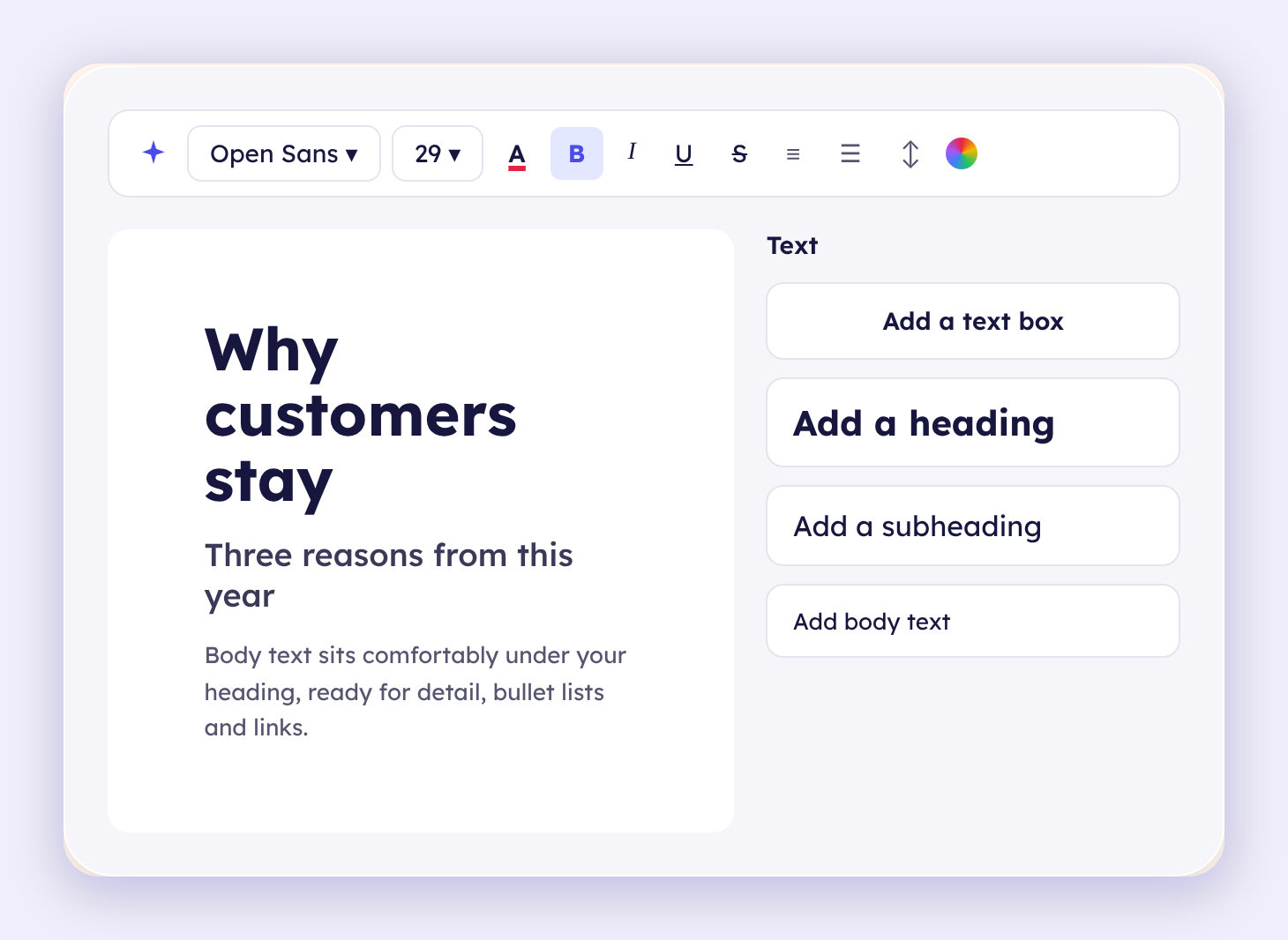
Three text styles sized to work together.
For the big moments, use a text design. Breaks, calls to action, launches and thank-yous arrive fully styled. Examples include Join Now, Vote Now, Short Break, Coming Soon and Thank you. Change the words and keep the look.

Text designs arrive fully styled. Change the words, keep the look.
Pick a layout, add your words and see how fast a slide comes together.
Put the numbers on the slide
Add a chart from Data Models, type your values, and the chart redraws. You edit labels and values in place, and the chart matches your slide colors and fonts. Animate it in, so the trend appears exactly when you start talking about it. Not sure which format fits your numbers? See how to choose the right data presentation method.

Edit data and the chart updates right away.
Symbols, tables and video
Symbols
Greek letters, numbers, math operators, arrows and shapes, one click from the slide.
Tables
Sweep across the grid to pick rows and columns, or set a custom size.
Video
Paste a YouTube or Vimeo link, or embed code. Turn on Autoplay to start with the slide.
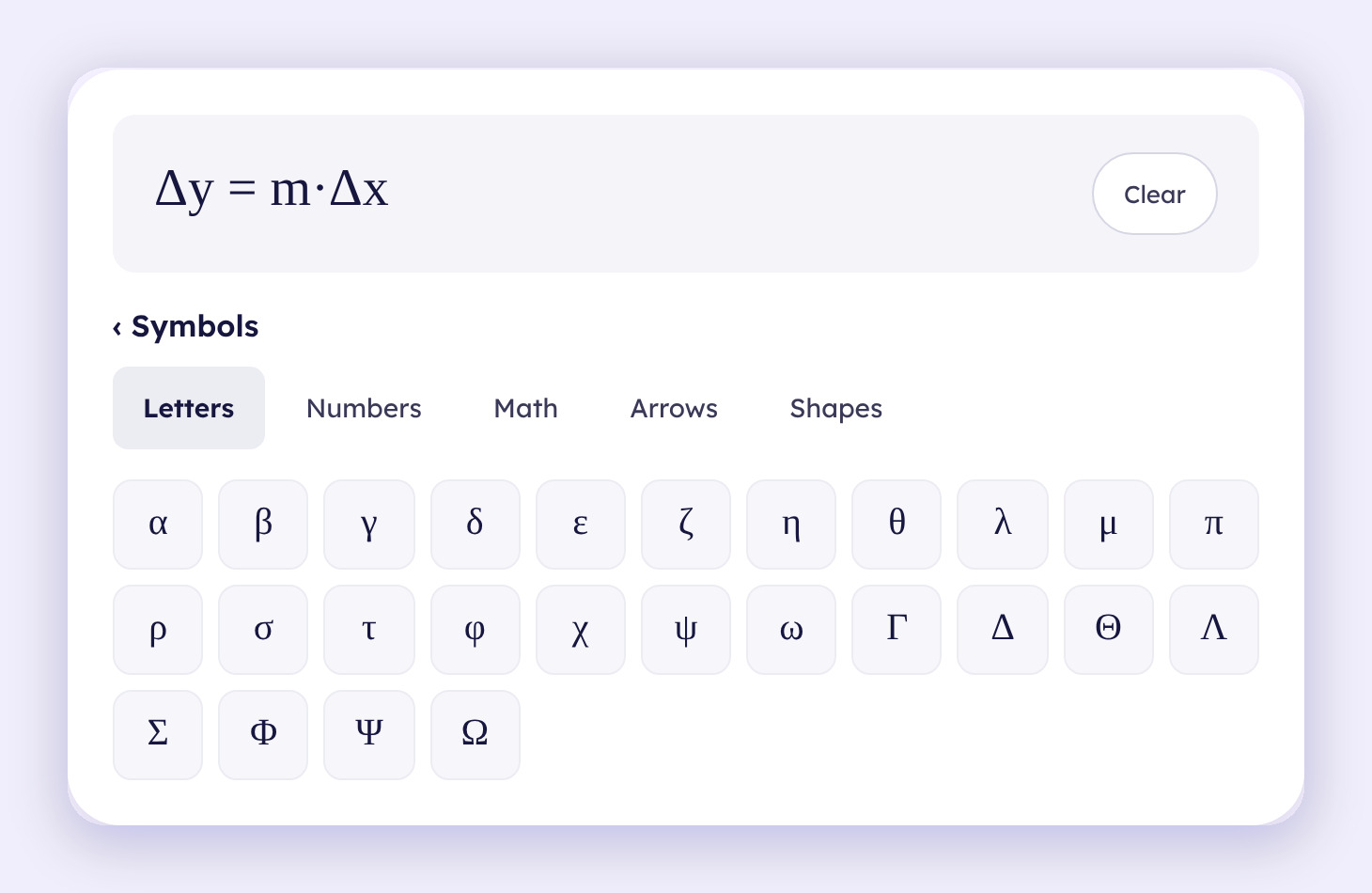
Tap a symbol and it lands on the slide.
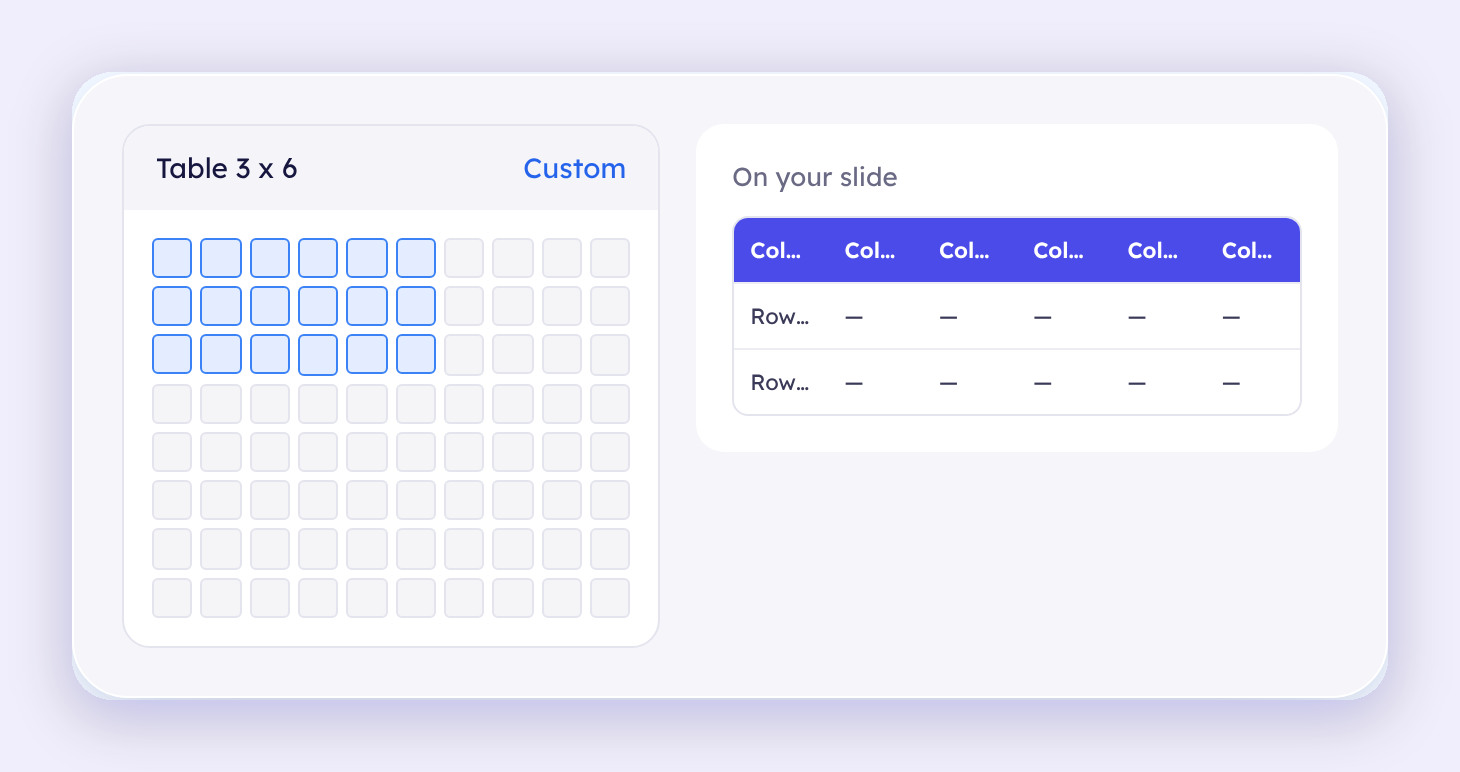
Pick a table size from the grid.
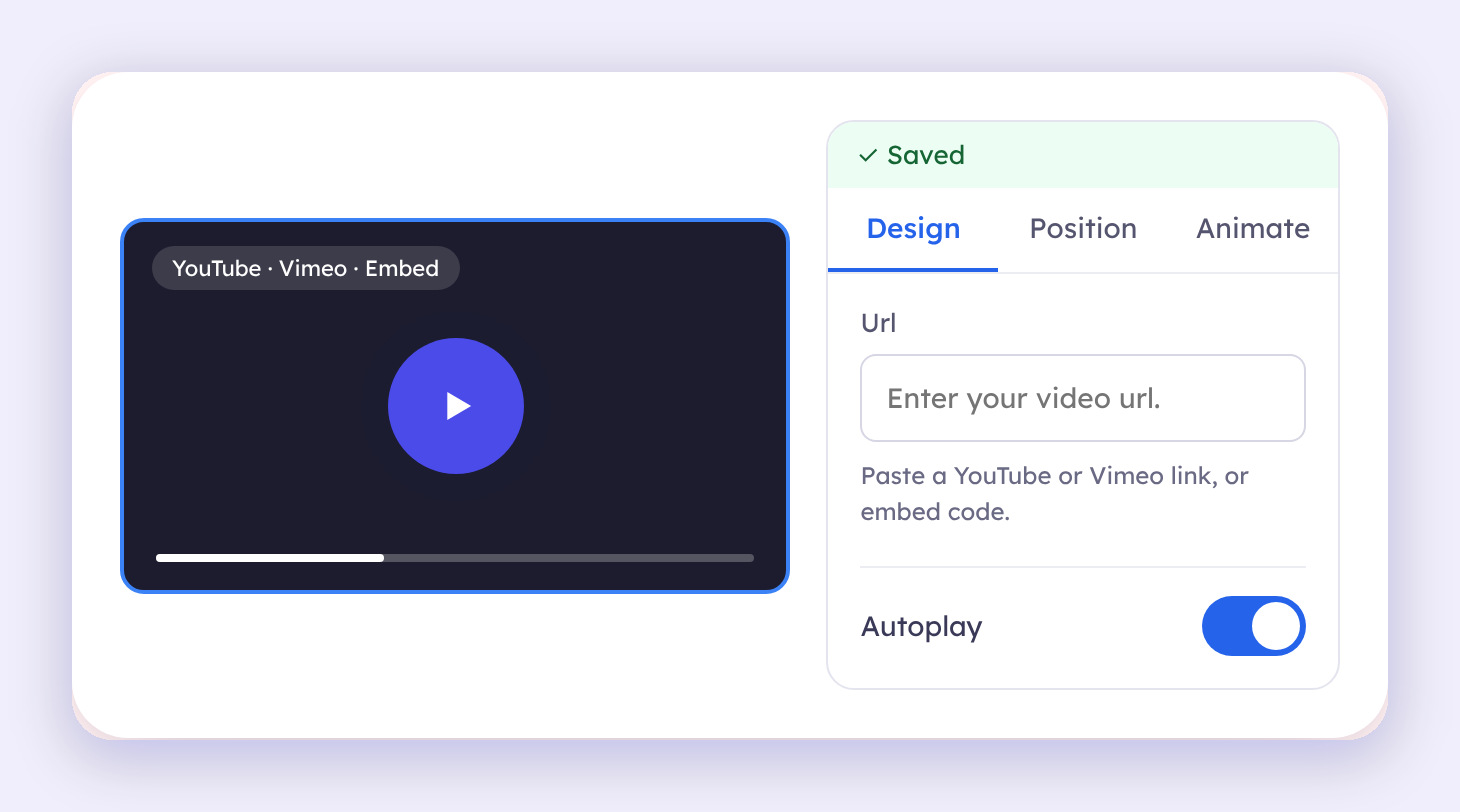
Paste a link, switch on Autoplay and you are done.
A video sits right on your slide, so you do not switch windows mid-presentation. You can resize, rotate and position it like any other element.
Let every element make an entrance
Text, text designs, charts, tables, symbols and video all share the same Animate panel. Pick an element, choose an effect, and preview it. There are eleven entrance effects, from a subtle fade to a full flip.
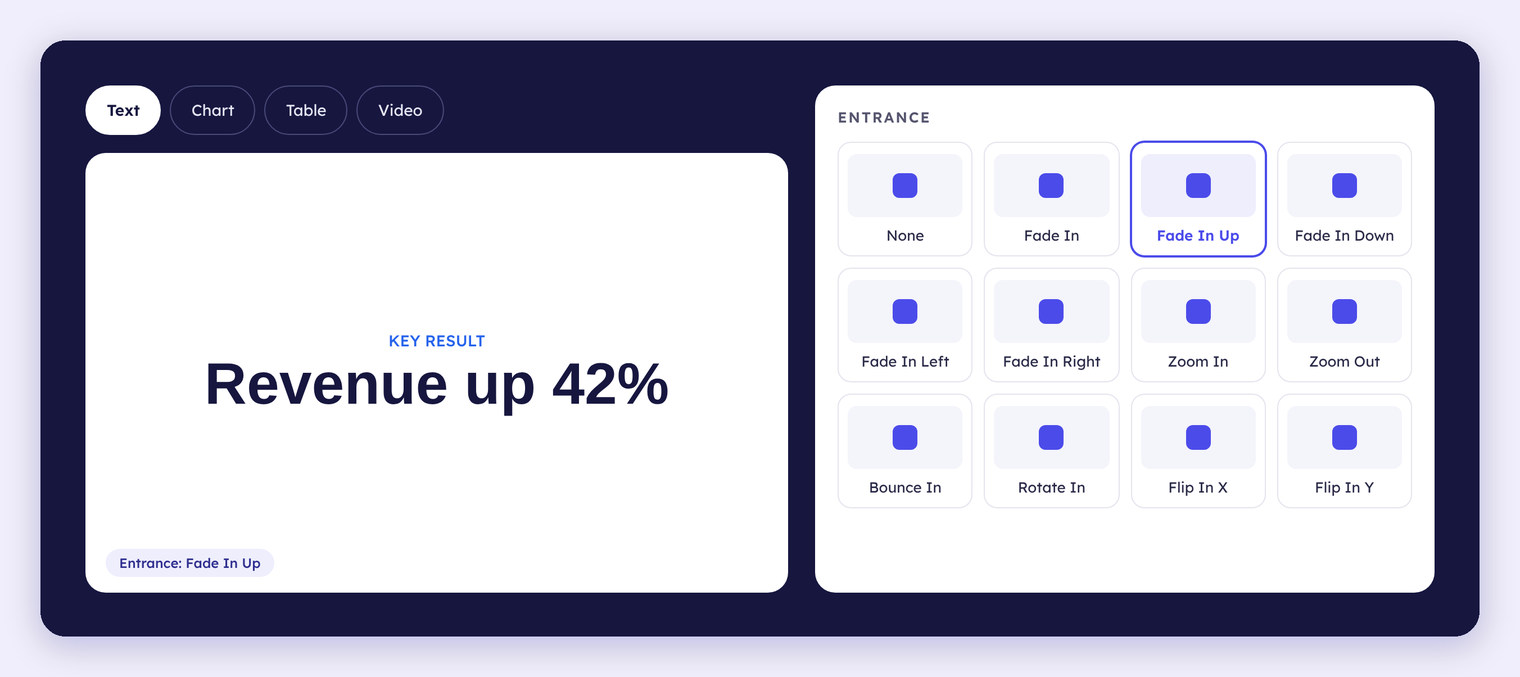
Eleven entrance effects, from Fade In to Flip In Y.
A good habit is to reveal lines one at a time. Your audience reads what you are saying, not the end of the slide.
Tips for cleaner content slides
- Keep one idea on each slide and let the heading say it.
- Use a chart instead of a table when you want to show a trend.
- Reveal bullet points one at a time so people listen instead of reading ahead.
- Save text designs for breaks and calls to action, not every slide.
Content slides explain, and interactive slides ask. Follow a content slide with a live poll, a word cloud or live Q&A to hear from your audience. Not sure where to start? Browse the template gallery or read our guide to interactive presentation templates. For the full playbook, here is how to make a presentation interactive in 5 steps. For more slide basics, read these simple tips to improve your presentations.
From blank canvas to presenting in four steps
- Pick a layout. Start from title, agenda, company or mission, or use a blank slide.
- Add your content. Use text, text designs, charts, symbols, tables and video from the right-hand panel.
- Set the entrances. Select any element, open Animate and choose how it arrives.
- Preview and present. Check the flow in Preview, then press Present.
Short on time? These tips for creating Slidea presentations fast can save you hours.
Frequently asked questions
What is a content slide in Slidea?
Think of it as the explaining slide in your deck. It holds your story in layouts, text, charts, tables, symbols and video, and each piece can enter the slide with its own animation.
Which video links can I add to a slide?
Drop a YouTube or Vimeo link, or paste embed code, into the Url field on the video panel. Switch Autoplay on if you want it to start as soon as the slide appears.
Can I animate charts, tables and video?
Yes. Text, text designs, charts, tables, symbols and video share one Animate panel with eleven entrance effects, from a soft fade to a flip, plus Zoom, Bounce and Rotate.
How big can a table be?
Drag across the size grid to choose rows and columns, or pick Custom and enter the exact numbers you need.
Do I need design skills?
No. Layouts and text designs arrive already styled, so you only swap in your own words and numbers.





Your email address will not be published. Required fields are marked *