


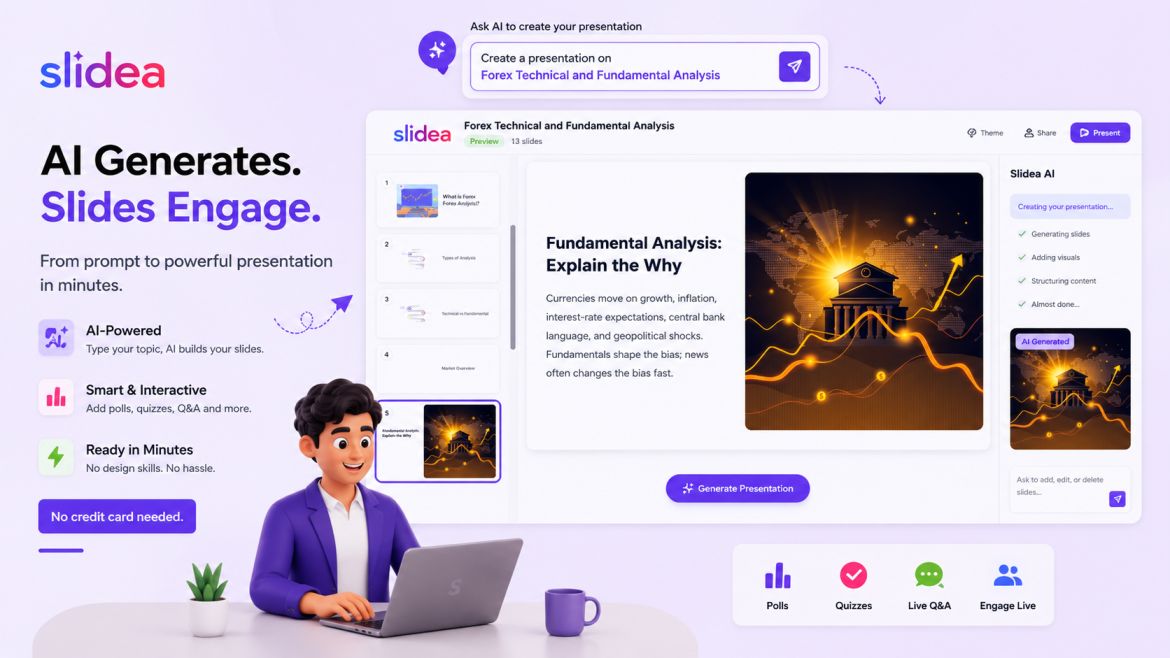
There’s a familiar dread that comes with opening a blank slide editor an hour before a meeting, a class, or a webinar. You know roughly what you want to say, but turning that into a structured, visually coherent deck (title slide, logical flow, decent design, maybe a chart or two) eats up time you don’t have. That’s the exact gap a free AI presentation maker is supposed to close: describe what you need, and let the software handle structure and design.
Most tools in this category stop there, though. They’ll generate a deck, and that deck is still a one-way broadcast: you talk, everyone else watches, and half the room checks their phone by slide six. Slidea’s free AI presentation maker starts from the same place as those tools, a single prompt, but it doesn’t stop at static slides. It builds the audience’s side of the presentation into the same generation step, with live polls, scored quizzes with a leaderboard, and real-time Q&A created alongside your content rather than bolted on afterward. And you don’t need a credit card to try any of it.
Below is exactly what the tool does, how the generation flow actually works, and where it fits depending on what you’re presenting.
What Makes Slidea’s Free AI Presentation Maker Different
Before you generate anything, you choose a Content Type, and this one setting is what separates Slidea from a typical AI slide generator:
- Content Only: a traditional, static slide deck. Good if you genuinely just need a linear deck to walk through or send around.
- Content + Interactive: the AI weaves in polls, word clouds, and other audience-input slides at natural points in the deck, so people are contributing, not just watching.
- Content + Interactive with Quizzes: everything above, plus scored quiz questions with a live leaderboard, generated directly from your topic.
That third option is the one a plain “type a prompt, get a slideshow” tool can’t replicate. It’s the difference between a deck about your topic and a deck that actually tests whether the point landed. If you’re training a team, teaching a class, or running an onboarding session, that’s not a nice-to-have. It’s the entire reason interactivity beats a static file in the first place. A slide can explain a concept; a scored question tells you, in real time, who actually understood it.
How the AI Generation Actually Works
Here’s the full flow, step by step, based on running it directly:
- Describe your topic. Type a prompt (or paste in existing notes) into the “What would you like to turn into slides?” box. It can be as short as “5 quick productivity tips for remote teams” or as detailed as a paragraph outlining a full training module. The more context you give it, the more specific the output.
- Pick your deck size. Three presets are available: Standard (10-12 slides, described in the tool as good for a short 10-15 minute meeting focused on high-level goals), Detailed (15-20 slides), and Comprehensive (21-30 slides) for material that needs real depth.
- Choose a theme. Four built-in visual themes are available out of the box (Slid Dark, Slid Light, Bold and Gold, and Slidea Harmony), so the deck matches the tone of what you’re presenting without any manual design work.
- Pick an AI image style (optional). If the AI generates illustrative images for your slides, you can steer the visual style toward Illustration, Line Art, Photorealistic, or 3D, so the deck feels consistent rather than like stock art dropped in at random.
- Add source material (optional). You can attach an existing PDF, PPT, PPTX, DOC, DOCX, or TXT file (up to 5MB) as additional context. Instead of generating generic content from the prompt alone, the AI builds the deck around your actual material, which is useful if you’re converting a report, a training doc, or old slides into something interactive.
- Generate. This is where it gets interesting: the AI visibly works through three stages: Research & Context, Structure & Outline, and Creating Slides. In testing, it pulled in real, cited sources for its content rather than inventing generic filler, and you can watch it reason through the topic in a live side panel as the deck comes together.
From typing the first word of your prompt to having a complete, styled, interactive deck ready to review typically takes well under a minute of actual generation time.
Why Interactivity Beats a Static Deck
It’s worth being specific about why this matters instead of treating it as a feature checkbox. A static presentation has exactly one feedback signal: whether people are still looking at the screen. That’s it. You can’t tell whether they understood slide 4, whether the pacing is too fast, or whether the room agrees with your recommendation, not until Q&A, if there’s time for it at all.
An interactive deck changes that in real time. A poll two minutes in tells you whether you need to slow down or skip ahead. A scored quiz at the end of a training module gives you an actual completion metric instead of a guess. Live Q&A means the questions people are too shy to raise their hand for still reach you, get pinned, and get answered on screen. None of that requires a second tool or a manual setup step in Slidea. It’s generated as part of the same AI output as your slides.
What You Can Actually Build With It
Because interactivity is generated along with the content rather than added separately, the same free tool covers meaningfully different use cases without extra setup:
Team meetings and all-hands. Auto-generated polls let you check alignment on a decision or gather quick sentiment on a proposal without breaking the flow of the meeting to build a separate survey.
Training and onboarding. Scored quizzes with a live leaderboard turn a training session from something people half-listen to into something they’re accountable for: you get a completion signal, not just attendance.
Classroom lessons. Quiz-based decks that students join instantly from their own phone, with no app to install and no account needed on their end, work well for anything from a pop quiz to a full lesson review.
Webinars and workshops. Live Q&A slides let attendee questions get submitted, pinned, and answered on screen in real time, instead of getting lost in a chat window nobody’s monitoring.
Once a deck is generated, everything runs in the browser on both ends. Your audience joins by clicking a link or scanning a QR code, and their responses appear on screen as they come in, with results tracked afterward so you can see what landed.
Is It Really Free?
Yes. Slidea’s free plan requires no credit card to start. It includes AI-generated slides with the interactive and quiz options described above, access to the built-in template library, live Q&A, and PowerPoint/PDF import, so you can build and actually run a full interactive session at zero cost rather than just previewing a locked demo.
Tips for Getting a Better Result on Your First Try
A prompt like “team meeting” will generate something, but a more specific one generates something you barely need to edit. A few things that noticeably improve the output:
- State the format, not just the topic. “5 quick productivity tips for remote teams” produces a tighter deck than “remote work,” because it tells the AI how many main points to structure around.
- Mention your audience. Adding “for new hires” or “for a client pitch” shifts both tone and slide depth.
- Pick Comprehensive only when you need it. For a 10-15 minute session, Standard keeps the deck focused; Comprehensive is better reserved for material that genuinely needs 21+ slides of depth.
- Attach source material when it exists. If you already have a report, a syllabus, or last quarter’s deck, attaching it gets you a far more accurate result than describing the same content from memory in a prompt.
FAQ
Can a free AI presentation maker also create quizzes, not just slides? With Slidea, yes. Selecting “Content + Interactive with Quizzes” during generation produces scored quiz questions with a live leaderboard as part of the same deck, not as a separate tool you’d need to set up afterward.
Do I need to sign up with a credit card to try it? No. Slidea’s free AI presentation maker is usable with just an email. No payment details are required at any point in the free tier.
Can I use my own content instead of starting from a blank prompt? Yes. You can attach an existing PDF, PPT, PPTX, DOC, DOCX, or TXT file when generating, and the AI builds the deck around that material instead of starting from nothing.
What if the AI-generated slides aren’t quite right the first time? You don’t have to regenerate from scratch. A chat panel lets you refine the draft conversationally, asking it to add, remove, or edit specific slides, before you finalize anything.
Does the audience need to download an app to join a live presentation? No. Participants join by clicking a shared link or scanning a QR code from their own device’s browser. Nothing to install, and no account required on their end.
How is this different from just using ChatGPT to write slide text and pasting it into PowerPoint? That approach gets you text, but you’d still need to design the deck, build any polls or quizzes separately, and manage the live session yourself. Slidea generates the structured, styled deck and the interactive elements together, then hosts the live session in one place.
Try It on Your Next Presentation
If your next deck needs to do more than get clicked through in silence, Slidea’s free AI presentation maker builds the audience-facing part (polls, quizzes, live Q&A) into the same prompt that creates your slides, at no cost to start. Head to slidea and generate your first one in under a minute.




Leave a Comment
Your email address will not be published. Required fields are marked *