Tip: Google may show results for “Slides” instead of “Slidea”.
Ask your audience to search “Slidea App”.

Interactive Live Quiz Maker for Engaging Sessions

Drop a quiz into any presentation, watch points stack on the leaderboard, and let the timer carry the energy.

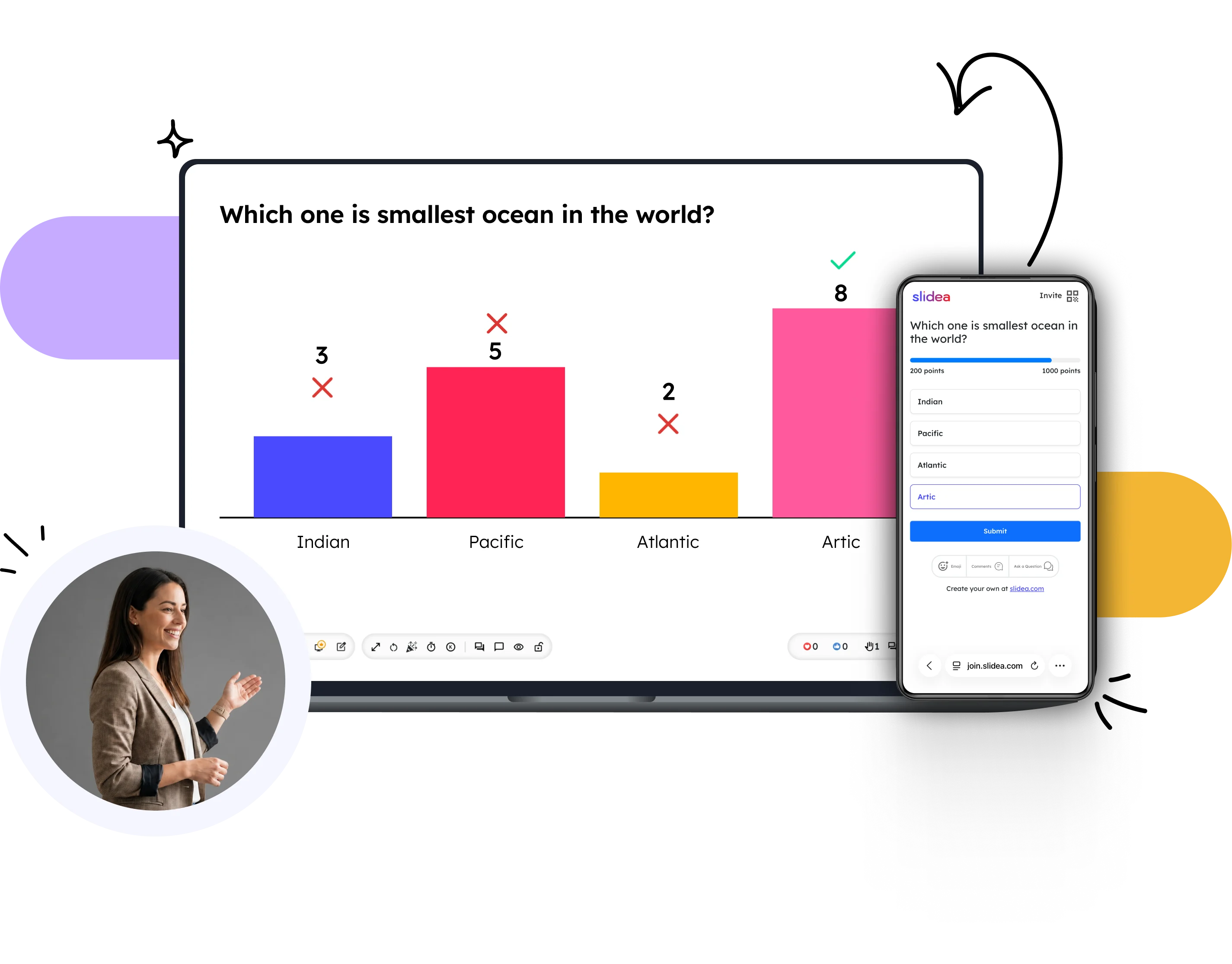
Split screen showing quiz results on a laptop, a mobile interface, and a smiling presenter.

Four slide types, one quiz builder

No separate app for each format. Pick a type, drop it in, and let the quiz feel different every round.

Select Answer

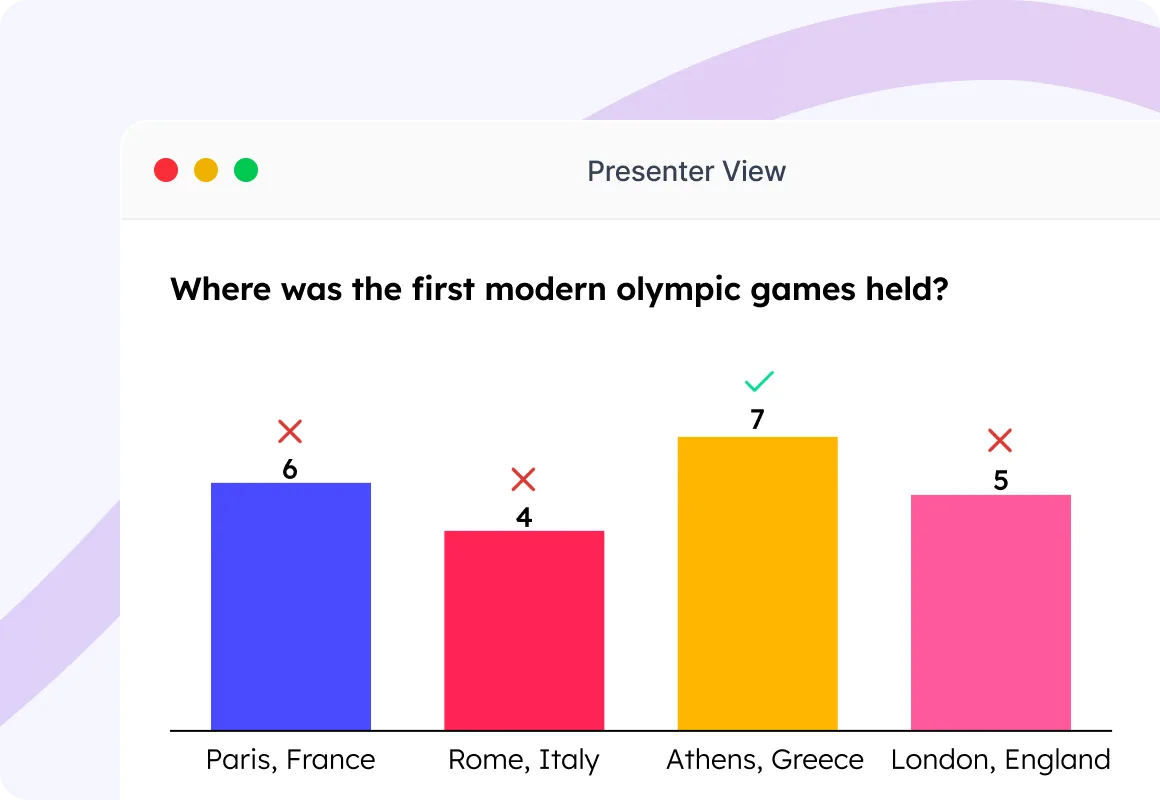
Classic multiple choice with the speed bonus dialled in. Players tap an option, and points scale with how fast the right answer lands.

  • Up to 5 answer options per question
  • Speed bonus rewards faster correct answers
Use it for: trivia rounds, classroom recaps, training, onboarding and more.
Try now
Presenter View displaying a bar chart response breakdown for a question about the Olympic Games.

Type Answer

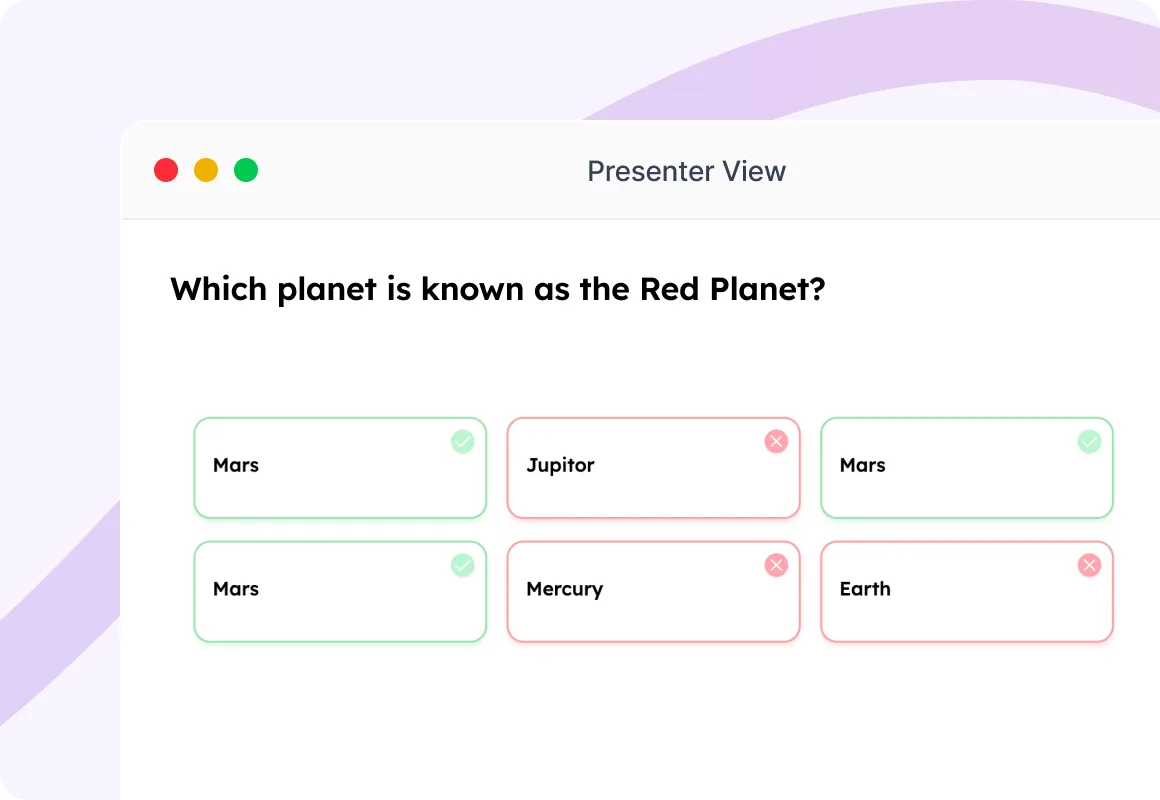
A typing race. No options to guess — players type the answer themselves and submit to score more points.

  • Accept-multiple-answers list (e.g. JFK, Kennedy, John F. Kennedy)
  • Reveals the answers automatically when the timer ends
Use it for: geography drills, product feature recall, guessing games and more.
Try now
Presenter View displaying audience text responses for 'Which planet is known as the Red Planet?'

Pick the Number

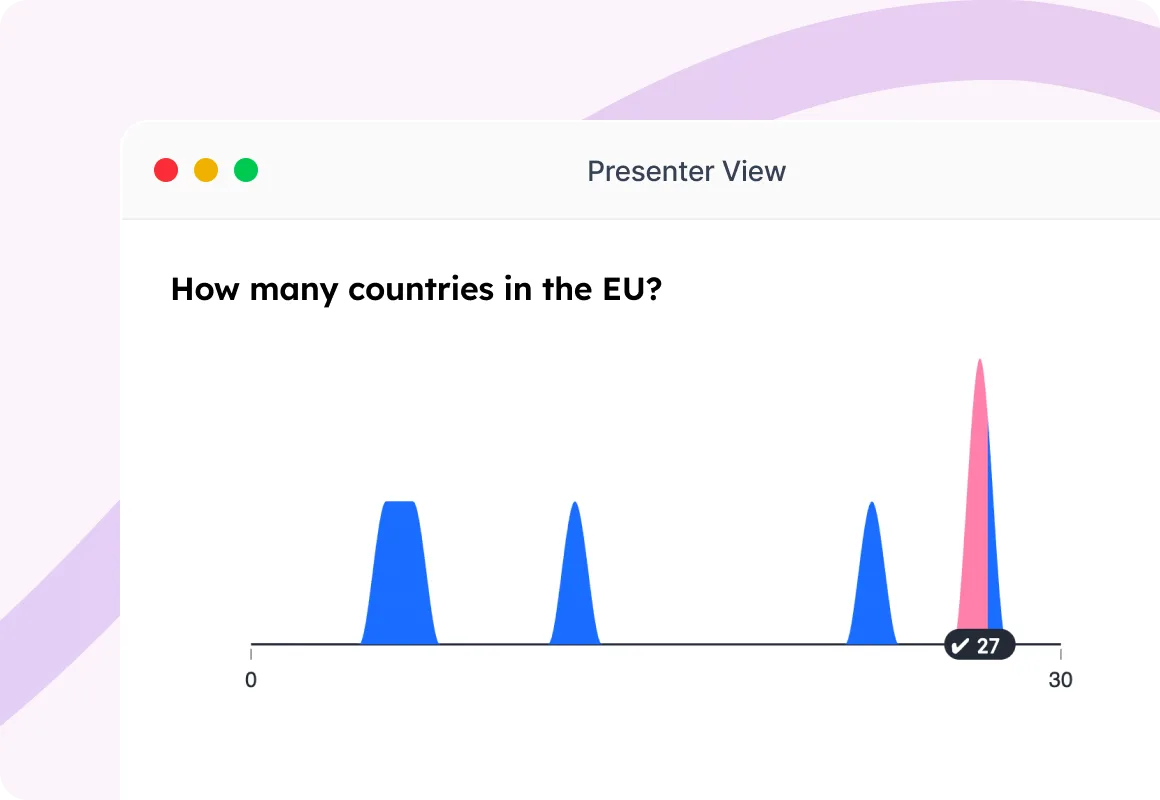
When the answer is a number — from "how many countries in the EU" to "how much revenue did we close last quarter".

  • Slider input with custom min, max, and step
  • Reveal the number with a dramatic spin countdown
Use it for: numerical ice-breakers, estimation rounds, KPI quizzes and more.
Try now
Presenter View showing a distribution graph answer for 'How many countries in the EU?'

Lineup

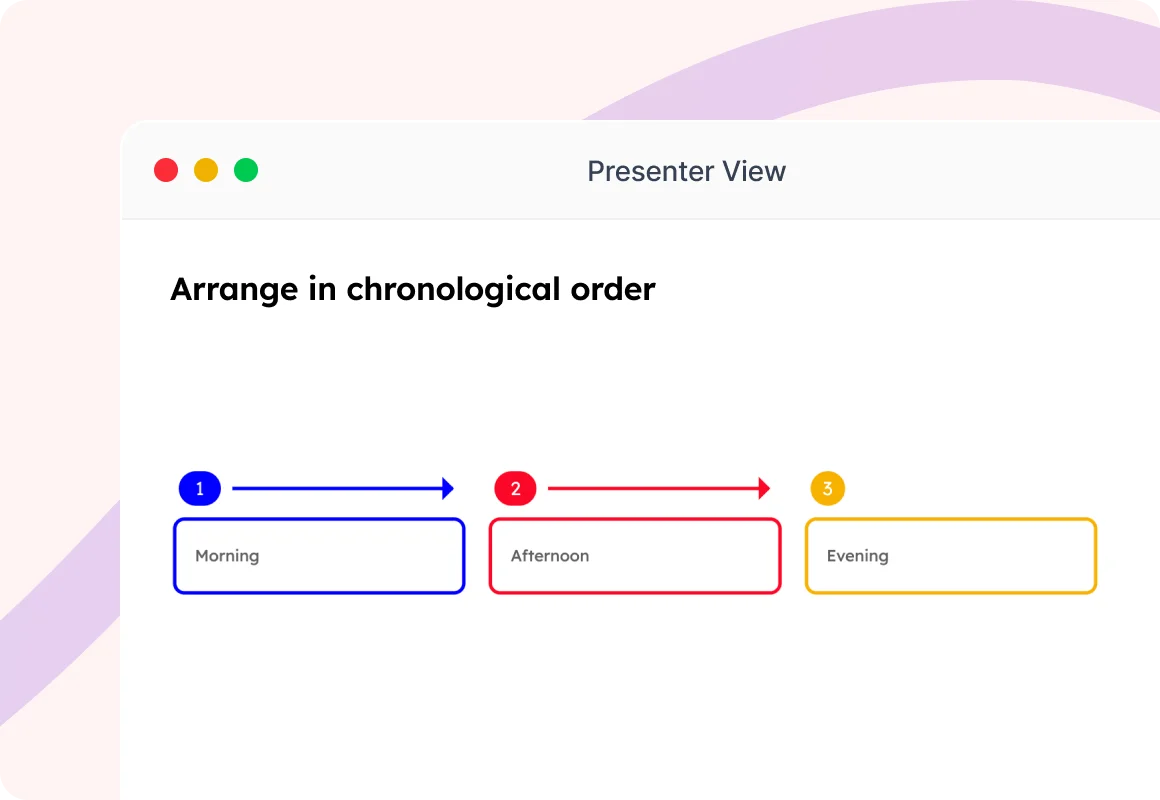
Drag items into the right order. Chronological, ranked, ascending, descending — whatever the right sequence is.

  • Drag-and-drop reordering on phone, laptop or tablet
  • Reveals the correct order all at a time to gamify session.
Use it for: historical timelines, product release order, recipe steps, and more.
Try now
Presenter View showing a chronological sorting game with Morning, Afternoon, and Evening blocks.

How a live quiz unfolds

From building the first slide to celebrating your winner, here is how Slidea transforms your audience from passive observers into active players.
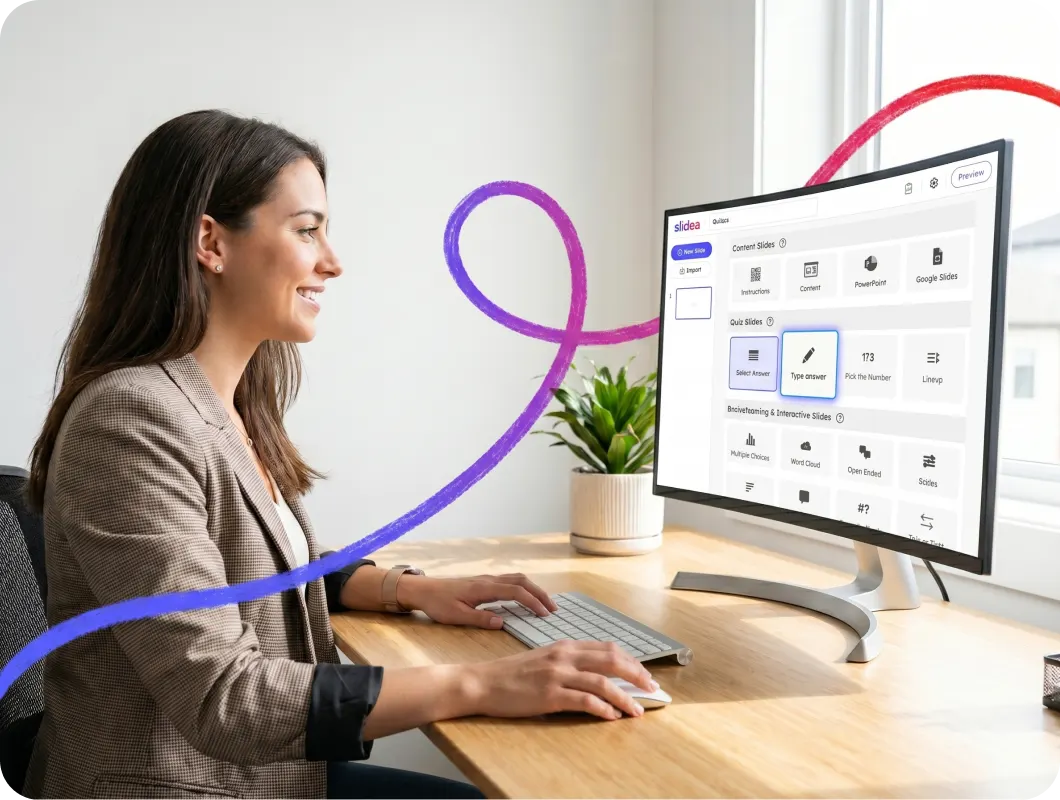
A woman works at a desk selecting quiz type options like Type Answer on her computer monitor.

Pick a quiz slide type

Choose the format that fits your question perfectly. Mix and match formats seamlessly right inside your editor workspace to keep your deck unexpected and dynamic.
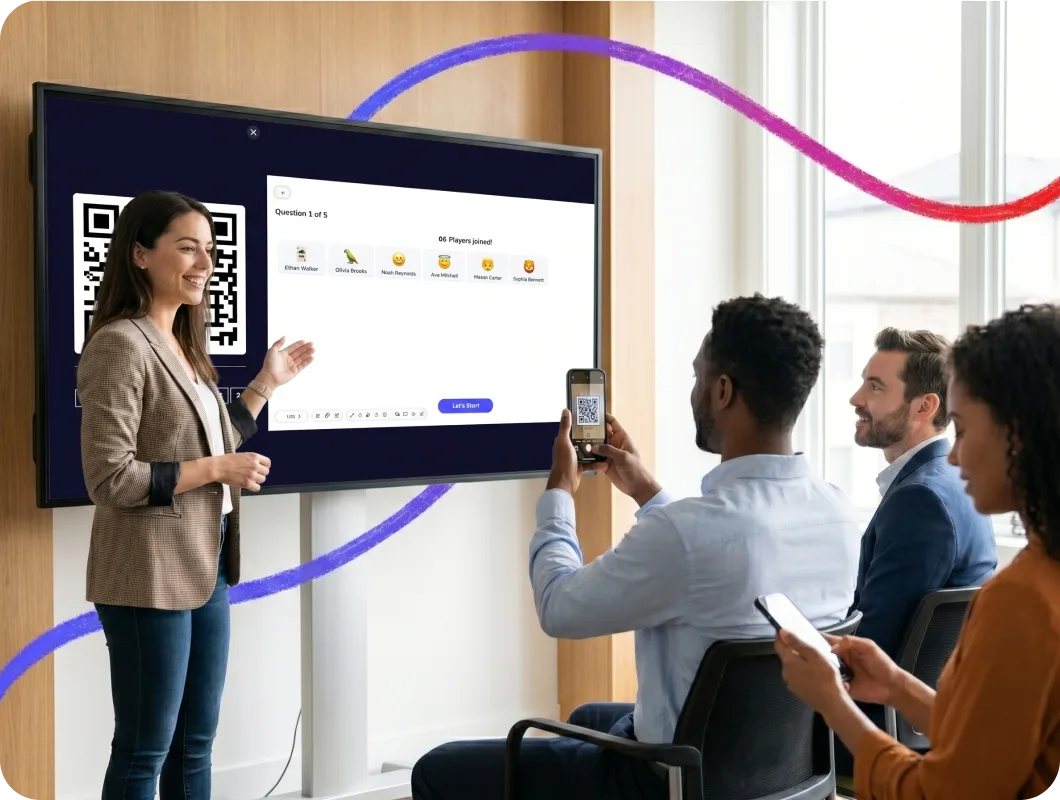
People in a meeting room scan a large QR code on a screen to join an interactive quiz.

Let your audience join

Present and watch the lobby populate. Your crowd scans a QR code on any mobile device. No downloads — just quick nickname entries and custom avatar picks.

Presenter stands by a screen reading 'Look at your device' while the audience uses smartphones.

Engage your entire room

Engage your whole room with live questions and countdowns. Background music adds excitement, keeping your audience focused on both their phones and the main screen.
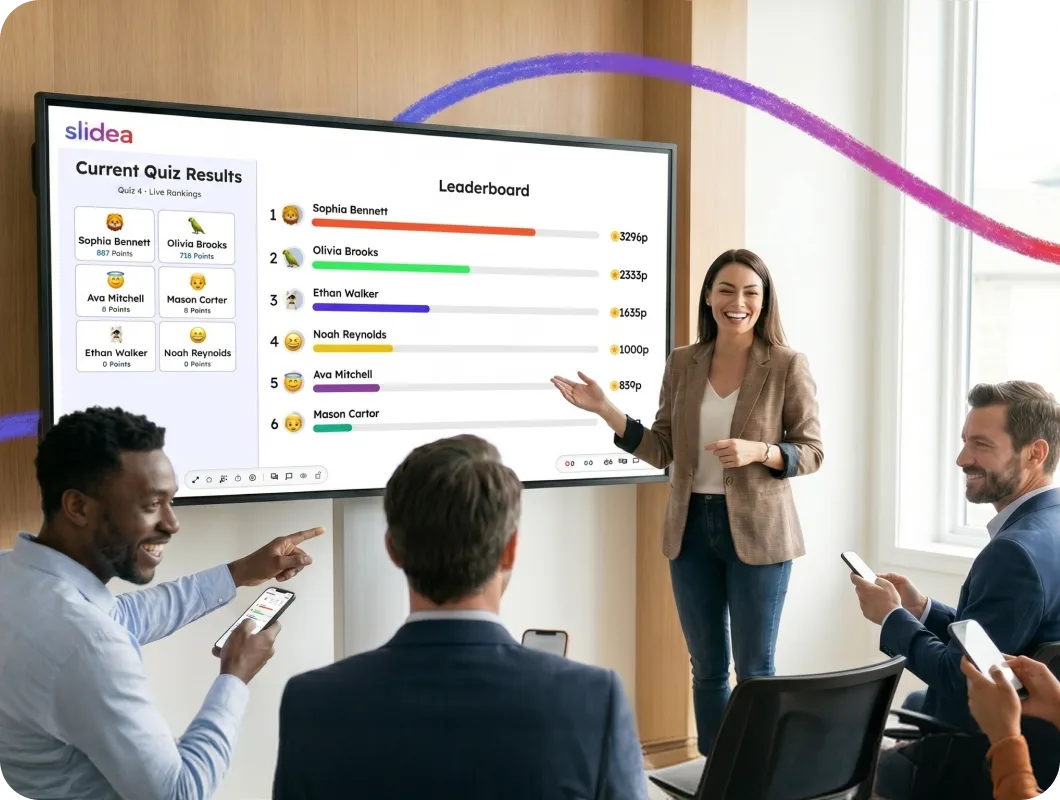
A presenter gestures toward a large display showing the live quiz results leaderboard.

Mid-game leaderboards

Keep competitive fires burning high after every single round. Reveal live leaderboard steps on-screen to track who is moving up or slipping down.

Presenter shows the live quiz champion announcement on a large screen to an applauding audience.

Reveal the ultimate championboard

Give your audience a chance to guess the winner first. Then, you can reveal the champion of the quiz on the main screen to wrap up your session.


Create your quiz

Frequently Asked Questions

Q: What quiz slide types can I choose from?

Slidea offers four distinct quiz formats to keep your presentations dynamic. You can build classic multiple-choice questions (Select Answer), text input races (Type Answer), numerical estimation sliders (Pick the Number), or sequence sorting lists (Line Up). You can mix and match any combination of these four types within a single session.

Q: Can I customize the countdown timer for each question?

Yes. You can set custom seconds to answer for every individual question slide. This allows you to give audiences more time for complex sequence sorting or numerical calculations, and less time for quick-fire trivia.

Q: How does the scoring system work?

You have full control over the competitive mechanics. You can choose to award more points for quick responses (where points scale down as the timer ticks) to reward speed, or you can switch to equal points for all correct answers if you want to prioritize accuracy over racing.

Q: When does the leaderboard appear during the presentation?

You can add or remove the leaderboard at any point in your presentation flow. Show it after every single question to keep the competitive energy high, or remove mid-game leaderboard slides completely to hide the standings until the very end.

Q: What is the difference between the Leaderboard and the Championboard?

The Leaderboard is a temporary standings tracker that you can insert between rounds to show real-time rank shifts. The Championboard is a dedicated finale slide that dramatically reveals the final winner and top podium finishers at the very end of your quiz.

Q: Do my participants need to create an account to play?

Not at all. Joining is entirely frictionless. Participants can simply enter their names and join directly from their mobile devices, meaning they don't have to fill out registration forms or remember passwords to participate.

Q: Can participants play the quiz anonymously?

Yes. If your audience prefers privacy or you are running a casual icebreaker, players can be completely anonymous by entering a nickname instead of their real names before entering the live quiz lobby.

Q: Is there a limit to the number of participants who can join?

Our free plan allows up to 250 participants to join and play simultaneously. If you are hosting larger events, our higher paid plans allow more participants or completely unlimited participants, making it easy to scale from a small classroom to a massive company-wide presentation.

Q: How do I add questions and options to a slide?

Right inside the editor, each quiz slide type provides dedicated fields to type your questions and options. Depending on the format you select, you can instantly configure correct answers, rearrange choice orders, or set target numerical thresholds.

Q: Can I toggle the leaderboard off if I want a low-pressure quiz?

Yes. If you want to use the quiz purely for data collection or a relaxed knowledge check without tracking ranks, you can simply remove the leaderboard slides from your deck. The platform will still collect responses without displaying player rankings to the room.