


Some interactive slides allow participants to type their own responses instead of selecting predefined options. In Slidea, Word Cloud and Open Ended slides support textual input, helping you collect ideas, opinions, and feedback directly from your audience.
The key takeaway for using these slide types is to remember to give the audience a bit more time to answer, since it takes longer to type than to choose from predefined options.
Word Cloud Slides
Word Cloud slides allow audiences to submit words or short phrases in response to a question. These responses appear instantly on the screen, forming a visual cloud where frequently mentioned words become more prominent.
How Word Cloud Responses Work
When participants submit responses:
- Each submission counts as one entry
- Words or phrases separated by spaces are treated as one single entry
- Responses appear dynamically on the presentation screen
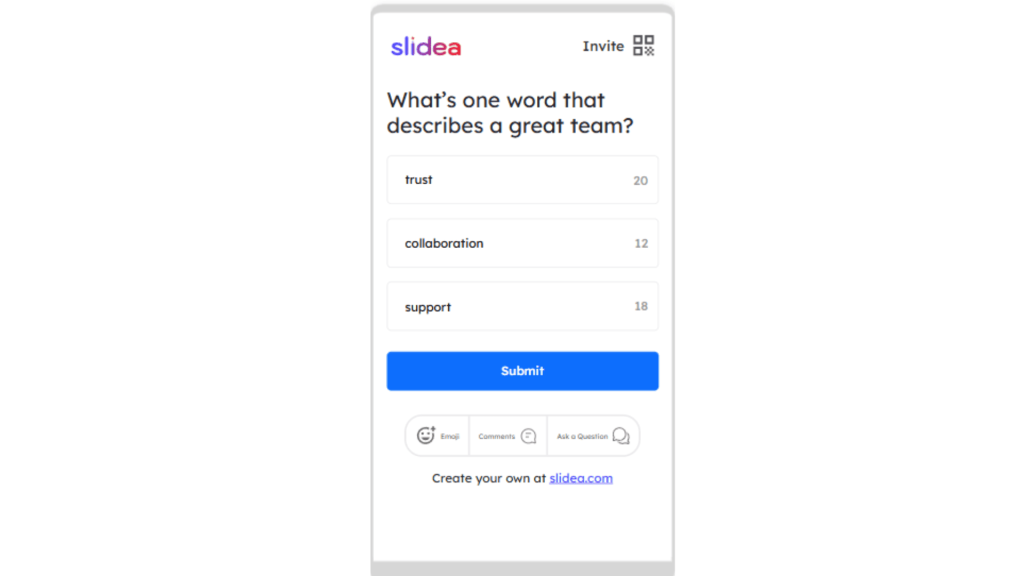
- Each response has a maximum limit of 25 characters
This makes Word Cloud slides ideal for brainstorming, collecting opinions, and quick feedback.
Note: To avoid duplicates and keep results clean, all responses are automatically displayed in lowercase.
Set the Number of Entries per Participant
You can control how many responses each participant can submit.
- Set entries from 1 to 10 in the Edit panel
- If more than one entry is allowed, the participant screen displays multiple input boxes
- Each input box follows the same 25-character limit
This helps you decide how many ideas each participant can contribute.
Tips for Using Word Cloud Slides
- Use short and clear prompts
- Keep questions simple for faster responses
- Ideal for quick brainstorming and idea collection
Open Ended Slides
Open Ended slides allow participants to provide detailed textual responses during a presentation.
Unlike predefined options, participants can freely type their own answers, making this slide type ideal for collecting opinions, suggestions, and feedback.
How Open Ended Responses Work
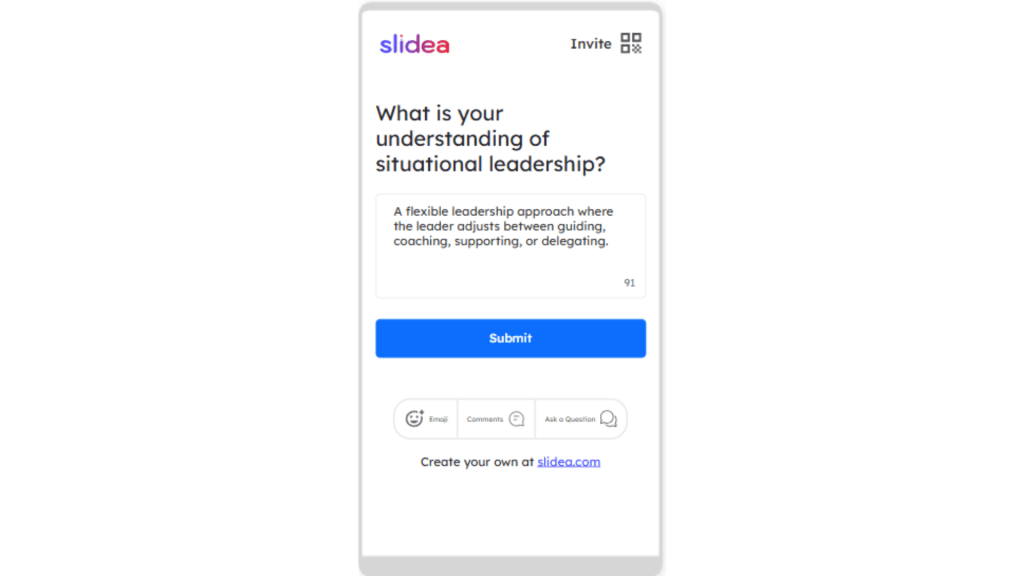
- Participants type responses directly on their device
- Each response allows up to 200 characters
- Submitted responses appear on the presentation screen for review
Enable Multiple Submissions
By default, participants can submit one response per device.
You can enable multiple submissions to allow more input.
To enable:
- Select the Open Ended slide
- Go to the Edit panel on the right
- Check “Enable multiple submissions”
When enabled:
- Participants can submit multiple responses from the same device
- After submitting the first response, a message appears indicating that multiple responses are welcome
- Participants remain on the same screen, allowing them to continue entering additional responses
This is especially useful for brainstorming sessions and discussions where participants may have multiple ideas.
Open Ended slides help create richer discussions by allowing participants to share their thoughts in their own words, while Word Cloud slides provide a quick and visual way to capture collective ideas.
The key takeaway for using these slide types is to give the audience a bit more time to answer, since it takes longer to type than to choose from predefined options.


Leave a Comment
Your email address will not be published. Required fields are marked *