


Slidea allows presenters to reset results to clear previous participant responses and reuse the same presentation without old data affecting new sessions. This is especially useful for repeat sessions, testing slides, or preparing for a new audience.
Resetting results removes all collected interaction data while keeping the slide content unchanged, ensuring the presentation is ready for reuse.
Method 1: Reset Results After Completing a Live Session
After a live session ends, presenters can reset results directly from the top toolbar.
Steps to reset results:
- Open your presentation in Slidea after completing the live session.
- Click the Reset results option from the top toolbar.
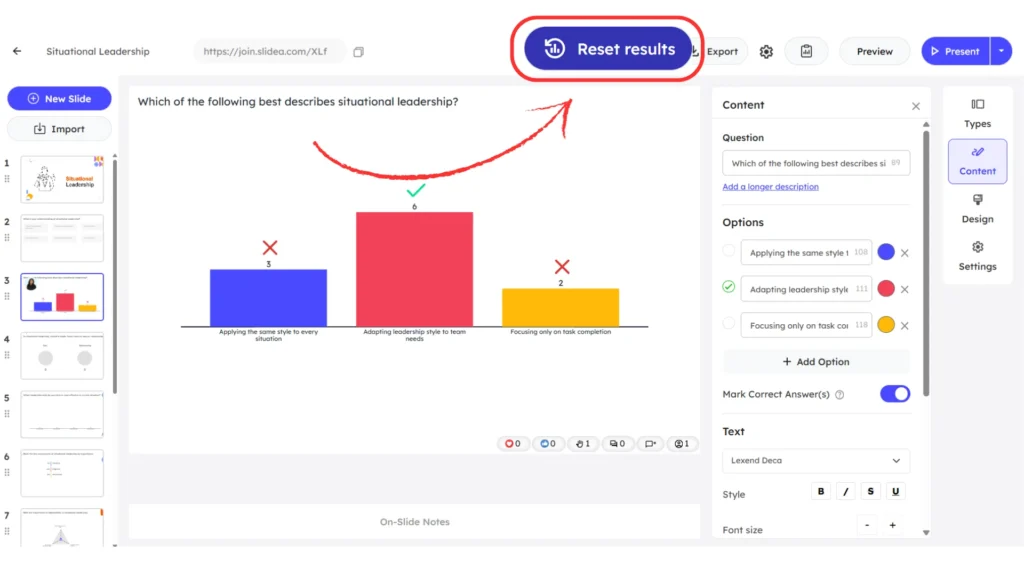
- A dialog box appears with two options:
- Reset results for presentation – clears all participant responses and engagement data.
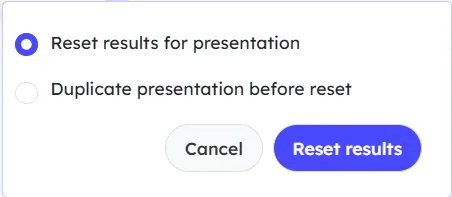
- Duplicate presentation before reset – creates a copy to preserve existing results before clearing them.
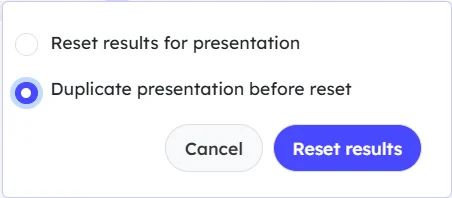
Duplicate presentation before reset
This option allows presenters to preserve existing results while creating a clean version.
- Creates a copy of the presentation
- Clears responses only in the duplicated version
- Retains the original presentation along with its results
It is useful when past session insights need to be saved while preparing the presentation for a new audience.
Duplicate confirmation message
After choosing the Duplicate presentation before reset, Slidea displays a confirmation message indicating that a duplicate has been created without the previous results.
You can then choose one of the following actions:
Continue – remain in the original presentation with existing results
Open Duplicate – switch to the duplicated presentation with cleared results
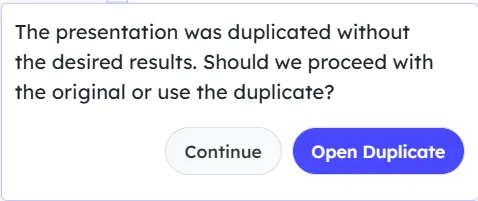
This confirmation step helps prevent accidental data loss and ensures results are managed safely.
- Click Reset results to confirm.
Reset results for presentation
Selecting this option clears all data from the current presentation.
- Removes all participant responses
- Resets engagement and submission metrics
- Keeps the same presentation and slides active
This option is ideal when previous session data is no longer required and the presentation needs to be reused with fresh responses.
Method 2: Reset Results During a Live Session
Slidea allows presenters to manage participant results even while a session is live by resetting responses in real time.
From the bottom-left corner toolbar, click the Reset results icon. A pop-up opens, allowing you to confirm the reset action.
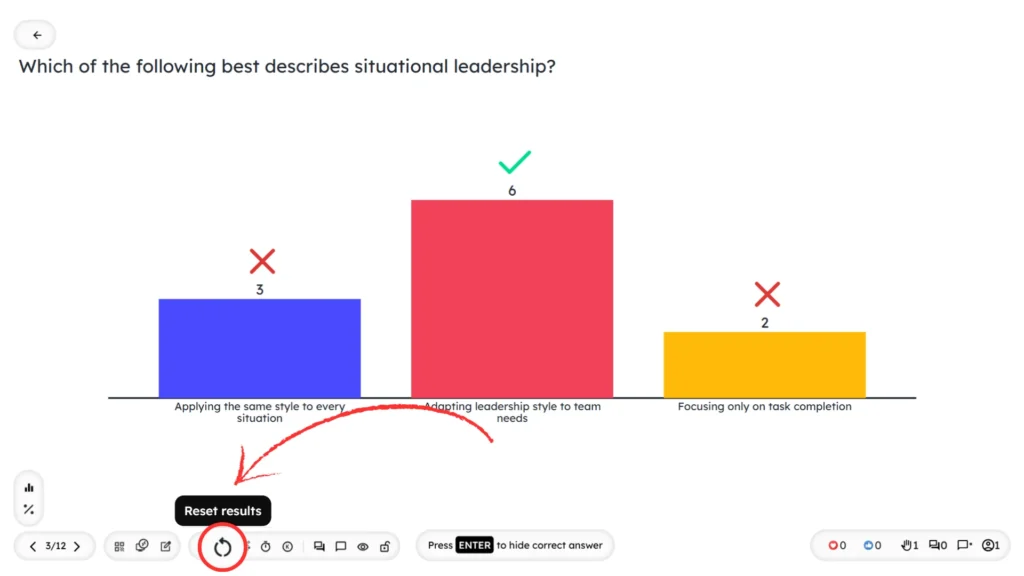
You can choose to:
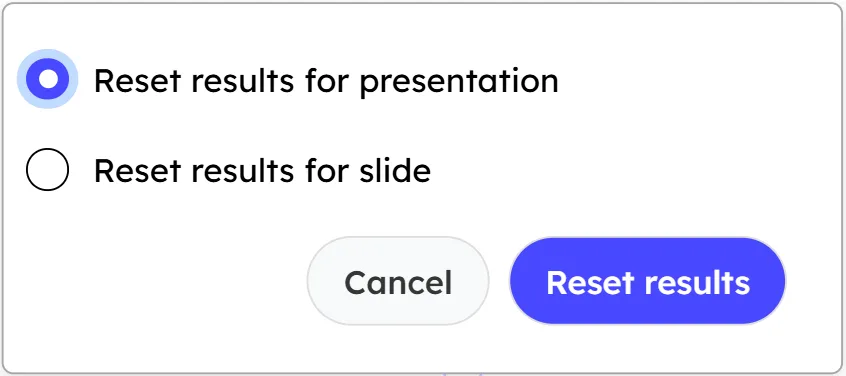
- Reset results for presentation – Clears all participant responses and engagement data across the entire presentation.
- Reset results for slide – Clears responses only for the selected slide, allowing that interaction to be reused without affecting other slides.
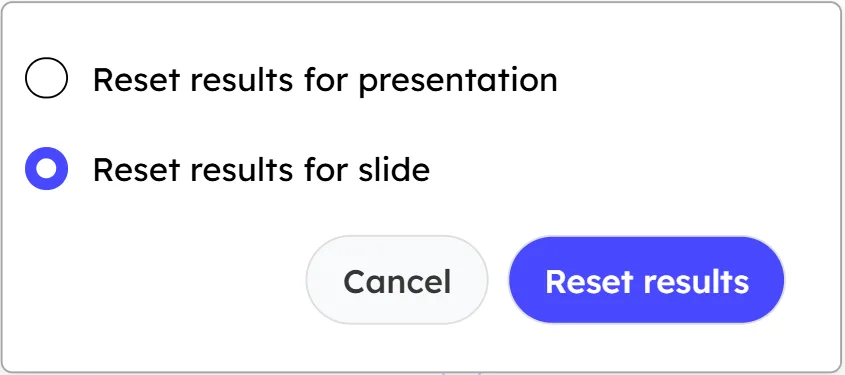
After clicking Reset results and confirming, all existing participant responses are cleared. The session can then continue with fresh inputs, allowing participants to respond again.
This option is helpful when restarting an activity, correcting mistakes, or reusing the same interaction during an ongoing session.
What Happens After Resetting Results
Once the reset process is completed:
- Summary and Response views show no result
- Progress bars and vote counts are cleared
- Participant indicators return to zero
- Join link and QR code remain unchanged
- The presentation is ready for a new session
When This Feature Is Useful
This option is helpful when:
- Running the same presentation multiple times
- Hosting sessions for different groups
- Practicing before a live session
- Avoiding confusion from earlier responses
Important Things to Know Before Resetting
- Resetting results cannot be undone
- Export data before resetting if needed
- Duplicating helps preserve historical records
- Cleared data does not affect slide design
Why This Feature Matters
This functionality helps presenters:
- Maintain clean session data
- Ensure accurate engagement tracking
- Reuse presentations confidently
- Avoid misleading analytics
- Prepare smoothly for future sessions


Leave a Comment
Your email address will not be published. Required fields are marked *