


The Import Google Slides feature allows presenters to embed an existing Google Slides presentation into a slide using a published Google Slides URL. Once added, the presentation appears as an embedded slide and can be presented directly within the session while retaining navigation and live presentation controls.
How To Import Google Slides
You can import a Google Slides presentation using the steps below.
Step 1: Open your presentation
Log in to your Slidea account and create a new presentation.
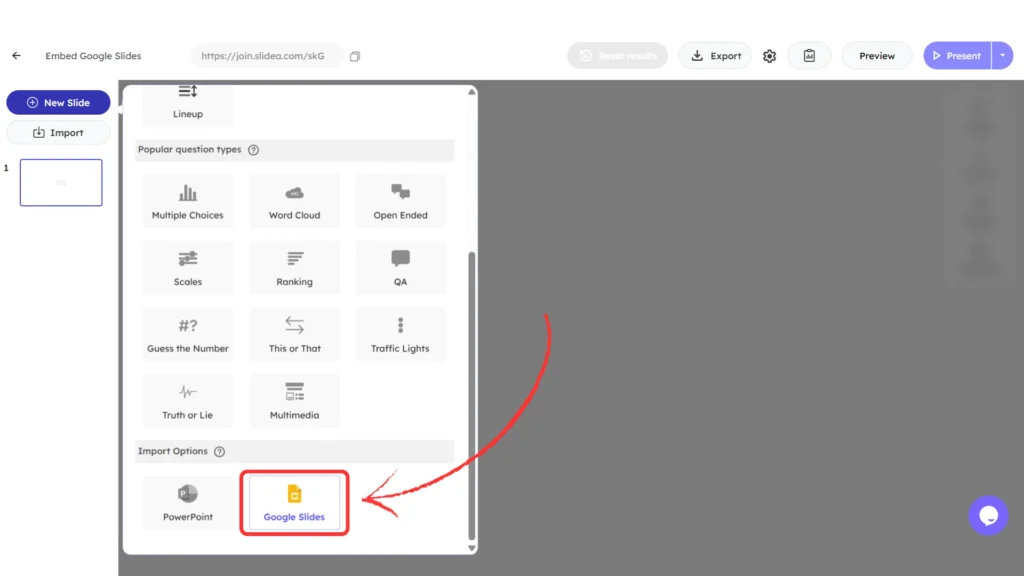
Step 2: Click New Slide
From the left panel, click New Slide
Step 3: Select Google Slides
Under Import Options, click Google Slides.
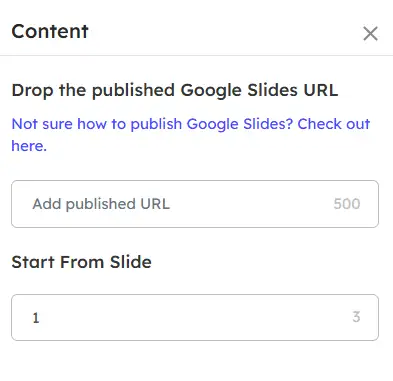
Add The Google Slides Published URL
On the Google Slides import screen:
- On the right-side Content panel, you will see:
Add published URL
Paste the copied Google Slides published link into this field.
Start From Slide
This option defines the slide number from which the embedded Google Slides presentation begins when the session starts.
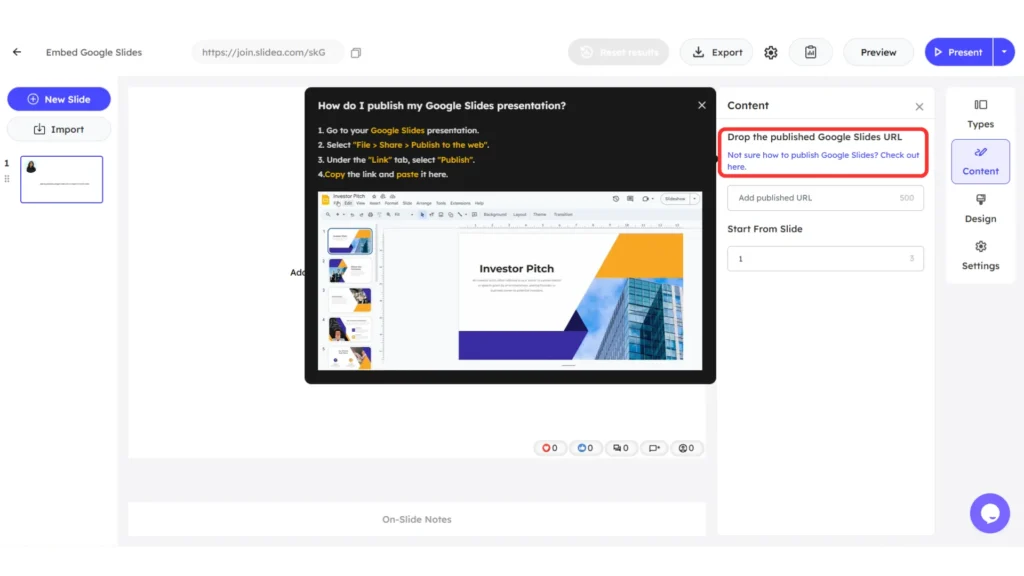
How To Publish Google Slides
If you are not sure how to publish your Google Slides:
- Open your Google Slides presentation.
- Go to File → Share → Publish to the web.
- Under the Link tab, click Publish.
- Copy the published link.
- Paste the copied link into the Add published URL field in Slidea.
Preview The Imported Google Slides
After adding the published URL:
- The Google Slides presentation loads inside the slide.
- A navigation bar appears at the bottom showing:
- Current slide number
- Previous and next slide controls
- Current slide number
A confirmation label appears at the top indicating that the slide contains the entire Google Slides presentation.
Add A Background Image To The Imported Google Slides
You can enhance the visual appearance of the imported Google Slides by adding a background image.
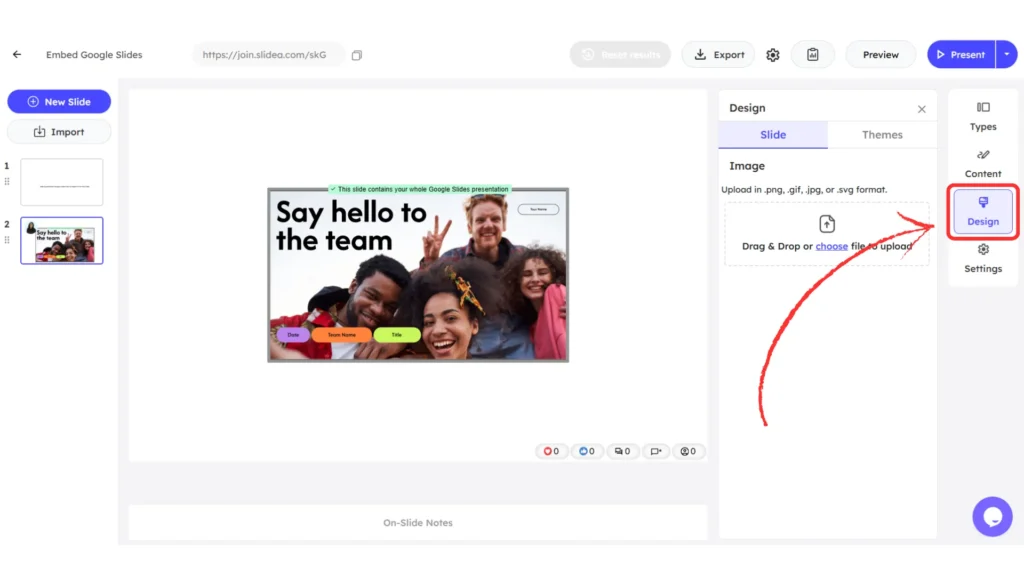
To do this:
- Select the slide that contains the imported Google Slides.
- Open the Design panel on the right side.
- Under the Slide tab, go to the Image section.
- Upload an image in .png, .jpg, .gif, or .svg format.
The uploaded image is applied as the background behind the embedded Google Slides.
Presenting An Imported Google Slides
When you start presenting the slide:
- Live interaction indicators appear at the bottom.
- In the bottom-left corner, presentation controls are available.
Presentation Options During Live Mode
During a live presentation, the embedded Google Slides provides the following options:
Slide Navigation
Move between slides using previous and next controls.
More Options Menu
Clicking the three-dot menu during a live presentation provides access to the following options:
- Open speaker notes
Opens the speaker notes associated with the current slide, allowing the presenter to view reference notes while presenting. - Turn on the laser pointer
Activates a laser pointer to visually highlight specific areas on the slide for the audience. - Turn on / Turn off the pen
Enables or disables the pen tool, allowing the presenter to draw or annotate directly on the slide in real time. - Enter full screen
Switches the presentation to full-screen mode for an uninterrupted viewing experience. - Auto-play
Automatically advances slides based on the selected timing without manual navigation. - Keyboard shortcuts
Displays a list of available keyboard shortcuts to quickly control presentation actions. - Report a problem
Allows users to report technical issues encountered during the presentation. - Report abuse
Enables users to report inappropriate or abusive content related to the presentation.
Open Google Slides
In the bottom-right corner, clicking Google Slides takes you to the Google Slides page in a new browser tab. This allows you to view or edit the presentation in Google Slides while keeping the Slidea session active.
Where This Feature Is Useful
Google Slides import is useful when:
- You want to reuse Google Slides that are regularly updated or shared
- You need quick access to cloud-based slides without downloading files
- You want to collaborate on slides in Google Slides and present them in Slidea


Leave a Comment
Your email address will not be published. Required fields are marked *