


Adding music to quiz slides can make quiz competitions more exciting and energetic. Background music helps create anticipation while participants answer questions and makes the overall presentation more engaging.
In Slidea, you can enable music directly within quiz-type slides, allowing presenters to play background audio automatically during quiz rounds.
Enable Music for Quiz Slides
To add music to a quiz slide in Slidea, follow these steps:
- Open your presentation in Slidea.
- Add a Quiz type slide.
- Enter your quiz question and answer options.
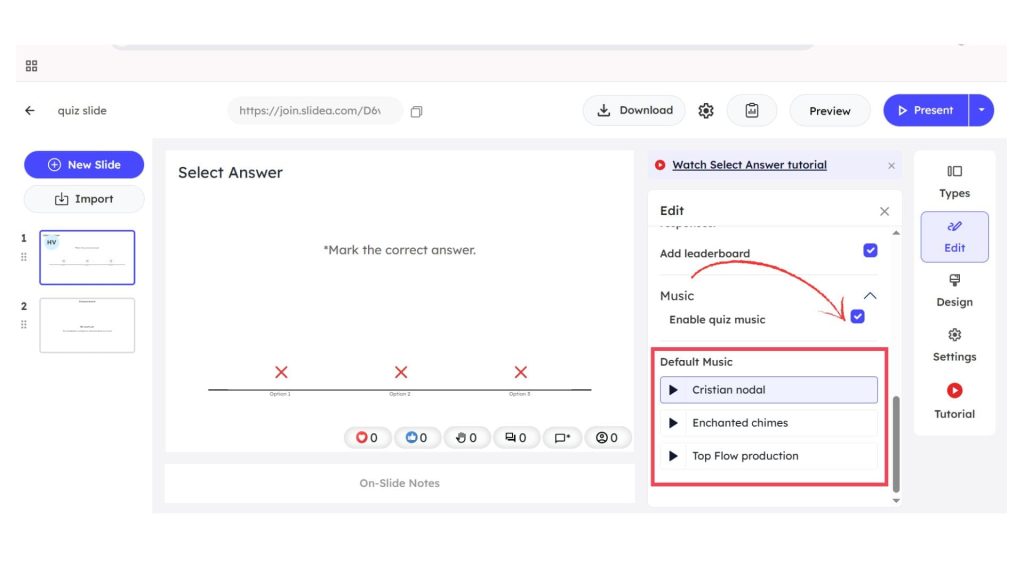
- Click the slide to open the Edit panel on the right side.
- Scroll down to the Music section.
- Turn on Enable quiz music.
Once enabled, music will play automatically when the quiz slide is presented.
Choose the Quiz Music
After enabling quiz music, you can choose from the available default music tracks.
- In the Music section, locate Default Music.
- Browse through the available audio options.
- Click the play icon to preview the track.
- Select the track you want to use for your quiz slide.
The selected music will play during the answering time, helping maintain excitement and engagement during the quiz.
Pro Tip
Use upbeat music during quiz rounds to keep participants energized. Music combined with timers and leaderboards can make your quiz sessions feel more like a live game show, which improves engagement in classrooms, meetings, and events.


Leave a Comment
Your email address will not be published. Required fields are marked *