


What Is Slidea PowerPoint Add-in
The Slidea PowerPoint Add-in is an integrated extension within Microsoft PowerPoint that allows presenters to create, edit, and deliver interactive presentations directly inside a PowerPoint slide deck. It removes the need to switch between platforms, enabling users to design content and run live sessions from one unified workspace.
With this add-in, presenters can enhance standard PowerPoint slides by adding interactive elements while maintaining full control within the PowerPoint presentation. It supports both content creation and live delivery, making interactive presenting simple and efficient.
Using the PowerPoint Add-in, presenters can:
- Create and edit interactive slides within PowerPoint
- Apply backgrounds and presentation themes
- Adjust presentation screen size directly in PowerPoint
- Present sessions live without leaving the PowerPoint presentation
How to Access the PowerPoint Add-in
You can access the add-on by following these steps:
Step 1:
Open Microsoft PowerPoint.
Step 2:
In the top navigation bar, go to the Add-ins option located on the right side.
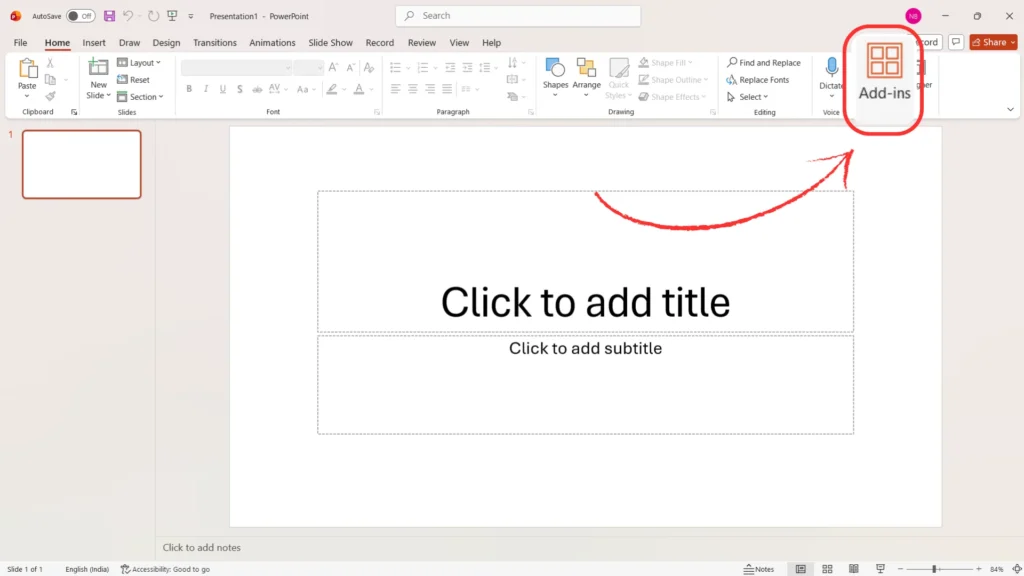
Step 3:
In the Add-ins menu, you can find the add-on in two ways:
- Browse through the popular extensions displayed by default, or
- Use the search option, either from the built-in search bar or by selecting More Add-ins at the bottom of the panel to open the Office Add-ins window and search for Slidea for PowerPoint.
Step 4:
After adding, it will automatically appear in your Add-ins list for future access.
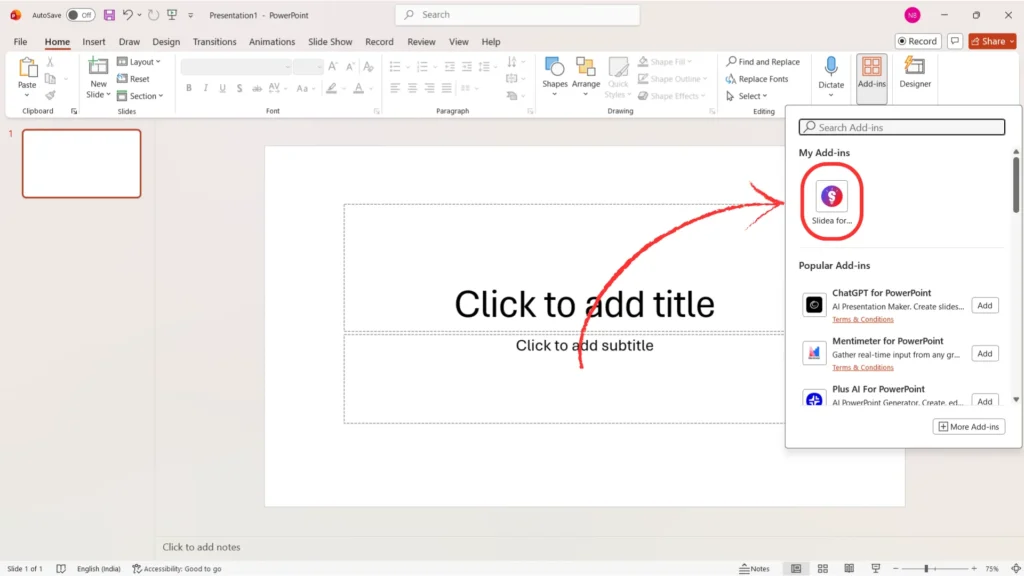
Signing In and Accessing Slidea in PowerPoint
- Open the Add-ins menu and select the installed Slidea extension.
- After selecting the add-in, the Slidea sign-in screen opens directly within the PowerPoint slide area, allowing you to access your account without leaving PowerPoint.
- If you already have an account, enter your email and password to sign in.
- If you are a new user, select Sign Up and complete the registration process.
- Once sign-in is completed, you are logged in automatically and taken to the Slidea workspace inside PowerPoint.
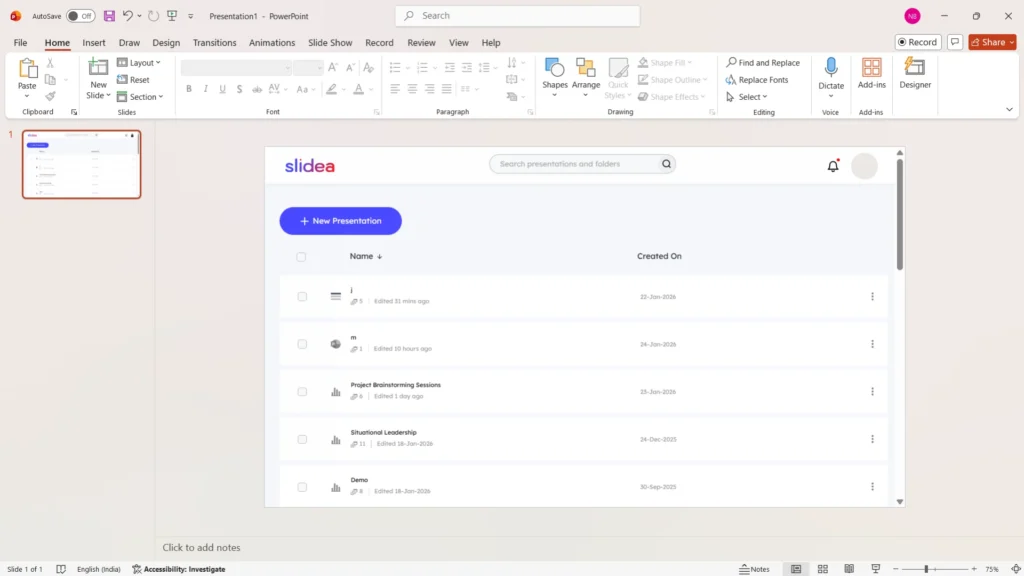
- From here, you can:
- Create a new interactive presentation
- Open and present previously created presentations
- Create a new interactive presentation
Once the Slidea editor opens, you can:
- Edit slide content
- Add background images
- Change themes and layouts
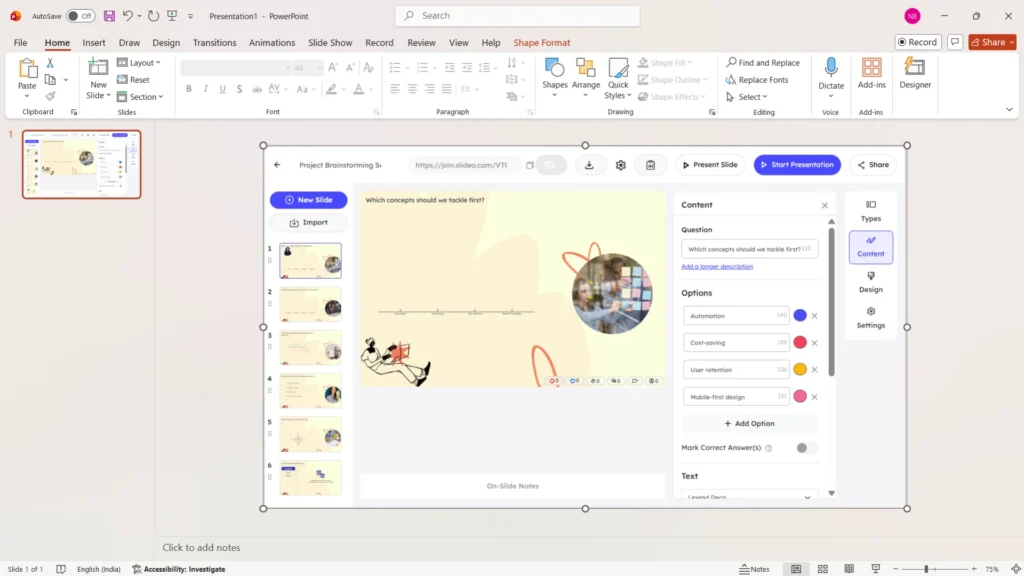
For each presentation, add a new slide and open it through the Add-ins option to begin editing or presenting as needed.
You can create multiple presentations based on your requirement.
How to Present Using the PowerPoint Add-in
There are two presentation modes available at the top of the panel:
- Present Slide – Launches only the selected slide in live mode
- Start Presentation – Starts the entire PowerPoint slides in live mode
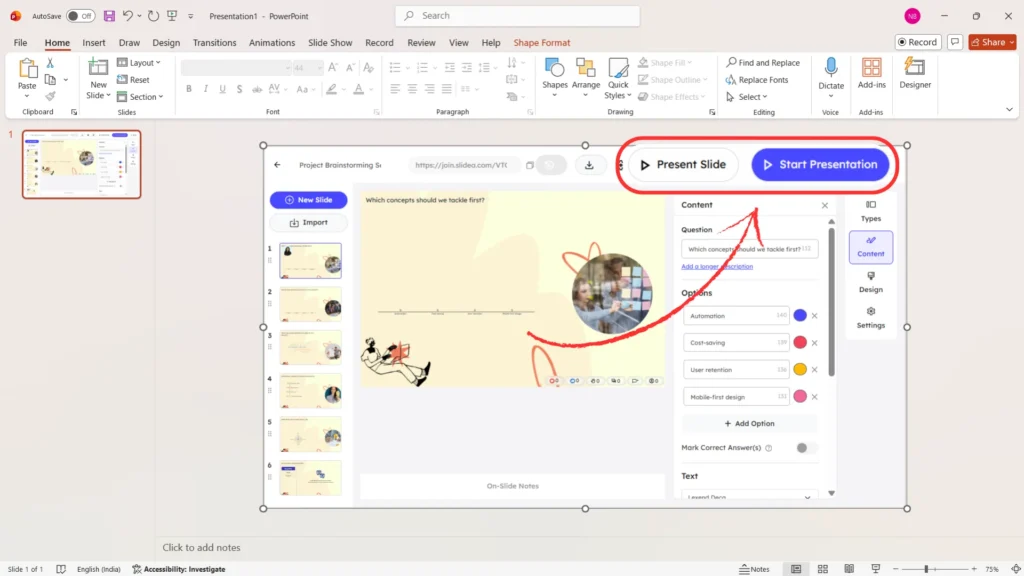
Choose the option depending on how you want to run the session.
How Participants Can Join the Presentation
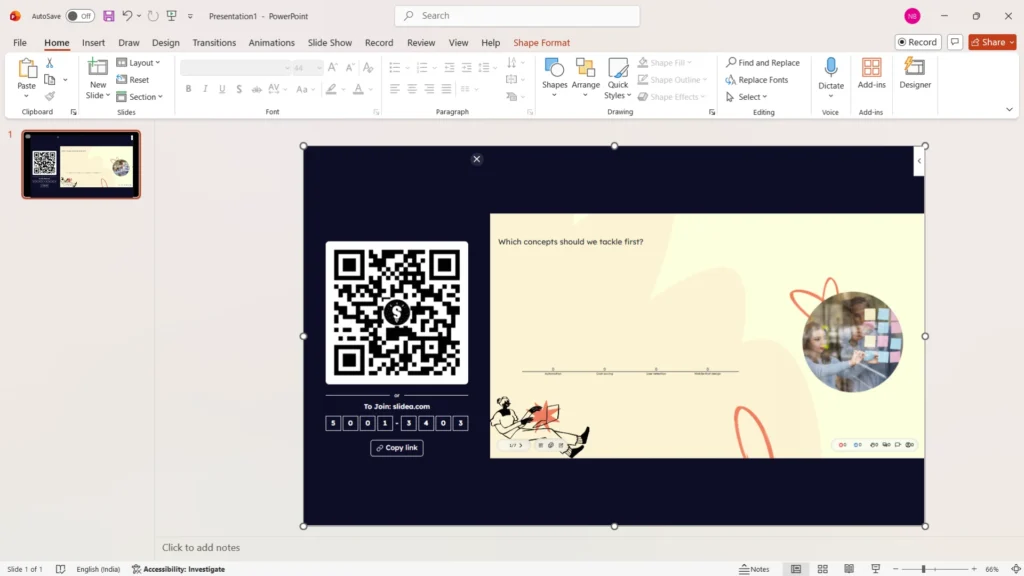
To invite participants, click the Share option on the top-right of the presentation screen.
Once you click Share, a dialog box appears with two joining options:
- Scan the QR Code:
Participants can scan the QR code displayed in the Share window using their mobile devices to join the presentation instantly. - Join via Link:
Alternatively, participants can use the generated join link shared by the presenter to access the session.
Real-Time Participant Interaction and Voting
Once connected to the session, participants can actively engage by submitting responses, voting instantly, and interacting with live slides as the presentation progresses. All interactive actions available during a live session can be performed here without any additional setup, ensuring smooth and continuous audience participation.
Use Cases of the PowerPoint Add-in Integration
This integration is useful when:
- Design and update interactive slides directly within PowerPoint
- Manage all interactive elements from one centralized workspace
- Run live sessions without switching away from the PowerPoint deck
- Engage participants in real time during presentations
- Create, reuse, and maintain multiple presentations efficiently


Leave a Comment
Your email address will not be published. Required fields are marked *