


The Annotation feature in Slidea allows presenters to highlight, draw, and explain content during a live presentation. It is used to emphasize key points, direct audience attention, and visually support explanations without modifying the original slide design.
This feature is accessed only during a live presentation and can be enabled to highlight slides in real time while speaking.
How to Access the Annotation Tools
You can access the Annotation option in the following ways:
Option 1:
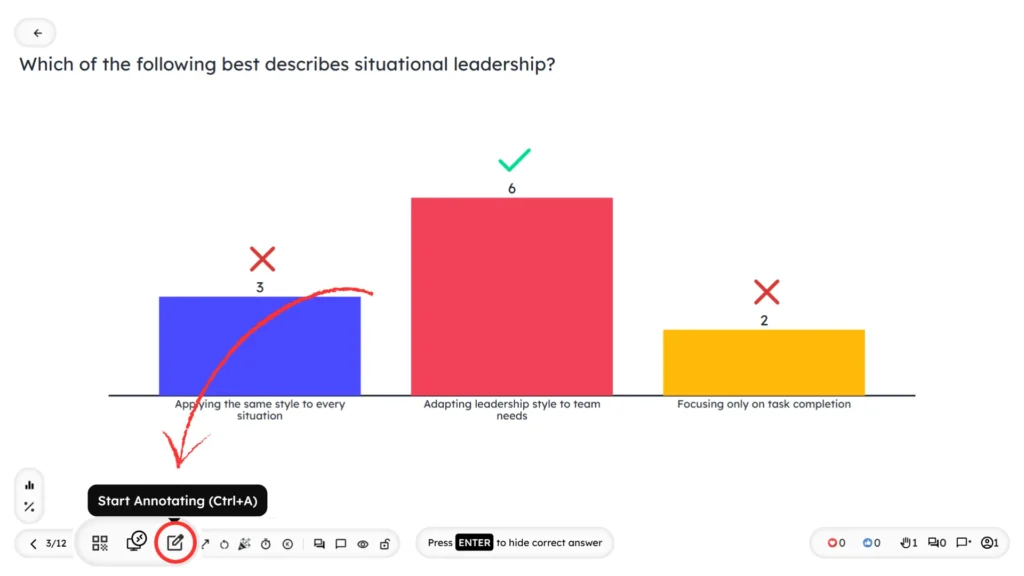
On the presenter screen, select the annotation icon at the bottom-left corner, and the annotation toolbar will be displayed.
Option 2:
Use the shortcut key Ctrl + A on your keyboard to instantly enable the feature during presentation mode.
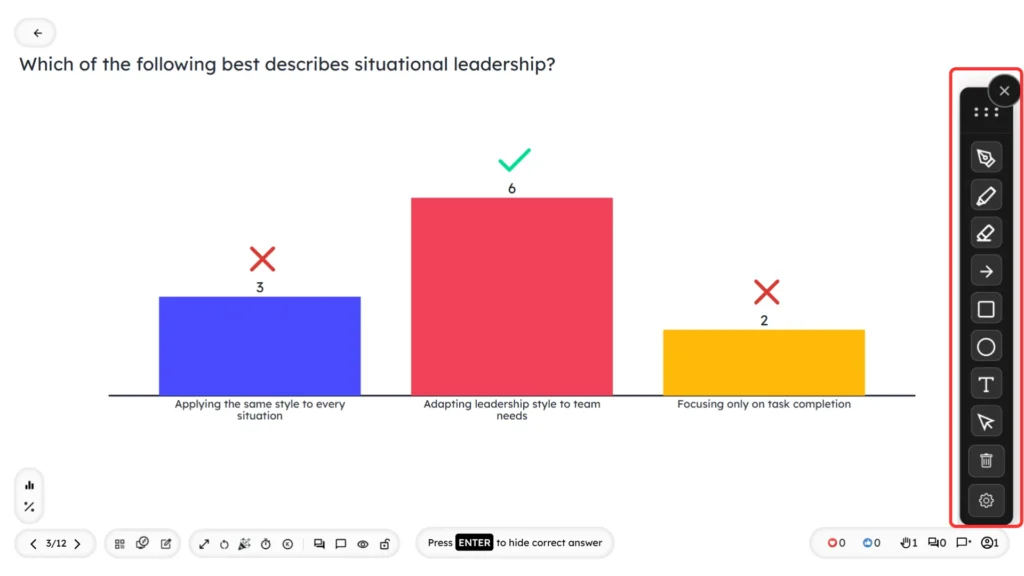
Once enabled, a vertical editing toolbar will appear on the presenter screen.
Editing Tools Available
After clicking the annotation icon, a vertical toolbar with 10 editing tools is displayed. You can also move the toolbar anywhere on the presenter screen by clicking the three-dot menu at the top of the toolbar and dragging it to your preferred position.
- Pen Tool – Draw freehand lines to explain or point out details
- Highlighter – Highlight text or objects on the slide
- Eraser – Remove drawn marks from the slide
- Arrow Tool – Point toward specific areas or elements
- Rectangle Shape – Draw rectangular outlines
- Circle Shape – Draw circular outlines for emphasis
- Select Option – Select and move drawn elements
- Clear All – Remove all drawn content at once
- Settings – Manage tool behavior
- Start / Stop Tool – Enable or disable drawing mode
Additional Customization Options
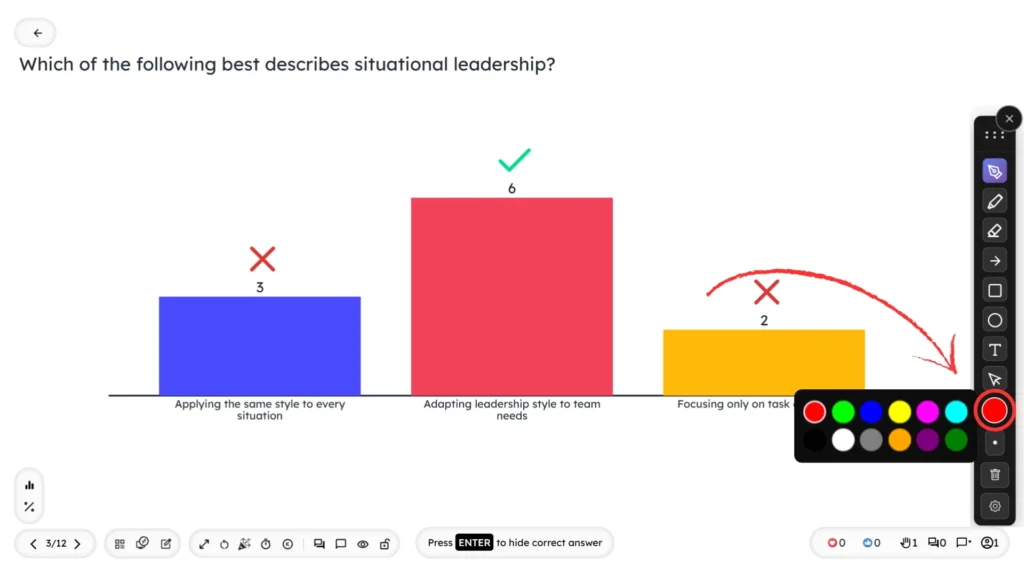
Color Selection – Choose different colors for the Pen tool, Highlighter, Arrow tool, Rectangle, and Circle shapes.
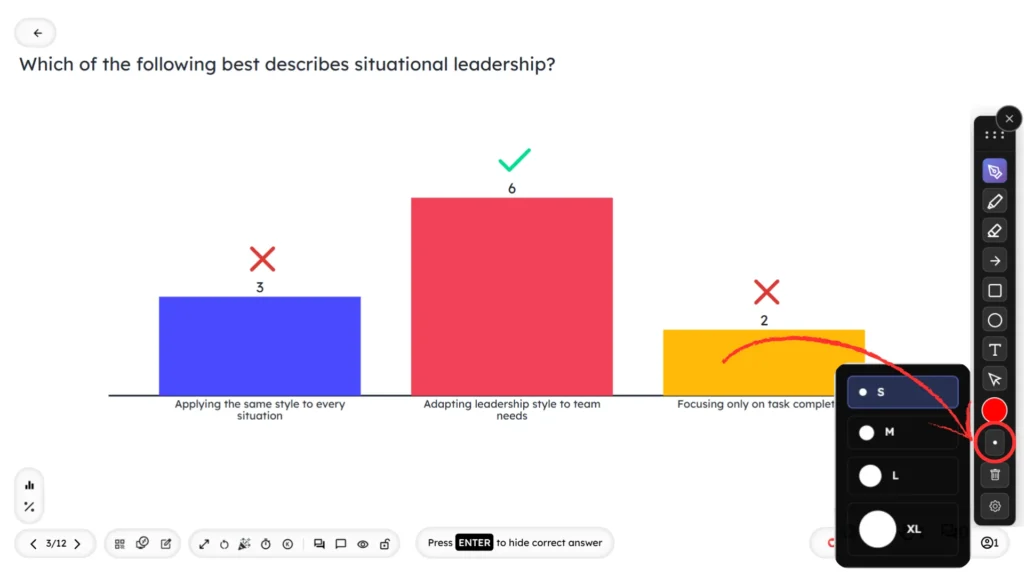
Size Adjustment – Change the stroke size for the Pen tool and Highlighter using size options such as S, M, L, and XL.
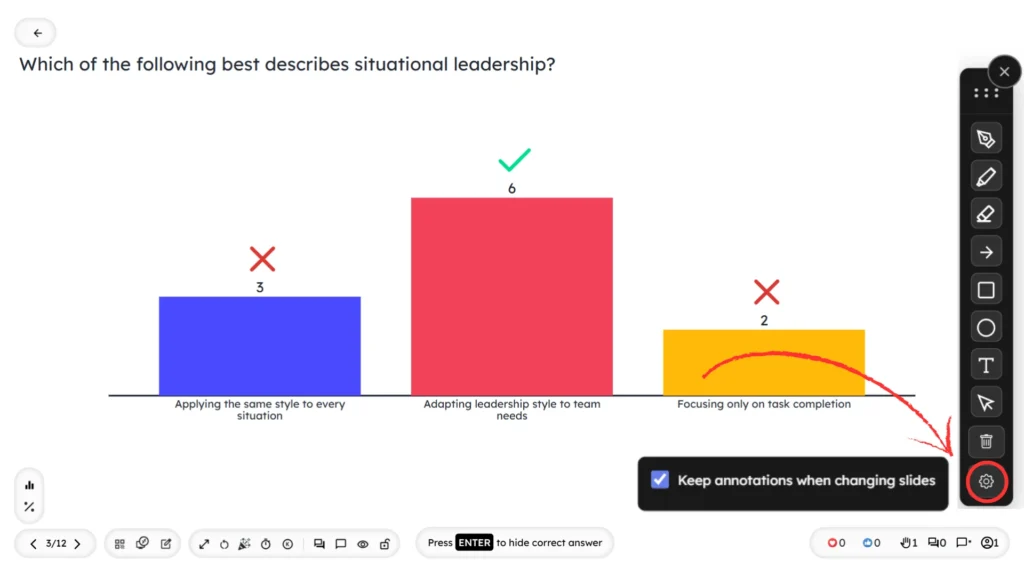
Settings: Keep Drawings When Changing Slides
Inside the Settings option, there is a toggle called Keep drawings when changing slides.
When this option is enabled, all the markings you add will remain visible even when you move to the next slide. When disabled, the slide will reset automatically while navigating.
Use Cases of This Feature
This feature is useful when:
- The presenter wants to explain complex ideas visually
- Key points need emphasis during discussions
- Live training or demos require on-screen guidance
- Interactive presentations need real-time highlighting


Leave a Comment
Your email address will not be published. Required fields are marked *