


The Profanity Filters feature in Slidea helps presenters automatically filter illegal, offensive, or inappropriate words from participant inputs during live sessions. By selecting specific languages, the system detects and replaces such words in real time, ensuring a respectful environment across interactive slides. Filtered words are handled automatically, allowing sessions to remain clean and distraction-free.
What is a Profanity Filter, and why is it used
A profanity filter monitors participant responses and screens them before they appear on the slide. It helps presenters control the quality of audience input, reduce disruptions, and ensure interactive slides are used responsibly during live sessions.
How to Access the Profanity Filter Settings
You can access this in the following steps.
Step 1:
Log in to your Slidea account.
Step 2:
Create a New Presentation
Step 3:
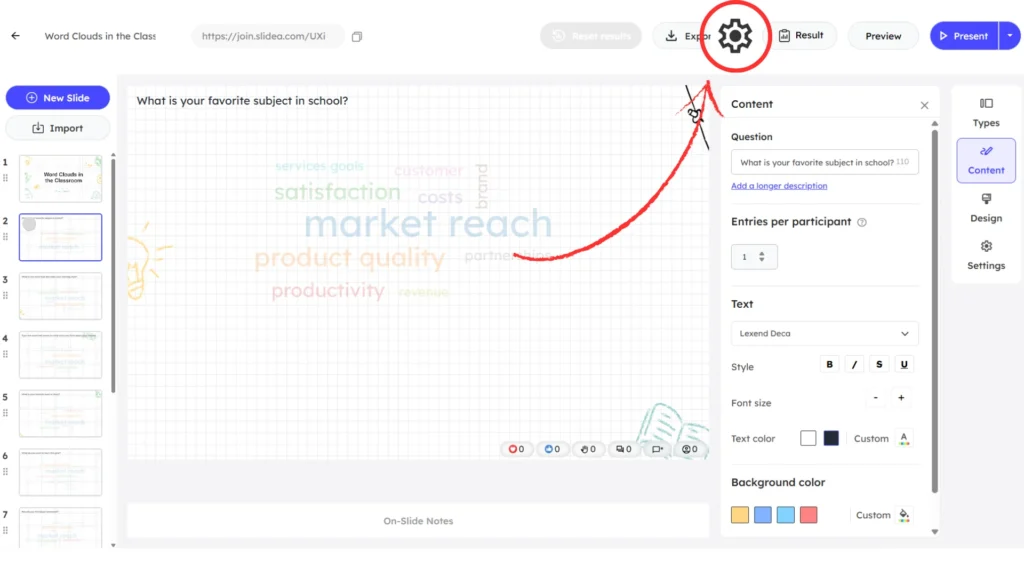
In the header bar, click the Settings (⚙️) icon near your profile avatar.
Step 4:
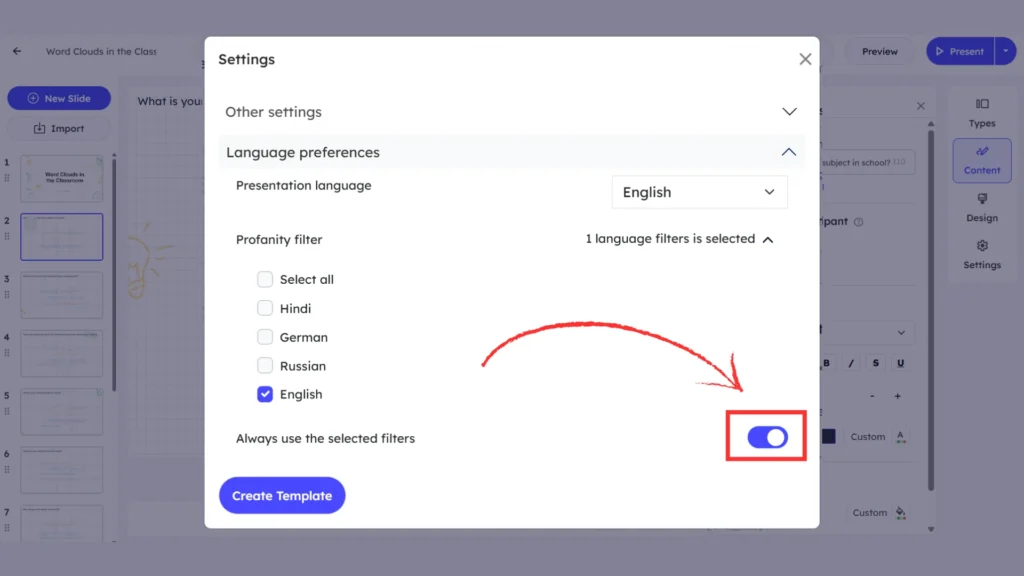
A pop-up window will appear with two dropdown options.
- Other Settings
- Language Preferences
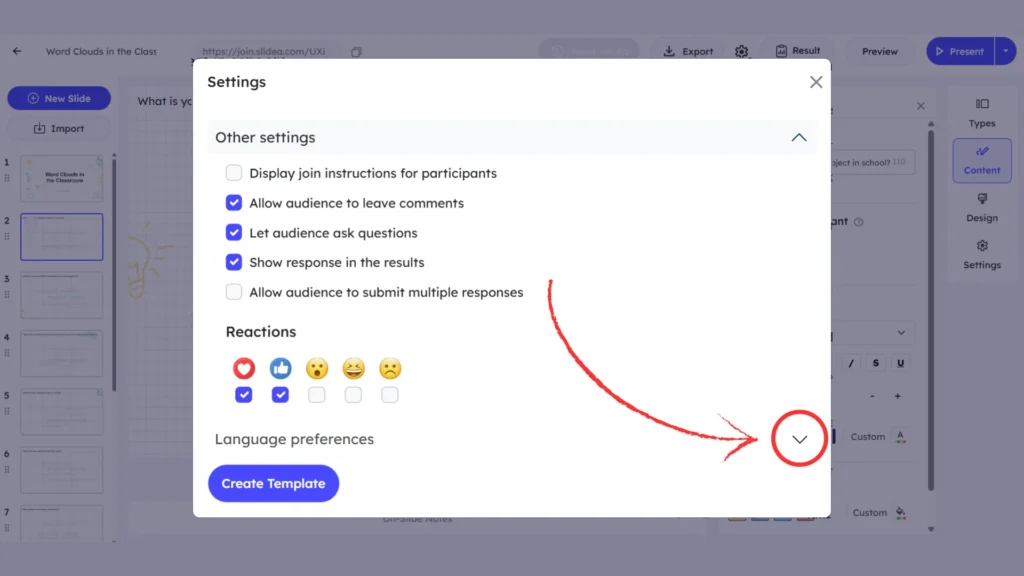
Click on the Language Preferences drop-down.
Step 5:
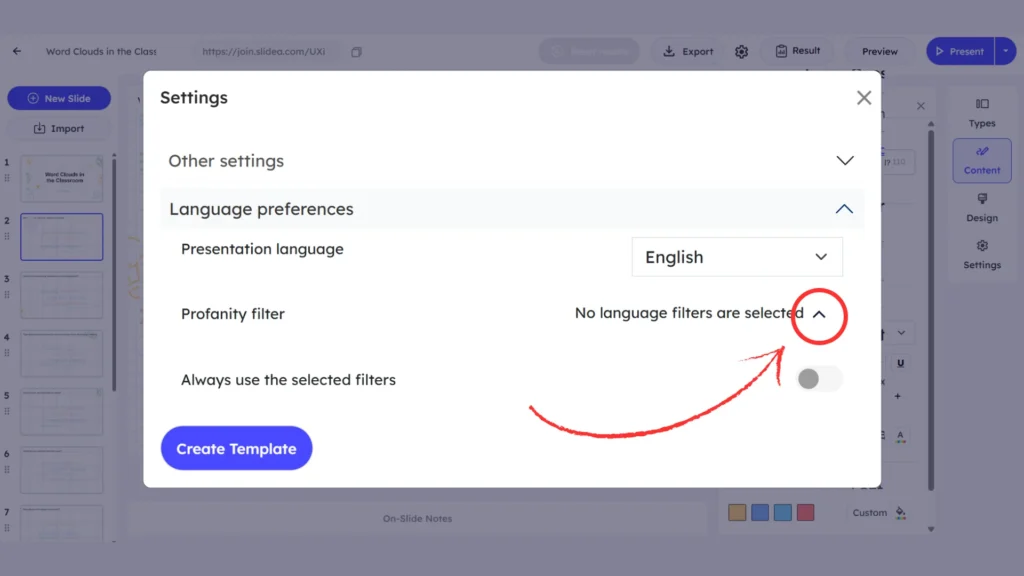
Once you open Language Preferences, the Profanity Filter section appears, where you can choose the languages you want to filter.
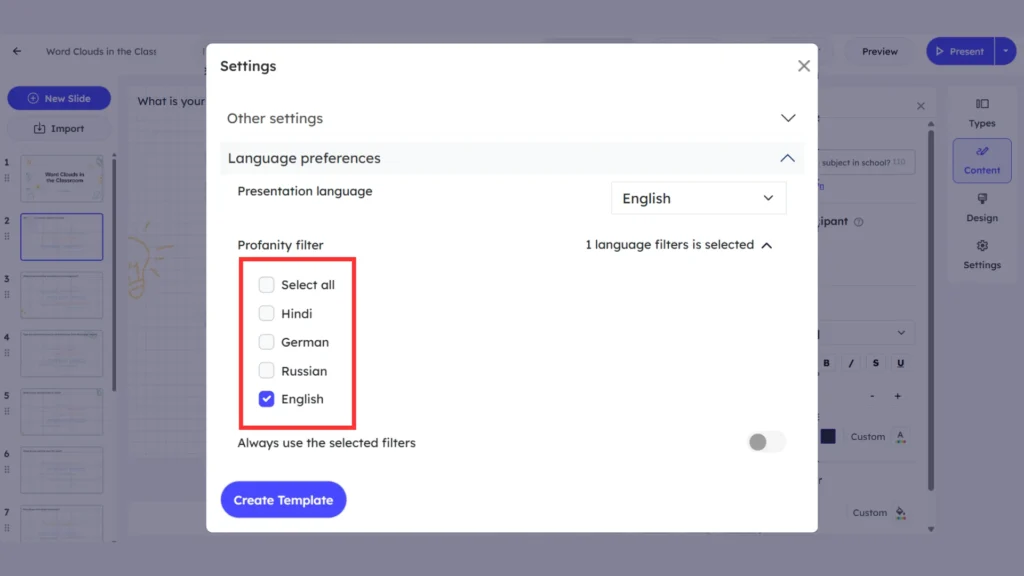
The available options include:
- Select All
- Hindi
- German
- Russian
- English
Select the languages you want Slidea to filter during participant inputs.
Always Use Selected Filters Option
Below the language selection, there is a default option called Always use selected filters.
When this option is enabled:
- Slidea remembers your selected profanity filter languages, such as English, Hindi, German, or Russian.
- You do not need to select the same languages again while continuing or revisiting the presentation.
- The selected filters are automatically applied whenever participants submit inputs.
- This ensures consistent moderation across all supported input slides within the presentation.
- It helps presenters focus on delivering content without managing filters repeatedly.
Where Profanity Filters Are Applied
It works only for input-based slides in Slidea. These include:
- Word Cloud
- Open-ended
- Q&A
- Type Answer
The filter does not affect non-input slide types.
Use cases of this feature
This feature is useful when:
- Hosting public or large-scale sessions
- Collecting audience responses as text
- Preventing offensive or inappropriate language
- Maintaining a professional presentation environment


Leave a Comment
Your email address will not be published. Required fields are marked *