


Folders help you organize your presentations and maintain a structured workspace in Slidea. By grouping presentations by topic, class, or team, you can quickly locate content, manage multiple files efficiently, and keep your dashboard clutter-free.
Follow the steps below to create and manage folders in Slidea.
How to Create a Folder
- Go to My Presentations from the left sidebar.
- Click the + New Folder button at the top of the page.
- A pop-up window will appear asking you to enter a folder name.
- Type your desired folder name.
- Click Save.
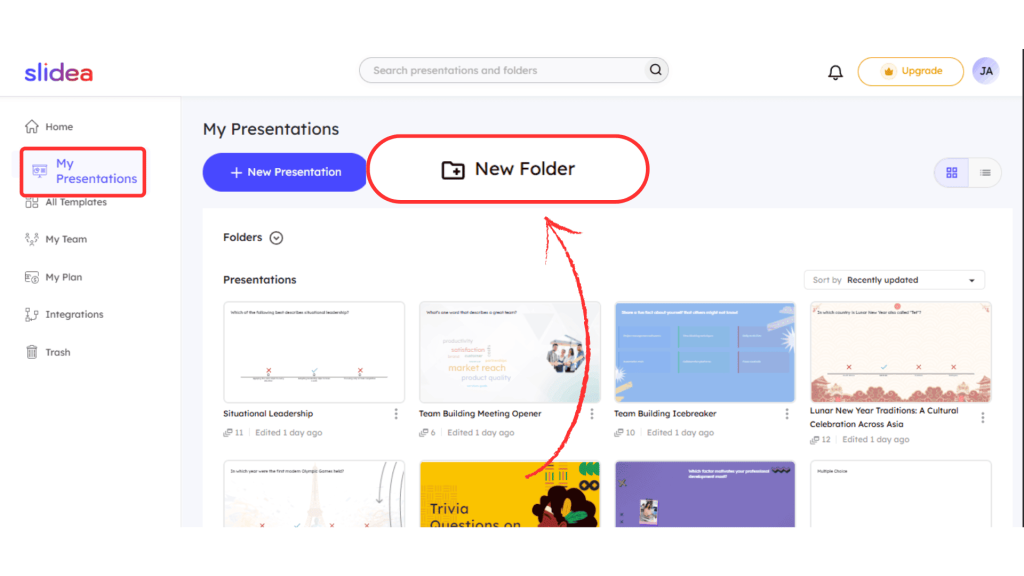
Your new folder will now appear in your dashboard under the Folders section.
Create a Presentation Inside a Folder
You can also create presentations directly inside a folder:
- Click on the folder you created.
- Select + New Presentation.
- Your new presentation will automatically be saved inside that folder.
Move a Presentation to a Folder
To move an existing presentation:
- Go to My Presentations.
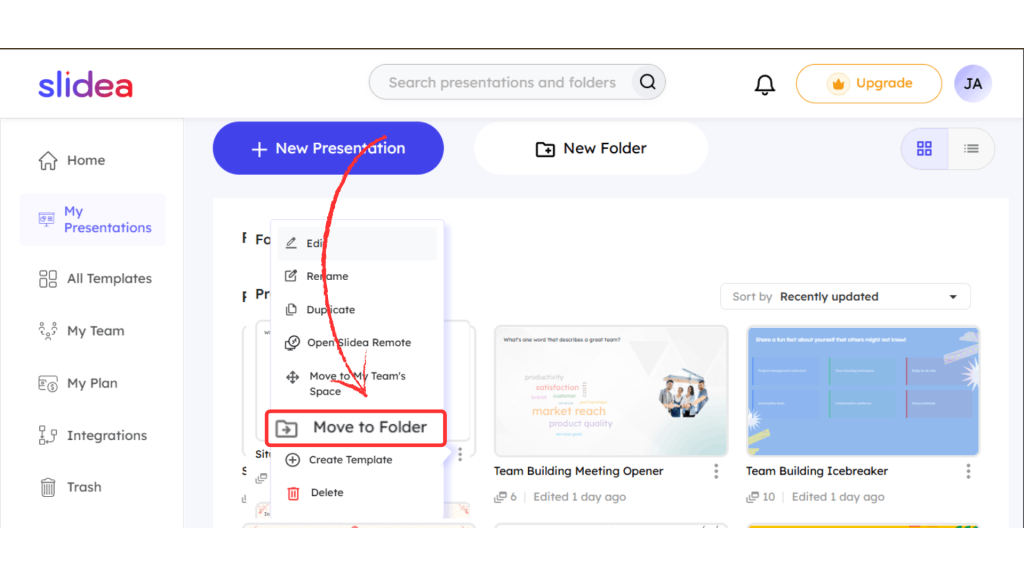
- Click the three dots (⋮) next to the presentation.
- Select Move to Folder.
- Choose the folder you want from the pop-up window.
- Click Move Here to confirm.
Your presentation will now be stored in the selected folder.


Leave a Comment
Your email address will not be published. Required fields are marked *