


Timers help you manage time and keep your audience engaged during interactive activities. In Slidea, you can start a countdown while presenting brainstorming or interactive slides to give participants a clear time limit to respond.
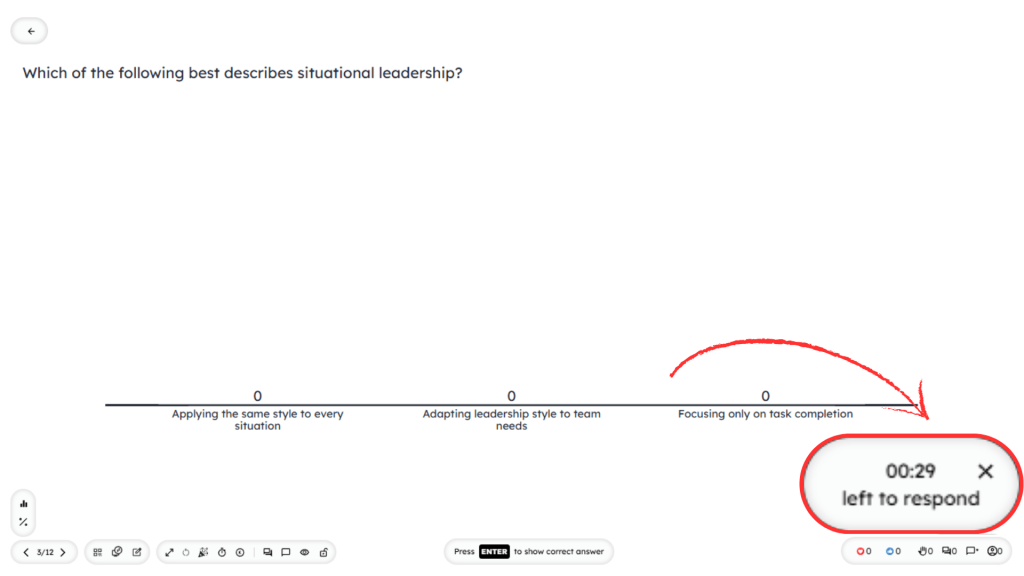
Once a timer starts, the countdown appears on the presentation screen so participants can easily track how much time is left.
Start a Timer While Presenting
To start a countdown timer, you must first enter Presentation Mode.
While presenting, press the corresponding number key on your keyboard to start a timer.
Available Timer Shortcuts
| Key | Countdown Time |
| 1 | 1 minute countdown |
| 2 | 2 minute countdown |
| 3 | 3 minute countdown |
| 4 | 4 minute countdown |
| 5 | 5 minute countdown |
| 8 | 30 seconds countdown |
| 9 | 10 seconds countdown |
| 0 | Cancel the countdown |
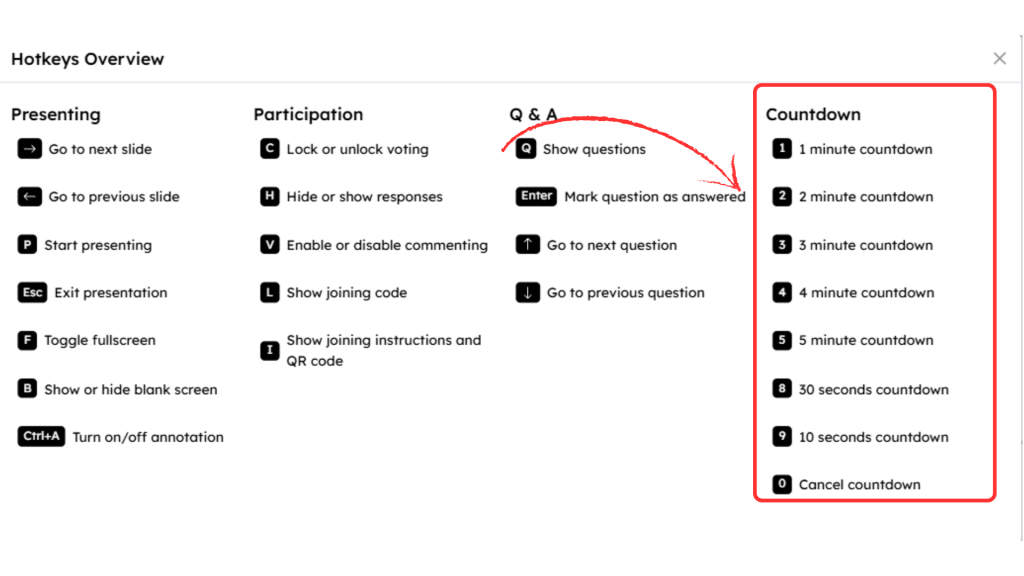
You can press these keys during the presentation to instantly start a timer for the currently active slide.
When the timer is active, a countdown indicator appears on the screen showing the remaining time for participants to respond.
Combine Timers for Custom Durations
You can combine shortcuts to create a custom timer duration.
For example:
- Press 8 (30 seconds) and then 9 (10 seconds) to create a 40-second countdown.
This allows you to adjust the response time depending on the activity.
Using Timers in Quiz Slides
For quiz slides, timers are configured directly from the Edit tab instead of using keyboard shortcuts.
When editing a quiz slide, you will see the following options:
- Seconds to Answer – Set how long participants have to answer the question.
These settings automatically apply the timer when the quiz slide is presented.
When the Timer Appears
Once a timer starts during presentation:
- The countdown appears on the presentation screen.
- Participants can see how much time remains.
- The timer automatically ends when the countdown reaches zero.
- You can cancel the timer anytime by pressing 0.
Pro Tip
If you ever need to view all keyboard shortcuts during a presentation, press K on your keyboard. This opens the Hotkeys Overview, where you can quickly check all available presentation shortcuts.


Leave a Comment
Your email address will not be published. Required fields are marked *