


The Open-Ended slide lets participants submit their own answers freely (up to 200 characters), great for discussions and brainstorming.
To create an Open Ended slide:
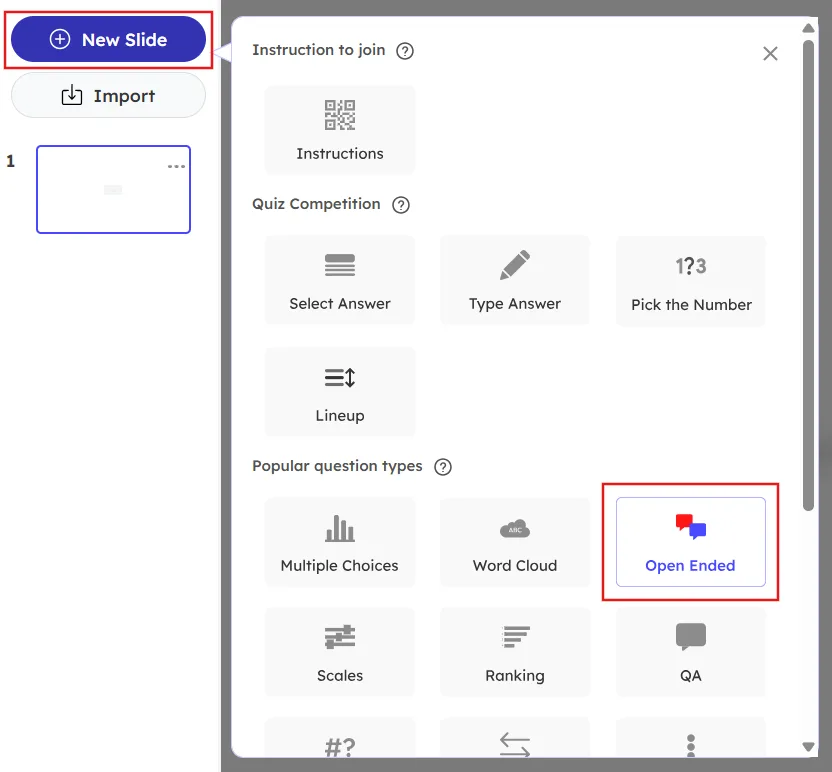
Click on the New Slide button in the top left corner of the presentation editor page.
Choose the Open Ended slide type under Popular Question Types
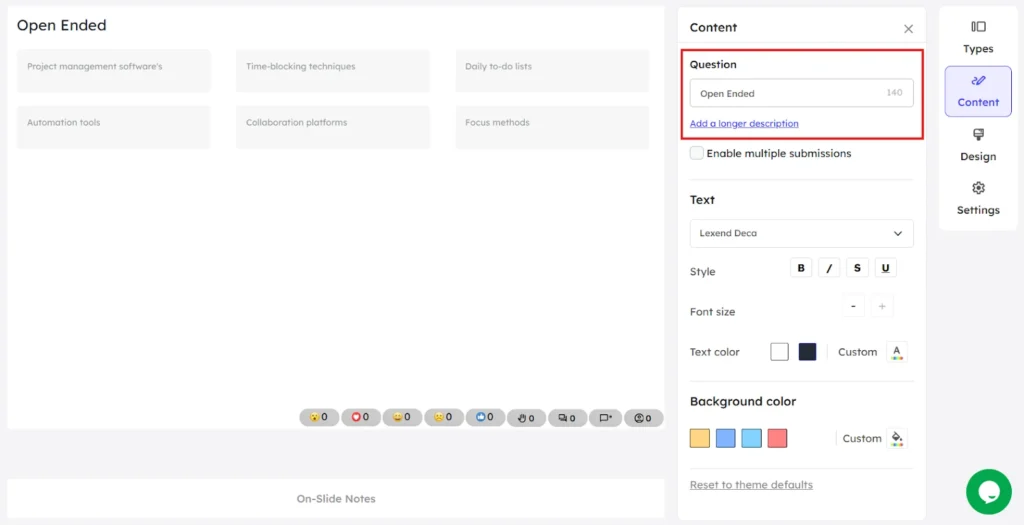
In the Content area, add your question in the Question input box in the right panel.
Click on Add a longer description to add more content to describe your question or to give a hint for the question.
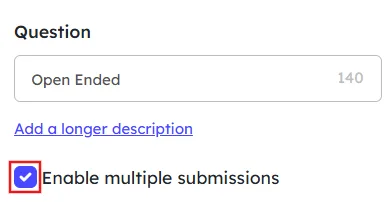
Click on the Enable multiple submissions check box to allow participants to submit multiple responses.
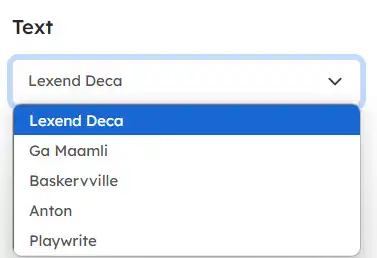
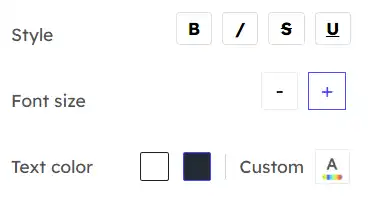
Click on the drop down box in the Text area to change the font style of the content.
You can change the appearance of the content by making it bold, italics, strikeout and underline.
Change the font size by using – or + buttons.
Choose a color for the text from the available default color options or use the custom colors option.
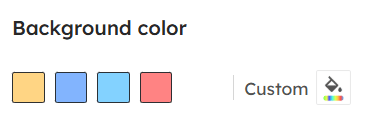
You can change the background color of the slide by choosing from the available default color options or by using the custom colors.
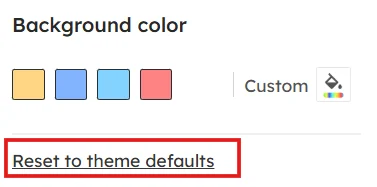
To remove all the custom effects and reset the slide back to original, click on Reset to theme defaults at the bottom of the right panel.
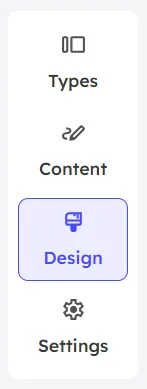
In the right panel, click on the Design menu to change the visualization type of the slide, add image and to change its layout.
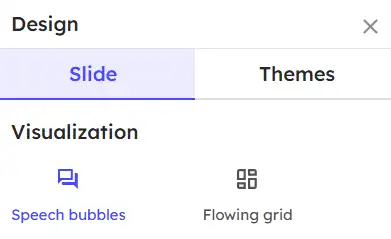
In the Slide menu, you can change the visualization of your slide by choosing one from the available options.
Speech bubbles lets you to manually scroll down the slide to view more while receiving multiple responses.
In Flowing grid type, the slide will scroll down automatically while receiving multiple responses.
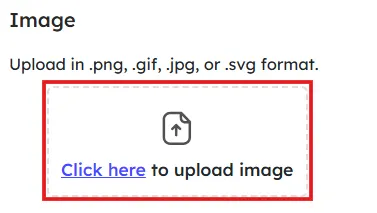
You can add an image by drag & drop or choosing a file from your device to your slide by clicking on the upload image icon. Your file should be in .png, .gif, .jpg or .svg format with a maximum file size of 15 MB.
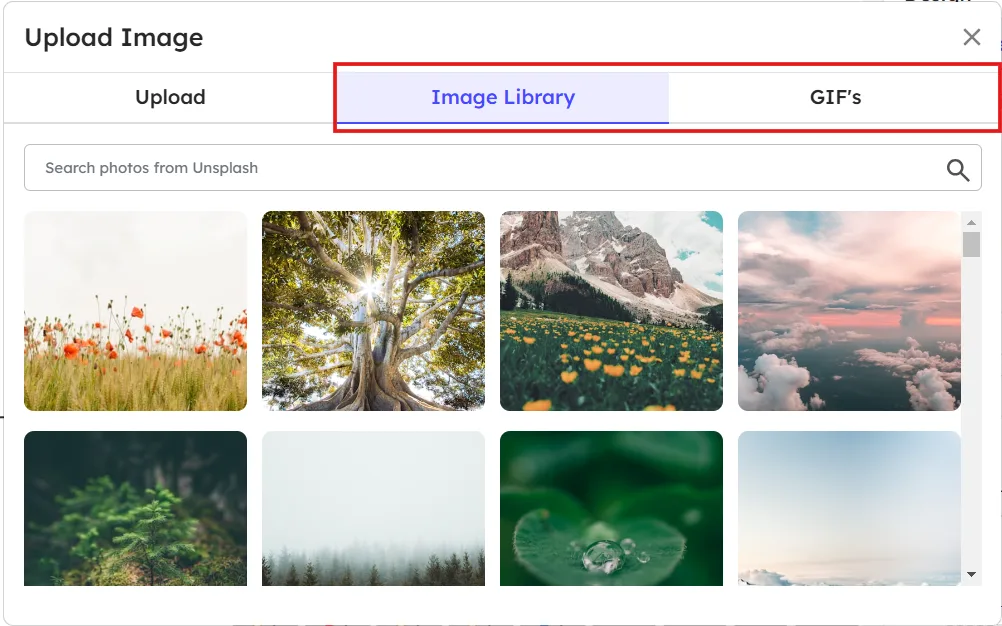
Also, we have a collection of images and gifs available under Image Library and GIF’s menu respectively.
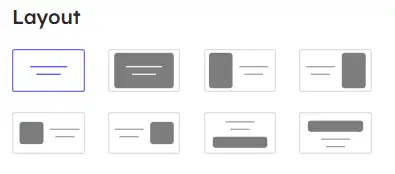
You can change the layout of the uploaded image by choosing one from the available layout options. You can see the preview of the image layout at the center panel while clicking on each option.
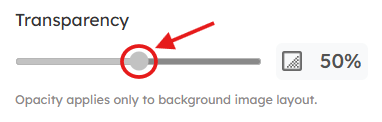
Use the slider in Transparency to adjust the opacity of the background image.
Under Themes menu,
You can choose a theme for your slide from the available default themes. You can also create your own theme for your slides.

Read more about creating custom themes in our detailed guide.
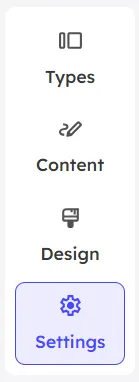
In the right panel, click on the Settings menu to change the settings for this particular slide.
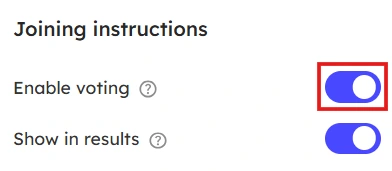
Under Joining instructions,
Toggle the Enable voting button to allow or disallow participants voting on the question.
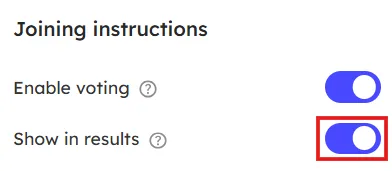
Toggle the Show in results button to show or hide participants’ responses in the final results.
The presenter can store reminders, talking points, key notes for that particular slide by clicking on the On-Slide Notes at the bottom of the center panel.

To filter unwanted responses:
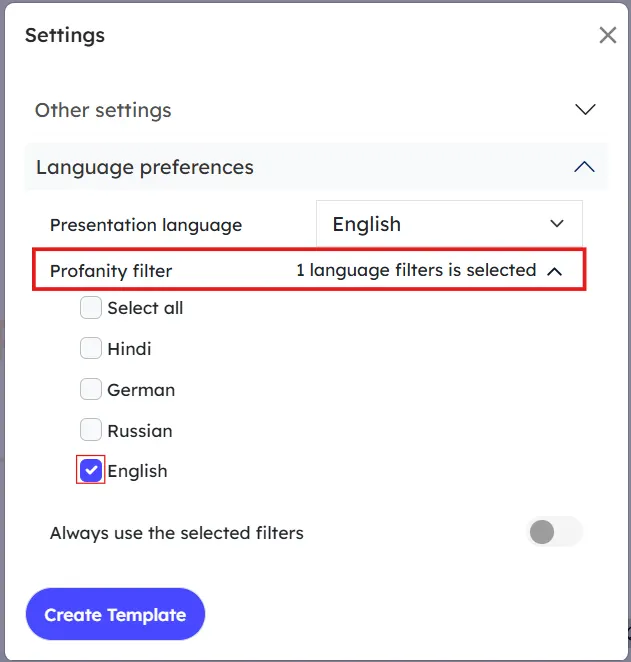
If you want to prevent the unwanted responses from your audience, you can activate the Profanity Filter mode to filter those in the result.
To activate,
Click on the gear icon at the top right.
Click on the Language preferences dropdown. Under Profanity filter, choose language preferences for the filter by clicking on the check box next to each language.






Leave a Comment
Your email address will not be published. Required fields are marked *