


The Q&A slide allows participants to submit questions live, making discussions more interactive and engaging. Perfect for real-time feedback and open conversations!
Create a Ranking Question:
Click on the New Slide button in the top left corner of the presentation editor page.
Choose the Q&A slide type under Popular Question Types.

In the Content area, add your question in the Question input box in the right panel.
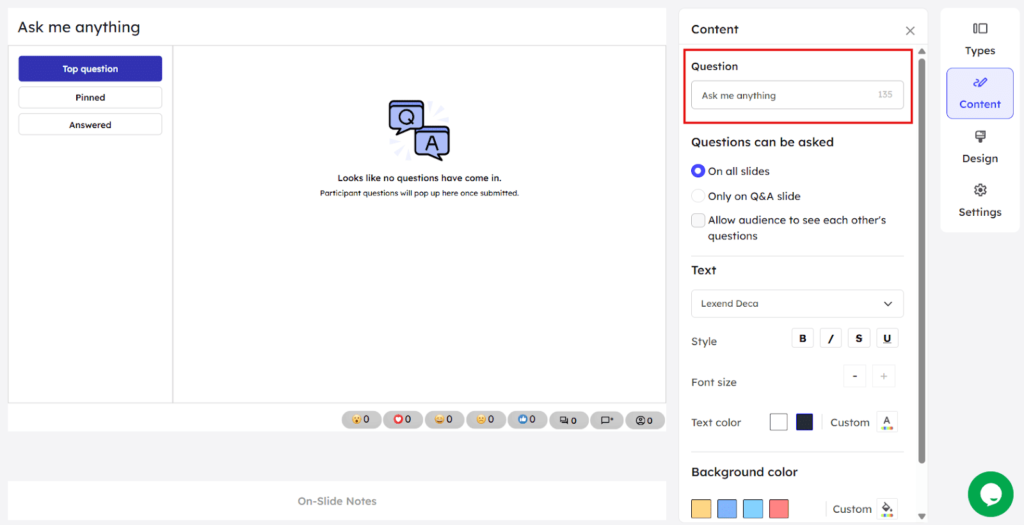
The Q&A slide can be used as follows:
On all slides lets you allow your participants to ask questions on all/any slides during the presentation and you can answer the questions then and there.
Only on Q&A slide lets you allow your participants to ask questions only when this slide appears during the presentation.
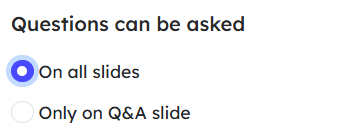
Click on the Allow audience to see each other’s questions check box to let your participants see each other’s questions and react to those.

You can edit the content on your slides with the different text formatting options available on the right panel.
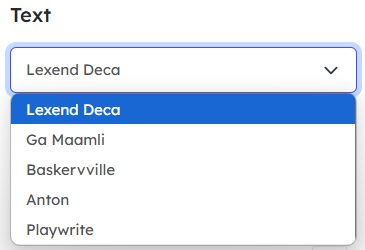
Click on the drop down box in the Text area to change the font style of the content.
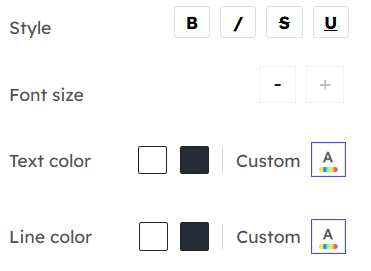
You can change the appearance of the content by making it bold, italics, strikeout and underline.
Change the font size by using – or + buttons.
Choose a color for the text and the line from the available default color options or use the custom colors option respectively.
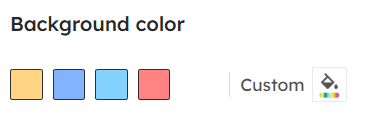
You can change the background color of the slide by choosing from the available default color options or by using the custom colors.
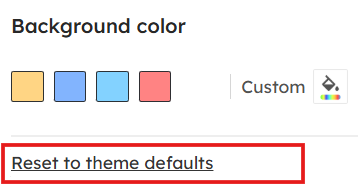
To remove all the custom effects and reset the slide back to original, click on Reset to theme defaults at the bottom of the right panel.
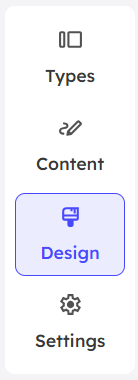
In the right panel, click on the Design menu to add a background image.
Under Slide menu,
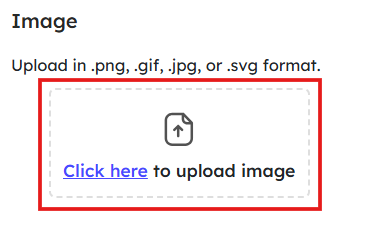
You can add an image by drag & drop or choosing a file from your device to your slide by clicking on the upload image icon. Your file should be in .png, .gif, .jpg or .svg format with a maximum file size of 15 MB.
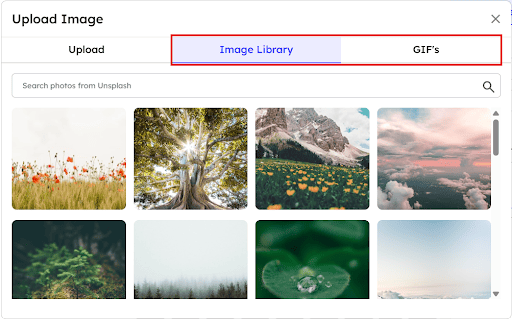
Also, we have a collection of images and gifs available under Image Library and GIF’s menu respectively.
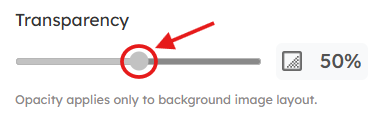
Use the slider in Transparency to adjust the opacity of the background image.
Under Themes menu,
You can choose a theme for your slide from the available default themes. You can also create your own theme for your slides.
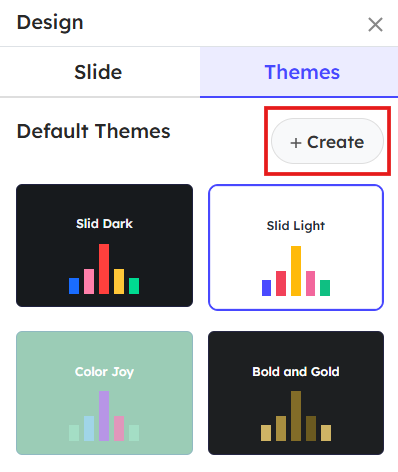
Read more about creating custom themes in our detailed guide.
The presenter can store reminders, talking points, key notes for that particular slide by clicking on the On-Slide Notes at the bottom of the center panel.

Once the responses are received, you can start answering the questions. All the questions will be displayed under Top Questions tab.
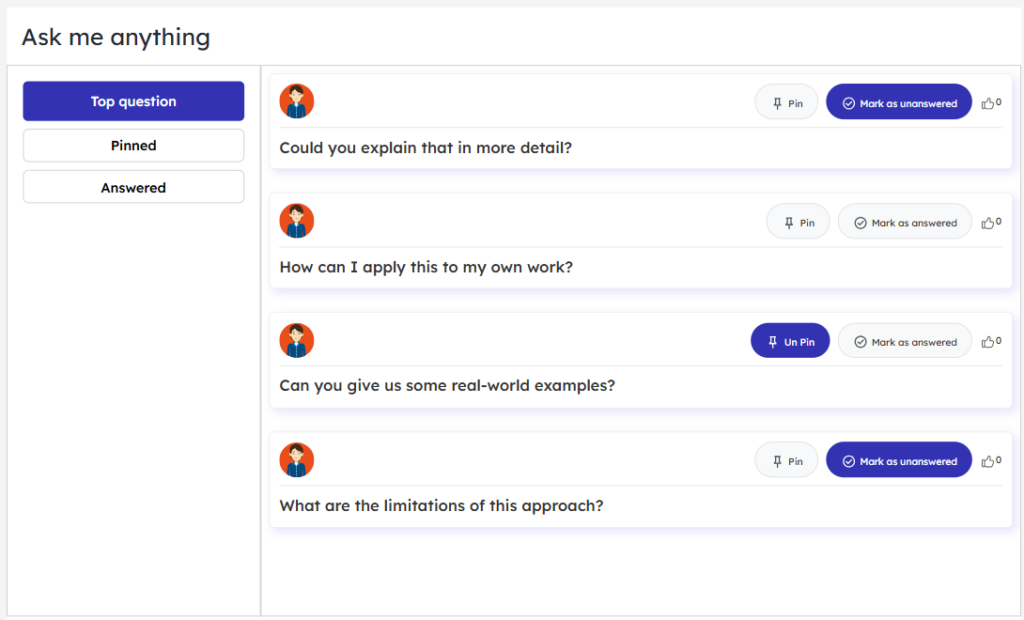
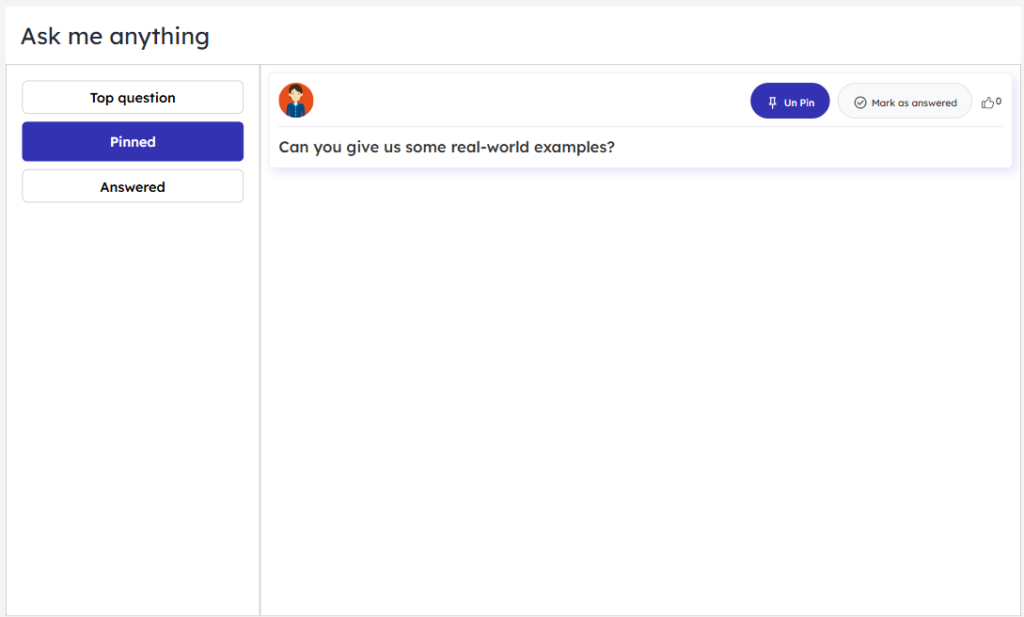
You can pin a question if you find it important or to answer it later. You can find all the pinned questions under the Pinned tab.
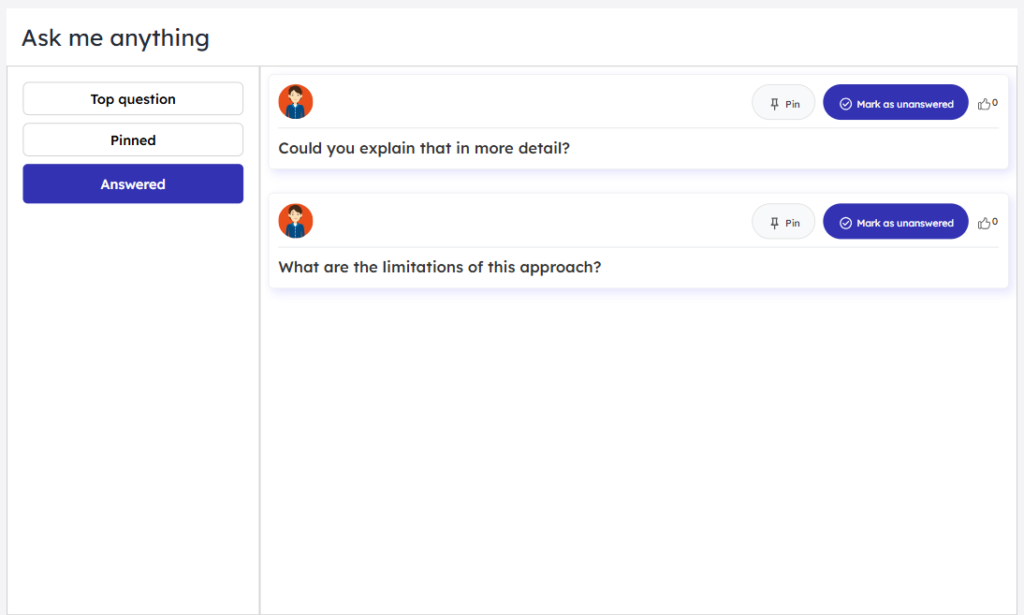
If you have answered a question, you can mark it as Mark as answered. Those questions will be displayed under the Answered tab.



Leave a Comment
Your email address will not be published. Required fields are marked *