


Preview mode lets presenters experience the session exactly as participants will see it before going live. After creating a presentation, whether built manually, generated using AI, or designed with a template, you can use Preview mode to review slides, test interactions, and adjust controls without collecting real audience responses.
The screen displays both the presenter view and the audience view side by side, allowing you to see how changes appear to participants in real time. This helps ensure everything is set correctly and reduces last-minute issues before going live.
How to Access Preview Mode
You can enter Preview mode directly from the editor page:
- Click the Preview button located in the top-right corner of the editor page.
- The screen splits into two sections:
- Presenter screen on the left
- Audience screen on the right
- Presenter screen on the left
This layout mirrors a real session but keeps responses temporary.
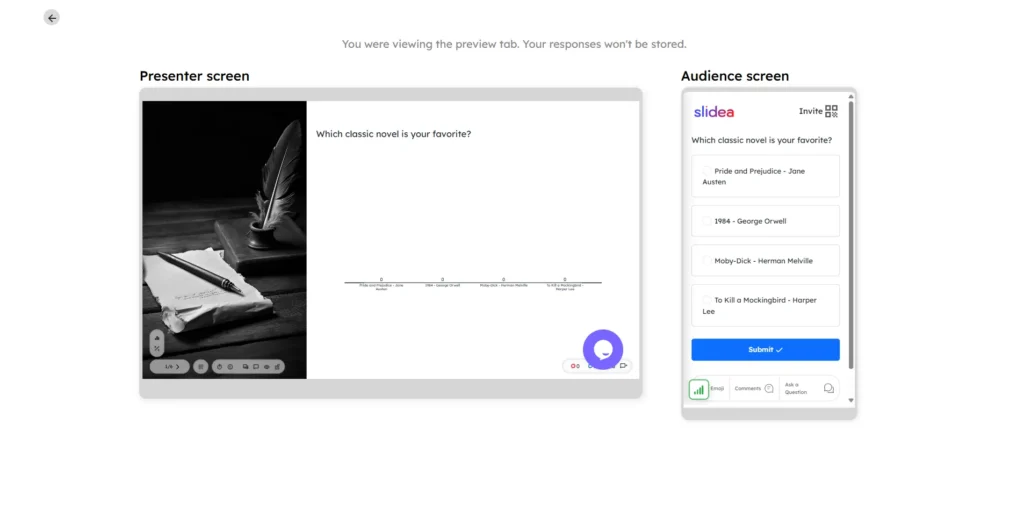
Previewing Audience Interactions
During preview, you can interact with the presentation from the audience view by submitting answers or responses, just as a participant would during a live session.
These interactions appear instantly on the presenter screen, allowing you to test how responses, results, and engagement elements behave before going live. Responses entered in Preview mode are only for testing and are not stored once the preview ends.
Presenter Toolbar Overview
In the bottom-left corner of the presenter screen, a compact toolbar provides quick session controls.
QR Code
Displays a scannable code that participants can use to join the session quickly from their devices.
Start Timer
Starts a timer to track time for the current slide or activity, helping presenters manage pacing during the session.
Hotkeys Overview (K)
Opens a shortcut guide showing available keyboard controls for faster navigation during the presentation.
Disable Q&A (Q)
Temporarily turns off the question-and-answer feature so participants cannot submit questions.
Disable Comments (V)
Prevents participants from posting comments during the session.
Hide Responses (H)
Conceals live audience responses from view on the presentation screen.
Unlock Voting (C)
Enables or disables voting interactions, giving the presenter control over when participants can respond.
Audience Screen Overview
The audience screen shows what participants experience when they join the session. It allows them to interact with the presentation, submit responses, and engage with the presenter in real time.
Question Area
Displays the active question or slide content that participants are asked to respond to.
Response Options
Participants can rank, select, or submit answers using the available controls based on the slide type.
Submit Button
Allows participants to submit their responses once they have completed their interaction.
Emoji Reactions
Enables participants to send quick emoji reactions during the session to express feedback or engagement.
Comments
Allows participants to post comments related to the current slide.
Ask a Question
Lets participants submit questions directly to the presenter during the session.
Why Preview Mode Is Useful
Preview mode is especially helpful when:
- You want to review slides exactly as participants will see them
- Interactive elements need testing before a live audience joins
- You want to confirm audience controls and visibility settings
- Final adjustments are needed without affecting live data
By using Preview mode, presenters can confidently start their session knowing everything has already been tested in Slidea.


Leave a Comment
Your email address will not be published. Required fields are marked *