


The Embed PowerPoint feature allows presenters to embed an existing PowerPoint presentation into a slide using an embed code from PowerPoint Web. Once added, the presentation appears as an embedded slide and can be presented directly within the session while retaining interactive controls.
How To Embed A PowerPoint in Slidea
You can do this using the steps below.
Step 1: Open your presentation
Log in to your account and Create a New Presentation.
Step 2: Click Import
From the left panel, click New Slide
Step 3: Select PowerPoint
Under Import Options, click PowerPoint.

Add The Powerpoint Embed Code
On the PowerPoint import screen:
- On the right-side Content panel, you will see:
- Add embed code field: Paste the copied PowerPoint embed code into this field.
- Start From Slide: This option defines the slide from which the embedded PowerPoint presentation begins when the session starts.
- Add embed code field: Paste the copied PowerPoint embed code into this field.

How to Get the PowerPoint Embed Code
If you’re unsure how to obtain the embed code, Slidea provides a quick walkthrough to guide you.
Watch the Tutorial Video
Click “Not sure how to get your code? Check out here.”
A short tutorial video will open, showing the complete process.
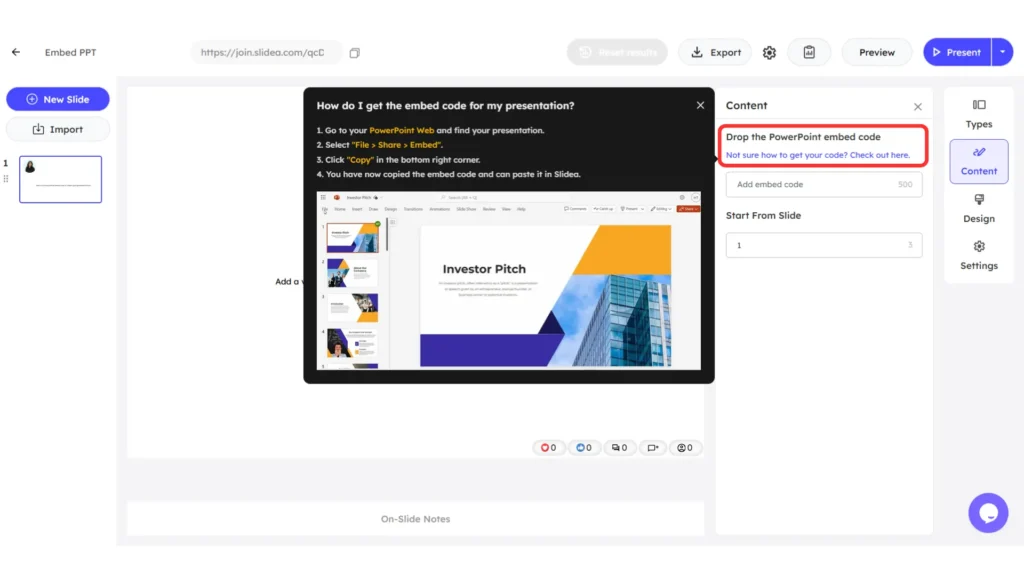
Follow These Steps to Get the Embed Code
You can also generate the embed code manually by following these steps:
- Open PowerPoint Web
- Go to File → Share → Embed
- Click Copy to copy the embed code
- Paste the copied embed code into Slidea
This embed code allows you to seamlessly add your PowerPoint presentation into Slidea.
Add A Background Image To The Imported Powerpoint
You can enhance the visual appearance of the imported PowerPoint by adding a background image to the slide.

To do this:
- Select the slide that contains the imported PowerPoint.
- Open the Design panel on the right side.
- Under the Slide tab, go to the Image section.
- Upload an image in .png, .jpg, .gif, or .svg format.
- The uploaded image is applied as the background behind the embedded PowerPoint.
Presenting An Imported Powerpoint
When you start presenting the slide:
- In the bottom-right corner, two options are available:
- Menu
- Open in new window
- Menu
Menu Options During Presentation
- Download a Copy
Downloads a copy of the PowerPoint presentation. - Print to PDF
Converts the presentation into a PDF file for printing or sharing. - Embed Information
Displays details related to the embedded PowerPoint content. - Help Improve Office
Allows users to share feedback to help improve Microsoft Office. - Terms of Use and Privacy and Cookies
Shows Microsoft’s terms, privacy policy, and cookie information.
Open In New Window
Clicking Open in the new window opens the PowerPoint presentation in a separate browser tab. This allows you to view and present the slides outside the embedded view while keeping the original presentation session active.
Where This Feature Is Useful
Embedding a PowerPoint presentation in Slidea is useful when:
- You want to present existing PowerPoint content directly within Slidea
- You want to combine PowerPoint slides with Slidea’s interactive features like polls, quizzes, or Q&A
- You want to present seamlessly without leaving the Slidea interface


Leave a Comment
Your email address will not be published. Required fields are marked *