


Themes define the overall look and feel of a presentation by controlling visual elements such as fonts, colors, backgrounds, and chart styles. Instead of styling slides individually, themes allow you to apply a unified design across the entire presentation. You can choose from prebuilt options or create custom themes to align with branding or presentation requirements.
How to Access Themes
You can access the Themes feature in the following way:
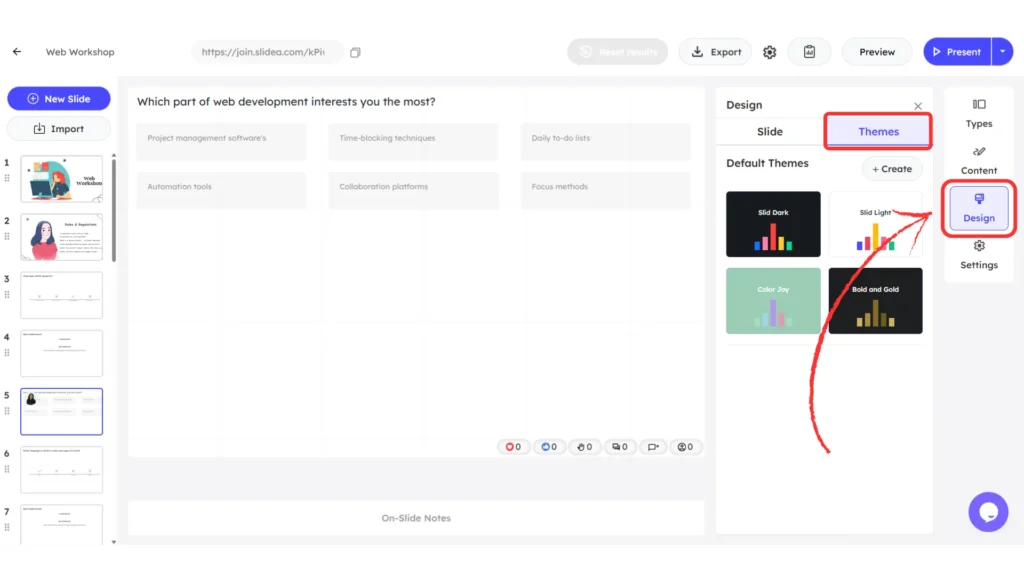
On the editor screen, click Design from the right-side panel and then open the Themes tab.
Using Default Themes
The Themes panel includes four ready-made themes:
- Slid Dark
- Slid Light
- Color Joy
- Bold and Gold
Selecting any default theme instantly applies its text styles, background color, and visualization colors across the presentation.
Creating a Custom Theme
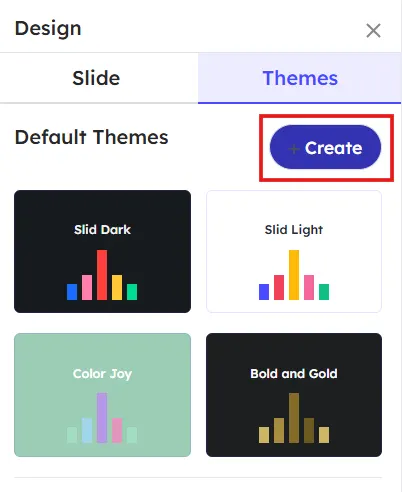
To create a new theme, in the Themes tab and click Create.
- Enter Theme Name
Start by providing a name for the theme. This helps identify it later in your theme list. - Customize Text Styles
Choose a font family and adjust font size, weight, underline, and color. Line color can also be customized for better contrast. - Set Background Appearance
Select a background color or upload a background image. Supported formats include PNG, GIF, JPG, and SVG. - Adjust Visualization Colors
Define the color palette used for charts and visual elements to keep data visuals consistent. - Add a Logo
Upload a logo image to display branding across slides. - Reset to Theme Defaults
At any point, settings can be reverted using the reset option to restore default theme values.
Changing An Applied Theme
When you select the default theme, a Change Theme confirmation pop-up appears. This message informs you that changing the theme will not affect slides that were manually customized, including quiz slides. Any slides with custom colors will retain their existing styles.
If you want those slides to follow the newly applied theme, you must manually reset their colors from the slide’s Customize tab by choosing Reset colors to theme defaults. Click Save to apply the selected theme or Cancel to keep the current theme unchanged.
Accessing Created Themes
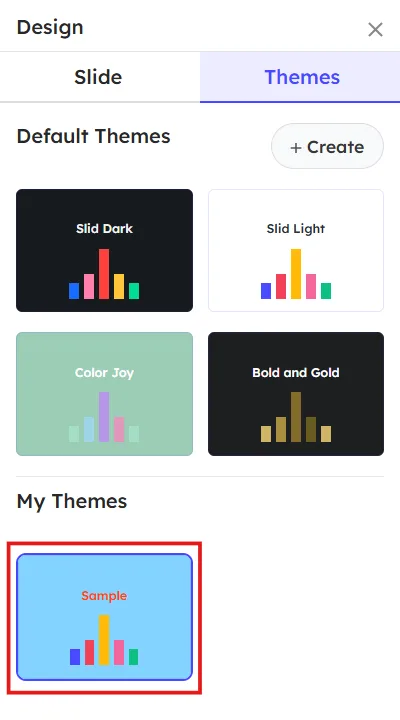
Once saved, custom themes appear under the My Themes section. These themes can be reused and applied to any presentation.
Use Cases of the Themes Feature
The Themes feature is useful when:
- A consistent design is needed across slides
- Brand colors, fonts, or logos must be applied
- Multiple presentations reuse the same visual style


Leave a Comment
Your email address will not be published. Required fields are marked *